# Database Sync and Merge

{% hint style="warning" %}
Database Sync requires the **plus** version of Sonoran CAD or higher.\
Database Merge requires the **pro** version of Sonoran CAD.

For more information, see our [pricing](https://docs.sonoransoftware.com/cad/pricing/faq) or view how to check your community [limits](https://docs.sonoransoftware.com/cad/tutorials/getting-started/view-your-limits).
{% endhint %}

{% hint style="success" %}
Looking for VPS, web, or dedicated hosting? Check out our official [server hosting](https://docs.sonoransoftware.com/cad/integration-plugins/broken-reference)!
{% endhint %}

<figure><img src="https://232668649-files.gitbook.io/~/files/v0/b/gitbook-x-prod.appspot.com/o/spaces%2F-M4pGN81fb4R6zFhodcu%2Fuploads%2F6E6ctdwxvOJUV9TcpSfl%2FDatabase%20Sync.png?alt=media&#x26;token=893de265-e28e-4e23-bd7b-7410e44be5b6" alt=""><figcaption></figcaption></figure>

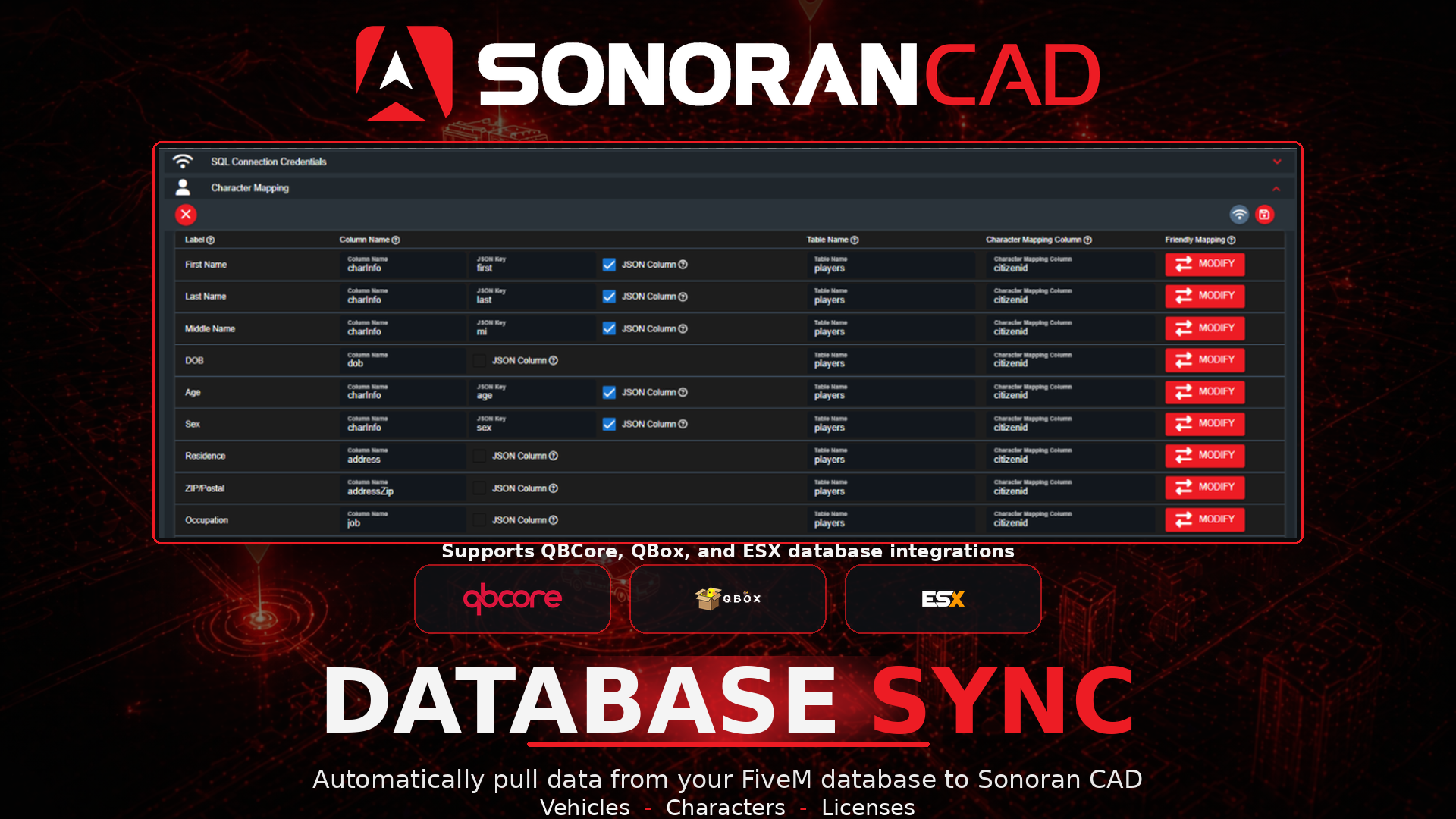
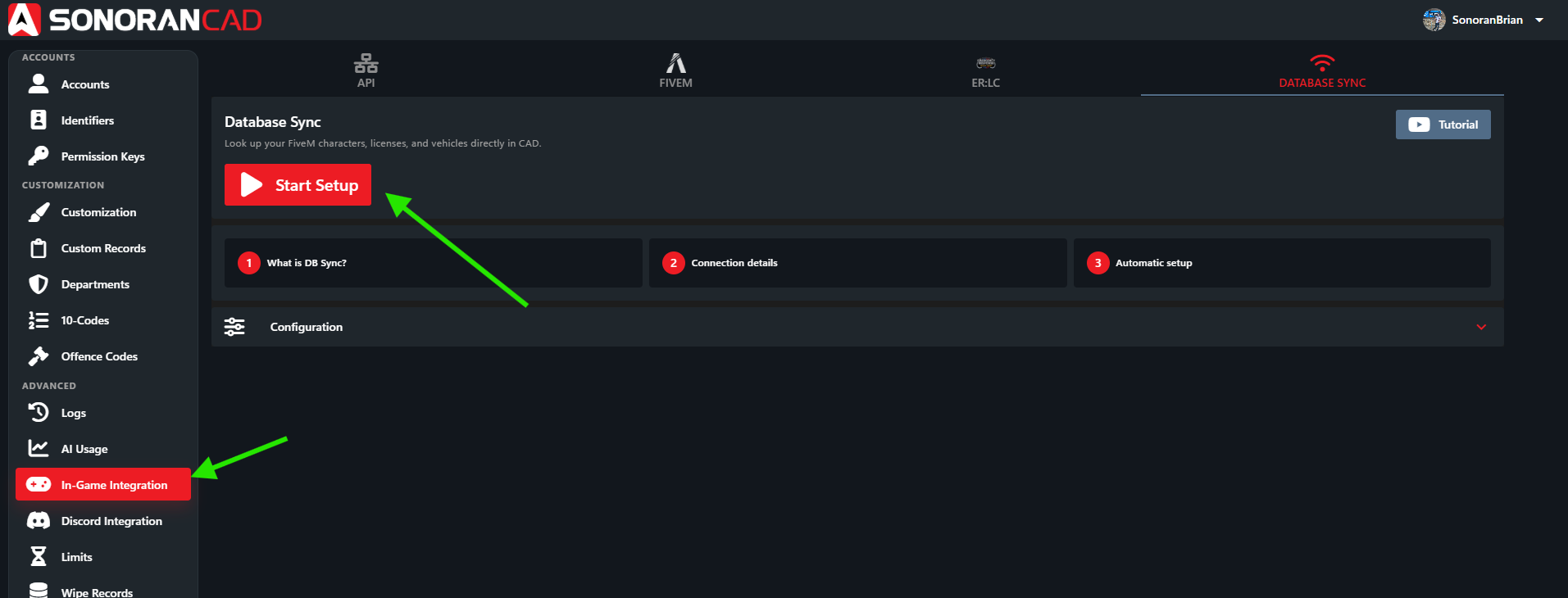
Database Sync is a highly advanced feature allowing you to automatically pull all character, license, and vehicle registration data from your own in-game database directly to Sonoran CAD.

This feature is specifically designed for frameworks like ESX and QBus/QBCore, but is compatible with any MySQL database.

## Video Configuration Tutorial

View our [video tutorial](https://youtu.be/UfMup7KkpEg) on enabling Database Sync.

## Written Configuration Guide

Configuring Sonoran CAD's Database Sync may seem complicated, but you are simply specifying your table names and column values where your in-game data is stored.

REQUIRED fields in the CAD are shown in red. All other fields are optional and are not required to work properly.

## Connection Credentials

In order for Sonoran CAD to connect to your SQL database, connection credentials must be configured properly.

### 1. Retrieve your SQL Connection Credentials

Sonoran CAD requires an **external** connection to your database.

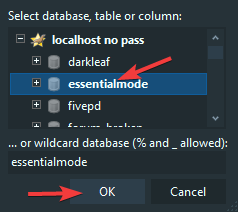
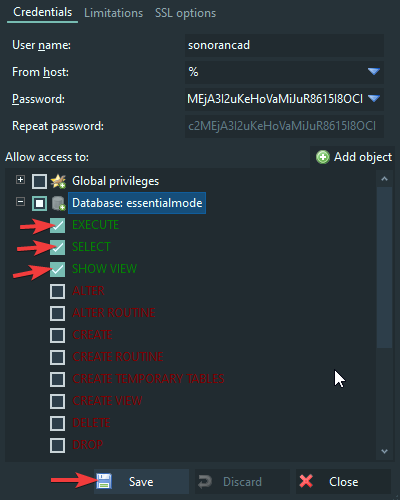
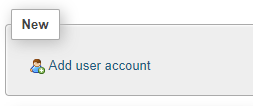
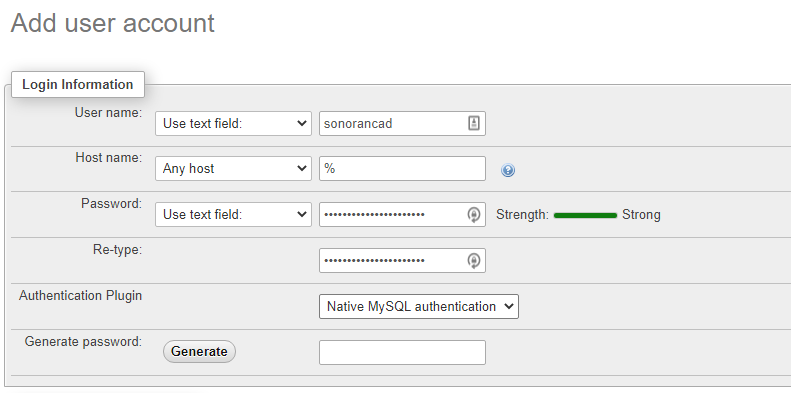
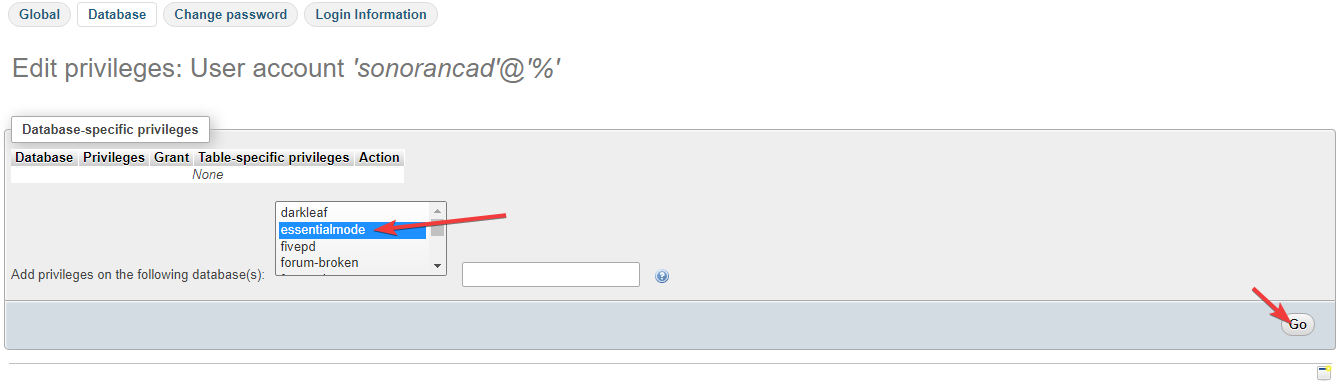
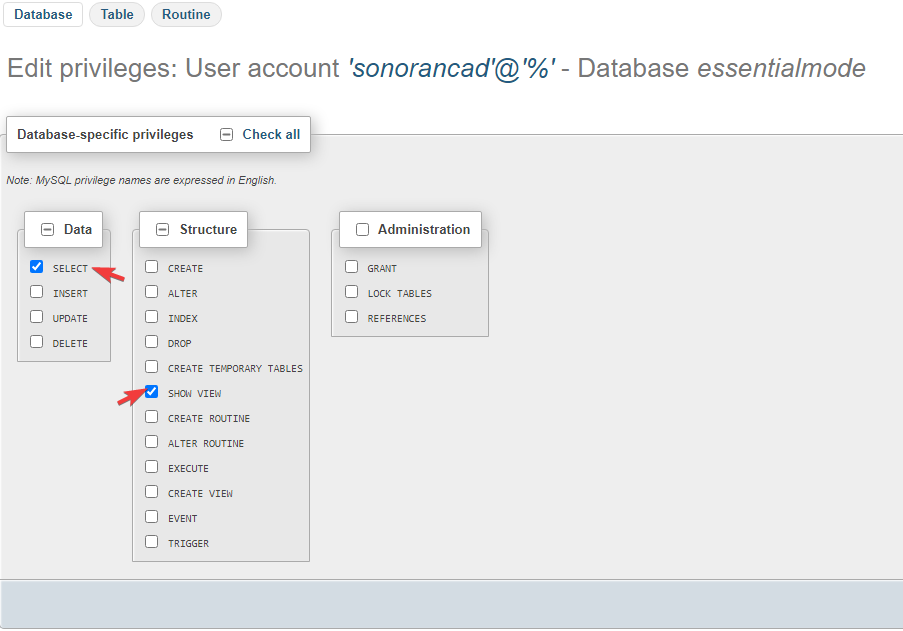
View our guide on creating a new read-only SQL user for external use.

{% content-ref url="database-sync-and-merge/database-sync-credentials" %}
[database-sync-credentials](https://docs.sonoransoftware.com/cad/integration-plugins/database-sync-and-merge/database-sync-credentials)
{% endcontent-ref %}

### 2. Enable Database Sync and Merge

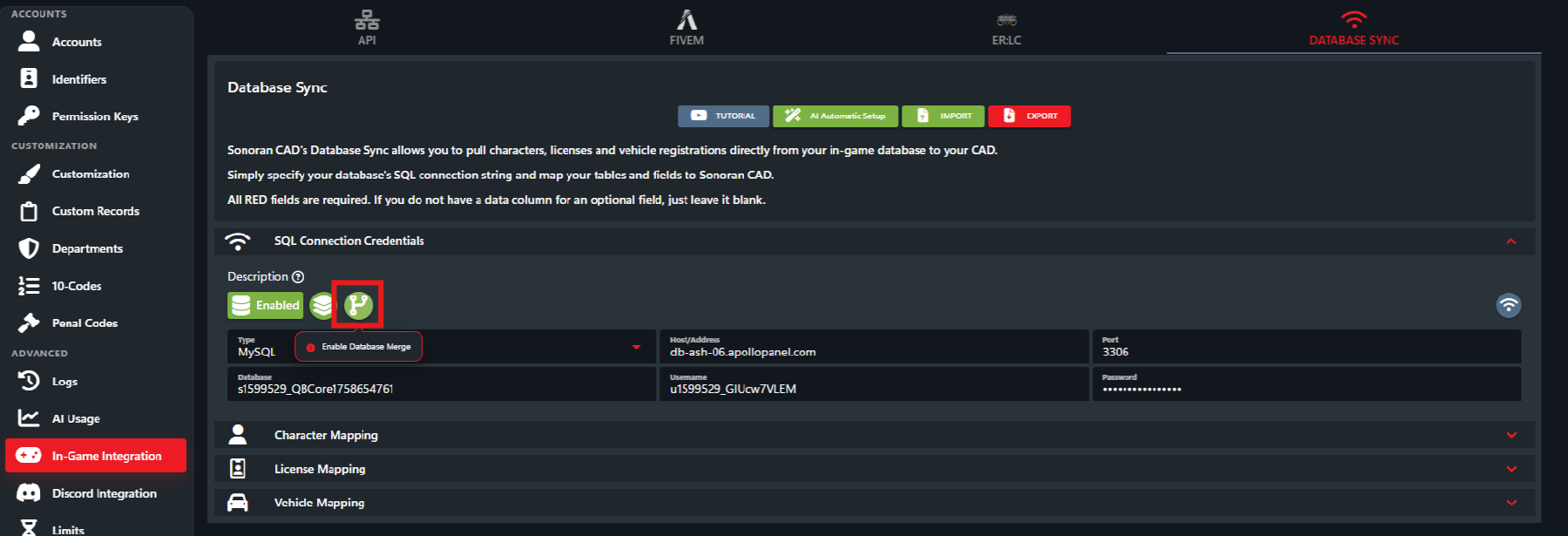
Expand the `SQL Connection Credentials` section of the configuration, and toggle on Database Sync and the optional Database Merge feature.

#### What is Database Merge?

Database Merge is an additional feature that allows you to save off additional, manually specified data in the CAD.

**Example:**

DB Merge pulls a character record into the CAD, but the `address` field in your custom record is blank (your DB doesn't have this info). DB merge allows you to manually edit the record pulled from your database and edit any blank field.

Next time you look up this character, it will pull the same character info from your database and then merge this with the manually specified data saved in Sonoran CAD.

### 3. Enter the required fields below.

![Sonoran CAD - DB Sync SQL Credentials](https://232668649-files.gitbook.io/~/files/v0/b/gitbook-legacy-files/o/assets%2F-M4pGN81fb4R6zFhodcu%2F-Mc3K5paupBtFTTQitSw%2F-Mc3L1L_2vIpZrpwQsV4%2Fimage.png?alt=media\&token=c3e0025c-3bd4-475b-8fdf-535f15027d41)

| Field        | Description                                                                                                                                                                                                                                                                                                                                                                                        |
| ------------ | -------------------------------------------------------------------------------------------------------------------------------------------------------------------------------------------------------------------------------------------------------------------------------------------------------------------------------------------------------------------------------------------------- |
| Type         | This is the type of SQL database your server is using (MySQL, PostgreSQL, etc.)                                                                                                                                                                                                                                                                                                                    |
| Host/Address | <p>This is the <strong>external</strong> IP address or domain address to your SQL database.<br></p><p><em>Note:</em> This IP will never be <code>localhost</code> or <code>127.0.0.1</code>. This must be the external IP or domain to reach your database. <a href="../api-integration/getting-started/retrieving-your-credentials">Learn more about creating an external SQL connection.</a></p> |
| Port         | This is the port your database is accessible from. Typically, the default port for MySQL is 3306.                                                                                                                                                                                                                                                                                                  |
| Database     | This is the database or schema name that contains your community’s character, license and vehicle registration tables.                                                                                                                                                                                                                                                                             |
| Username     | This is the SQL account username.                                                                                                                                                                                                                                                                                                                                                                  |
| Password     | This is the password for the SQL account.                                                                                                                                                                                                                                                                                                                                                          |

### 3. Test the Connection

Once the required SQL connection fields have been specified, select the “Test Connection” button.\
This will query your database for the version.\
\
If you see an alert similar to the following, your connection is successful:

![DB Sync - Connection Successful](https://232668649-files.gitbook.io/~/files/v0/b/gitbook-legacy-files/o/assets%2F-M4pGN81fb4R6zFhodcu%2F-Mc3K5paupBtFTTQitSw%2F-Mc3Lmug_gk7k7SioYXf%2Fimage.png?alt=media\&token=cd6ec782-4deb-44a5-a11c-0c9a14ed8bb2)

If you see an error message, it's likely you have not [properly setup your new SQL user's credentials](https://docs.sonoransoftware.com/cad/integration-plugins/database-sync-and-merge/database-sync-credentials) or opened the database port for external use.

## Character Mapping

{% hint style="warning" %}
Sonoran CAD requires character mapping to be properly configured for the additional license and vehicle registration mapping.
{% endhint %}

### 1. What is DB Sync Mapping?

The DB sync configuration is designed to show Sonoran CAD the specific tables and columns that data can be pulled from in your database.

### 2. Table Columns and Name

The `table name` field will contain the name of your database table containing character records.

The `column name` field will contain the name of the specific column in the character records table containing data for this row.

The `Character Mapping Column` contains a unique ID for the specific character. This unique identifier will also map records in your license and vehicle registration tables back to the character that owns them. Typically, this is a Steam ID or license ID.

Character records can also pull data from multiple different tables, such as a properties table to add address information. Just be sure that those additional tables have a proper `identifier` column to map back to the other characters table.

**Example:**

In our database, the `characters` table contains our character records. The `identifier` column contains the character's unique ID, the `firstname` column contains the characters first name, the `lastname` character contains the characters last name, etc.

![SQL Table Example](https://232668649-files.gitbook.io/~/files/v0/b/gitbook-legacy-files/o/assets%2F-M4pGN81fb4R6zFhodcu%2F-Mc3K5paupBtFTTQitSw%2F-Mc3NoAGDZZ7d9cbu10C%2Fimage.png?alt=media\&token=a10bdc21-73d6-4fb3-8e7a-a7fbf5b2c072)

![DB Sync Character Mapping Example](https://232668649-files.gitbook.io/~/files/v0/b/gitbook-legacy-files/o/assets%2F-M4pGN81fb4R6zFhodcu%2F-Mc3K5paupBtFTTQitSw%2F-Mc3OXs6u_uTfsQ1Hb8Z%2Fimage.png?alt=media\&token=a9b5e952-0f90-4015-be67-80ce2115398a)

### 3. Enable, Save and Test

Be sure that you have enabled character mapping via the toggle. Once your character mapping has been completed, hit the save button and then the test button. The test button will attempt to select a single random character with the mapping configuration specified.

If you see "Success!" move onto the next section.

## License and Vehicle Mapping

Licenses and Vehicle registrations can also be automatically pulled via CAD search with Database Sync.

### 1. Table Columns and Names

Similar to the character mapping, specify the table name containing your vehicle registrations or licenses. Unlike character mapping, data for these records can only be pulled from a single table.

The vehicle and license mapping will also need to have the `Character Mapping Column` specified. Again, this is the name of the column in your license/vehicle table containing a unique ID that maps back to the character that owns it.

**Example:**

In our database, the `owned_vehicles` table contains our stored vehicles. The `owner` column contains the character's unique ID that owns the vehicle, and the `plate` column contains the vehicle's license plate.

![SQL Vehicle Table Example](https://232668649-files.gitbook.io/~/files/v0/b/gitbook-legacy-files/o/assets%2F-M4pGN81fb4R6zFhodcu%2F-Mc3K5paupBtFTTQitSw%2F-Mc3QO3CLYcZ4D_3Htgx%2Fimage.png?alt=media\&token=46331a47-5be5-4b66-a8ad-7d70e9cb6f9d)

![DB Sync - Vehicle Mapping Example](https://232668649-files.gitbook.io/~/files/v0/b/gitbook-legacy-files/o/assets%2F-M4pGN81fb4R6zFhodcu%2F-Mc3K5paupBtFTTQitSw%2F-Mc3QhuXgi3RtQE64IIX%2Fimage.png?alt=media\&token=ef22beab-8dd1-4bff-b111-fe6d4f0e5234)

### 2. Enable, Save and Test

Be sure that you have enabled the license/vehicle mapping via the toggle. Once your mapping has been completed, hit the save button and then the test button. The test button will attempt to select a single random license or vehicle with the mapping configuration specified.

If you see "Success!" move onto the next section.

## JSON Columns

Many databases store data in a JSON formatted column. Sonoran CAD can also parse these columns for data.

<details>

<summary>JSON Columns (Objects)</summary>

The following is for JSON columns that contain one or more object(s). Objects are formatted using `{}` and are NOT enclosed by `[]`.

### 1. View the JSON Data

In our database, the `accounts` column stores JSON formatted data. For this example, we want to display the `bank` money in the custom character record.

![SQL - JSON Column Example](https://232668649-files.gitbook.io/~/files/v0/b/gitbook-legacy-files/o/assets%2F-M4pGN81fb4R6zFhodcu%2F-Mc3Qv2s1YmQBvzenOs5%2F-Mc3SJsmnjmcaXtvBx7e%2Fimage.png?alt=media\&token=ba21101d-7299-4ad5-ad90-6d98b181027d)

To more easily view the JSON data, we can copy it from the cell and paste it into a [JSON formatter](http://jsonviewer.stack.hu/).

![](https://232668649-files.gitbook.io/~/files/v0/b/gitbook-legacy-files/o/assets%2F-M4pGN81fb4R6zFhodcu%2F-Mc3Qv2s1YmQBvzenOs5%2F-Mc3SsrguC1yhixjQFBX%2Fimage.png?alt=media\&token=e6767fc1-d014-4b93-b824-279d1f71ab44)

We can see that the JSON "key" for the bank account amount is `bank`.

### 2. Nested JSON Values

Nested JSON values are also supported.\
Here, the `eye_color` is a JSON object, with the `item` property of `0`.

![Database - Nested JSON Value](https://232668649-files.gitbook.io/~/files/v0/b/gitbook-legacy-files/o/assets%2F-M4pGN81fb4R6zFhodcu%2F-MkxQM75tS8jXn-mrAH2%2F-MkxR4CcySFu23zrDg--%2Fimage.png?alt=media\&token=813816d0-5e58-44b0-9c8a-a8763a50b0cb)

In the DB Sync config, we list the JSON key as `eye_color.item`

![](https://232668649-files.gitbook.io/~/files/v0/b/gitbook-legacy-files/o/assets%2F-M4pGN81fb4R6zFhodcu%2F-MkxQM75tS8jXn-mrAH2%2F-MkxRJTS5wD0o3l7Fh2q%2Fimage.png?alt=media\&token=ab0ceaa0-f1d1-4b7a-8312-519720e3cf97)

Then, we can use [friendly mapping](#friendly-mapping) to convert the eye color `0` value to an actual color, like "brown".

</details>

<details>

<summary>JSON Columns (Array)</summary>

The following is for JSON columns that contain an array of objects. Arrays are enclosed by `[]` and contain one or more objects formatted by `{}`.

### 1. View the JSON Data

In our database, the `licenses` column stores JSON formatted data. This data is an array (list) `[]` of license objects `{}`.

To more easily view the JSON data, we can copy it from the cell and paste it into a [JSON formatter](http://jsonviewer.stack.hu/).

<figure><img src="https://232668649-files.gitbook.io/~/files/v0/b/gitbook-x-prod.appspot.com/o/spaces%2F-M4pGN81fb4R6zFhodcu%2Fuploads%2F5XYVs9wBTUEOZhcRvwwZ%2Fimage.png?alt=media&#x26;token=80990b90-558f-4846-b1b1-077de2e2d399" alt="" width="148"><figcaption></figcaption></figure>

For this example, we want to display the status (valid/invalid) of the license type `drivers`.

### 2. Configure the JSON Key

We want our `Driver's License Status` field in our custom record to reflect whether or not their license is valid. The `expireDate` JSON property displays `true` (expired) or `false` (valid).

For our JSON key, set it to the following:

`[?(@.license='drivers')].expireDate`

This tells DB sync to look in the array (list) `[]` for a license type of `drivers` and give us the `expireDate` value.

<figure><img src="https://232668649-files.gitbook.io/~/files/v0/b/gitbook-x-prod.appspot.com/o/spaces%2F-M4pGN81fb4R6zFhodcu%2Fuploads%2FDICcaH6AReKrMgYrY3ky%2Fimage.png?alt=media&#x26;token=d3c1f829-21b2-4338-a192-08c2ae68da49" alt=""><figcaption></figcaption></figure>

Then, we can use [friendly mapping](#friendly-mapping) to convert the `true` to `Expired` and `false` to `Valid`.

</details>

## External Keys

### Introduction

In some cases, your license or vehicle registration tables may not directly contain a `Character Mapping ID` column (a column with an ID that directly maps back to the character/civilian record), but may contain a unique ID that maps back to a specific character in another table.

### Example: DB Layout

In this example, the `vehicle` table contains all of the vehicle information, but does not contain a `CharacterID` column. Instead, the `vehicle` table contains a `VehicleRegistrationID` column.

The `VehicleRegistrationId` column then maps to the `vehicleregistration` table. The `vehicleregistration` table then contains a corresponding `CharacterId` column, which maps back to the `character` table.

![Sonoran CAD - External Key DB Layout](https://232668649-files.gitbook.io/~/files/v0/b/gitbook-legacy-files/o/assets%2F-M4pGN81fb4R6zFhodcu%2F-Mix-lvNP9JBl9Dm99n6%2F-Mix0ZHulFOaSRygZyAq%2Fimage.png?alt=media\&token=f2f42937-7a35-4628-8c13-f641afa7af76)

### Example: CAD Config

In the CAD, the configuration is simple.

Toggle on the `External Key` checkbox, as the `vehicle` table's `VehicleId` needs to be mapped to an external table to be turned into the proper `characterId`.

Specify the external key's table (`vehicleregistration`) and the external key's column `CharacterId`.

![Sonoran CAD - External Key](https://232668649-files.gitbook.io/~/files/v0/b/gitbook-legacy-files/o/assets%2F-M4pGN81fb4R6zFhodcu%2F-Mix-lvNP9JBl9Dm99n6%2F-Mix1BnL0fbwwoVkxKh8%2Fimage.png?alt=media\&token=b32c7929-a741-4496-94a2-9727c96bfa4c)

### 2. Set the JSON Column and Key

Back in the mapping panel, we toggle the field as a `JSON Column` and set the column name to `accounts` as this is the column in our character table that contains the JSON data.

We can then set the JSON Key for this data as `bank`.

![DB Sync - JSON Column](https://232668649-files.gitbook.io/~/files/v0/b/gitbook-legacy-files/o/assets%2F-M4pGN81fb4R6zFhodcu%2F-Mc3Qv2s1YmQBvzenOs5%2F-Mc3TbvPyg5p0uI3THEN%2Fimage.png?alt=media\&token=f3d97ba6-04bc-4218-8ccc-bf91ac23a6cd)

## Friendly Mapping

{% hint style="warning" %}
Friendly Mapping requires the **pro** version of Sonoran CAD.

For more information, see our [pricing](https://docs.sonoransoftware.com/cad/pricing/faq) or view how to check your community [limits](https://docs.sonoransoftware.com/cad/tutorials/getting-started/view-your-limits).
{% endhint %}

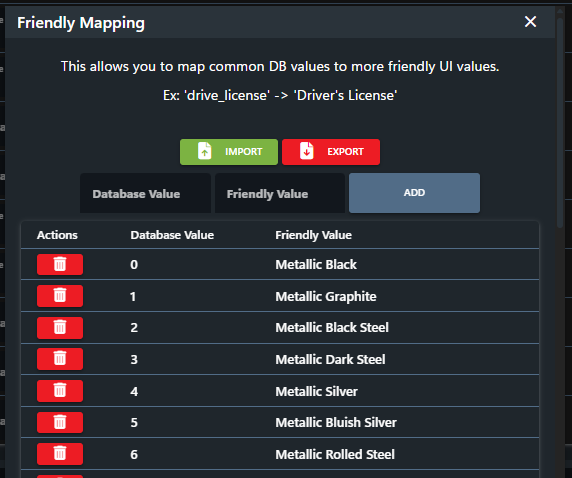
Friendly mapping allows you to convert any raw database value to a more user friendly value.\
Ex: `drive_license` in your database is converted to `Driver's License`.

### 1. Find Values to "Friendly Map"

{% hint style="warning" %}
MySQL `tinyint` column types may be displayed as numerical values `0` and `1` but be read as `True` and `False` by Sonoran CAD.\
\
Instead of mapping the "Database Vaue" as `0` or `1` you will need to map `False` and `True`.
{% endhint %}

In our SQL table, we can see the character's job columns has text values that can be improved. The `taxi` job value can be automatically converted to `Taxi Driver` in DB Sync records, and the `cardealer` jon can be automatically converted to `Car Dealer`.

![SQL Table - Unfriendly Values](https://232668649-files.gitbook.io/~/files/v0/b/gitbook-legacy-files/o/assets%2F-M4pGN81fb4R6zFhodcu%2F-Mc3Qv2s1YmQBvzenOs5%2F-Mc3UFuczJxGLlMpVYFc%2Fimage.png?alt=media\&token=e2eaecaa-8003-4101-bb8b-4e246d4ec5fe)

### 2. Configure the Friendly Mapping

In our character table mapping, we can select `Modify` on the `job` field's friendly mapping.

![DB Sync - Modify Friendly Mapping](https://232668649-files.gitbook.io/~/files/v0/b/gitbook-legacy-files/o/assets%2F-M4pGN81fb4R6zFhodcu%2F-Mc3Qv2s1YmQBvzenOs5%2F-Mc3V4zK3_6QmqyKfLUd%2Fimage.png?alt=media\&token=1797913b-786d-43cb-88a7-80c69a5024ed)

In the editor, we can now map the raw database value of `taxi` to a friendly value of `Taxi Driver` and the raw db value of `cardealer` to `Car Dealer`.

Be sure to hit save in the friendly mapping editor, and then save the configuration for your mapping section.

These new friendly mapped values will even work with [custom search types](https://docs.sonoransoftware.com/cad/tutorials/customization/custom-search-types)!

![Friendly Mapping Editor](https://232668649-files.gitbook.io/~/files/v0/b/gitbook-legacy-files/o/assets%2F-M4pGN81fb4R6zFhodcu%2F-Mc3Qv2s1YmQBvzenOs5%2F-Mc3VFpH3_291zGCd5e2%2Fimage.png?alt=media\&token=69613431-7d2d-4fa2-9b78-1cb7801181eb)

### Import via CSV

#### 1. Copy the Google Sheet

Navigate to our [official friendly mapping Google Sheet](https://docs.google.com/spreadsheets/u/1/d/1Q83yqdH-YGlAv9zW-hJ1dA5k5hYPQDLfeXby0BXB6-k/copy) and make a copy. Using a copy of our official sheet ensures your friendly mapping is formatted correctly.

**You may ONLY use the Google sheet directly. Editing this via Excel or any other program is NOT supported.**

![Sonoran CAD - Copy Friendly Mapping CSV](https://232668649-files.gitbook.io/~/files/v0/b/gitbook-legacy-files/o/assets%2F-M4pGN81fb4R6zFhodcu%2F-MkxZtfY9GzU6j2tgoCk%2F-MkxaLi-DuJX9PkHNaXN%2Fimage.png?alt=media\&token=bfad1a68-958d-4157-ba1f-f919ee19f75b)

**2. Add your Friendly Mappings**

Be sure to leave the top header line as it is. Below the header, add in your friendly mapping keys and values.

![Sonoran CAD - Edit Friendly Mapping CSV](https://232668649-files.gitbook.io/~/files/v0/b/gitbook-legacy-files/o/assets%2F-M4pGN81fb4R6zFhodcu%2F-MkxZtfY9GzU6j2tgoCk%2F-MkxaedQV5FL_zGqMFUc%2Fimage.png?alt=media\&token=c02d83a7-d716-49b5-b058-0f4cf10a5969)

#### 3. Download the CSV

In Google Sheets, navigate to File > Download > Comma Separated Values (.csv) to download the file.

![Sonoran CAD - Download Friendly Mapping CSV](https://232668649-files.gitbook.io/~/files/v0/b/gitbook-legacy-files/o/assets%2F-M4pGN81fb4R6zFhodcu%2F-MkxZtfY9GzU6j2tgoCk%2F-Mkxatf15jvh_roRK97m%2Fimage.png?alt=media\&token=8913ea21-3a35-4634-880c-5c093d7e8a87)

#### 4. Import the CSV File

In the friendly mapping editor select `Import` > `CSV` > Select your downloaded Google spreadsheet

Then, save the mapping and save the database sync config.

![](https://232668649-files.gitbook.io/~/files/v0/b/gitbook-legacy-files/o/assets%2F-M4pGN81fb4R6zFhodcu%2F-MkxZtfY9GzU6j2tgoCk%2F-Mkxb8jMmuMejBgsqnag%2Fimage.png?alt=media\&token=12ebe40f-9a00-40e2-aa10-d9fbde51e197)

### Import from JSON

You can also build and format your friendly mapping from raw JSON and paste them directly into the UI.

#### 1. Format the JSON Structure

The JSON structure is an object array. Be sure to strictly follow the format.

```javascript
[
  {
    "dbValue": "0",
    "friendlyValue": "Brown"
  },
  {
    "dbValue": "1",
    "friendlyValue": "Green"
  },
  {
    "dbValue": "2",
    "friendlyValue": "Blue"
  }
]
```

#### 2. Import the JSON Structure

In the friendly mapping editor select `Import` > `JSON` > Paste your JSON formatted structure

![Friendly Mapping - Import via JSON](https://232668649-files.gitbook.io/~/files/v0/b/gitbook-legacy-files/o/assets%2F-M4pGN81fb4R6zFhodcu%2F-MkxZtfY9GzU6j2tgoCk%2F-Mkx_WzECvvlc4S-HZta%2Fimage.png?alt=media\&token=ce9dd3dc-80dc-4c7b-8abc-cdb490448fb8)

## Custom Record Fields

Sonoran CAD's records are entirely customizable, this includes database sync records! You can easily enable database sync mapping for any custom field you add to a character, license, or vehicle registration record.

### 1. Edit your Custom Record

Navigate to Admin > Customization > Custom Records

Select your custom character, license, or vehicle registration record to open the editor.

Simply add a field if the desired field doesn't already exist and note the `Label` name for the next step. For this example, we'll enable database sync for a new `job` field in our character's table.

Be sure to save your custom record format after enabling this!

<figure><img src="https://232668649-files.gitbook.io/~/files/v0/b/gitbook-x-prod.appspot.com/o/spaces%2F-M4pGN81fb4R6zFhodcu%2Fuploads%2FoJc12zMzMh5DUWvX9jsz%2Fimage.png?alt=media&#x26;token=745362ff-18c0-4397-b0af-a1b253bda838" alt=""><figcaption><p>Custom Records - DB Sync Mapping Toggle</p></figcaption></figure>

### 2. Configure the Newly Mapped Field

Back in our database sync editor, we can now see the new `Job` field has been added. We can map this new field to our database as any other field.

![Database Sync - Custom Field Mapping](https://232668649-files.gitbook.io/~/files/v0/b/gitbook-legacy-files/o/assets%2F-M4pGN81fb4R6zFhodcu%2F-Mc3VbyJls1uX4KqDeuq%2F-Mc3XFlF_43n1A7FMr62%2Fimage.png?alt=media\&token=9c737afb-a29b-4f20-9c95-9a547b20d98d)