> For the complete documentation index, see [llms.txt](https://docs.sonoransoftware.com/llms.txt). Markdown versions of documentation pages are available by appending `.md` to page URLs; this page is available as [Markdown](https://docs.sonoransoftware.com/cad/integration-plugins/in-game-integration/available-plugins/civilian-registration.md).
# Civilian Registration (CivReg)
Register characters in-game or sync character portrait images to Database Sync.
Civilian Registration makes character creation from in-game simple.
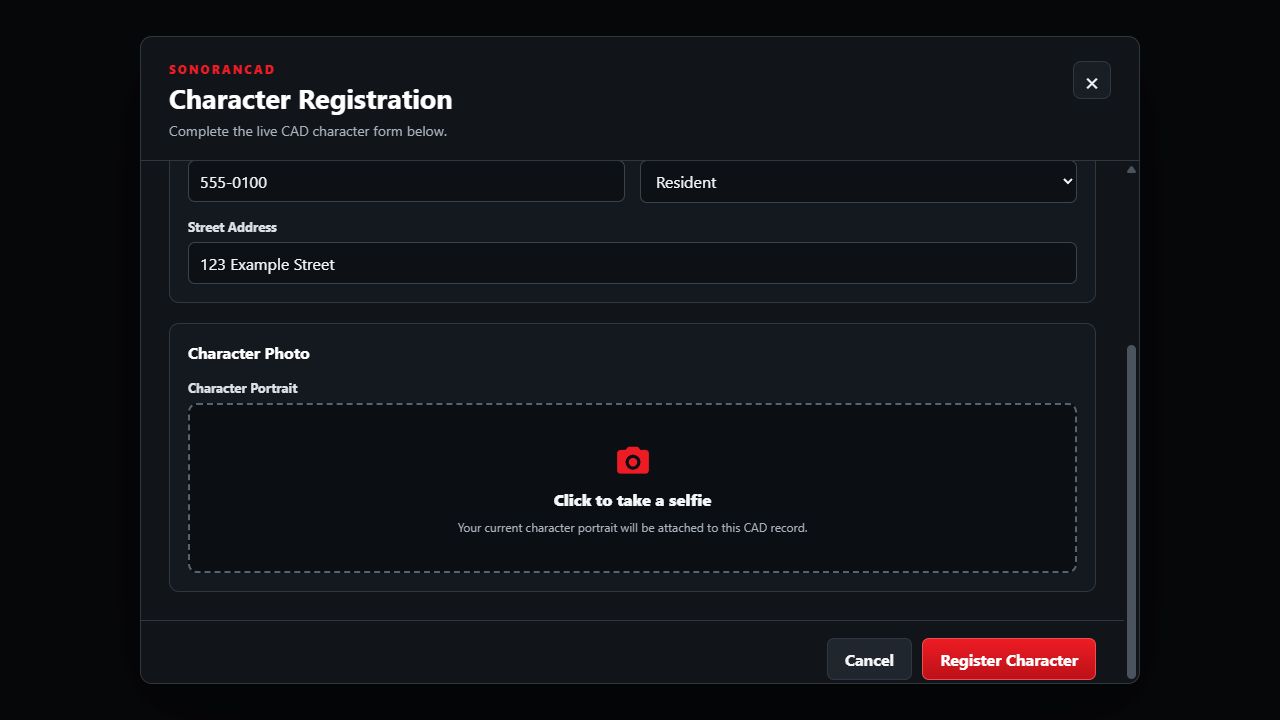
For **standalone (menu) based servers**, a registration window with your custom character record form is shown with a single button to generate a character selfie.
For **framework servers** with [DB sync](/cad/integration-plugins/database-sync-and-merge.md), this submodule syncs in-game selfies/mugshots to the existing *automatic* character records.
## Activation Guide
### 1. Download and Install the Resource
{% hint style="info" %}
This submodule is already **enabled by default** when installing the [Sonoran CAD FiveM resource](/cad/integration-plugins/in-game-integration/fivem-installation.md).
{% endhint %}
### 2. Configure the Submodule
Open `sonorancad/configuration/civreg_config.lua`. Keep `enabled = true` and `templateId = 7` for civilian character registration.
### 3. Optional: Configure Database Sync Mode
If both **Database Sync** and its **Character** mapping are enabled in CAD, CivReg uses database mode automatically.
Run the [database sync AI configuration tool](/cad/integration-plugins/database-sync-and-merge.md#automatic-ai-setup) ***after*** starting the civilian registration submodule. This will automatically map any `image` field in your character record to the newly generated `sonoran_mugshot` database column.
Advanced: SQL Information
On every start in database mode, CivReg runs `ADD COLUMN IF NOT EXISTS` to add a nullable `sonoran_mugshot MEDIUMTEXT` column. `MEDIUMTEXT` is required because a base64 portrait can exceed the 65,535-byte capacity of MySQL `TEXT`.
The standard database targets are:
| Framework | Character table | Character ID column | Portrait column |
| --------- | --------------- | ------------------- | ----------------- |
| QBCore | `players` | `citizenid` | `sonoran_mugshot` |
| ESX | `users` | `identifier` | `sonoran_mugshot` |
{% hint style="warning" %}
In database mode, CivReg does not create a second character through the CAD API. If the database migration cannot run, portrait updates stop and the server reports `ERR-CR-106`.
{% endhint %}
If your framework uses a customized table or character ID column, update `databaseSync.qbCore` or `databaseSync.esx` in `civreg_config.lua`. Keep the portrait column named `sonoran_mugshot`, then use that column in the CAD field mapping.
### 4. (Optional) Customize Your Character Template
In CAD, open **Admin > Customization > Custom Records** and review the civilian character template. See [Creating Custom Record and Report Types](/cad/tutorials/customization/creating-custom-record-and-report-types.md) for editing fields and sections. Add an editable **Image** field if players should attach a selfie, and make that field required if a portrait is mandatory.
In your database sync mapping configuration, the image field must be mapped to the `sonoran_mugshot` column that the CivReg plugin will automatically add to your players table. The [database sync AI configuration tool](/cad/integration-plugins/database-sync-and-merge.md#automatic-ai-setup) will set this up for you automatically.
In standalone mode, templates are cached for **60 seconds** by default. After saving a template change, allow the cache to expire, then close and reopen `/civreg` to load the updated form. An already-open form does not refresh automatically.
### 5. (Optional) Configure Optional Autofill and Portrait Uploads
For identity autofill, follow [Framework Autofill](#framework-autofill). For templates with image fields, review [Portrait Uploads](#portrait-uploads) and the image size limit.
## Player Guide
### Standalone Mode
Register a Character in Standalone Mode
1. Run `/civreg`, or your server's configured registration command.
2. Fill out the character record form. Click on any **image** fields to take an automatic selfie.
3. Select **Register Character** to create the record. Users can optionally [use `/link` in-game](/cad/integration-plugins/in-game-integration/link-user-in-game.md) to assign the character to their CAD account in the civilian panel.
Take a Character Selfie
In standalone mode, click any **image** field to take a selfie.
Scroll to an image field and select Click to take a selfie to capture your current in-game character.
Framework Autofill
Autofill is optional. Players can complete the registration form without a framework. To prefill supported identity values:
1. Configure and enable [Framework Support (ESX/QBCore)](/cad/integration-plugins/in-game-integration/available-plugins/framework-support-esx-qbcore-and-auto-fines.md).
2. Start the supported framework before Sonoran CAD and set `usingQBCore` appropriately in `frameworksupport_config.lua`.
3. Match `autofillFieldIds` in `civreg_config.lua` to your character template's **Field Mapping ID** values.
4. Restart Sonoran CAD and open a new registration form while playing a loaded framework character.
The left-hand keys describe the identity values supplied by the framework. The right-hand strings identify the destination fields in CAD:
```lua
autofillFieldIds = {
first = "first",
last = "last",
dob = "dob",
sex = "sex",
height = "height",
phone = "phone",
nationality = "nationality"
},
```
For example, if your first-name field has the custom Field Mapping ID `givenName`, change only that entry to `first = "givenName"`. These mappings control autofill; they do not create or rename template fields.
| Identity value | Default destination | Notes |
| -------------- | ------------------- | ----------------------------------------------------------------------------------------------------------------------- |
| First name | `first` | Available framework first name. |
| Last name | `last` | Available framework last name. |
| Date of birth | `dob` | Dates supplied as `YYYY-MM-DD` or `YYYY/MM/DD` are converted when the CAD field uses `MM/DD/YYYY`. |
| Sex | `sex` | Values `0`, `m`, or `male` become `M`; `1`, `f`, or `female` become `F`. Match your template's choices to those values. |
| Height | `height` | Copied as supplied; the submodule does not convert height units. |
| Phone number | `phone` | Filled when the framework supplies a supported phone value. |
| Nationality | `nationality` | Filled when available from the framework. |
Only values supplied by the framework and mapped to an existing template field are prefilled. Missing values leave the template's default or an empty field for the player to complete. Prefilled fields remain editable unless marked read-only in CAD. These autofill settings apply to the API-mode form. Database mode updates only the `sonoran_mugshot` column; your existing CAD DB Sync mappings supply the remaining character fields.
### Database Sync Mode
Update a Character Portrait in Database Sync Mode
If your community has database sync enabled for civilian records, the CivReg submodule will automatically switch into database sync mode on startup.
To update a character's portrait photo in DB sync mode, simply load the character in QBCore/ESX/etc.
CivReg also automatically updates character mugshots when a character is selected in the civilian page. (`EVENT_CHAR_SELECTED`)
## Configuration Reference
Configuration Reference
Edit `sonorancad/configuration/civreg_config.lua` and restart the resource after changes.
| Option | Default | Description |
| --------------------------------------- | --------------------- | -------------------------------------------------------------------------------------------------------------------------------------------------- |
| `enabled` | `true` | Enables civilian registration. |
| `commandName` | `"civreg"` | Chat command without the leading `/`. Changing it changes the command players use. |
| `templateId` | `7` | CAD character template ID. Keep `7` for civilian registration; selecting a different record type changes what is submitted to CAD. |
| `templateCacheSeconds` | `60` | Shared template cache duration in seconds. `0` disables caching; frequent requests can hit the CAD template endpoint's rate limit. |
| `maxSelfieBytes` | `1024 * 1024` | Maximum decoded size of each base64 portrait upload: 1 MiB by default. |
| `databaseSync.qbCore.tableName` | `"players"` | QBCore character table updated in database mode. |
| `databaseSync.qbCore.characterIdColumn` | `"citizenid"` | QBCore column matched to the DB Sync character ID. |
| `databaseSync.esx.tableName` | `"users"` | ESX character table updated in database mode. |
| `databaseSync.esx.characterIdColumn` | `"identifier"` | ESX column matched to the DB Sync character ID. |
| `autofillFieldIds` | Mapping shown above | Maps supported framework identity values to CAD Field Mapping IDs. |
| `notificationOverride` | `"none"` | Uses the global notification choice when `none`. Supported overrides listed in the configuration are `ox_lib`, `lation_ui`, `pnotify`, and `chat`. |
| `language` | English strings below | Customizes command help, form labels, and the success notification. |
## Troubleshooting
Troubleshooting
| Problem | What to check |
| -------------------------------------------------------- | ------------------------------------------------------------------------------------------------------------------------------------------------------------------------------------------------------------ |
| The command is unavailable | Confirm `civreg` is installed, the active configuration is named `civreg_config.lua`, `enabled` is `true`, and you are using the configured `commandName`. Restart the resource after configuration changes. |
| `/civreg` does not open the form | When CAD character database sync is enabled, this is expected. The command captures the active framework character and shows a success notification after updating its portrait. |
| Database mode reports `ERR-CR-106` | Start QBCore or ESX and `oxmysql` or `mysql-async` before `sonorancad`. Confirm the configured character table and ID column exist, and allow the database user to alter and update that table. |
| The portrait column exists but CAD shows no image | In the CAD character DB Sync mapping, map `sonoran_mugshot` to an **Image** field. Confirm the character ID mapping matches `citizenid` or `identifier`, then select the character again. |
| Selecting a CAD character does not refresh its portrait | Confirm the player is online and linked to that CAD account, the selected record is a DB Sync character, and CAD push events can reach the server. |
| The player is asked to link CAD | Complete [Link User In-Game](/cad/integration-plugins/in-game-integration/link-user-in-game.md) with the intended CAD account, then retry. |
| Repeated commands do nothing | Requests have a three-second cooldown. In API mode, a form already open will not reopen; close the current form and wait before retrying. |
| Template changes are missing | Save the template in CAD, wait for `templateCacheSeconds` to pass, then reopen the form. |
| Autofill is missing or incorrect | Check that Framework Support is enabled, the framework character is loaded, and each destination Field Mapping ID exists. Review date formats, sex choices, and height units. |
| A field or section is missing | Review its dependency rules and whether the field is supervisor-only. |
| A field cannot be edited | Check read-only settings and whether the field is an automatically managed field such as a random value or ID. |
| Selfie capture fails | Retry with the intended character fully loaded. If it persists, check client errors and that the Sonoran CAD UI files are up to date. |
| A portrait is rejected as invalid or too large | Retake it and review the displayed error. Check `maxSelfieBytes` for the decoded size limit. |
| A portrait is missing from an older URL-based CAD record | Open its saved URL externally. Check the original public route and that the file still exists in `filestore/civreg`. See [Updating from URL-Based Portraits](#updating-from-url-based-portraits). |
---
# Agent Instructions
This documentation is published with GitBook. GitBook is the documentation platform designed so that both humans and AI agents can read, navigate, and reason over technical content effectively. Learn more at gitbook.com.
## Querying This Documentation
If you need additional information that is not directly available in this page, you can query the documentation dynamically by asking a question.
Perform an HTTP GET request on the current page URL with the `ask` query parameter, and the optional `goal` query parameter:
```
GET https://docs.sonoransoftware.com/cad/integration-plugins/in-game-integration/available-plugins/civilian-registration.md?ask=&goal=
```
`ask` is the immediate question: it should be specific, self-contained, and written in natural language.
`goal` is optional and describes the broader end goal you are ultimately trying to accomplish on behalf of the user. GitBook uses it to tailor the answer towards what is most useful for that goal.
The response will contain a direct answer to the question and relevant excerpts and sources from the documentation.
Use this mechanism when the answer is not explicitly present in the current page, you need clarification or additional context, or you want to retrieve related documentation sections.