

A. One-Click Installation (RocketNode)
We’ve partnered with Rocket Node to bring you one-click Sonoran CAD installation for FiveM — making it easier than ever to host your community and connect with Sonoran CAD.- Purchase your FiveM Game Server!
- Use code
SONORANto save big!
The Sonoran CAD FiveM resources has multiple “submodules” for every integration feature. These are easily enabled and configured in the
/configuration folder.
submodule-configuration
B. Pre-Configured Resource Installation
- Download the ZIP
Download a pre-configured version of the in-game integration resource from the panel. This download will already have your community ID and API Key in the config.lua file in addition to file renaming done for you.
Navigate to Admin -> Advanced -> In-Game Integration -> FiveM
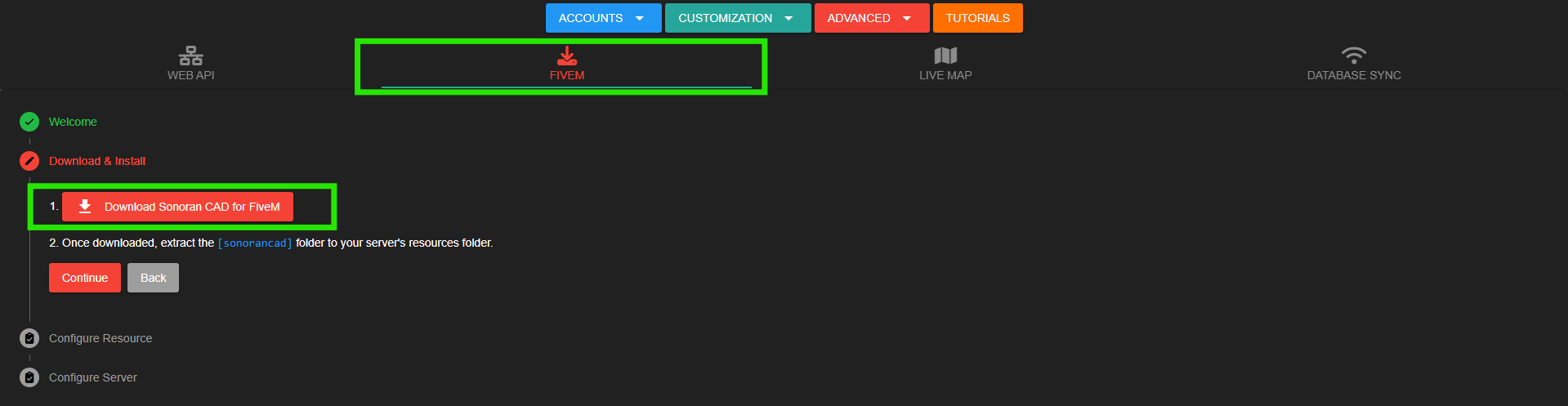 Sonoran CAD: FiveM Resource Download
- Extract the ZIP File
Extract the .zip file into your resources directory. Place the [sonorancad] folder directly in the resources root directory.
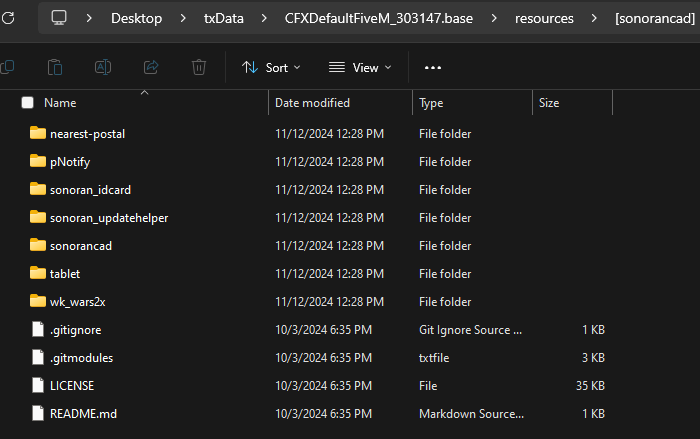 Sonoran CAD - Folder Structure
- Update Your Server Config
In your server.cfg file, simply add the following line:
This is the 🌟only🌟 line that you need to add to your server.cfg file. Do not ensure any other part of the resource.
Advanced - Remove Tablet, pNotify, etc.
Advanced - Remove Tablet, pNotify, etc.
Adding the
exec @sonorancad/sonorancad.cfg starts multiple resources bundled with the download. If you wish to not use one or more of the resources (or with a different name) you will need to:- Copy/paste the contents of
sonorancad.cfgto yourserver.cfg - Remove the
exec @sonorancad/sonorancad.cfgline from yourserver.cfg
sonorancad.cfg as it will be overwritten on resource updates.
- Configure the Resource
Modify the /configuration/config.jsonfile for any additional configuration values.
This is also where the global FiveM notification backend is configured. Set notificationSystem to one of:
autoox_liblation_uipnotifychat
notificationSystem is auto, Sonoran CAD selects the first available system in this order:
ox_liblation_uipnotifychat
- Configure the Submodules
The Sonoran CAD FiveM resources has multiple “submodules” for every integration feature. These are easily enabled and configured in the /configuration folder.
available-plugins
- Configure the Auto-Updater
The Sonoran CAD FiveM resource contains an auto-updater that will override all non-configuration files when a new version of Sonoran CAD is released.
Whitelist Specific Files
Some communities have custom files inside the[sonorancad] folder they don’t wish to have overwritten, like custom plate reader images.
Simply add the direct path to the directory or individual files to the sonorancad/configuration/updaterIgnore.json file.
Disable Automatic Updates
To disable this auto-update entirely setallowAutoUpdate to false in the config.json.
Additional Configuration
Convar Overrides
Convar Overrides
Convar Overrides
Starting with framework version 2.6.2, you can override any configuration option in your
config.json file by specifying a convar before the sonorancad resource starts.Manual IP:Port Push Events
Manual IP:Port Push Events
Manual IP:Port Push Events
The FiveM resource uses a websocket to stream all events from the CAD to your local FiveM server. In the event that this websocket is not connected (games outside of FiveM) it will fall back to an optional
Expand the “Server Events and Integrated Live Map” section.Enter your server’s public IP address and your game server’s port. By default, this is port
http://ip:port/sonorancad/event POST method.In the CAD admin panel, navigate to: Advanced > In-Game IntegrationExpand the “Server Events and Integrated Live Map” section.Enter your server’s public IP address and your game server’s port. By default, this is port
30120.Forward Push Events to an External ServerYou may wish to also send push events to another external web server, like a Discord bot.In the framework configuration file, simply set enablePushEventForwarding to true and pushEventForwardUrl to your web server address.Steam API Key
Steam API Key
Steam API Key
If your framework has the
primaryIdentifier set to steam in the configuration (used for your API ID type), you’ll need to ensure a Steam API key is set in your server.cfg file.You can register a new Steam API Key at http://steamcommunity.com/dev/apikeyThen, paste it into your server.cfgUpdates
Sonoran CAD’s integration framework and submodules will automatically update with the latest features, fixes, and changes! Or, runsonorancad update to instantly check and apply any updates for the framework core.
Commands
The Sonoran CAD integration framework comes with several commands. These commands can be run in your server console to provide information, update submodules , and more.
For ERS issues, start with the ERS troubleshooting guide. Support reports include ERS status and failure details automatically.
Troubleshooting
troubleshooting
Server Crashes
1. Check to make suresonoran_updatehelper or [sonorancad] is not being started in your server.cfg.
We have gotten isolated reports of servers crashing with the following error, this is assumed to be related to having lower end VPS hardware specs and txadmin rebooting the server because the update process is taking too long.
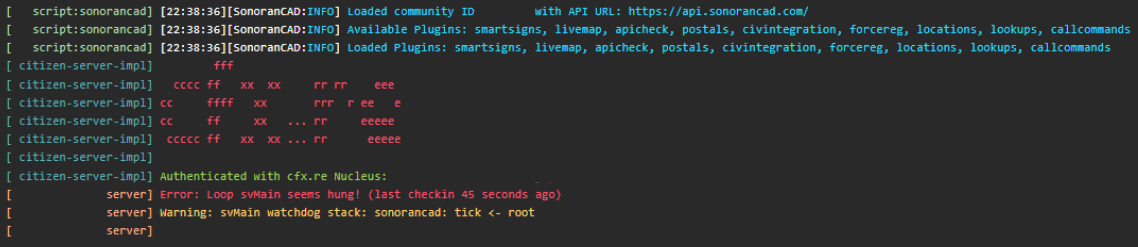
Warning: Could not find file X
1.) Check that the file in question is actually present in the specified file path. To find the correct path please read the example below:sonorancad resource, open the html folder and ensure the file config.js is present.
This is simply a WARNING, if the resource works AS EXPECTED, you can simply ignore the warning and continue