

What is Rapid IQ?
Rapid IQ (Rapid Intake Questionnaire) is an emergency call intake system that helps dispatchers ask the right questions during medical calls designed after standardized MPDS systems. It guides dispatchers step-by-step through a structured flow based on the caller’s answers, making sure important details aren’t missed. Rapid IQ combines these responses into the dispatch call description, giving the best possible information to responding units.Using Rapid IQ
Opening Rapid IQ
Via Call Editor
Via Call Editor
Select the Rapid IQ button at the top of the call editor to open the window.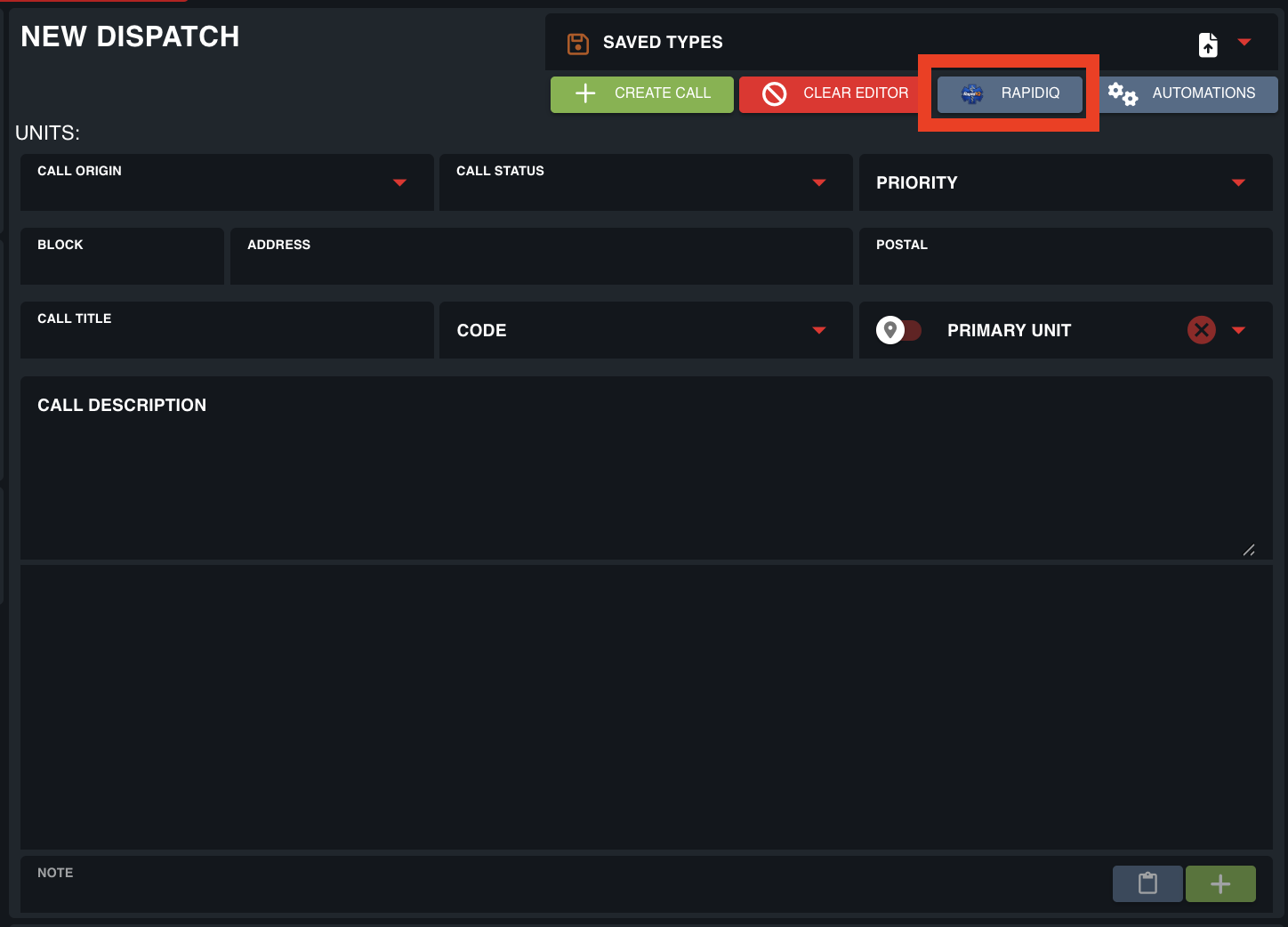
Via Taskbar
Via Taskbar
In the taskbar, use the search box or navigate to Dispatch > Rapid IQ to open the window.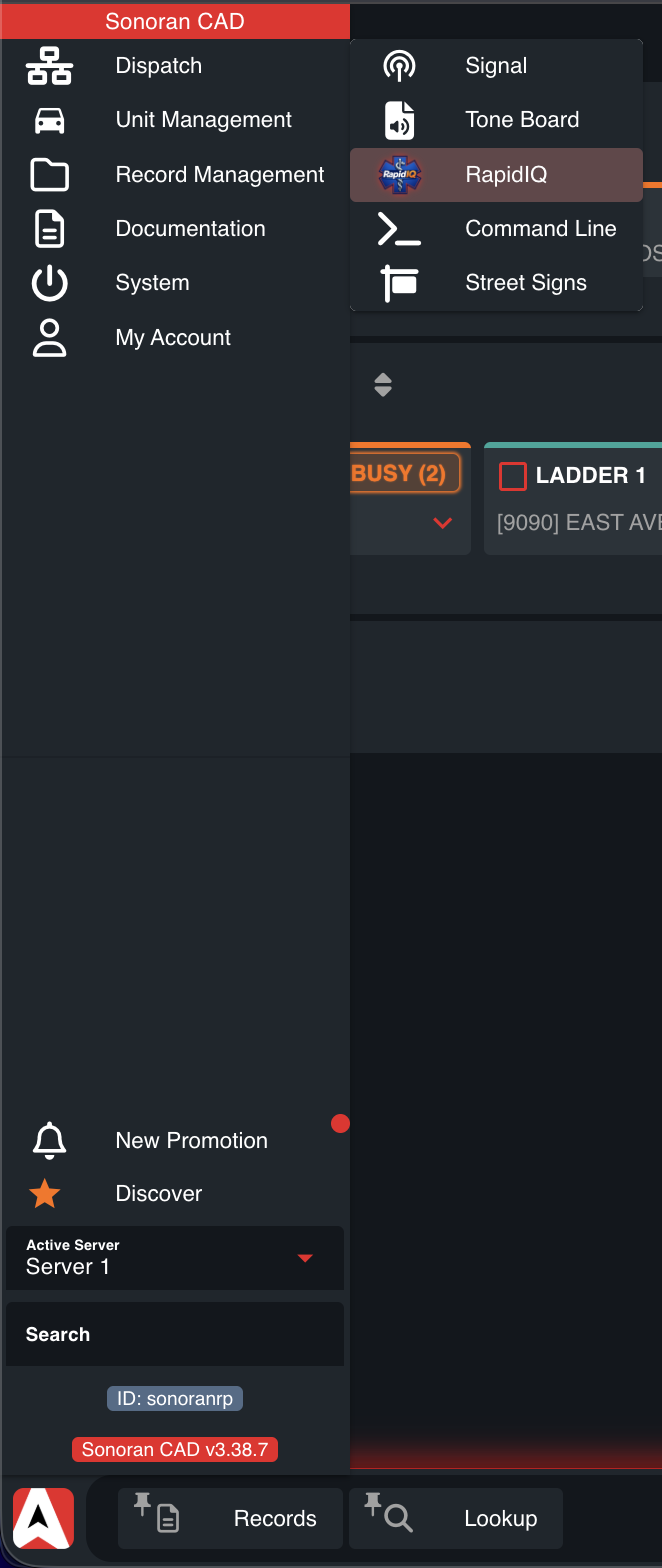
Navigating Flows
Inputs
Inputs
Rapid IQ is designed for quick, seamless information inputs.Text Inputs
- Inputs are automatically focused
- Pressing Enter navigates to the next question
- Custom addresses are type-to-filter
- If results are filtered to a single result, pressing Enter automatically selects it and navigates to the next question. Pressing Enter with more than one result left will select the top option.
- Type-to-filter search at the top is automatically focused
- If results are filtered to a single result, pressing Enter automatically selects it and navigates to the next question. Pressing Enter with more than one result left will select the top option.
- Selecting a checkbox navigates to the next question
- Use the Left and Right arrow keys to navigate forward and backwards manually
- Flow inputs that use a mask (strict formatting for numbers, text, symbols, etc.) will automatically navigate to the next question once all text has been entered
End Toggle Options
End Toggle Options
Once all information has been entered, Rapid IQ offers different data display options.Import to Call EditorWhen toggled, all information will be automatically imported into the dispatch call editor and the window will be automatically closed (unless Display Card is enabled).This feature is automatically toggled on when opening Rapid IQ from the call editor.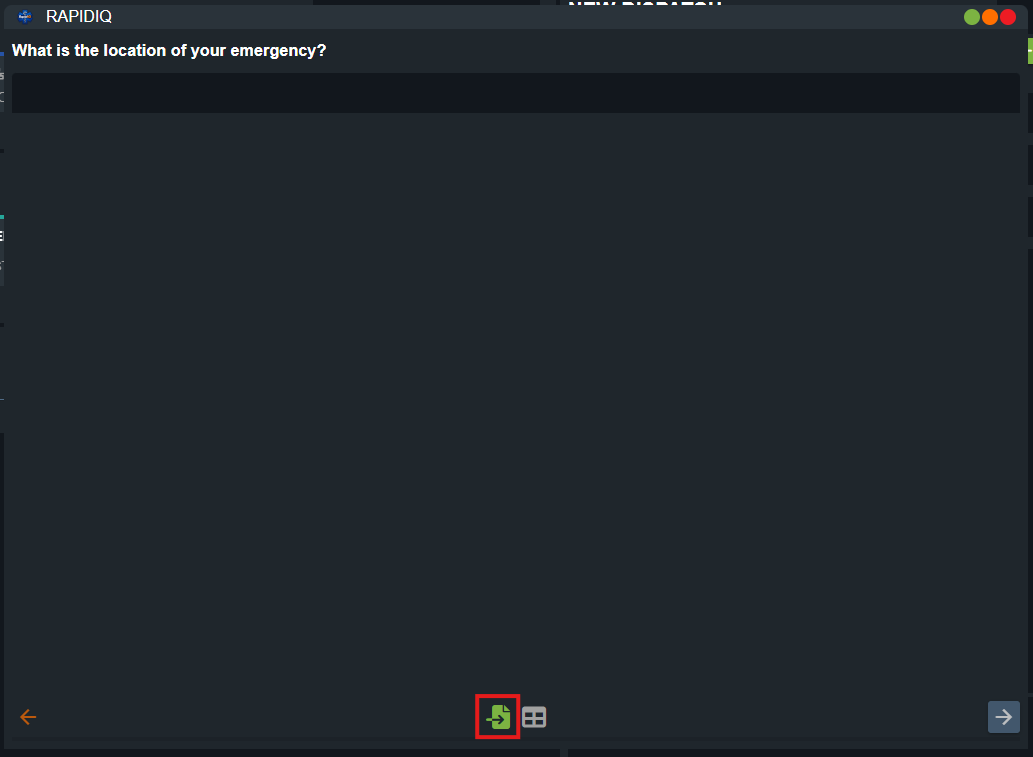
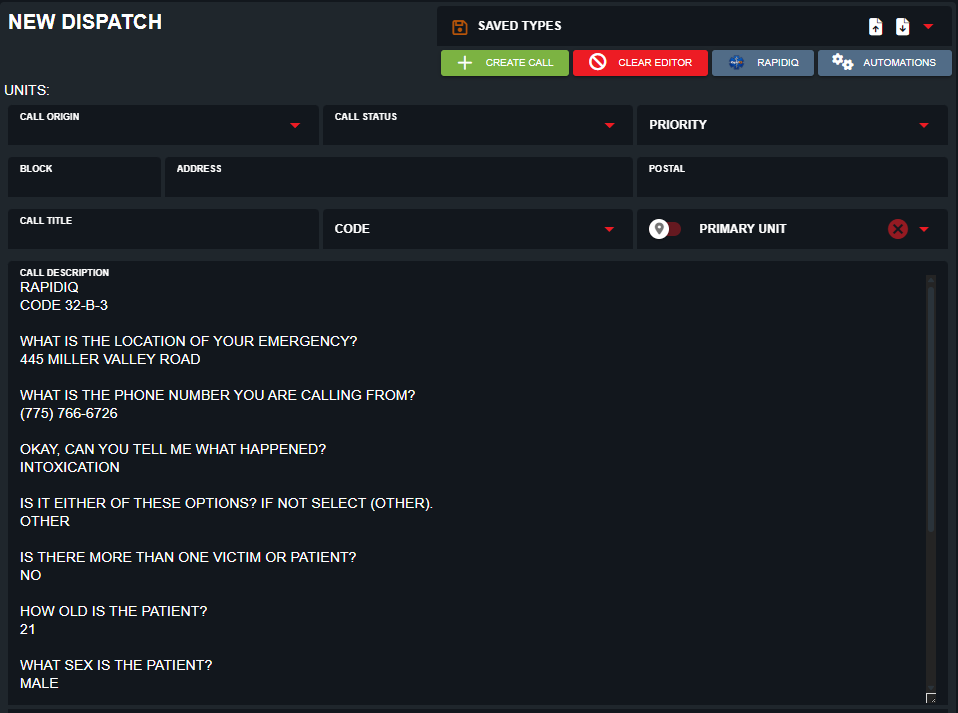 Display CardWhen toggled, all information will be displayed in a card of questions and answers. Users can also press the Copy button (top right) to copy and paste all questions and answers elsewhere.This feature is automatically toggled on when opening Rapid IQ from the taskbar.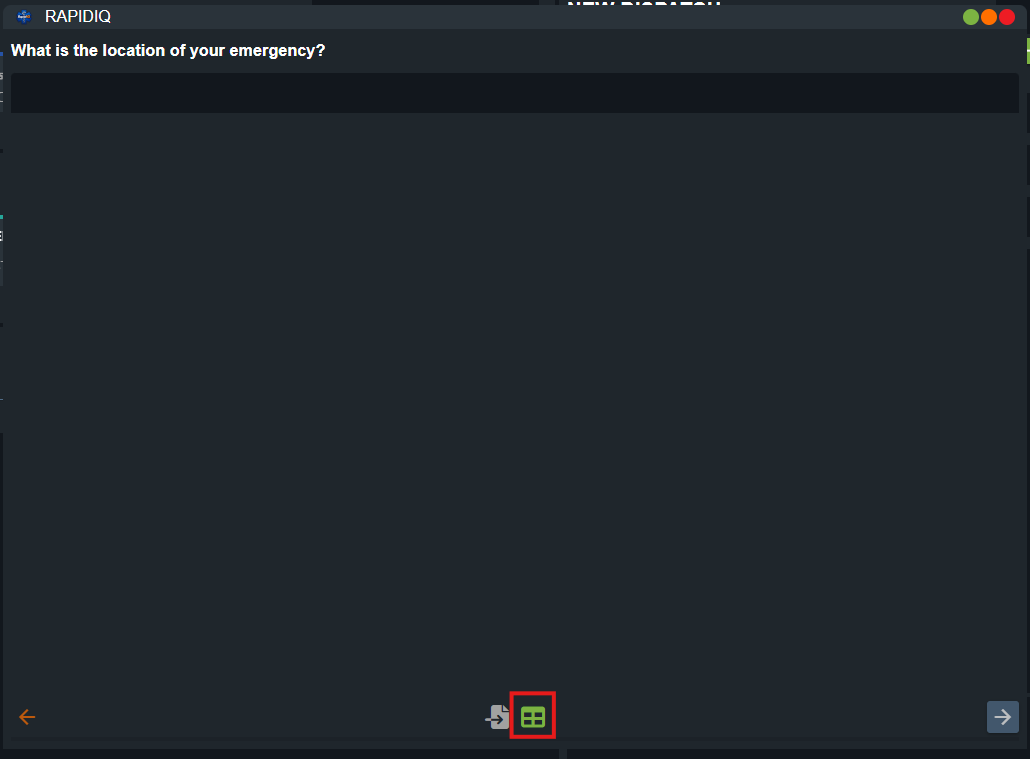
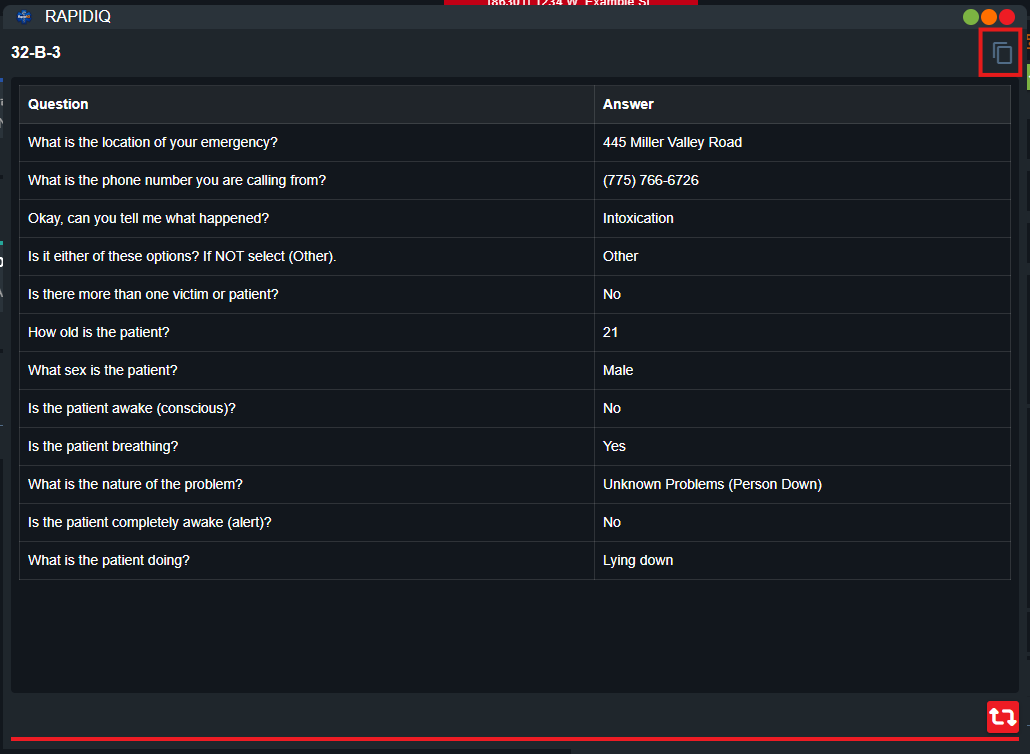
Display CardWhen toggled, all information will be displayed in a card of questions and answers. Users can also press the Copy button (top right) to copy and paste all questions and answers elsewhere.This feature is automatically toggled on when opening Rapid IQ from the taskbar.Customizing Flows
The default Rapid IQ flow is complex and configured by real-world dispatchers and medical personnel. With heavy knowledge, the system can be customized for different localities and situations. You can read more about standard MPDS systems here.Accessing the Editor
The Rapid IQ configuration is accessible under Admin > Customization > Customization > Rapid IQDefault Path
The Default Path section configures the initial questions asked in-order. These questions can be selected and reordered via drag-and-drop.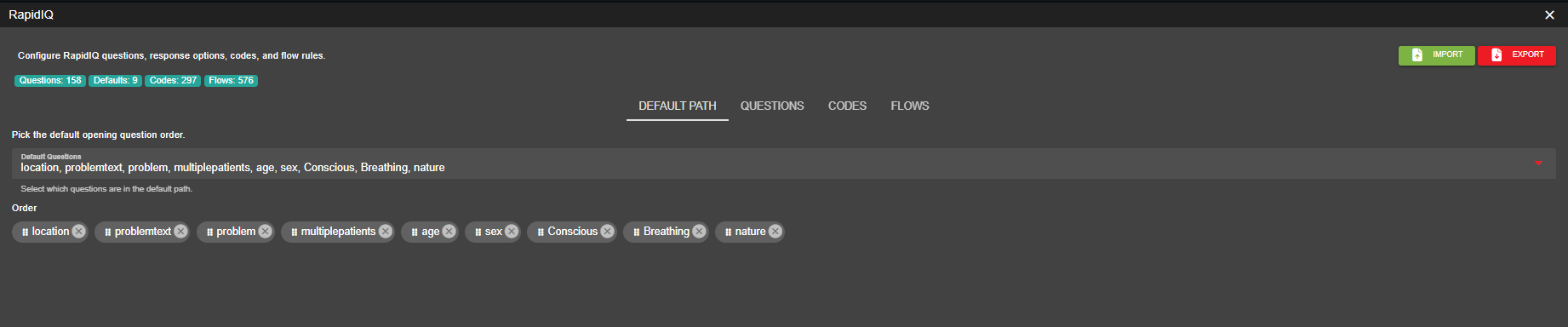
Questions
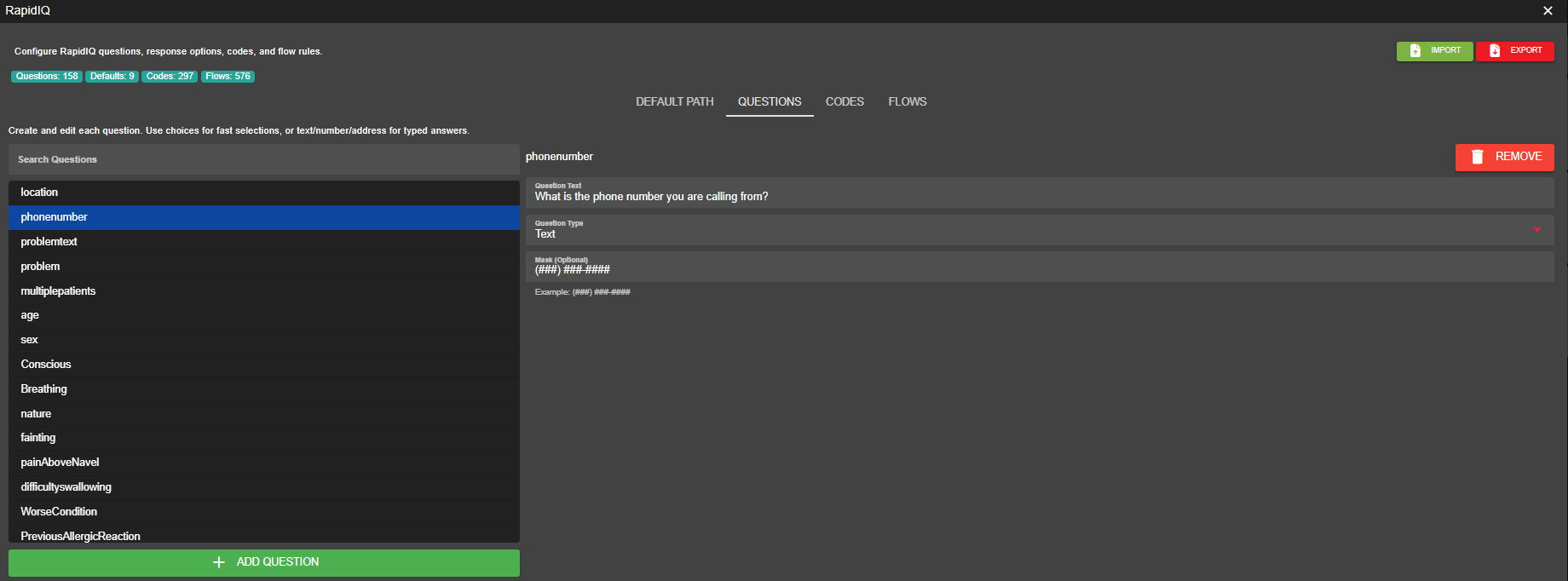
Configure custom Questions to be asked in order to gain more information about the medical issue. Questions have specific input types like Text, Number, Address, or Choices. Text and Number inputs can also have a Mask input. A Mask enforces a specific input format. Once a user has entered all numbers/letters into the input, it will automatically advance to the next question. Ex:(###) ### - #### forces a phone number format.
Mask Options
Mask Options
Codes
Once all questions have been answered, Rapid IQ will display a code. The code is a short way to classify and triage the severity of the incident and to determine how best to respond.What a code means
What a code means
What a code means
A Rapid IQ code is a triage label in this format:Example:
31C331= Unconscious / FaintingC= priority tier3= specific branch inside that protocol
Protocol numbers
Protocol Numbers
Protocol Numbers
- Abdominal Pain
- Allergies / Envenomations
- Animal Bites / Attacks
- Assault / Sexual Assault
- Back Pain
- Breathing Problems
- Burns / Explosion
- Carbon Monoxide / Inhalation / HazMat
- Cardiac / Respiratory Arrest / Death
- Chest Pain
- Choking
- Convulsions / Seizures
- Diabetic Problems
- Drowning / Diving / SCUBA
- Electrocution / Lightning
- Eye Problems / Injuries
- Falls
- Headache
- Heart Problems / AICD
- Heat / Cold Exposure
- Hemorrhage / Lacerations
- Inaccessible Incident / Entrapment
- Overdose / Poisoning
- Pregnancy / Childbirth / Miscarriage
- Psychiatric / Abnormal Behavior / Suicide Attempt
- Sick Person
- Penetrating Trauma
- Stroke / TIA
- Traffic / Transportation Incidents
- Traumatic Injuries
- Unconscious / Fainting
- Unknown Problems (Person Down)
Priority Letters
Priority Letters
Priority Letters
- E = highest severity / most urgent
- D = very high severity
- C = high severity
- B = moderate severity
- A = lower severity
- Ω = public assist / lowest-acuity pathway
- 000 = no final code (an error code)
How the system picks a code
Flow Code Selection
Flow Code Selection
- Ask default intake questions.
- Check flow rules in order (top to bottom).
- If a rule needs an unanswered question, ask that question next.
- When a full rule matches, return that rule’s code.
- Some rules use @ to auto-set/re-route (example: nature@chestpain).
Flows
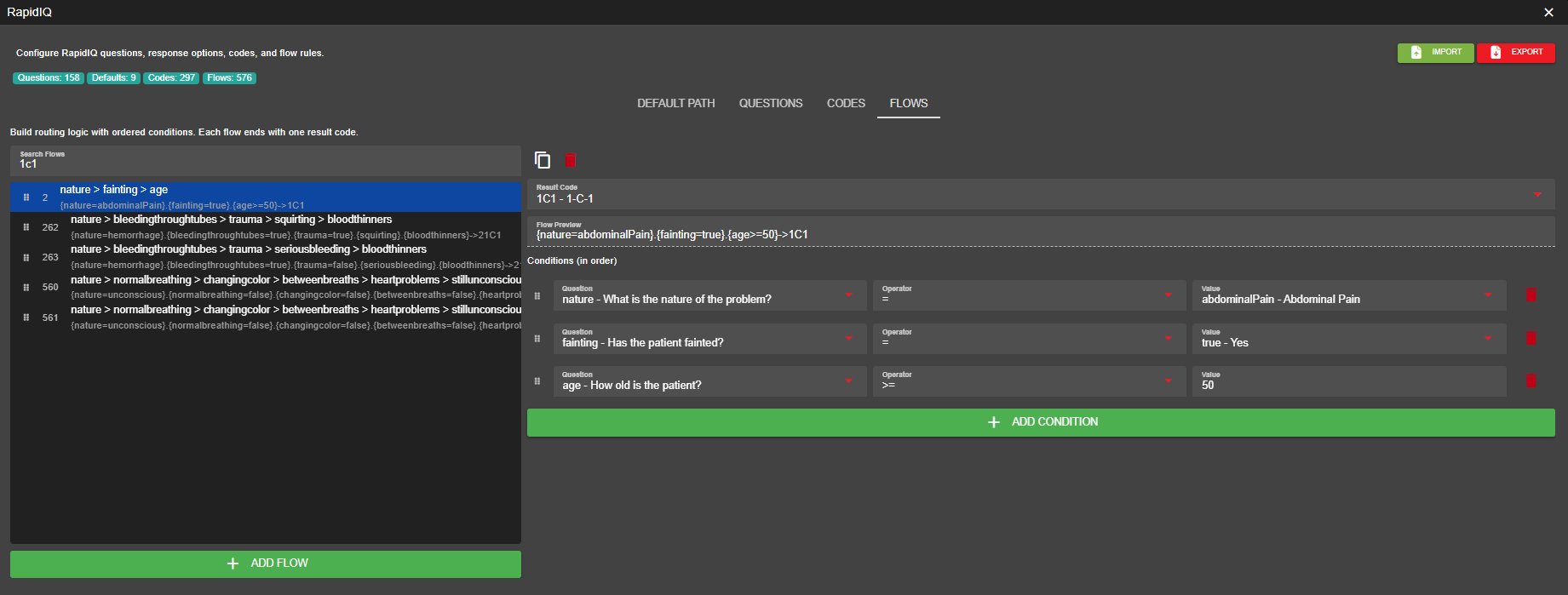
Flows combine everything above. Flows string a list of questions together and determine which questions should be asked next, based on response. Once a flow is completed, a code will be generated.Flow rule format
{question} -> condition is “answered” {question=value} -> equals {question>=number} -> numeric compare {question<=number} -> numeric compare {question@value} -> auto-set answer {cond1}.{cond2}.{cond3}->CODE
Example:
{nature=abdominalPain}.{fainting=true}.{age>=50}->1C1
Import and Export
Rapid IQ configurations can be imported and exported to save and share with other communities. Simply select the Import or Export button at the top to handle JSON files.