> For the complete documentation index, see [llms.txt](https://docs.sonoransoftware.com/llms.txt). Markdown versions of documentation pages are available by appending `.md` to page URLs; this page is available as [Markdown](https://docs.sonoransoftware.com/cad/tutorials/getting-started/permissions.md).

# Granting Account Permissions

Choose page access and record permissions for each member of your community.

Give members access manually, through permission keys, or with role sync from [Sonoran Bot](https://docs.sonoransoftware.com/bot/tutorials/sonoran-cad-integration) or [Sonoran CMS](https://docs.sonoransoftware.com/cms/integration-capabilities/sonoran-cad-sync).

## Manually Granting Permissions

1. Open **Administration > Accounts**.
2. Find the member and select their account. Use the **Pending** filter for members without permissions.
3. Choose permissions, then select **Save permissions**.

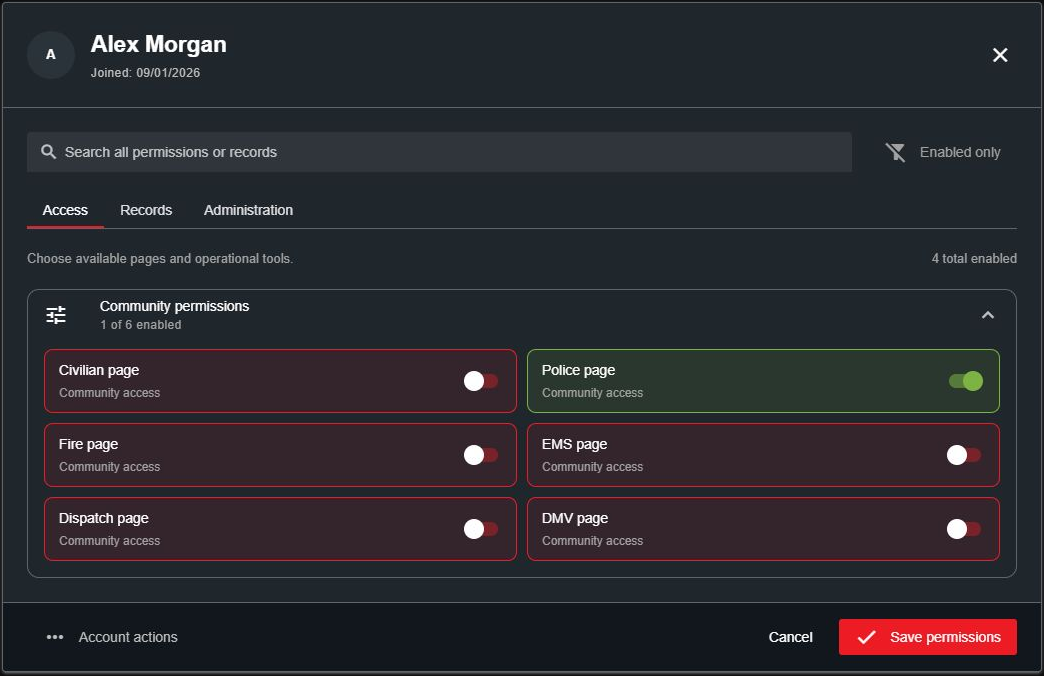
<figure><img src="https://232668649-files.gitbook.io/~/files/v0/b/gitbook-x-prod.appspot.com/o/spaces%2F-M4pGN81fb4R6zFhodcu%2Fuploads%2Fgit-blob-4b4085909c5fc8a08130b42ec4e92b91e2fba205%2Fcad-account-permissions-access.png?alt=media" alt="Account permission editor for Alex Morgan with Police page access enabled"><figcaption><p>Choose the pages and tools a member can use.</p></figcaption></figure>

The editor has three tabs:

* **Access:** Community pages and operational tools.
* **Records:** Permissions for each of your community's record templates.
* **Administration:** Account management and other administrative tools.

Click a permission card to enable or disable it. Use **Search permissions** to find a setting or template, and **Enabled only** to review the permissions already selected.

For an editable pending or active membership, saving a nonempty permission list makes the account **Active** (subject to your member limit). Clearing all permissions returns it to **Pending**. Bans are managed separately under **Account actions**.

The Accounts table now shows **Community User ID**, the current identifier used by FiveM `/link`, in place of legacy API IDs. See [Link User In-Game](/cad/integration-plugins/in-game-integration/link-user-in-game.md).

## Record Permissions

Open **Records** and expand a template. Permissions apply to that template, so a member can edit licenses without receiving the same access to arrest reports or other records.
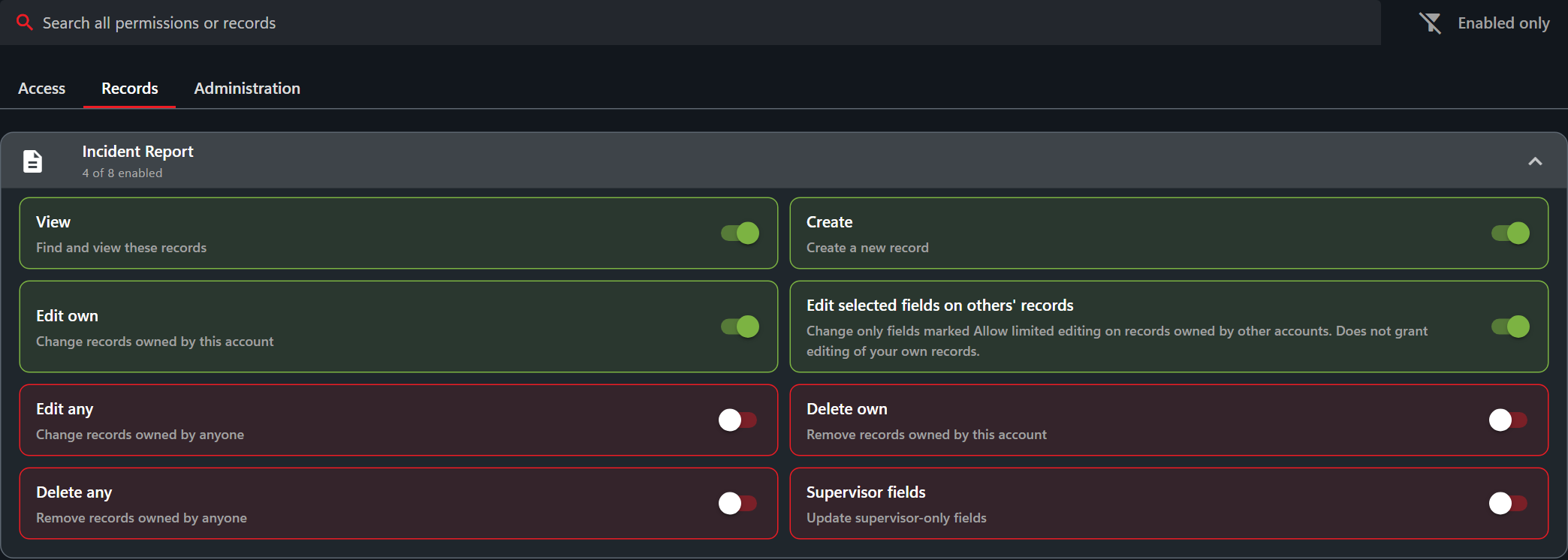
<figure><img src="https://232668649-files.gitbook.io/~/files/v0/b/gitbook-x-prod.appspot.com/o/spaces%2F-M4pGN81fb4R6zFhodcu%2Fuploads%2Fgit-blob-870885c87e274e00cf781edfe34d6a3d9f3ca21f%2Frecord-permissions-20260916.png?alt=media" alt="Incident Report permissions with View, Create, Edit own and selected-field editing enabled"><figcaption><p>Choose the actions allowed for each record template.</p></figcaption></figure>

| Permission                              | Allows the member to                                                                      |
| --------------------------------------- | ----------------------------------------------------------------------------------------- |
| View                                    | Find and view records of this type.                                                       |
| Create                                  | Create a record of this type.                                                             |
| Edit own                                | Edit records owned by their account.                                                      |
| Edit any                                | Edit records owned by any account, including their own, without field opt-in.             |
| Edit selected fields on others' records | Edit only opted-in fields on records owned by another account. Does not include Edit own. |
| Delete own                              | Delete records owned by their account.                                                    |
| Delete any                              | Delete records owned by any account, including their own.                                 |
| Supervisor fields                       | Update fields marked supervisor-only, alongside the required record editing permission.   |

## Record editing permissions

{% hint style="info" %}
CAD 3.44.1 separates full editing from selected-field editing. Integrations should use the [permission catalog](/cad/api-integration/api-endpoints-v2/general/accounts/get-permission-catalog.md) to discover supported grants, including `edit.selected`.
{% endhint %}

Each record template has independent editing permissions:

| Permission                                  | Access                                                                                                             |
| ------------------------------------------- | ------------------------------------------------------------------------------------------------------------------ |
| **Edit own**                                | Edit records created by the account.                                                                               |
| **Edit selected fields on others' records** | Edit only fields marked **Allow limited editing** on records created by other accounts. Does not include Edit own. |
| **Edit any**                                | Edit anyone's records, including the account's own records, without field opt-in. Includes Edit own.               |

**Supervisor fields** is an additional requirement for supervisor-only fields, not a substitute for an editing permission. **Read-only** fields remain locked. View, page access, record creation and deletion are separate permissions.

These rules apply to all record templates, regardless of which panel opens a record. For example:

* Give an officer **Edit own** to write and maintain their own reports, together with the separate Create and View permissions.
* Give a records supervisor **Edit any** to edit other officers' reports without enabling every field individually.
* For an officer who should change only license points or a character's address, grant **Edit selected fields on others' records** on that template and enable **Allow limited editing** on those specific fields. Leave Edit any off for that template.
* An administrator who should edit the whole character record can receive **Edit any** instead.

### Configure limited editing

1. Open Administration > Customization > Custom Records and select the record template.
2. Select each field officers may update and enable **Allow limited editing**. This field setting was previously labeled **Editable by other users**.
3. Save the template.
4. In the account or permission-key editor, grant **Edit selected fields on others' records** for that template, along with the required page and View permissions. Add **Edit own** separately if needed.
5. Ensure the account does not also receive **Edit any** for that template through another permission key or role mapping. Full editing takes precedence.
6. Close and reopen an existing record created by a different account to verify the allowed fields. Test supervisor-only and read-only fields separately.

### Existing communities

No database migration, template recreation or report recreation is needed. Existing Edit own and Edit any grants are retained, and existing field selections are preserved. The new selected-fields permission is not automatically assigned. Edit any now means full editing; communities that want limited access should replace Edit any with the selected-fields permission for those roles.

Turning off Read-only does not opt a field into limited editing. Enabling Supervisor fields does not bypass the limited-field selection. On the updated backend, Edit any users do not need field opt-in.

Sonoran Bot codes retain their existing permissions and add support for selected-field editing when both the bot and CAD catalog support it. Existing SDK permission methods accept the new catalog grant without new API methods. A role-sync configuration may overwrite manual account grants; update the source role mapping when applicable.

## Permission Keys

### Create a Key

Open **Administration > Permission Keys**, select **+**, enter a key name, and choose its permissions using the same editor. Save the key and share it with the intended members.

### Apply a Key

Members enter the key in the community menu. Keys are case-sensitive, so they must enter the exact capitalization.

![Enter a permission key from the community menu](https://232668649-files.gitbook.io/~/files/v0/b/gitbook-x-prod.appspot.com/o/spaces%2F-M4pGN81fb4R6zFhodcu%2Fuploads%2FesOXyb1DVY4SORfrkpIV%2FCAD_MenuPermKey.png?alt=media\&token=0a1252ee-f025-4966-9a17-301bc5de150b)

The **Bot permissions** button in the Permission Keys panel creates a configuration code for [Sonoran Bot role mapping](https://docs.sonoransoftware.com/bot/tutorials/sonoran-cad-integration). That code is not a key members can redeem.

## Role Sync

When using Sonoran Bot or CMS to manage access, update permissions in the role or rank mapping. A later sync can overwrite manual changes made directly in CAD.

Sonoran CMS supports granular per-template CAD permissions in its role/rank mappings. Apply the same distinction between **Edit any** and **Edit selected fields on others' records** when configuring sync.


---

# Agent Instructions
This documentation is published with GitBook. GitBook is the documentation platform designed so that both humans and AI agents can read, navigate, and reason over technical content effectively. Learn more at gitbook.com.

## Querying This Documentation
If you need additional information that is not directly available in this page, you can query the documentation dynamically by asking a question.

Perform an HTTP GET request on the current page URL with the `ask` query parameter, and the optional `goal` query parameter:

```
GET https://docs.sonoransoftware.com/cad/tutorials/getting-started/permissions.md?ask=<question>&goal=<endgoal>
```

`ask` is the immediate question: it should be specific, self-contained, and written in natural language.
`goal` is optional and describes the broader end goal you are ultimately trying to accomplish on behalf of the user. GitBook uses it to tailor the answer towards what is most useful for that goal.

The response will contain a direct answer to the question and relevant excerpts and sources from the documentation.

Use this mechanism when the answer is not explicitly present in the current page, you need clarification or additional context, or you want to retrieve related documentation sections.