# Voice Commands

{% hint style="danger" %}
Currently, Sonoran CAD only supports voice commands in the **Chrome desktop browser**.

Voice recognition is provided by Google, and performance may vary based upon pronunciation, speed, and other factors.

{% endhint %}

### 1. Enable Microphone Access

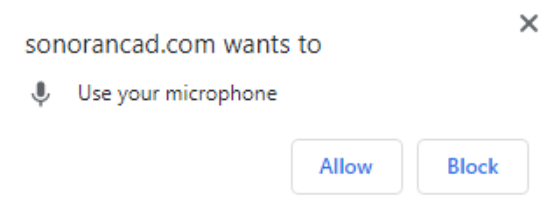
When navigating to a page with voice commands enabled, the browser will prompt you for microphone access.

![Enable microphone access](https://232668649-files.gitbook.io/~/files/v0/b/gitbook-legacy-files/o/assets%2F-M4pGN81fb4R6zFhodcu%2F-M4zeTEvQ005T6qk70hs%2F-M4zgERSEhz7Y0kidoYq%2Fvoice_allow.PNG?alt=media\&token=2a3100db-33f0-4fb4-bf92-a5d7c91d514e)

### 2. Ensure Your Microphone is being Received

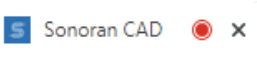
Now that microphone access has been granted, a red circle will appear at the top right of the browser tab.

![A red, blinking light appears in the browser tab](https://232668649-files.gitbook.io/~/files/v0/b/gitbook-legacy-files/o/assets%2F-M4pGN81fb4R6zFhodcu%2F-M4zeTEvQ005T6qk70hs%2F-M4zgXUnNn7nslzN3yjz%2Fvoice_red.PNG?alt=media\&token=1ff607e9-c74b-48b3-a8ea-2b882f0ea706)

### 3. Test out the Voice Commands

Your keyword can be changed from "Sonoran" to something customizable. For more information, check out our guide on [custom voice command keywords](https://docs.sonoransoftware.com/cad/tutorials/customization/community-branding-and-info).

#### PANIC

```
Sonoran, Panic
```

#### Lookup Name

```
Sonoran, lookup name John Doe
```

#### Lookup Plate

```
Sonoran, lookup plate ABCD1234
```