Sonoran CMS x Sonoran Servers - Shield
Linking your Sonoran Server
Once you have purchased a VPS or Dedicated server from Sonoran Servers: In theAdmin panel, navigate to Integrations > Sonoran Shield > Link Your Server
Enter in your Sonoran Servers login credentials.
Configuring your Shield
It is recommended to do the following in order to stop network attacks with Sonoran Shield:- Block all unused ports using a “block-all” rule
- Allow traffic to used ports, allowing all traffic to ports used by your users and whitelisting specific IPs for management ports (such as Remote Desktop or SSH ports)
- Apply Application Filtering rules to all ports that are open based on their specific application
- Block unused ports and open required ones
- Apply application-specific filters
- View your attack history
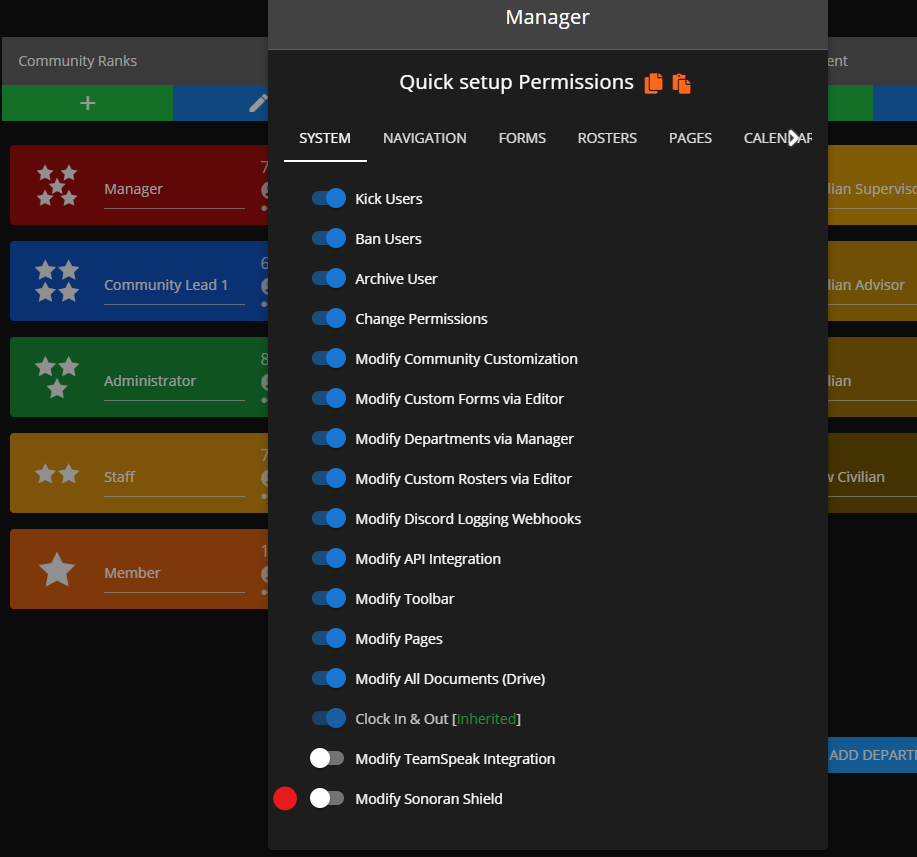
Sonoran Shield Permissions
CMS allows you to grant shield access to other administrators. In the rank manager, their role will need theModify Sonoran Shield permission under the System tab.