> For the complete documentation index, see [llms.txt](https://docs.sonoransoftware.com/llms.txt). Markdown versions of documentation pages are available by appending `.md` to page URLs; this page is available as [Markdown](https://docs.sonoransoftware.com/radio/game-integrations/roblox/erlc.md).
# Dispatch AI for ER:LC
Read ER:LC emergency calls over the correct Sonoran Radio channels with Dispatch AI.
Use the [shared Dispatch AI commands](/radio/tutorials/usage/dispatch-ai.md#radio-commands) to change channels, manage scanned channels, set timers, and work with CAD through the desktop app. ER:LC also supports automatic emergency call readouts.
## Emergency Call Readouts
1. Complete the [common Dispatch AI setup](/radio/tutorials/usage/dispatch-ai.md#common-setup).
2. [Connect your ER:LC private server to Sonoran CAD](https://docs.sonoransoftware.com/cad/integration-plugins/erlc/getting-started), including the event webhook, and enable emergency call synchronization for the desired teams.
3. Confirm that Radio's **Customization** > **Dispatch AI** links to the same CAD server receiving those calls.
4. Complete the [Radio ER:LC setup](/radio/game-integrations/roblox/erlc-setup.md).
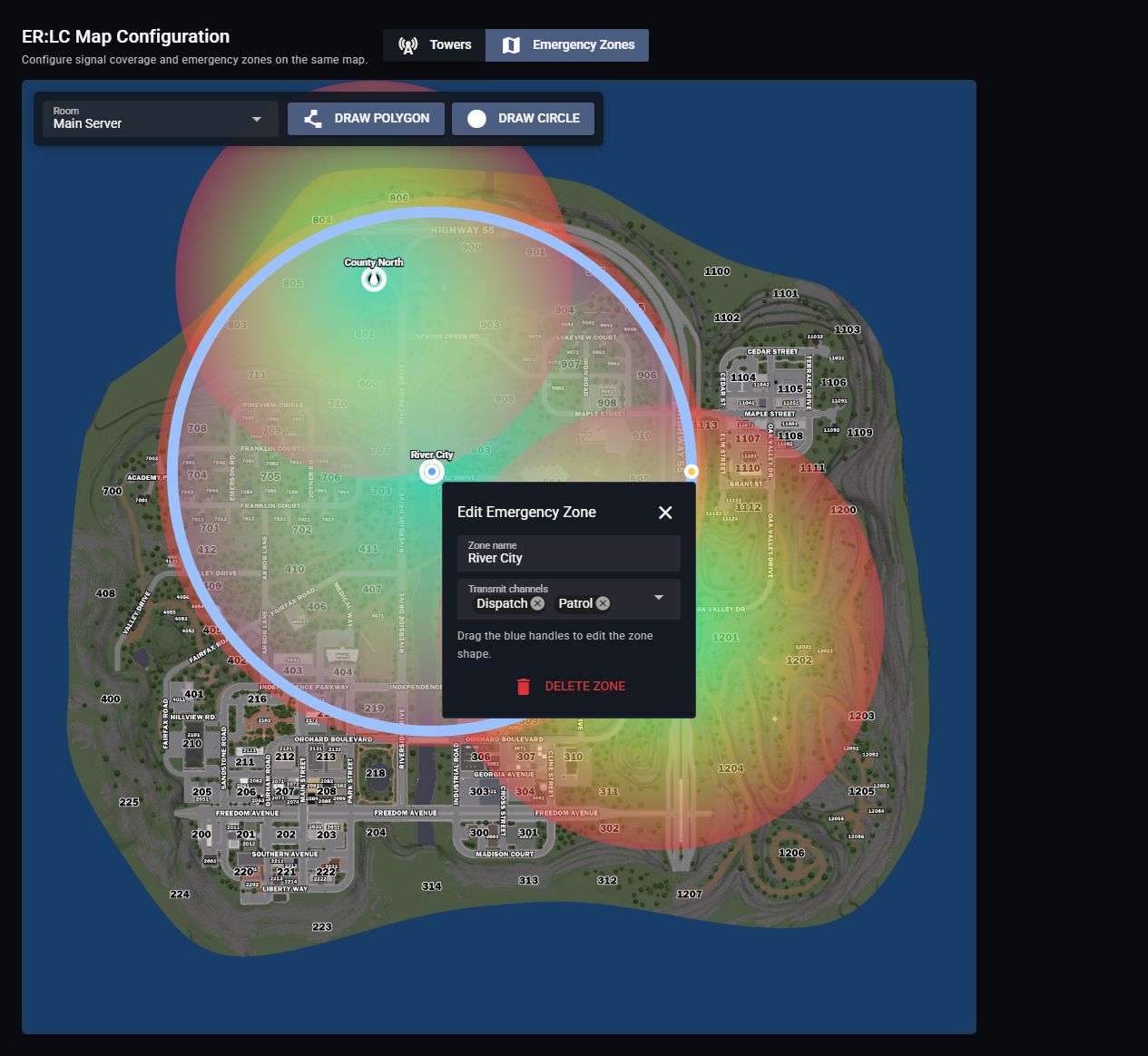
5. In Radio, open **Customization** > **Game Integration** > **ER:LC**. Select **Emergency Zones** and choose the **Room** running Dispatch AI.
6. Use **Draw Polygon** or **Draw Circle** to create a zone. Select the zone and choose its **Transmit channels**.
7. Submit an ER:LC emergency call inside a zone and check that it reaches CAD and is read over the assigned channels.
Select the room, draw a zone, and choose which channels receive its emergency call readouts.
Dispatch AI creates a dispatch call, removes the original 911 call, and reads it over the zone's channels. The imported call must include coordinates inside a configured zone.
Linking ER:LC to Radio provides the Radio integration; the CAD connection imports emergency calls. Both are needed for these readouts.
A call is not being read out
1. Confirm the emergency call appears in the linked CAD server.
2. Confirm it has coordinates inside an emergency zone.
3. Check that the zone has channels assigned for the room running Dispatch AI.
4. Confirm Dispatch AI is enabled, has remaining usage, and is not paused for a human dispatcher.
## Use the AI While Playing
1. Sign in to the Sonoran Radio desktop app and join your community's Radio server.
2. [Open the overlay](/radio/tutorials/usage/desktop-overlay.md#open-the-overlay).
3. Hold push-to-talk and say, for example, “Dispatch, switch me to Patrol.”
See [Radio Commands](/radio/tutorials/usage/dispatch-ai.md#radio-commands), [Timers](/radio/tutorials/usage/dispatch-ai.md#timers), and [Sonoran CAD Commands](/radio/tutorials/usage/dispatch-ai.md#sonoran-cad-commands).
---
# Agent Instructions
This documentation is published with GitBook. GitBook is the documentation platform designed so that both humans and AI agents can read, navigate, and reason over technical content effectively. Learn more at gitbook.com.
## Querying This Documentation
If you need additional information that is not directly available in this page, you can query the documentation dynamically by asking a question.
Perform an HTTP GET request on the current page URL with the `ask` query parameter, and the optional `goal` query parameter:
```
GET https://docs.sonoransoftware.com/radio/game-integrations/roblox/erlc.md?ask=&goal=
```
`ask` is the immediate question: it should be specific, self-contained, and written in natural language.
`goal` is optional and describes the broader end goal you are ultimately trying to accomplish on behalf of the user. GitBook uses it to tailor the answer towards what is most useful for that goal.
The response will contain a direct answer to the question and relevant excerpts and sources from the documentation.
Use this mechanism when the answer is not explicitly present in the current page, you need clarification or additional context, or you want to retrieve related documentation sections.