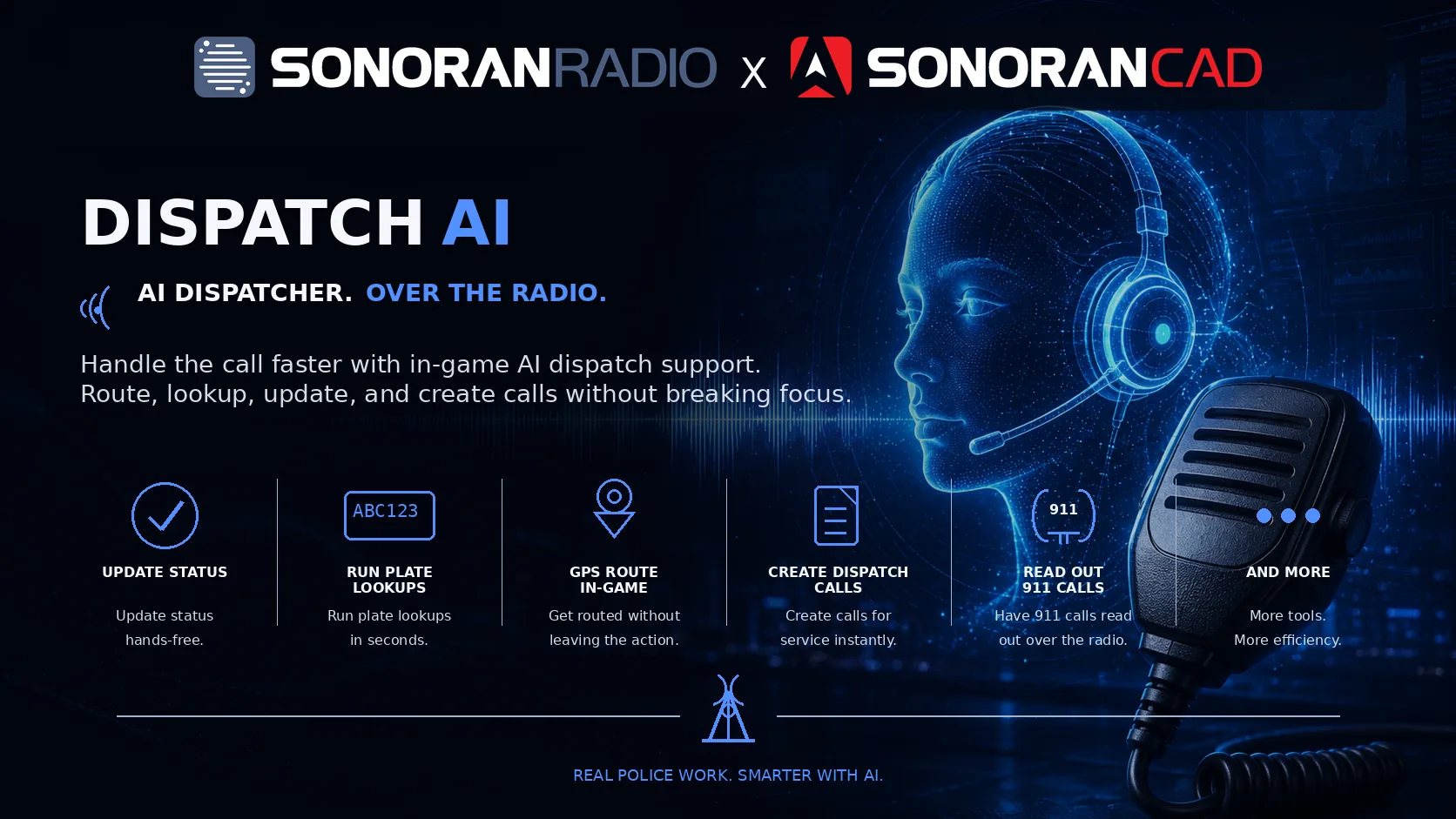
Common Setup
Complete this setup once for each Radio server using Dispatch AI. The current setup requires a linked Sonoran CAD community, including for radio commands.- In Sonoran CAD, open Admin > Advanced > In-Game Integration > Web API. Copy the community ID and API key.
- In CAD, open Admin > Customization > Servers and note the server ID. The default is
1. - In Radio’s admin panel, open Customization > Dispatch AI. Select a Radio server or use + to create one.
- Under Link Sonoran CAD, enter the CAD community ID, API key, and server ID. Fields save automatically when you leave them.
- Toggle Dispatch AI Enabled on.
- Sign in to Radio with your Sonoran account, join that Radio server, and connect to a channel. Use the same account in CAD for actions involving your unit.
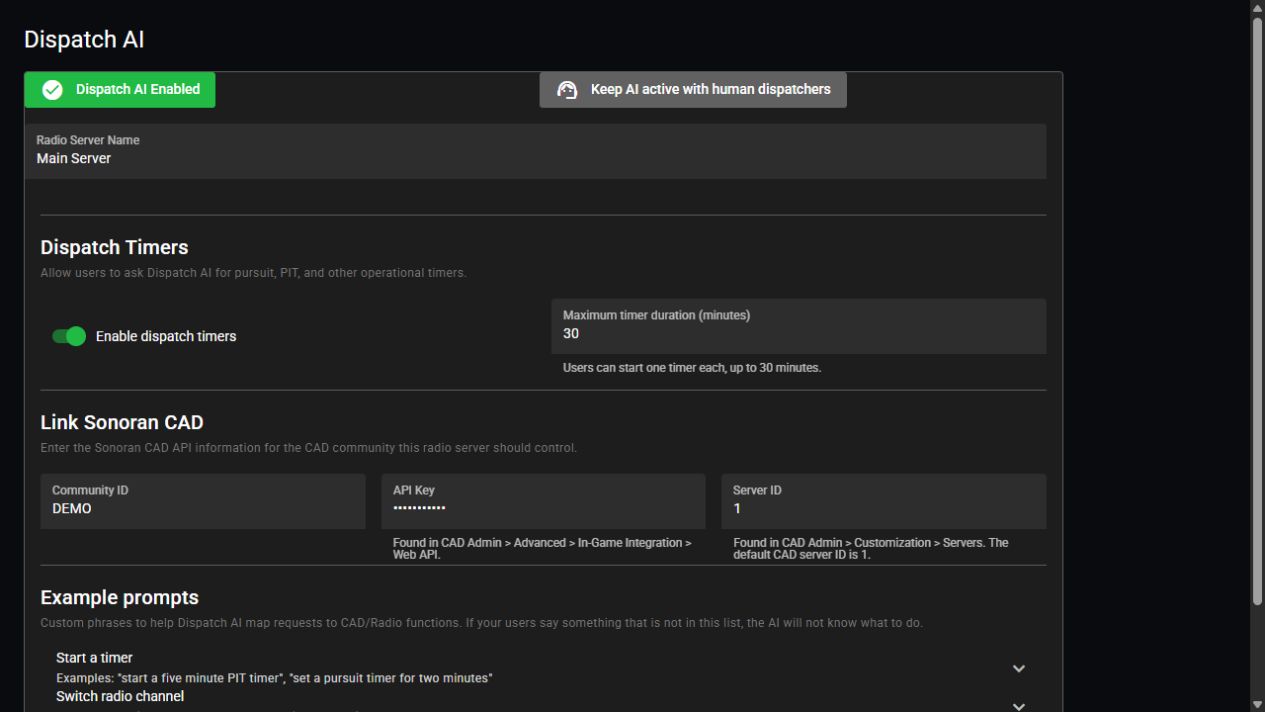 Configure Dispatch AI for the selected Radio server.
Using the AI
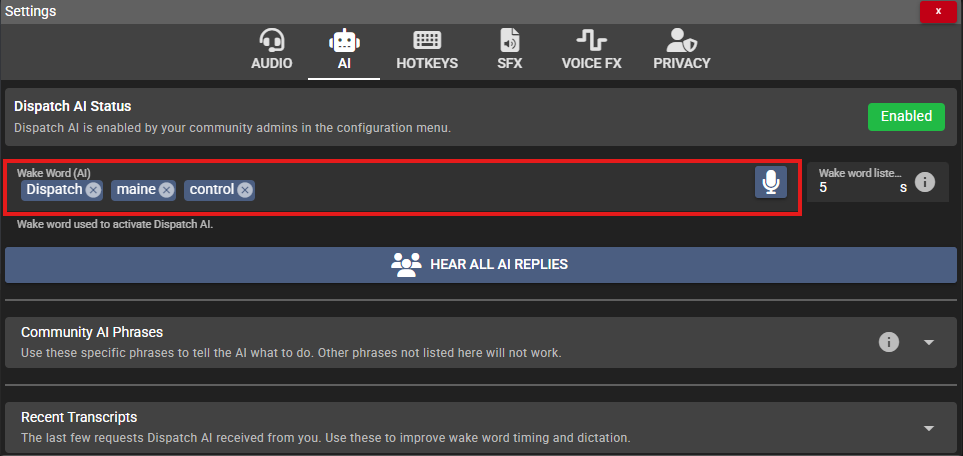
Hold push-to-talk and start your request with Dispatch, the default wake word. For example: “Dispatch, switch me to TAC 1.” Wait for the AI’s response before making another request. When the first user connects, allow a few seconds for the “Dispatch Online” announcement.Wake words and hotkeys
Wake words and hotkeys
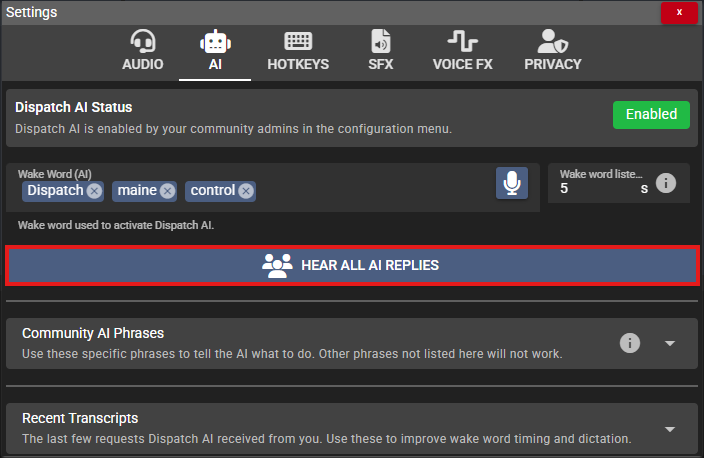
- Open Settings > AI to configure your wake word. Use the microphone button to record a custom wake word.
- For a manual trigger in the web or desktop app, open Settings > Hotkeys and set AI Toggle.
- Hold push-to-talk, activate the AI, and speak your request.
 FiveM players can also use the in-game AI keybind.
Radio Commands
These commands work across games, including FiveM, ER:LC, and Arma 3. Use the channel names configured by your community.
Channel changes respect community access permissions. Moving another user requires permission to move clients. Include the group name when several channels have the same name, or answer the AI’s clarification.
Timers
Ask for a timer by duration and, optionally, a purpose. Dispatch AI tells you when it expires.
You can have one active timer in the Radio server. Starting another replaces it. Timers must be at least 10 seconds and no longer than the community’s configured maximum, up to 30 minutes.
Configure community timer limits
Configure community timer limits
- Open Customization > Dispatch AI and select the Radio server.
- Under Dispatch Timers, turn Enable dispatch timers on or off.
- Set Maximum timer duration (minutes) from
1to30. Leave the field to save.
Sonoran CAD Commands
CAD actions use the community and server linked in Common Setup. Be on duty with the appropriate unit selected in CAD when asking about your status or current call.Review your current call
Review your current call
Ask the AI to repeat the details of the CAD dispatch call you are attached to.“Dispatch, repeat my current call.”You can also ask about the latest call or give a short correction to a recent request, such as “Dispatch, actually, the plate is ABC124.” Be specific if several calls or units could match.
Status, lookups, and panic
Status, lookups, and panic
Use your community’s configured status codes. Lookup results are sent to CAD with a brief radio response.
Create and manage calls
Create and manage calls
New calls use your unit’s location when available unless you specify another location. Including a plate in a new call also runs a plate lookup.
Unit groups
Unit groups
“Dispatch, add me and B-11 to group Ladder 12.”“Dispatch, clear my unit group.”Use the unit number or name to identify other units.
Game-Specific Features
The shared commands above apply across games. Choose your game for additional setup and integrations.
FiveM
Emergency call readouts, GPS routing, and automatic arrival status.

ER:LC
Read emergency calls over the channels assigned to each map zone.

Arma 3
Use shared radio commands and timers from the desktop overlay.
Customization
Community phrases and human dispatchers
Community phrases and human dispatchers
Open Customization > Dispatch AI and select the Radio server.
- Expand an action under Example prompts to add short examples of your community’s radio phrases.
- Use the human-dispatcher button to choose whether AI stays active or pauses when a dispatcher is active in CAD.
Language, transcripts, and phrase corrections
Language, transcripts, and phrase corrections
Open Settings > AI to choose the AI language, review Recent Transcripts, or add Phrase Overrides for commonly misheard words. The AI uses the app’s language by default.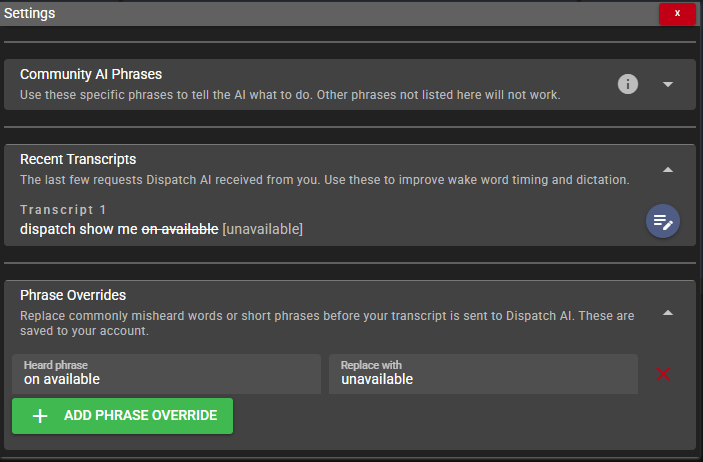
AI volume and replies
AI volume and replies
Adjust AI Volume under Settings > Audio. In the AI settings, choose whether to hear replies to other users or only replies directed to you.