 Sonoran Radio: Tone Board
Configuring the Tone Board
Under theCustomization tab, select Tone Board.
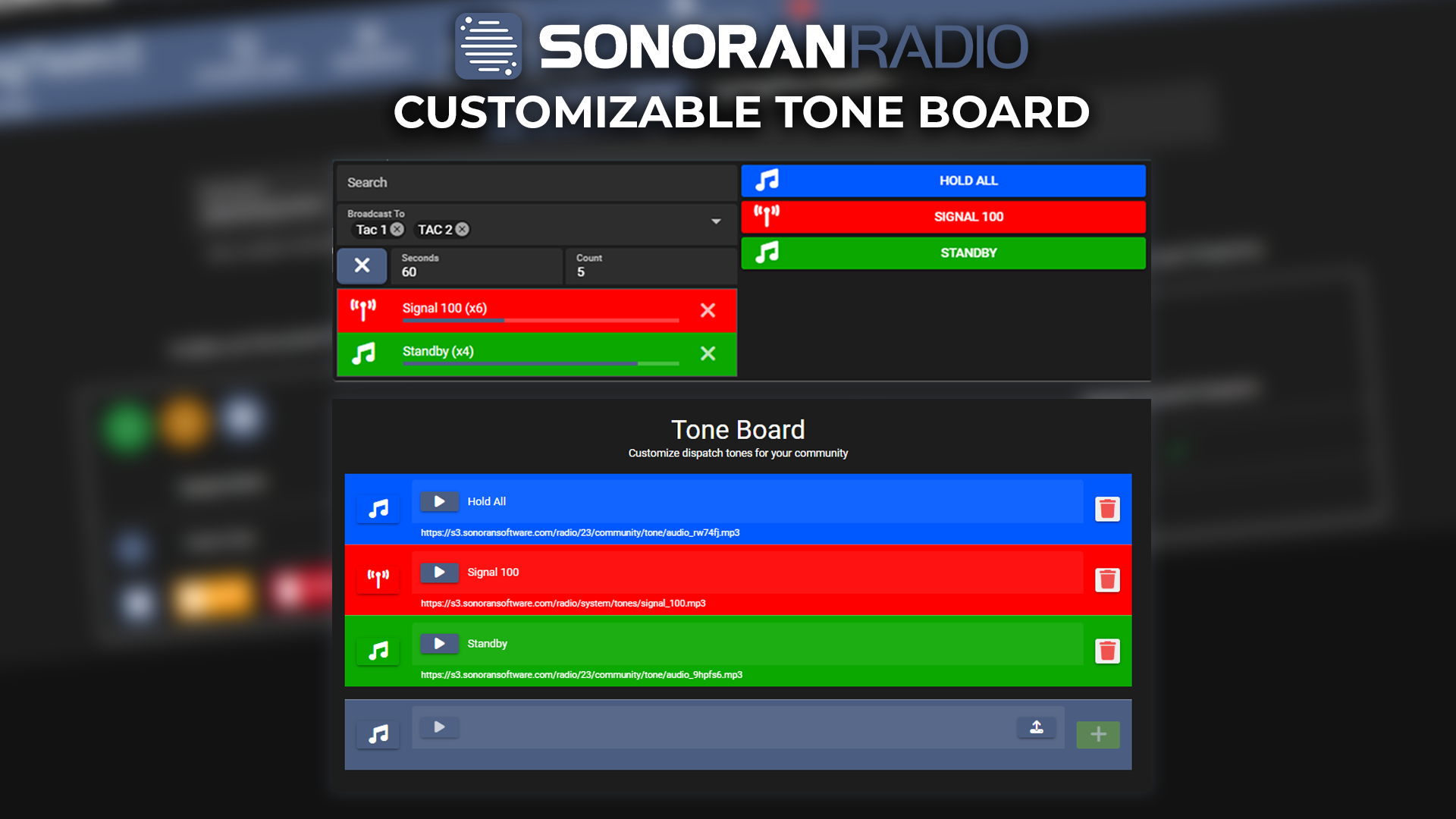
Here, you can customize the name, icon, and color of existing tones or use the trash icon to remove a tone. Tones are sorted alphabetically.
Or, use the bottom section to upload and configure a new tone.
Uploading a Tone File
Select the upload icon to attach an audio file.
AI Text-To-Speech
The tone board also allows you to customize AI generated text-to-speech tones. Additionally, you can generate temporary AI TTS tones directly inside of the tone board.
- Toggle AI Tone Mode
On the right of the new tone configurator, select the AI Mode button to change from file uploads to AI text-to-speech.
- Customize And Generate via AI
Add the tone label, specify the text for the voice, and customize any other visual options.

Visual Customization
Select the music icon on the left to customize the icon, background color, and text color.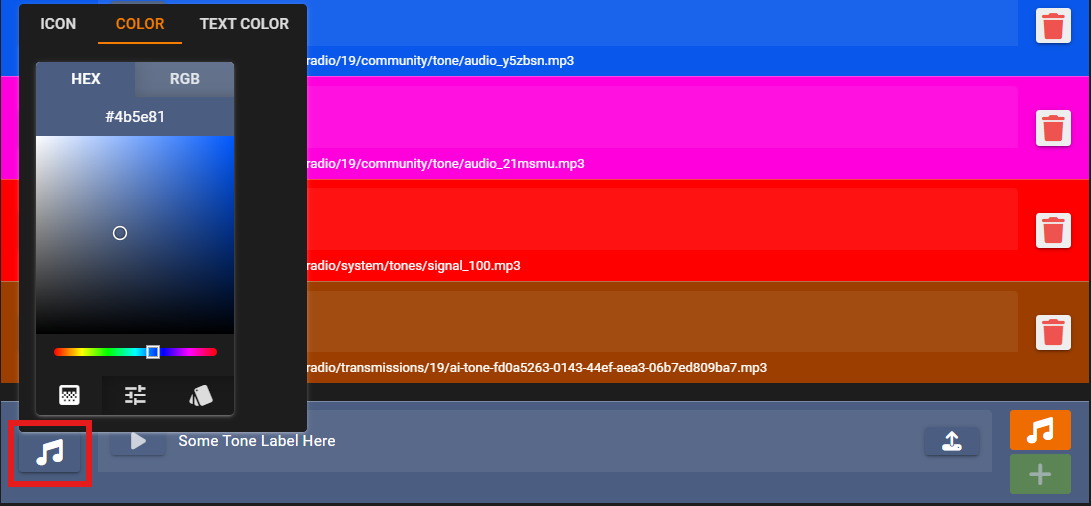 Sonoran Radio: Tone Visual Options
Using the Tone Board
Tone Board Hotkey
To quickly toggle the tone board, you may configure a custom hotkey in the settings menu.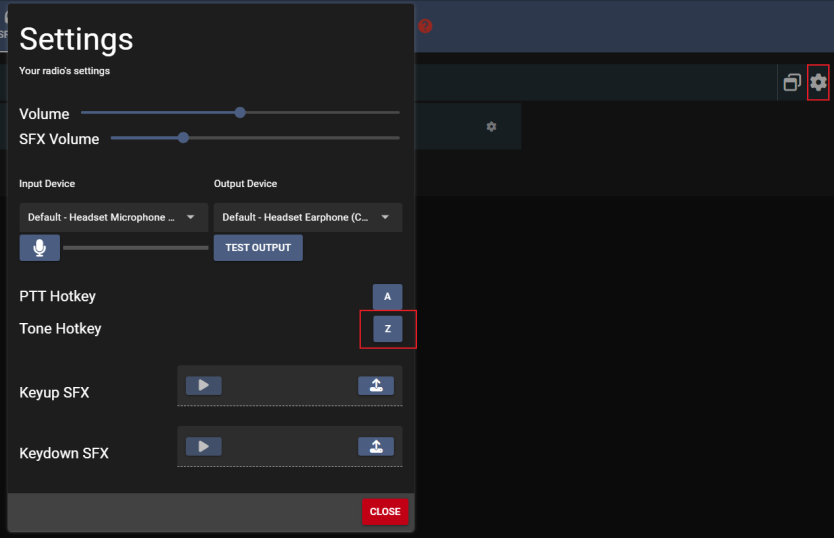 Sonoran Radio - Tone Board Hotkey
Playing a Tone
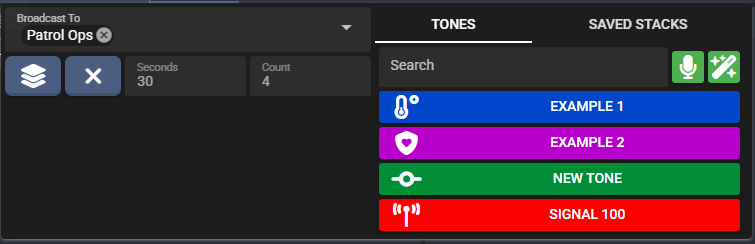
After opening the tone board via hotkey or the music note icon, you will see the following UI.- Search: Type-to-filter for available tone names
- Saved Stacks: Saved, pre-created tone stacks
- Broadcast To: Type-to-filter and multi-select the desired channels or channel groups
- Stack: Optionally toggle tone stacking to play multiple tones in order
- Repeat: Optionally toggle on a tone repeat with a total play number and a delay between plays
- Microphone: Record a temporary live audio tone from your microphone
- AI TTS: Generate a temporary AI-powered text-to-speech tone
Tone Broadcast To Options
Tones can be played to a channel, channel group, or an in-game speaker.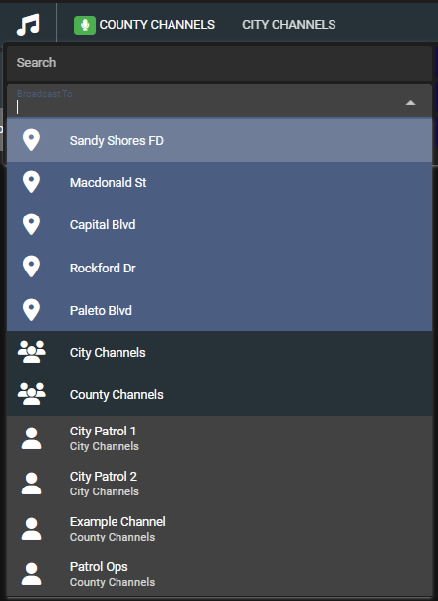 Sonoran Radio - Tone Board Broadcast Options
Repeating Tones
For repeated tones, you can hover over the active tone (or tone stack) to see what channels and groups it’s playing to. Additionally, the UI will reflect the remaining play count and show a progress bar for the delay until the next play. Tone Board - Repeated Tones
Stacked Tones
Stacked tones allow you to align multiple tones together and play them in order. Toggle on theStack icon and click on tones in order. You can also drag-and-drop the stack at the bottom left to reorder tones prior to pressing Play.
 Tone Board - Stacked Tones
Saved Stacks
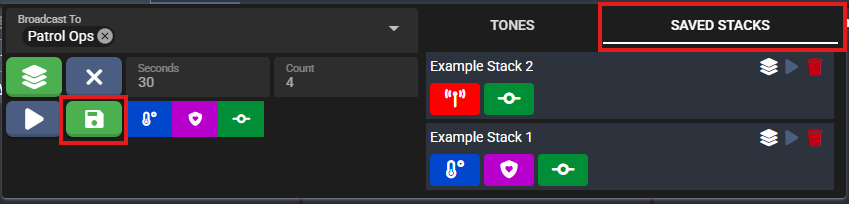
Tone stacks can be saved for faster re-use. After creating a stack press the Save icon. This will prompt you to enter in a stack name. Saved stacks will display on the Saved Stacks tab. Saved stacks can be “loaded” into the editor, played directly to your current Broadcast To channels, or deleted. Shortcuts:- Clicking a saved tone stack once will load the stack.
- Double-clicking a saved tone stack will play it.
Recording Tones
The microphone icon allows you to record local microphone audio to be played as a tone to radios or in-game speakers. Click the Audio Recording to start and stop recording. After the recording is completed, a small recording tone button will appear next to it. Click to add it to a stack or play as a single tone.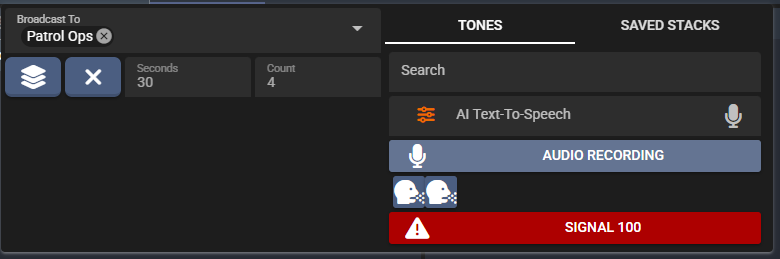
AI TTS
Similar to pre-configured AI speech tones, the AI wand icon allows you to enter in and generate a temporary text-to-speech AI tone to be played as a tone to radios or in-game speakers. Enter text into the AI Text-To-Speech input or use the Microphone icon to enter text via voice recording. Press Enter to generate and send the text-to-speech tone to the broadcast or tone stack.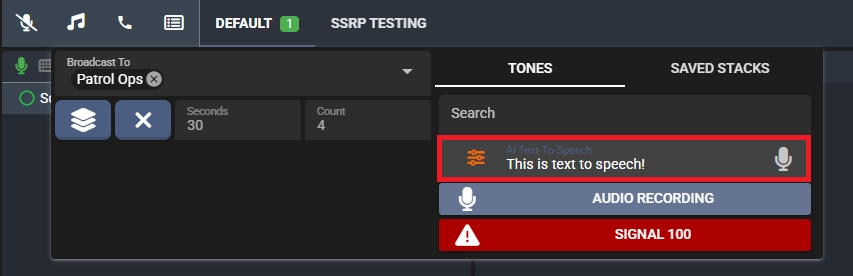
Tone Board Voice Effects
By default, tones played over the radio have the channel’s, or local, voice effects applied to them. This can be disabled in the settings menu, or by the community’s default settings.