# Stream Deck Plugin

<figure><img src="https://1542307009-files.gitbook.io/~/files/v0/b/gitbook-x-prod.appspot.com/o/spaces%2FfCk5zoeun5gx3ujYW6eg%2Fuploads%2FbCy6cG1gmg9VK0hpLOXQ%2Fradio_deck_promo_thumbnail.png?alt=media&#x26;token=568bd2bf-bea6-42e5-8aee-ac1c91d7f624" alt=""><figcaption></figcaption></figure>

<div><figure><img src="https://1542307009-files.gitbook.io/~/files/v0/b/gitbook-x-prod.appspot.com/o/spaces%2FfCk5zoeun5gx3ujYW6eg%2Fuploads%2FwxfwdFVOMrceNEnqZaHj%2Fradio_deck_promo_general.png?alt=media&#x26;token=abeffb94-36a5-4d6b-9d8f-eeb0c2ec5583" alt=""><figcaption></figcaption></figure> <figure><img src="https://1542307009-files.gitbook.io/~/files/v0/b/gitbook-x-prod.appspot.com/o/spaces%2FfCk5zoeun5gx3ujYW6eg%2Fuploads%2FhLSGaqcz5Jvw68xFoMq5%2Fradio_deck_promo_channels.png?alt=media&#x26;token=988bdedf-6f7c-442b-93fc-ee1e24fdca5d" alt=""><figcaption></figcaption></figure> <figure><img src="https://1542307009-files.gitbook.io/~/files/v0/b/gitbook-x-prod.appspot.com/o/spaces%2FfCk5zoeun5gx3ujYW6eg%2Fuploads%2FUmVLdZbCpEANcLPlzjwb%2Fradio_deck_promo_dial.png?alt=media&#x26;token=8c101ad9-3ad8-4a0d-bc82-c48d131578d1" alt=""><figcaption></figcaption></figure></div>

## Introduction <a href="#introduction" id="introduction"></a>

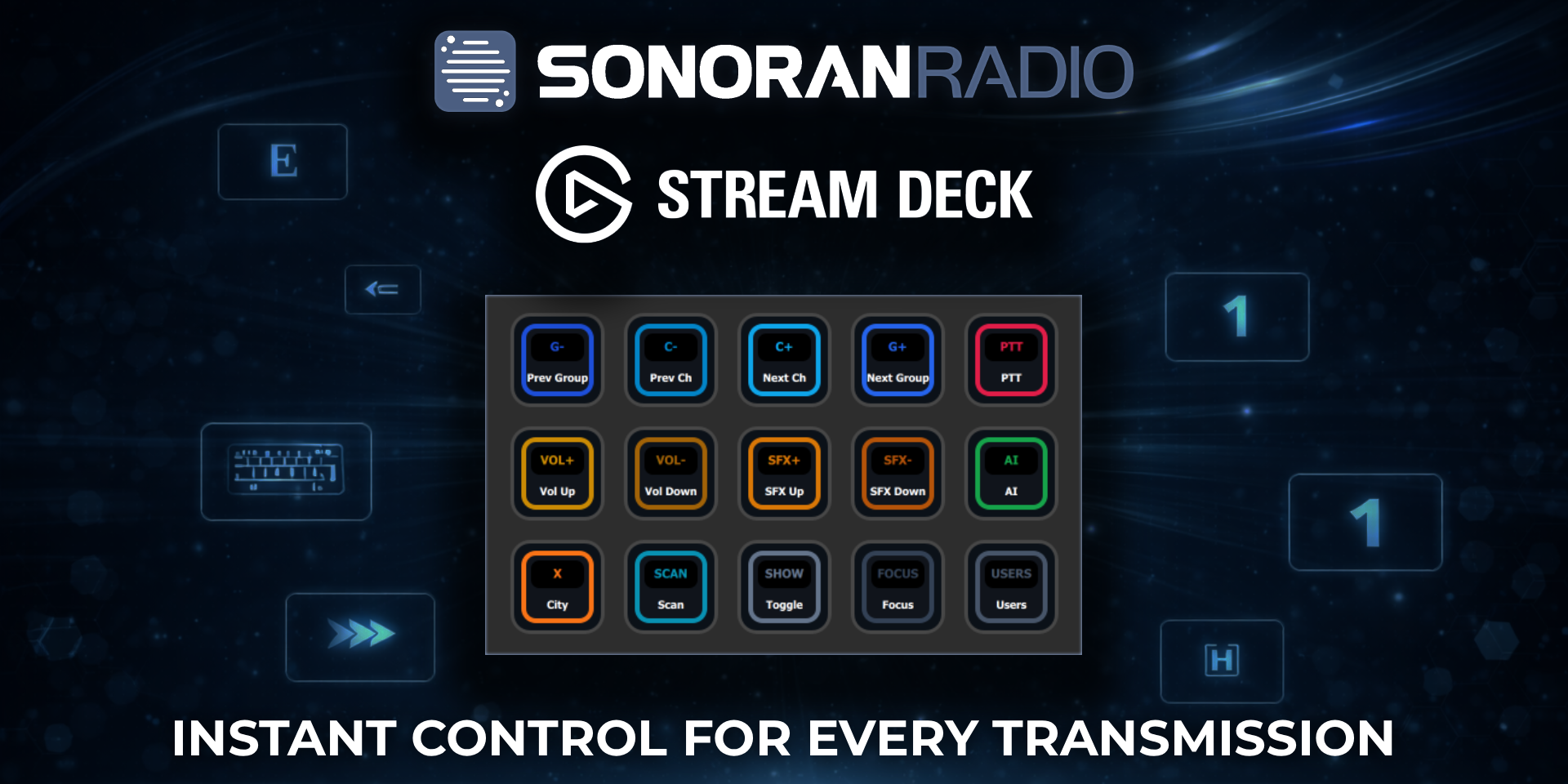
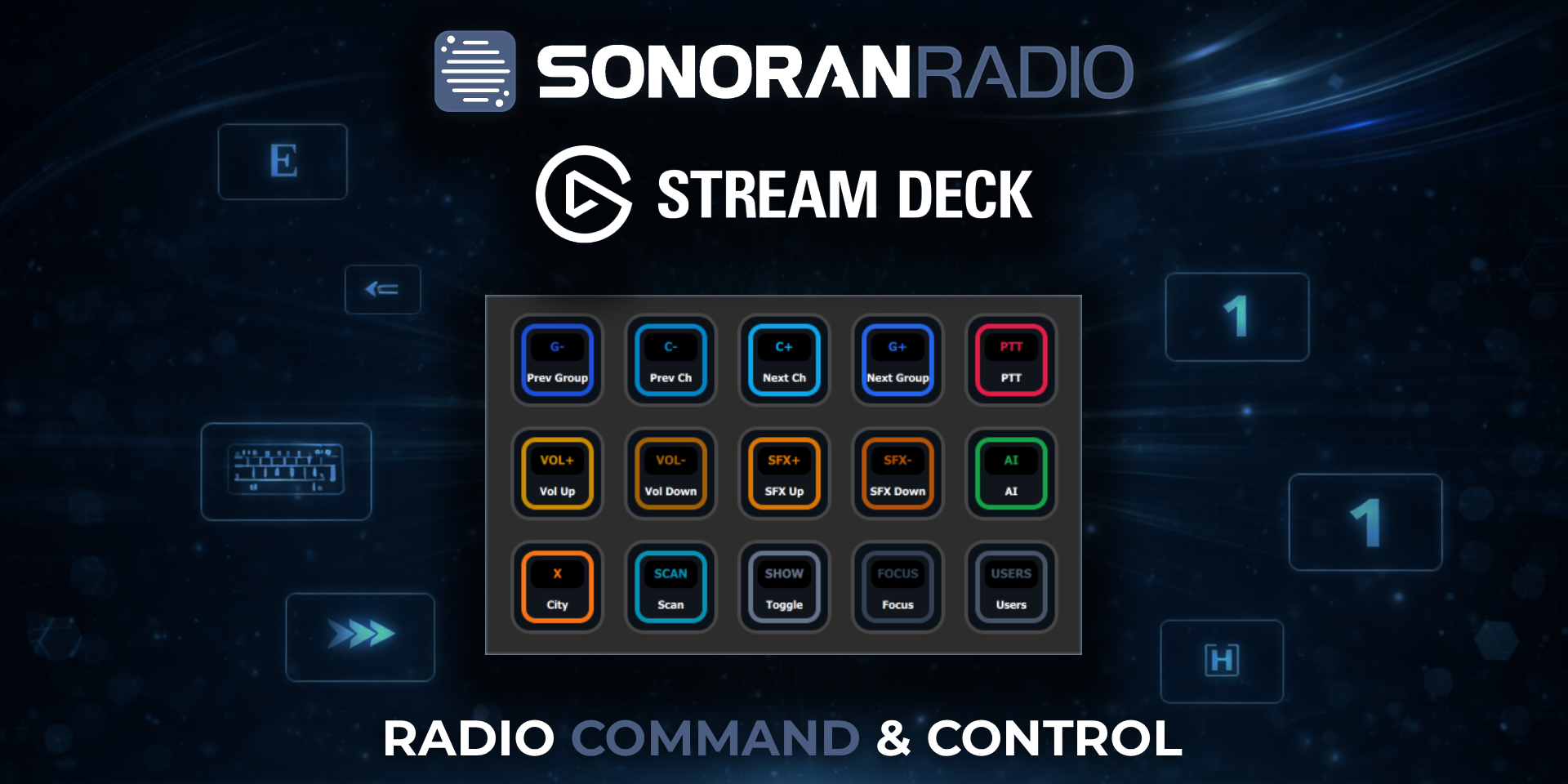
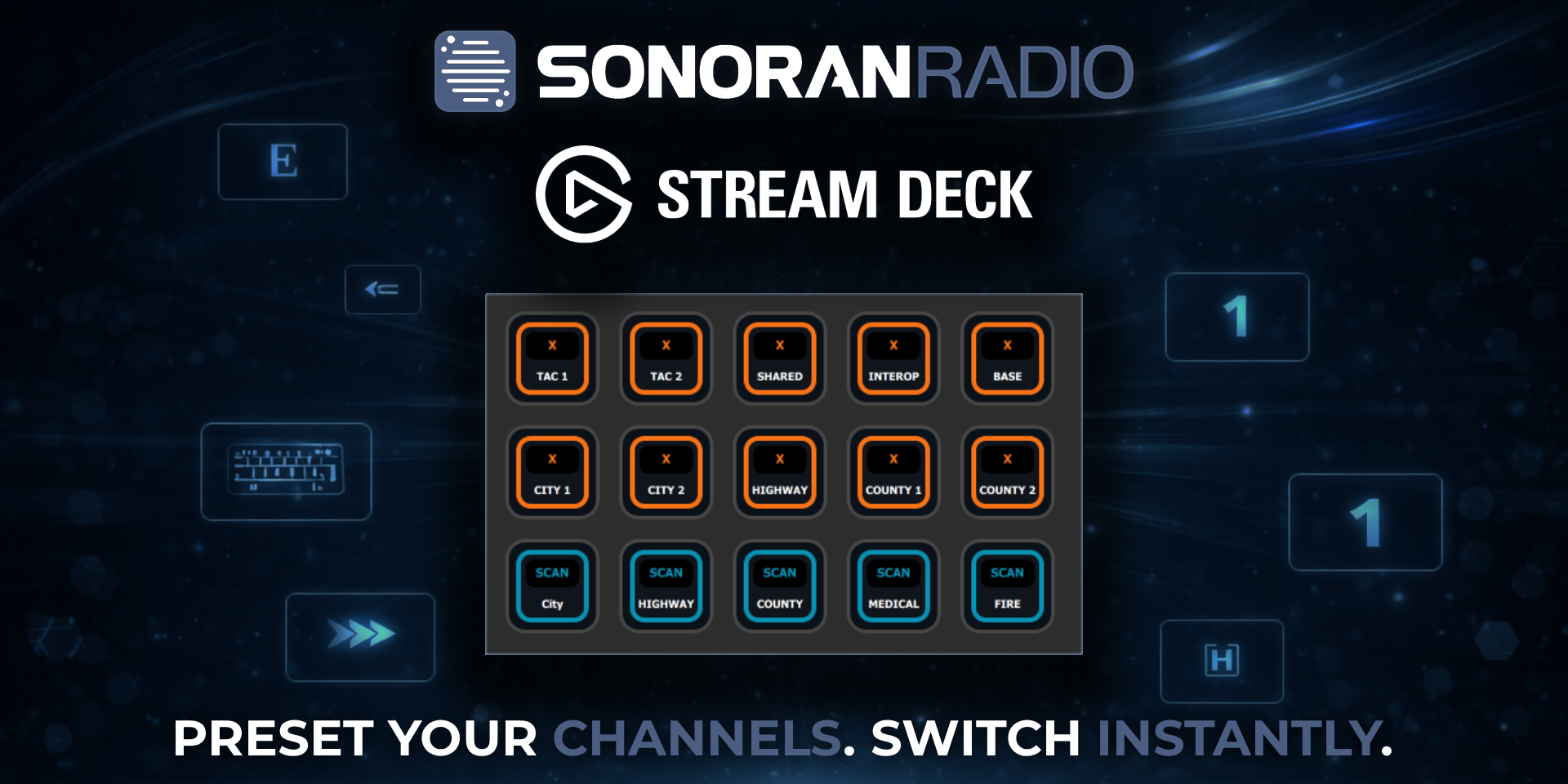
Sonoran Radio's MacOS and Windows desktop applications offer direct integration with [Stream Deck hardware](https://www.elgato.com/us/en/p/stream-deck). By installing our official Stream Deck plugin, users can change channels, toggle preset channel groups, change channel and system volumes, and more - faster than ever before.

Don't have a physical Stream Deck? Download the [free Stream Deck Mobile app](https://www.elgato.com/us/en/s/stream-deck-mobile)!

## Installation <a href="#installation" id="installation"></a>

### 1. Download and Install the Plugin <a href="#id-1.-download-and-install-the-plugin" id="id-1.-download-and-install-the-plugin"></a>

[Download the official Sonoran Radio Stream Deck plugin from the Elgato Marketplace.](https://marketplace.elgato.com/product/sonoran-radio-6e959b5a-4cd3-40c8-b145-8eb1ea982fd5)

### 2. Configure Actions <a href="#id-2.-configure-actions" id="id-2.-configure-actions"></a>

Using the Stream Deck desktop application search for **Sonoran Radio** in the **Keys** and **Dials** sections.

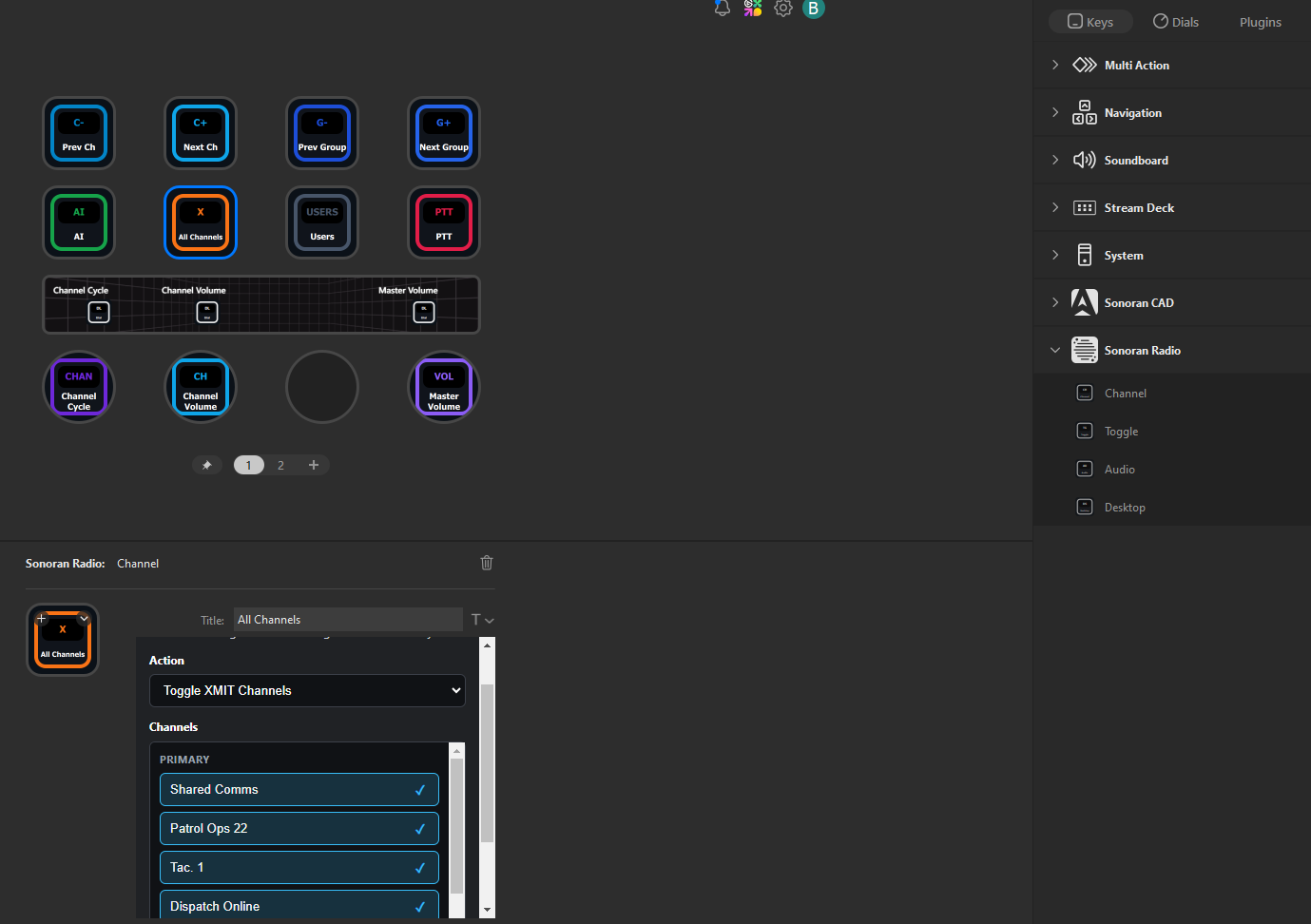
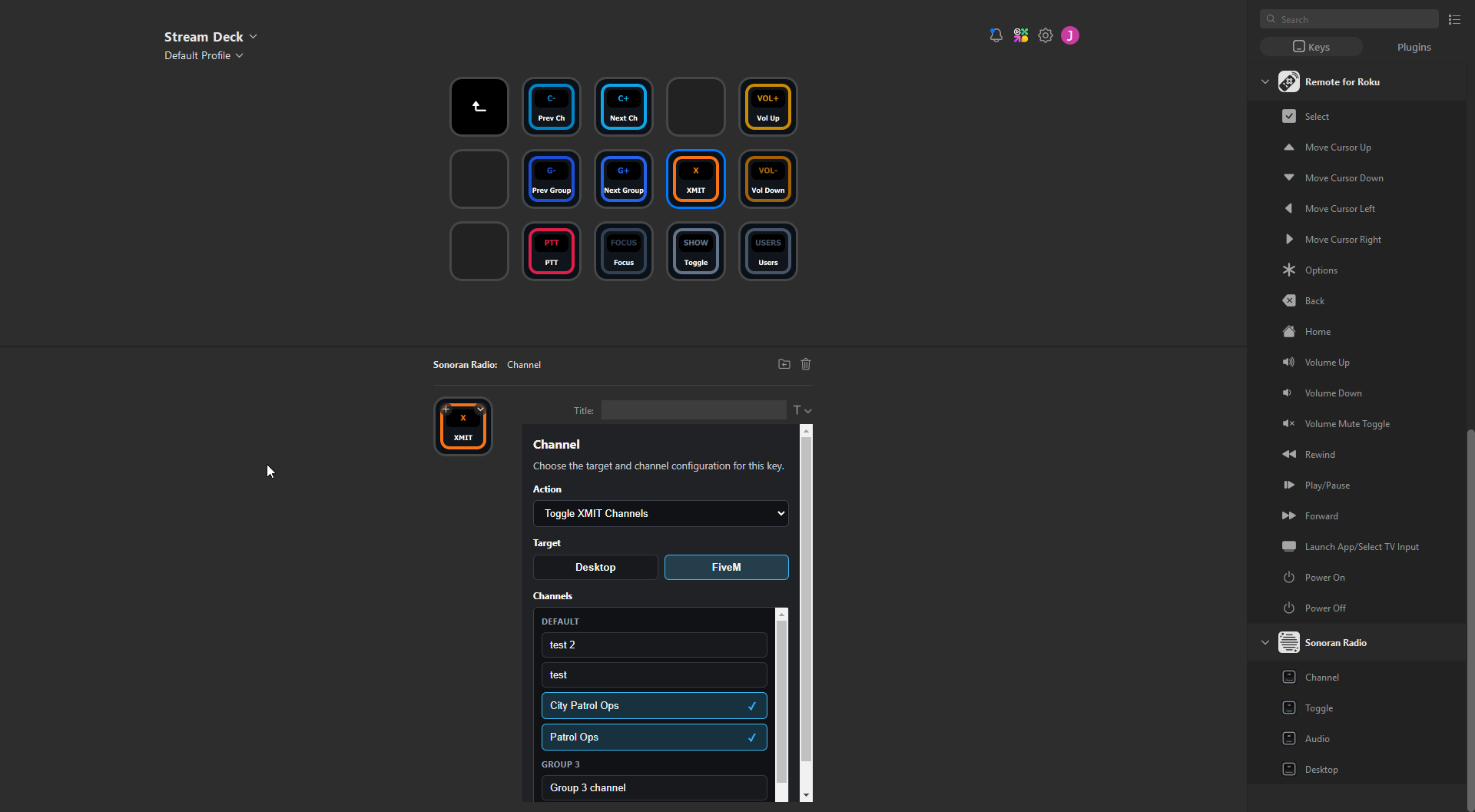
Drag-and-drop an action category to the Stream Deck. Select the action to update the sub-type.

Ex: **Channel** key type > **Toggle XMIT Channels** > **Select Channels**

<figure><img src="https://1542307009-files.gitbook.io/~/files/v0/b/gitbook-x-prod.appspot.com/o/spaces%2FfCk5zoeun5gx3ujYW6eg%2Fuploads%2FPb0eWqW89ec0A2wgQFHI%2Fimage.png?alt=media&#x26;token=8cff58ca-315d-47ea-96f4-5e61e58c86d4" alt="" width="375"><figcaption></figcaption></figure>

### 3. Optional: FiveM Integration

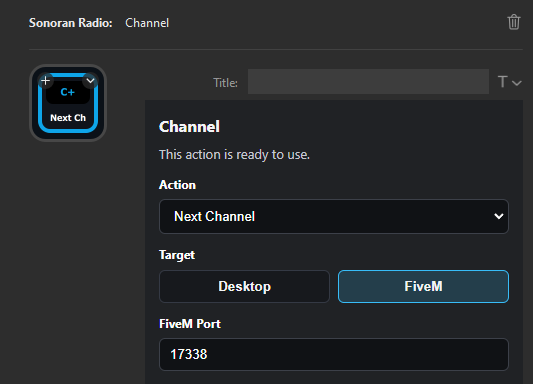
Each action can be configured to control the desktop app (default) or FiveM in-game resource.

For clients using the in-game radio in FiveM, simply toggle each action from **Desktop** to **FiveM**. Unless your community has modified the in-game resource, keep the default port as `17338`.

<figure><img src="https://1542307009-files.gitbook.io/~/files/v0/b/gitbook-x-prod.appspot.com/o/spaces%2FfCk5zoeun5gx3ujYW6eg%2Fuploads%2FbYmLBr5ByKRbVGwbw5no%2Fimage.png?alt=media&#x26;token=d6fa2798-194d-4f26-9e4b-9458f775ec12" alt="" width="267"><figcaption></figcaption></figure>

## Capabilities <a href="#action-capabilities" id="action-capabilities"></a>

### Keys

<details>

<summary>Channel Category Buttons</summary>

Channel actions allow you to do somethin

* **Next Group**
* **Previous Group**
* **Next Channel**
* **Previous Channel**
* **Toggle XMIT Channels**
  * Select one or more channels
  * Toggling this action will add and remove the selected channel(s) from your transmit list
* **Temporary XMIT Channel**
  * Select a channel
  * Pressing this action will temporarily transmit in the selected channel and return to your previous channel(s) after release
* **Toggle Scan Channels**
  * Select one or more channels
  * Toggling this action will add and remove the selected channel(s) from your scan list

</details>

<details>

<summary>Toggle Category Buttons</summary>

* **Push to Talk**
* **Toggle AI Mode**
* **Toggle Tone Board**

</details>

<details>

<summary>Audio Category Buttons</summary>

* **Volume Up**
* **Volume Down**
* **SFX Volume Up**
* **SFX Volume Down**
* **AI Volume Up**
* **AI Volume Down**

</details>

<details>

<summary>Desktop Category Buttons</summary>

* **Connected Users Overlay**
* **Focus Radio Overlay**
* **Toggle Radio Overlay**

</details>

### Dials

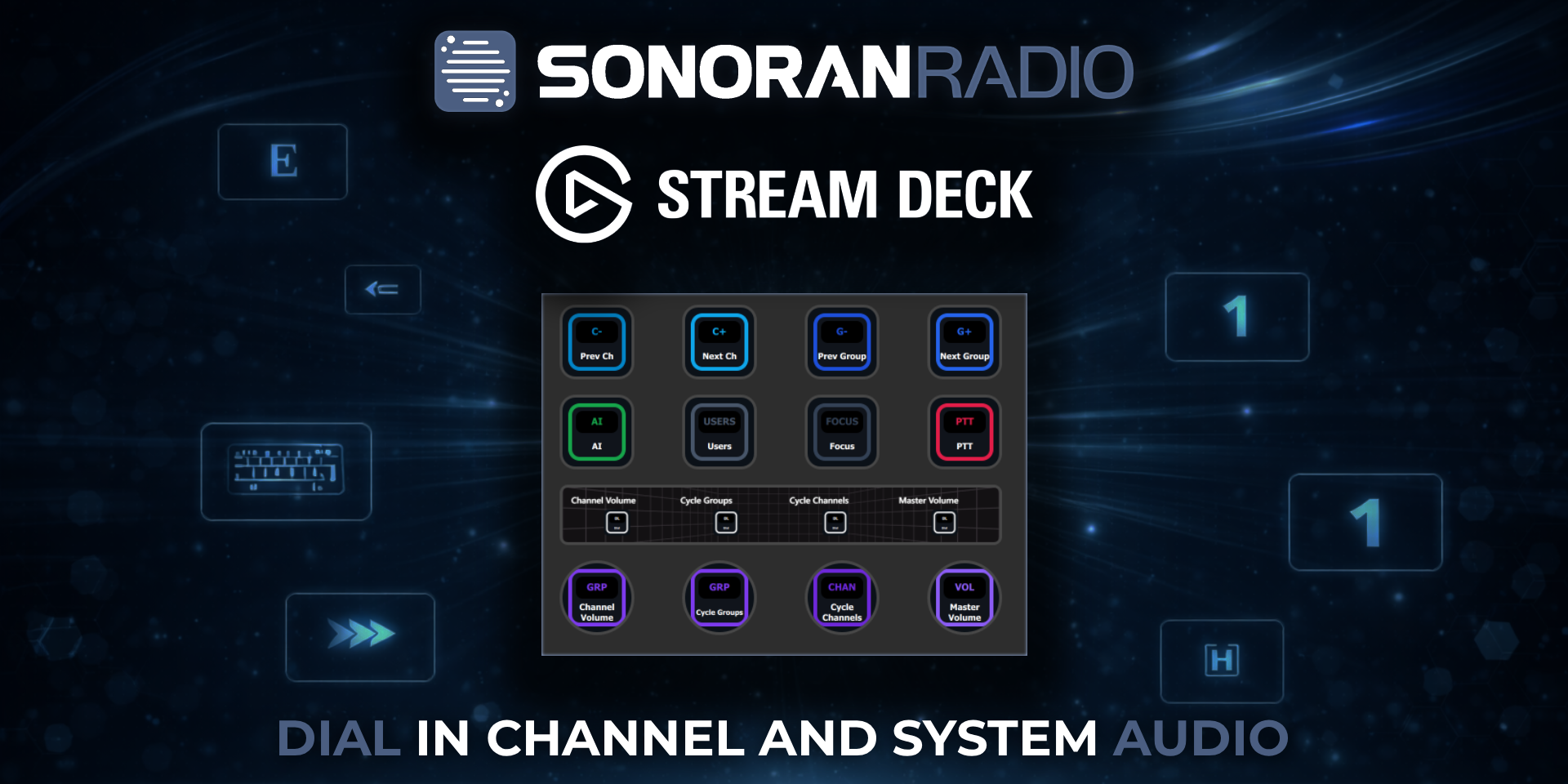
Stream Deck hardware with dials have the following supported actions:

<details>

<summary>Dial Options</summary>

* **Cycle Groups (Prev/Next)**
* **Cycle Channels (Prev/Next)**
* **Adjust Volume**
  * Optional Press to Mute
* **Adjust SFX Volume**
  * Optional Press to Mute
* **Adjust AI Volume**
  * Optional Press to Mute
* **Adjust Current Channel Volume**
  * Optional Press to Mute

</details>