

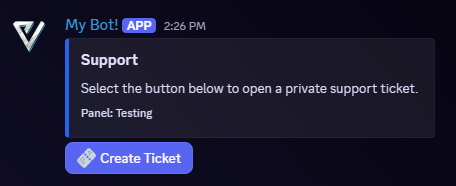
 Members select the panel button to open a private ticket.
Create a Ticket Panel
You need the Manage Server permission to configure ticket panels. Sonoran Bot also needs permission to manage channels and messages in the ticket categories.-
Create the panel and select an initial support role and open-ticket category:
/ticket panel create name:Support support_role:@Support open_category:Open Tickets -
Configure where closed tickets, transcripts, and ticket logs should go:
/ticket panel edit panel:Support closed_category:Closed Tickets transcript_channel:#ticket-transcripts log_channel:#ticket-logs -
Publish the panel in a channel members can access:
/ticket panel send panel:Support channel:#open-a-ticket
/ticket panel list to view existing panels. Running /ticket panel send again publishes another copy of the same panel.
Add Intake Questions
A panel can ask up to five questions before opening the ticket. Add each question with/ticket form add:
/ticket form add panel:Support question:What can we help you with? style:Paragraph required:True
Use /ticket form list, /ticket form remove, or /ticket form clear to review and change the questions.
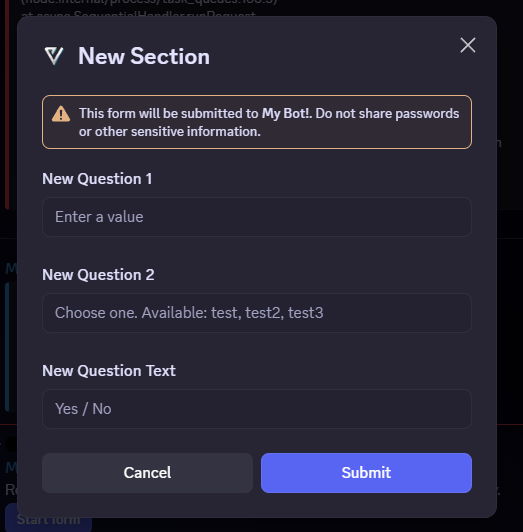 Intake answers are displayed to the support team when the ticket opens.
Configure Access and Limits
Use/ticket panel role-add and /ticket panel role-remove to manage these role groups:
- Support team: Can view and manage tickets for the panel.
- Read-only observer: Can view tickets without replying.
- Allowed to open: Limits panel use to selected roles.
- Blocked from opening: Prevents selected roles from opening tickets.
- Bypass ticket limits: Allows selected roles to ignore panel limits.
/ticket panel edit also configures the maximum open tickets per user and across the panel, automatic transcripts, claiming, close confirmation, channel names, and behavior when a ticket owner leaves the server.
Manage Tickets
New tickets include buttons to close, claim, and save a transcript. The main ticket message is pinned automatically when that panel option is enabled.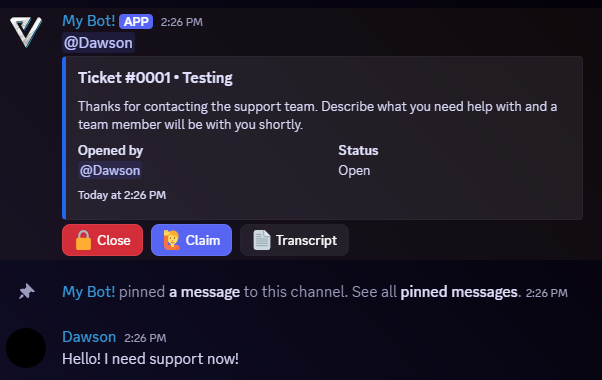 A private ticket channel visible to the ticket owner and configured support roles.
The ticket owner and support team can use the available buttons or these commands:
A private ticket channel visible to the ticket owner and configured support roles.
The ticket owner and support team can use the available buttons or these commands:
Most ticket-management commands accept an optional
ticket channel. If it is omitted, the command uses the current channel.