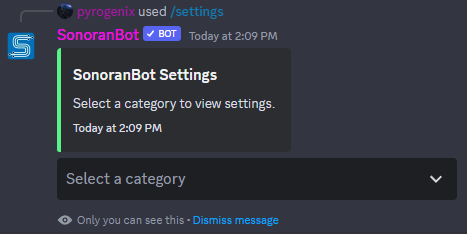
/settings allows you to manage many different aspects of how Sonoran Bot interacts with your Discord and CMS.
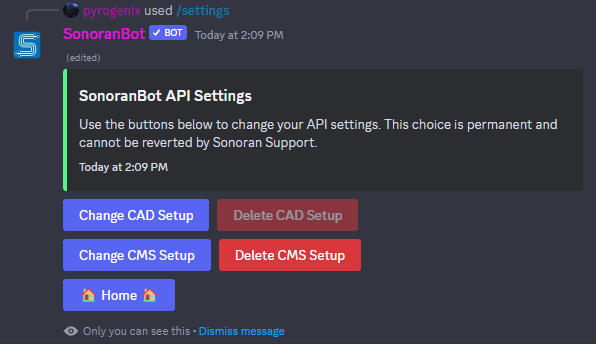
API Settings
Within the/settings menu, you can select API Settings, which will give you the options to change or delete the settings for your linked CAD and CMS communities.
CMS Settings
CMS Settings Menu
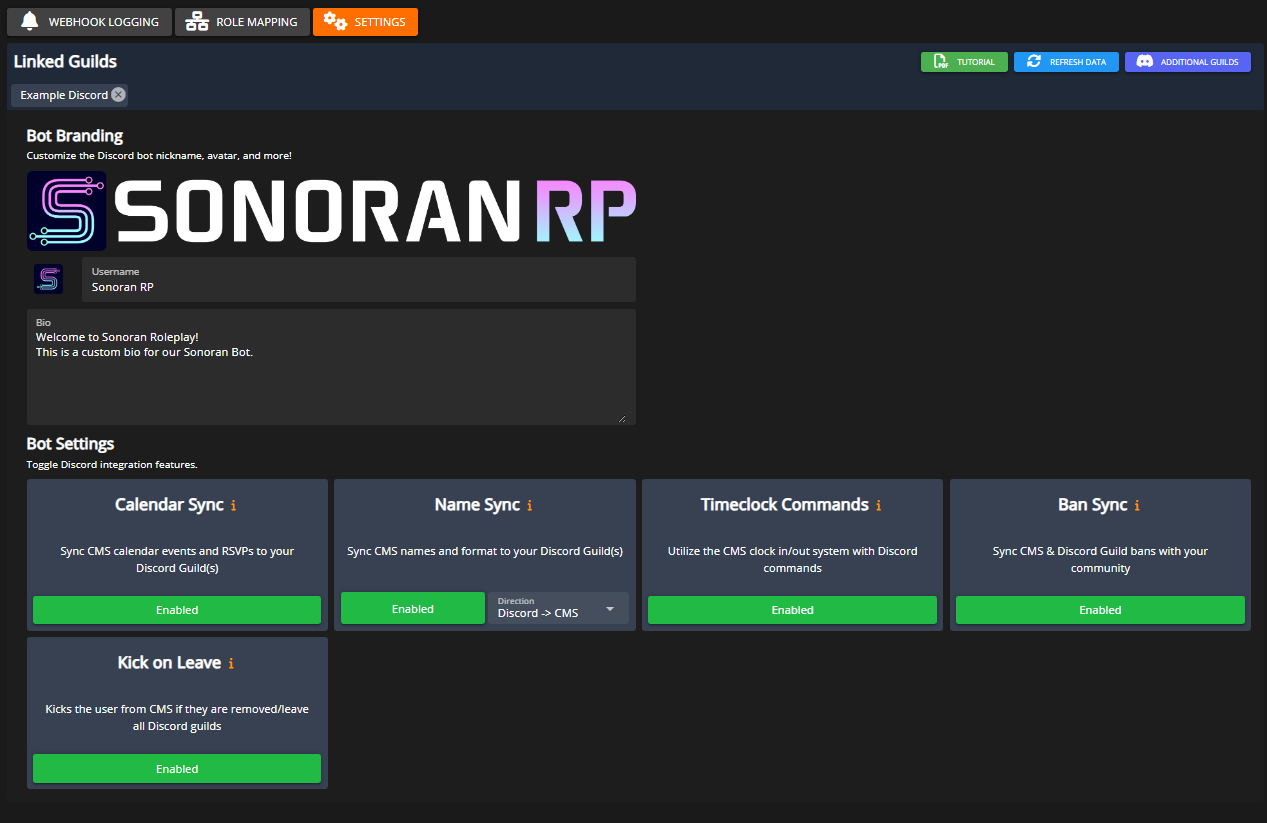
Many of the following settings can be toggled from within CMS in the settings menu located atAdmin > Integrations > Discord > Settings
Branding Removal
CMS communities with branding removal can customize the avatar, nickname, banner image, and bio! Once set in the CMS Discord settings panel, the changes can take up to five minutes to be reflected due to Discord rate limits.Calendar Sync
Allows you to toggle sync between CMS calendar events and your Discord. Enabling this will create a Discord event for any calendar events created in CMS. This can also be toggled from CMS inAdmin > Integrations > Discord > Settings
Name Sync
Name sync allows you to sync the names between Sonoran CMS and Discord. This can also be toggled and configured from the CMS inAdmin > Integrations > Discord > Settings
CMS -> Discord Mode
Enabling Name Sync in CMS -> Discord mode will automatically change the nicknames of all users in the Discord server to their corresponding CMS community names. The name it shows is whatever you’ve set in CMS’s Name Customizations settings. Thus, a hypothetical user whose name is displayed asJohn Doe | 1A would receive that as a nickname in Discord.
Discord -> CMS Mode
Enabling Name Sync in Discord -> CMS mode will update users’ CMS display names to match their Discord server name.Clock In/Out
Toggles the ability to clock in and out in CMS from Discord. If enabled, users can do/clockincms to clock in or /clockoutcms to clock out. This will automatically send clock information to CMS.
For more information on CMS’s time clock system, see its documentation here.
This can also be toggled from CMS in Admin > Integrations > Discord > Settings
Ban Sync
Syncs CMS & Discord Guild bans with your community. If a user is banned from one, they will also automatically be banned from the other, and vice versa. Banning a user in a linked Discord guild will also ban them in the CMS. This can also be toggled from CMS inAdmin > Integrations > Discord > Settings
Role Sync Settings
Toggle Kick On Leave
This will automatically remove a user from CMS if they leave or are banned from the Discord. Likewise, it will also automatically remove a user from the Discord Guild if they leave the CMS community. This can also be toggled from CMS inAdmin > Integrations > Discord > Settings
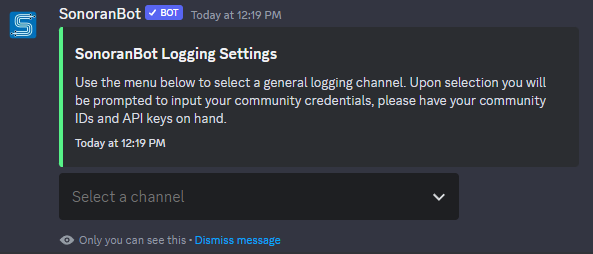
Logging Settings
Allows you to set or change the General logging channel and the Moderation logging channel.