# Clock In/Out System

{% embed url="<https://www.youtube.com/watch?v=D52DeI0qKOg>" %}

### What is the Timeclock?

Sonoran CMS offers a Clock In/Out system available for all users of Sonoran CMS. The goal of this system is to assist with time-clocking with the "Patrol Log" type[ custom forms](https://docs.sonoransoftware.com/cms/tutorials/forms/creating-custom-forms).

{% hint style="warning" %}
Straight out of the box there's no way to utilize the clock in/out times that you've completed and are simply for reference unless a [custom form](https://docs.sonoransoftware.com/cms/tutorials/forms/creating-custom-forms) specifically with the "Patrol Log" type is created.
{% endhint %}

While having a [custom form](https://docs.sonoransoftware.com/cms/tutorials/forms/creating-custom-forms) with the form type of "Patrol Log" you can utilize the "Patrol Start/End" column type which will allow you to import clock in/out times straight into the form.
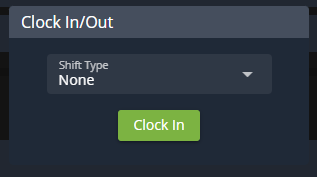
![Sonoran CMS - Clock In/Out Component](https://3006847189-files.gitbook.io/~/files/v0/b/gitbook-x-prod.appspot.com/o/spaces%2F-MdBOa9OFjtdqw9FdXli%2Fuploads%2FbIWeMIyxZZSPHDwhim3w%2FScreenshot%20\(406\).png?alt=media\&token=df324cf3-3133-4269-aedc-88ce7be10499)

### Using the Clock In/Out Feature

{% hint style="info" %}
The CMS Permission **Clock In & Out** must be granted in order for this to be used. The UI will not show if the permissions is not granted.
{% endhint %}

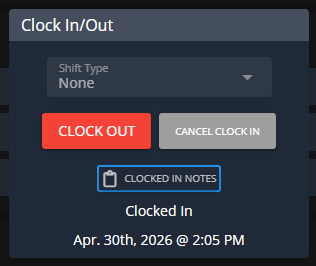
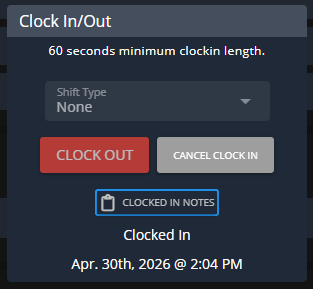
Using the Clock In/Out feature is easy as clicking the "Clock In" button, doing this will clock you in, giving you the option to clock out after the 60s or cancel the clock in entirely.

![Sonoran CMS - Clocked In View](https://3006847189-files.gitbook.io/~/files/v0/b/gitbook-x-prod.appspot.com/o/spaces%2F-MdBOa9OFjtdqw9FdXli%2Fuploads%2FiESXgSfheDGZiT0GWwSV%2FScreenshot%20\(407\).png?alt=media\&token=ff37e602-514f-40d1-a214-430756a4c588)

Once the "Clock Out" button is available to be used and when you're ready to clock out all you need to do is click the "Clock Out" button.

![Sonoran CMS - Clocked Out View](https://3006847189-files.gitbook.io/~/files/v0/b/gitbook-x-prod.appspot.com/o/spaces%2F-MdBOa9OFjtdqw9FdXli%2Fuploads%2F5vTwxPHVx3IRzjKDx9Xt%2FScreenshot%20\(408\).png?alt=media\&token=5229d703-3f4d-4080-b182-beedfee992b7)

### Clock In Notes

You can also add timestamped notes while clocked in to briefly describe what you were doing.

To view or create Clock In Notes, open the Clock In/Out Component and click the "Clocked in Notes" button to open it. Here you can type in a new note you would like to add regarding your current shift.

<figure><img src="https://3006847189-files.gitbook.io/~/files/v0/b/gitbook-x-prod.appspot.com/o/spaces%2F-MdBOa9OFjtdqw9FdXli%2Fuploads%2F8vb7gD5fpkpq6Vl3Jszx%2FScreenshot%20(409).png?alt=media&#x26;token=825f2b92-a65b-4533-a661-7dd5c6e4d7c6" alt=""><figcaption><p>Sonoran CMS - Add Clock In Note</p></figcaption></figure>

When you're satisfied with your note, press enter to add it to your shift.

<figure><img src="https://3006847189-files.gitbook.io/~/files/v0/b/gitbook-x-prod.appspot.com/o/spaces%2F-MdBOa9OFjtdqw9FdXli%2Fuploads%2FN3udz0EgsXADkyEgHoBm%2FScreenshot%20(410).png?alt=media&#x26;token=8d11abce-c8af-4d50-98e8-649308535bb8" alt=""><figcaption><p>Sonoran CMS - Clock In Note</p></figcaption></figure>

### Viewing Clock In/Out History

You can view your entire Clock In/Out history through your community profile located on the left side menu. You can also download any shift's data as a `.txt` file or view Clock In Notes by clicking the buttons on the right.
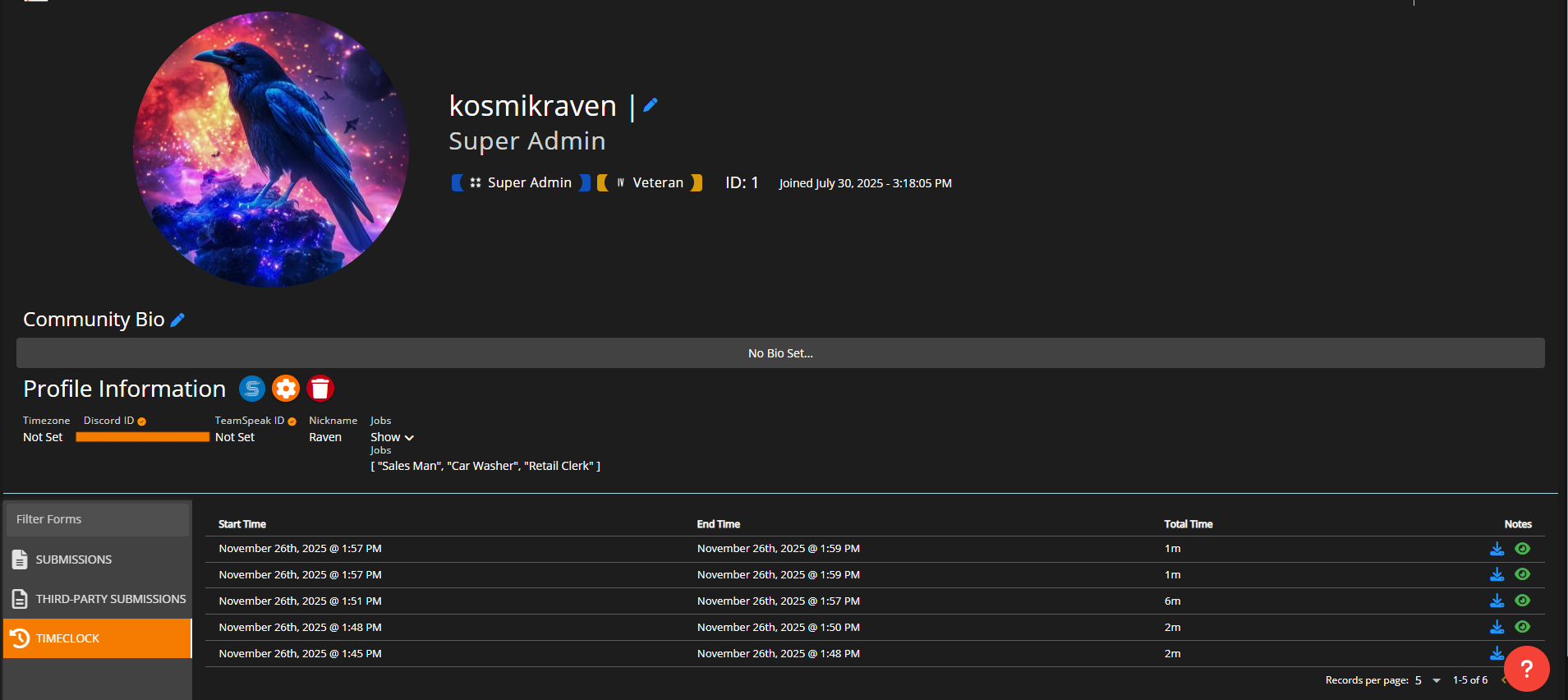
![Sonoran CMS - Community Profile](https://3006847189-files.gitbook.io/~/files/v0/b/gitbook-x-prod.appspot.com/o/spaces%2F-MdBOa9OFjtdqw9FdXli%2Fuploads%2FDAD2u53qVr86UV2YFHxK%2FScreenshot%20\(411\).png?alt=media\&token=8af35d4e-c61c-4b65-9b58-5b75621e117d)