

Open Revision History
- Open a form submission.
- Select View history in the Submission history panel.
- Select a version from the list on the left. On mobile, use the Saved version dropdown.
 Open history from a submitted form.
The latest version opens first. Each version lists its date and editor, when available.
Open history from a submitted form.
The latest version opens first. Each version lists its date and editor, when available.
Compare Changes
Selecting an edited version compares it with the previous saved version. For example, Version 1 → 2 shows what changed when version 2 was saved. Only show changes is enabled by default. Turn it off to include unchanged questions and view the full form.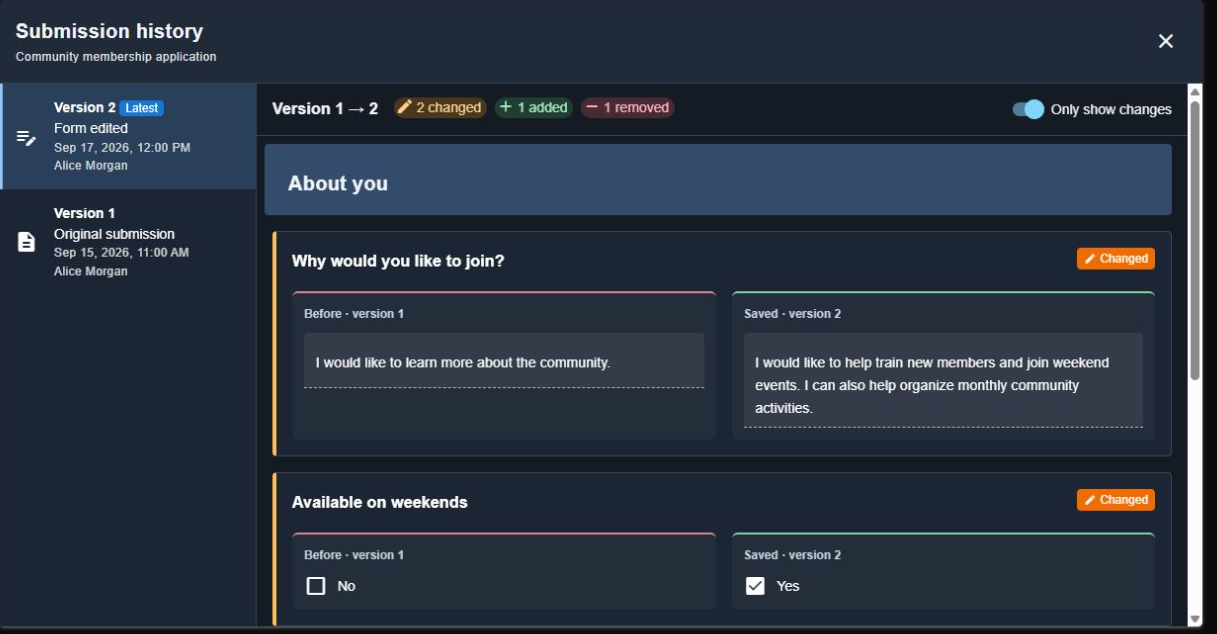 The previous answer appears under Before; the selected version’s answer appears under Saved.
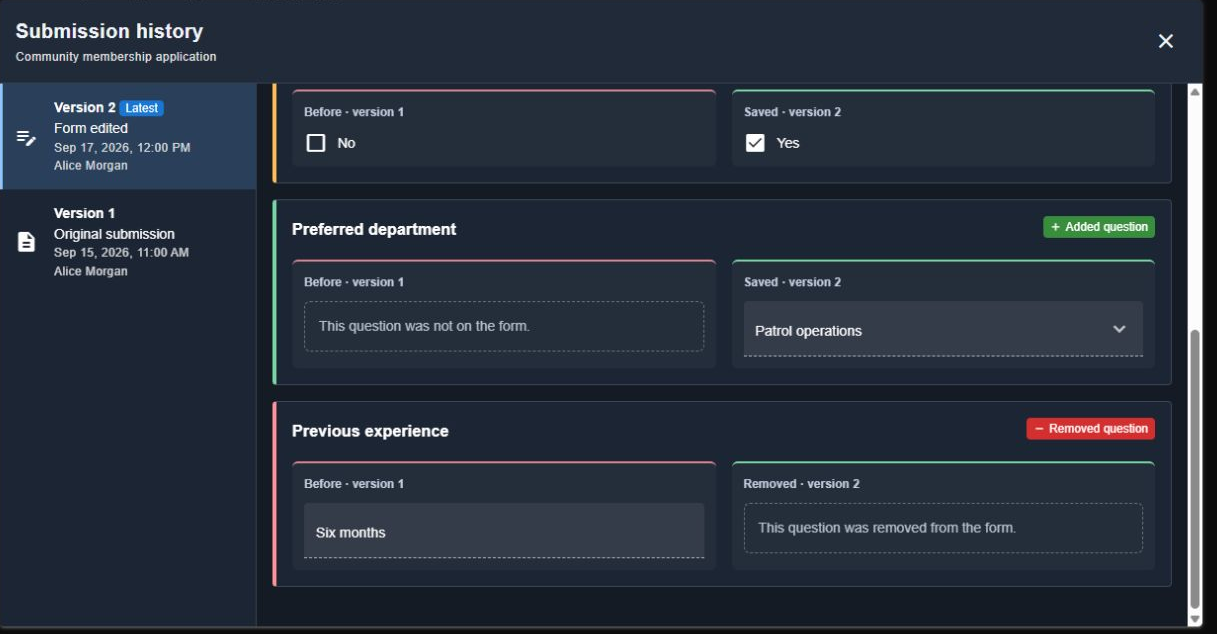 Added and removed questions remain in their form section for comparison.
Select Original submission to view the answers as they were first submitted. Viewing a version does not restore it or change the current submission.
Added and removed questions remain in their form section for comparison.
Select Original submission to view the answers as they were first submitted. Viewing a version does not restore it or change the current submission.