Character Mapping
QB Core stores player information in theplayers table.
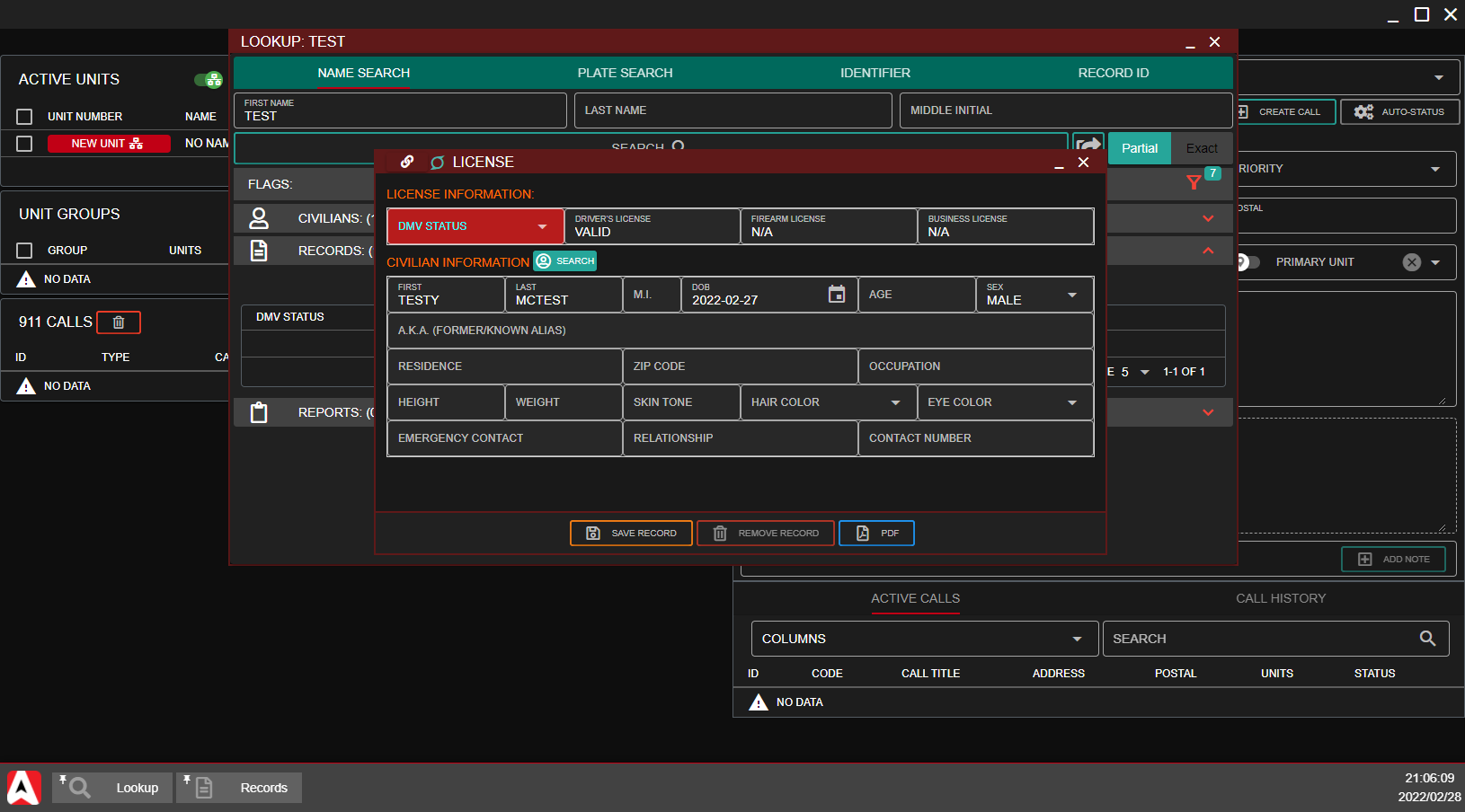
The player’s first and last name is stored as JSON in the charinfo column. We’ll toggle these as a JSON Column and set the JSON keys to firstname and lastname.
The citizenid column stores a unique player ID. This will be our Character Mapping Column.


Multiple Residency
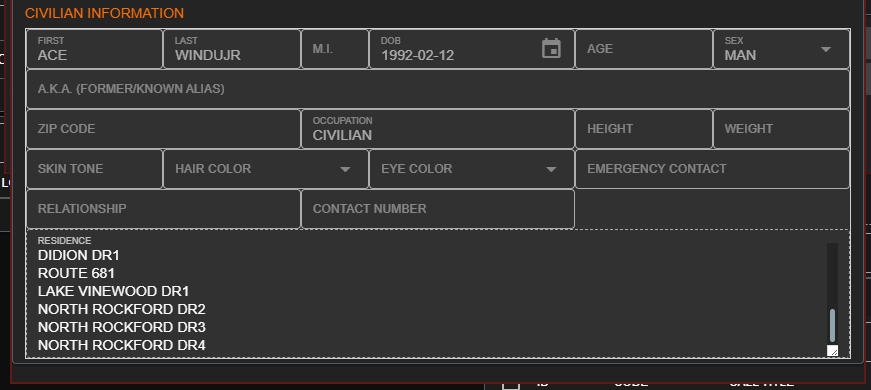
QB Core also allows players to own multiple residences at once. Sonoran CAD’s DB Sync will pull all of these from their externalplayer_houses table.
 Because multiple residences can be listed at once, it’s recommended you update your custom record’s residence field to the
 textarea type.
 The custom record now shows the residency textarea with all owned addresses.
Vehicle Mapping
QB Core stores the vehicle information in theplayer_vehicles table.
The Unique ID for vehicles is stored in the citizenid column and matches the values stored in the citizenid column from our player mapping.
The plate column stores the vehicle’s license plates.
You can configure other custom fields may include color, make, model, etc. Vehicle colors are often stored as a number. You can use friendly mapping to convert a number to a color name.


License Mapping
Because of how licenses are stored in QB Core, this process adds a couple of extra steps.
- Open Admin panel to License Record
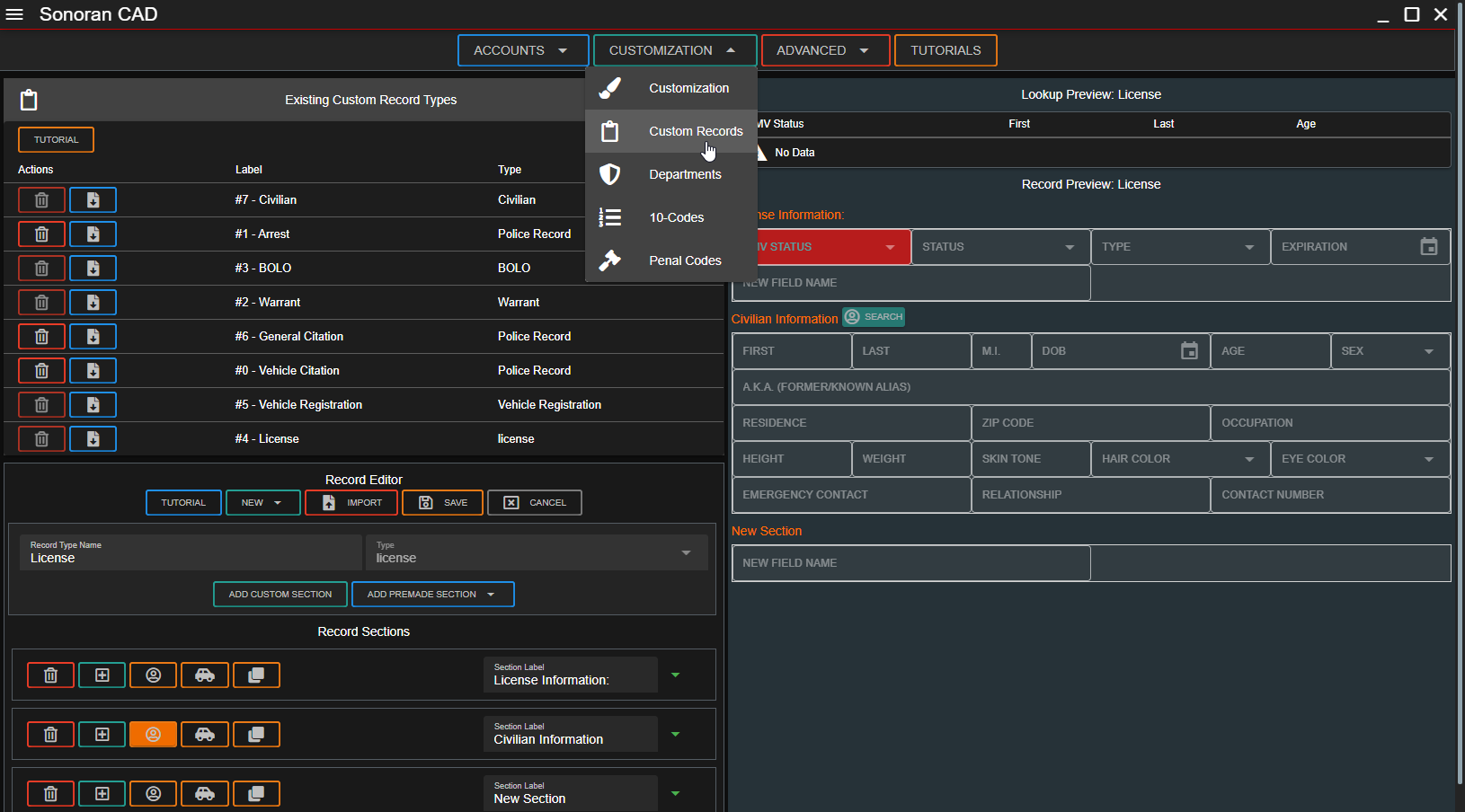
You will first need to edit the License record to adapt it for how QBCore stores its licenses. Open the Admin Panel by going to the following…
Admin Panel -> Customization -> Custom Records -> Click #4 - License
2. Edit License Information Section
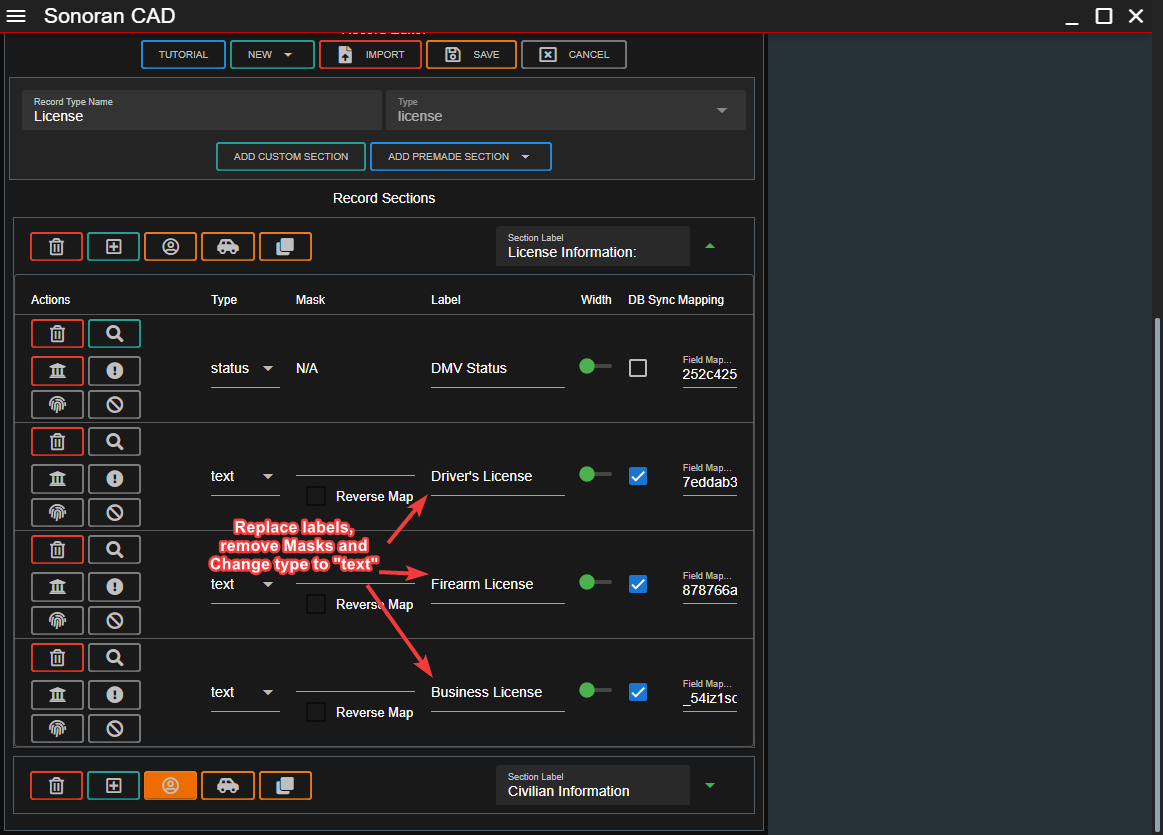
Replace the last three fields in theLicense Information: section with the following. Make sure to change the type to text and remove the mask. You can use the screenshot below as a guide. Then click Save before moving on.
- Open DBSync Settings
Click Advanced -> In-Game Integration to open the DBSync settings menu.
- Fill in DBSync Settings
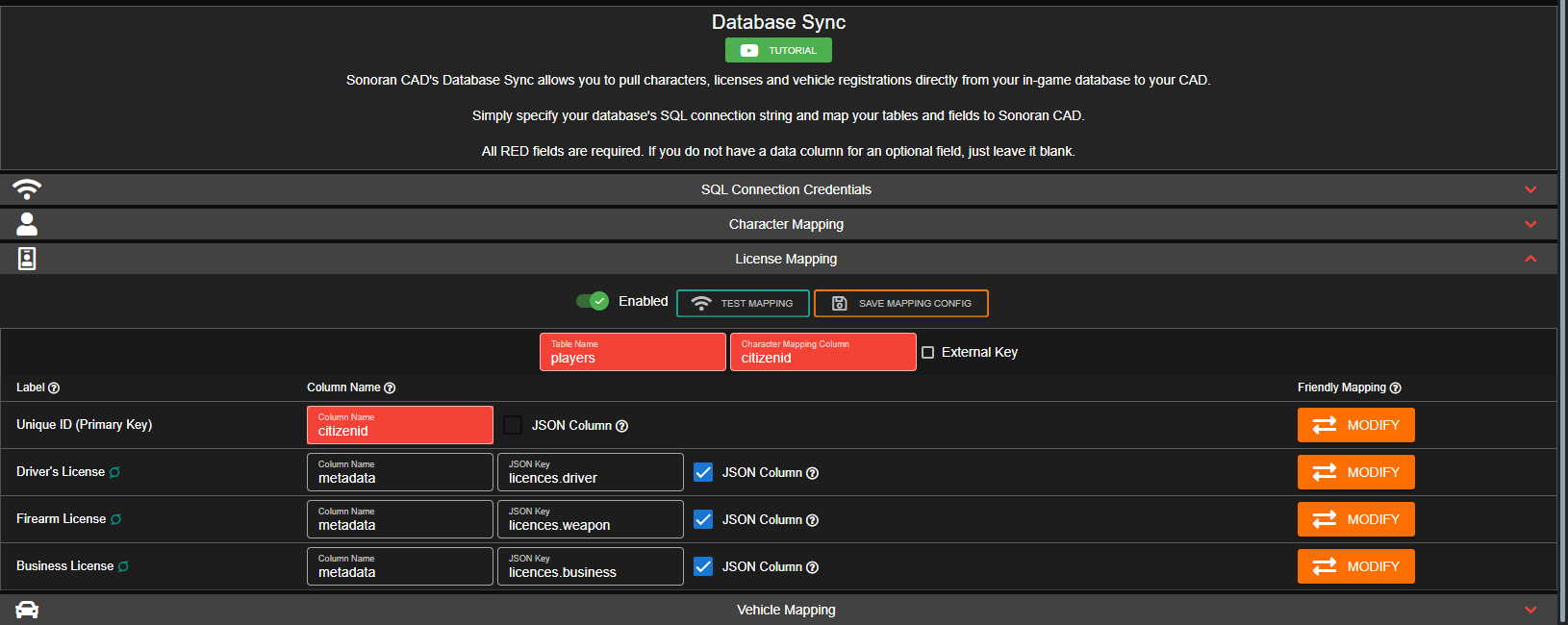
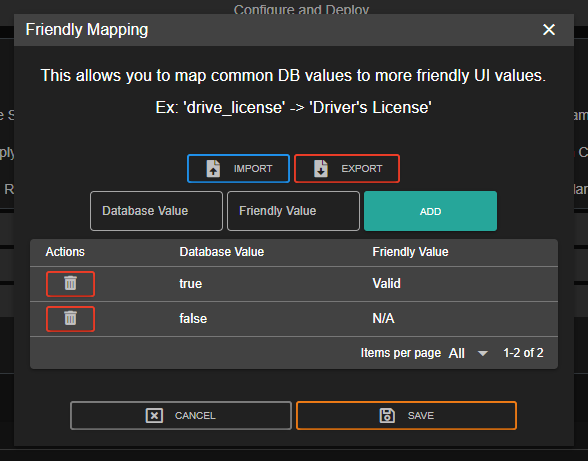
As of writing on 2/28/2022, the following pictured settings will work for QBCore’s latest version. Fill in the Table Name, Character Mapping Column, Column Names, JSON Columns and Friendly Mappings as shown below. Make sure to click Save Mapping Config once finished.
We are aware of the misspelling “licence”, this is intentional in QBCore to differentiate between another piece of data referred to as “license”
 Congratulations! You should now be all set up to display your licenses from QBCore in Sonoran CAD. Feel free to test a record lookup to verify everything is in order.