

Included radio items
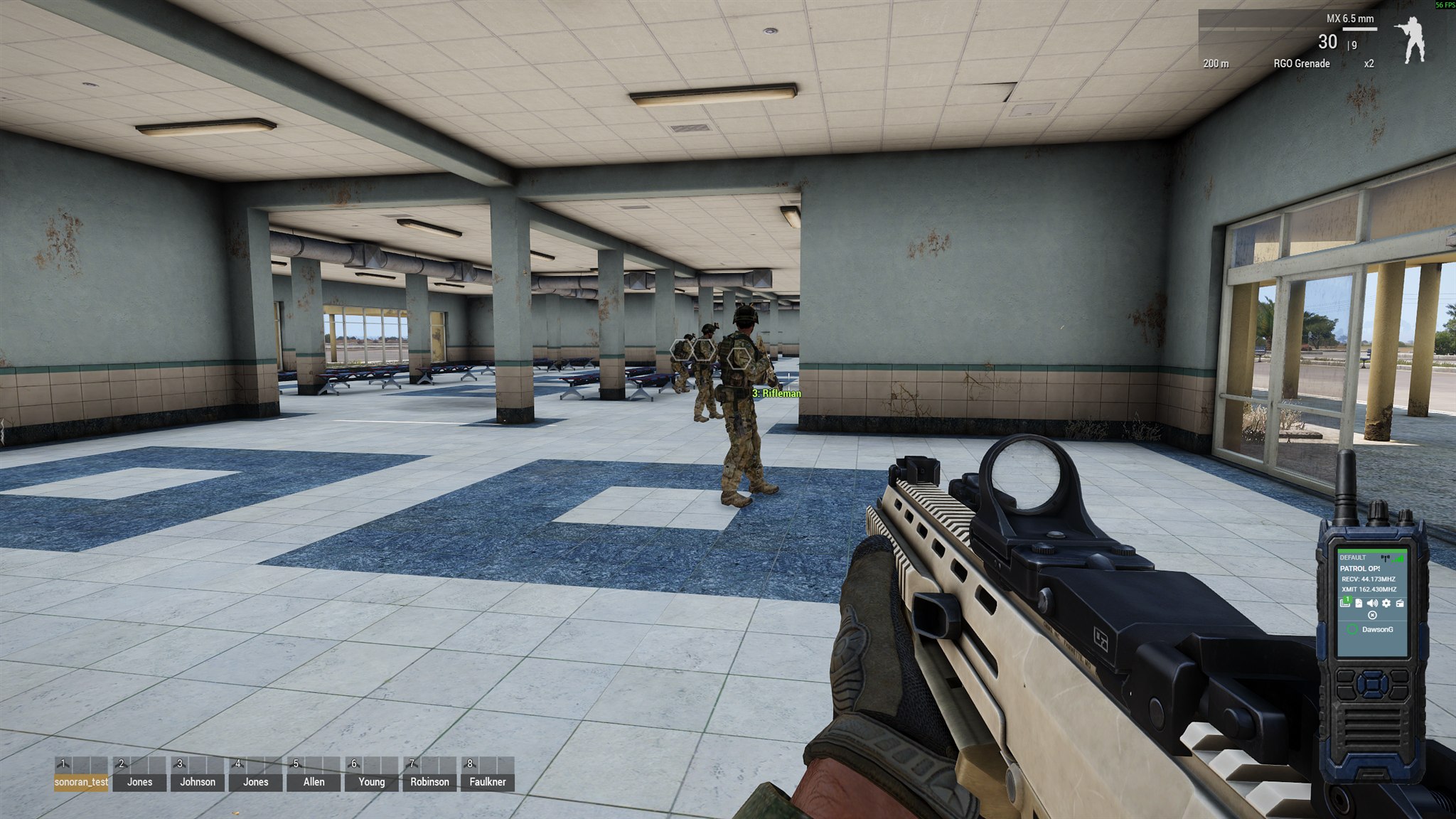 The desktop radio overlay remains visible and usable while playing Arma 3.
New Radio communities registered with ARMA 3 selected include the two example desktop frames and mappings. Existing communities can map these classes to an existing frame or create new frames.
On both default ARMA frames, the lower-left button beneath the screen returns to the Radio portal. The upper-left and upper-right buttons change channels, and the center button reconnects the radio. Older default frames with unchanged button layouts receive the portal button when the overlay is reopened.
For a custom frame, add Back to Portal in Customize > Overlay > Manual > Add Button, position it over the intended button, and select Save changes.
The overlay’s Panic control can also update your CAD unit. Configure the CAD API link in Customize > Dispatch AI and follow Sonoran CAD Integration.
The desktop radio overlay remains visible and usable while playing Arma 3.
New Radio communities registered with ARMA 3 selected include the two example desktop frames and mappings. Existing communities can map these classes to an existing frame or create new frames.
On both default ARMA frames, the lower-left button beneath the screen returns to the Radio portal. The upper-left and upper-right buttons change channels, and the center button reconnects the radio. Older default frames with unchanged button layouts receive the portal button when the overlay is reopened.
For a custom frame, add Back to Portal in Customize > Overlay > Manual > Add Button, position it over the intended button, and select Save changes.
The overlay’s Panic control can also update your CAD unit. Configure the CAD API link in Customize > Dispatch AI and follow Sonoran CAD Integration.
Select a frame manually
Select a frame manually
- Open Settings > Audio on the desktop overlay.
- Open Radio Frame and select a community frame.
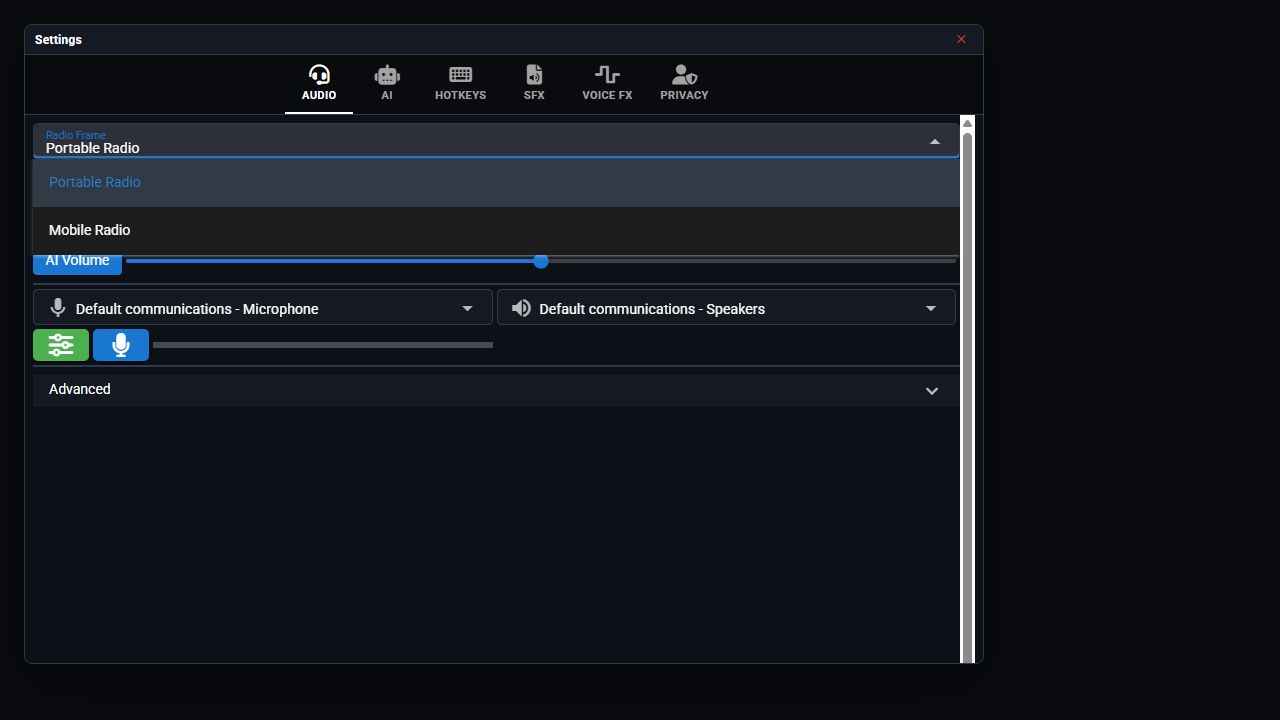 Choose a frame in the desktop overlay settings.Equipping a mapped Arma radio item selects its assigned frame automatically.
Give a player a radio
- Open the player loadout in Eden or Zeus Arsenal.
- Search for Sonoran Radio (BLUFOR) or Sonoran Radio (OPFOR).
- Equip the intended radio item.
Give a radio using mission scripts
Give a radio using mission scripts
In a unit’s Eden initialization field, use Arma’s To give yourself the BLUFOR item from the Arma Debug Console, select Local Exec and run:For OPFOR, replace the class name with
linkItem command:SonoranRadio_Item_OPFOR.Map an item to a desktop frame
- Open the Sonoran Radio admin panel.
- Navigate to Customize > Overlay.
- Select the frame that should represent the team or inventory item.
- In ARMA Item Class Names, enter the exact
CfgWeaponsclass name and press Enter to create a chip. - Select Save.
- Close and reopen the desktop overlay on player computers so it downloads the updated frame list.
Custom inventory items
Custom inventory items
Any custom item that inherits Arma’s Clear the override and return to automatic detection with:
ItemRadio is detected automatically. Add its CfgWeapons class name to the desired frame in the admin panel.For an inventory system that does not inherit ItemRadio or use Arma’s assigned radio slot, call the client-side override when the custom radio is used: