

Requirements
- Arma 3 version 2.12 or newer
- CBA_A3
- The Sonoran Radio Arma 3 mod on the server and every player client
- The Sonoran Radio desktop app for each player
- Windows on player computers; the client bridge uses the packaged
sonoran_radio_x64.dlland PowerShell
Install the mod
Steam Workshop
Subscribe to the Sonoran Radio Arma 3 mod and CBA_A3. Add both mods to the dedicated server’s mod list and to the preset distributed to players. Load CBA_A3 before Sonoran Radio.Dedicated server setup
- Install both Workshop mods on the server and keep them updated.
-
Add both to the server’s normal
-modstartup parameter, with CBA first. For example, if your mod folders use these names:Use your actual folder names or paths. Sonoran Radio is required on clients too; do not load it only through-serverMod. -
Copy the
.bikeyfiles from both mods’keysfolders into the server’skeysfolder. When Sonoran Radio updates, copy the key supplied with that release. - Restart the server and distribute a preset containing both mods to your players.
Community setup
A community administrator selects ARMA 3 under Community Customizations → Game Integrations. The ARMA 3 Installation expansion contains a four-step walkthrough above the three community settings.
These settings are saved for the whole community, not per user. Only community administrators can change them. Active radio clients refresh them within 30 seconds. Disabling bridge use also stops Radio’s signal and AI-hearing integration; the other two saved values are retained.
Mod version 0.3.3 or newer has no Sonoran CBA addon-settings menu or legacy in-game overrides. Tower modules remain configurable in Eden and Zeus. Use an updated desktop app and backend with community-settings support alongside the updated mod.
The bridge process may still exist because the mod starts its local transport. Disabling community bridge use stops Radio from using it; it does not terminate that process. No Radio API key belongs in the mod.
Connect the desktop overlay
- Open the Sonoran Radio desktop app.
- Select the same Radio community used by the other players.
- Join the desired channel or scan group.
- Select the Overlay tab at the top, alongside Dispatch.
- Start or join the Arma mission with the integration mod enabled.
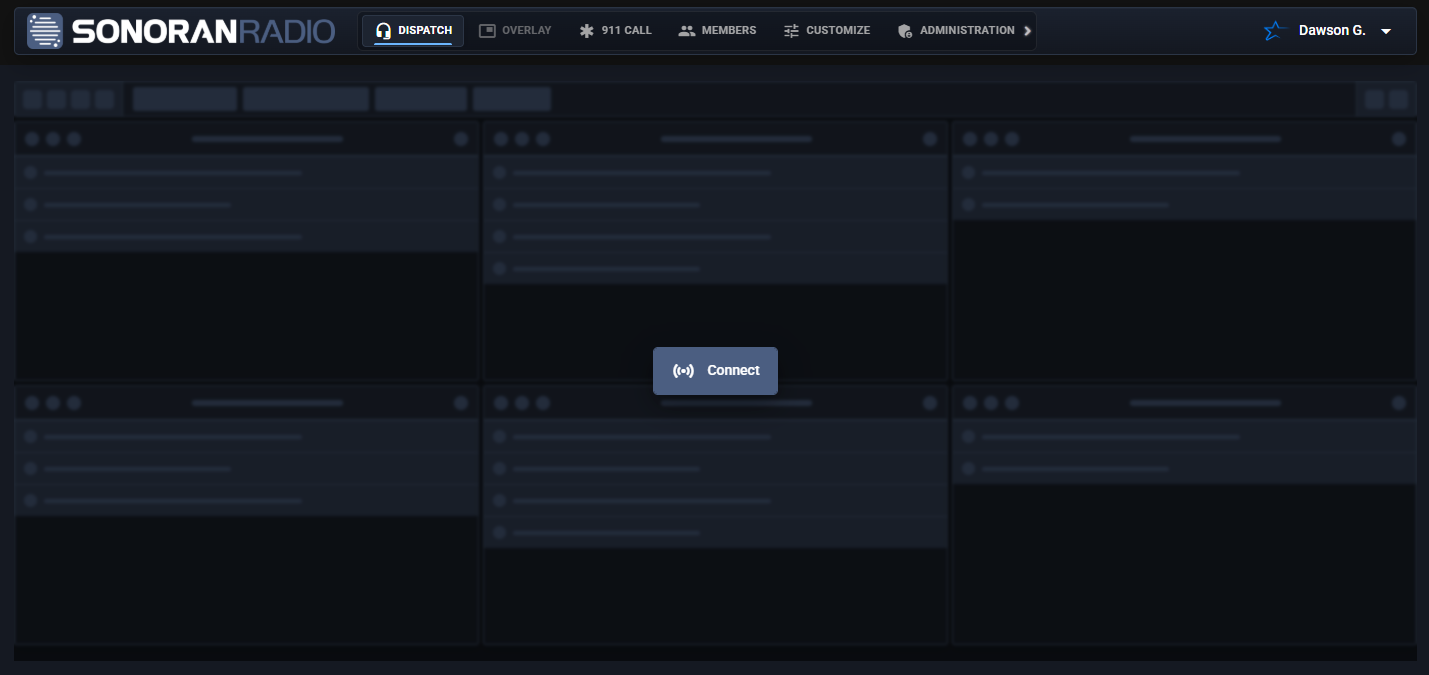 Open the overlay from the top Overlay tab beside Dispatch in the desktop app. The tab is disabled on the website.
For Arma, use Fullscreen Window display mode. Exclusive fullscreen can hide desktop overlays. Enable No Pause in the Arma launcher (or use
Open the overlay from the top Overlay tab beside Dispatch in the desktop app. The tab is disabled on the website.
For Arma, use Fullscreen Window display mode. Exclusive fullscreen can hide desktop overlays. Enable No Pause in the Arma launcher (or use -noPause) if the game pauses when you focus the overlay. See Desktop Overlay for moving, resizing, and hotkeys.
The integration continues to use Sonoran Radio’s normal desktop push-to-talk controls. Pressing Y in Arma will not open a Sonoran menu.
Verify the local bridge
After the client enters a mission, open the following address on that same computer:"ok": true and "integration": "arma3". The bridge only listens on the local computer and does not expose Radio credentials.
Continue with Signal Towers and Repeaters to add coverage to a mission.