

Create with Overlay AI
Use the AI tab to create a custom screen and radio frame from a description or reference photos, then refine the design with follow-up messages. You can select New Frame > Blank canvas without uploading artwork first. Overlay AI and the Custom screen editor require Pro. See Overlay AI for reference photos, chat examples, manual editing, and the monthly AI allowance.Create a custom overlay
Uploading custom frame artwork requires Pro.- Open your community’s Customize > Game Integration tab and select your game.
- Open Customize > Overlay and select New Frame.
- Enter a label, choose Upload image, and upload your radio artwork. Select Create. To begin without artwork, choose Blank canvas instead.
- Open Manual, choose a Screen Theme, and adjust Frame Width as needed. The Custom theme adds editable screen colors, typography, icons, and decorative labels.
- Drag the screen and buttons into place. Use Add Button for any missing controls, then select Save changes.
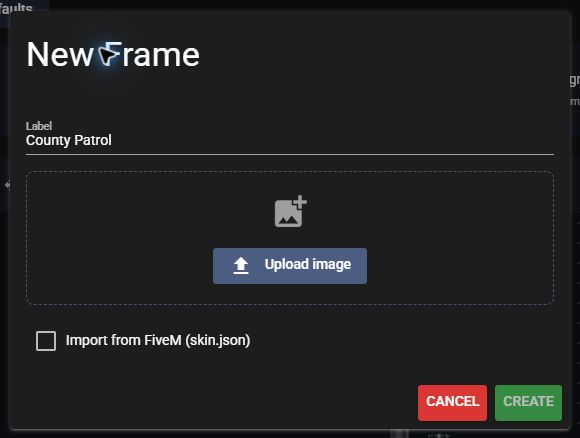 Name your frame and upload its artwork.
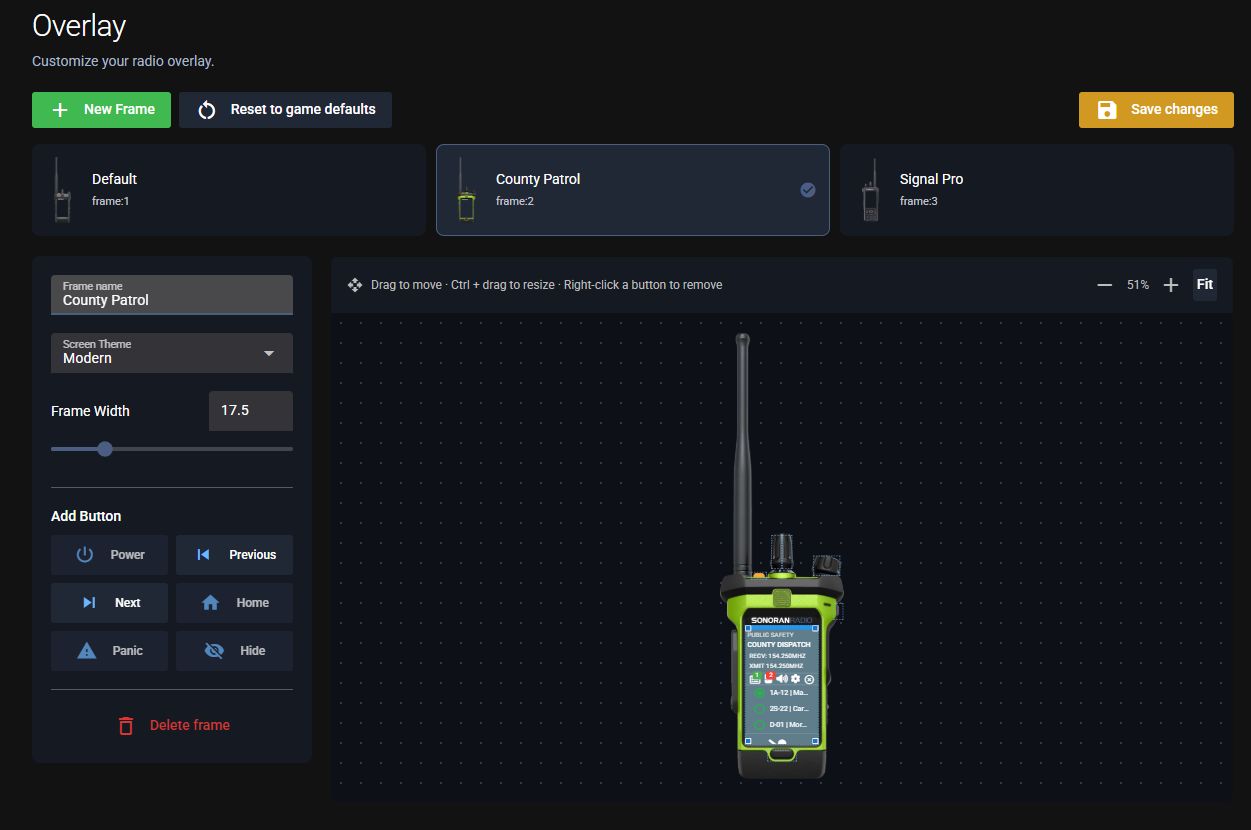 One editor for desktop and FiveM radio frames.
Drag a screen corner to resize it, or hold Ctrl while dragging a screen or button. Right-click a button to remove it. Each button action can be added once.
Use +, −, and Fit to zoom the preview. Preview zoom does not change the radio’s saved size.
Reset to game defaults replaces the full frame set in the editor. Confirm the reset, then select Save changes to apply it. Select a game in Game Integration first if reset is disabled.
For FiveM frame selection and access restrictions, see FiveM Radio Frames.
To configure automatic layout changes and previous/next-frame shortcuts, see Changing Radio Frames, with separate setup for FiveM and ER:LC.
One editor for desktop and FiveM radio frames.
Drag a screen corner to resize it, or hold Ctrl while dragging a screen or button. Right-click a button to remove it. Each button action can be added once.
Use +, −, and Fit to zoom the preview. Preview zoom does not change the radio’s saved size.
Reset to game defaults replaces the full frame set in the editor. Confirm the reset, then select Save changes to apply it. Select a game in Game Integration first if reset is disabled.
For FiveM frame selection and access restrictions, see FiveM Radio Frames.
To configure automatic layout changes and previous/next-frame shortcuts, see Changing Radio Frames, with separate setup for FiveM and ER:LC.
Use the desktop overlay
The desktop app keeps radio controls visible while playing FiveM, Arma 3, Roblox, and other games.Open the Overlay
- Download and open the desktop app.
- Join your Radio community and connect to a channel.
- Select the Overlay tab at the top, beside Dispatch.
- Position the radio over your game window.
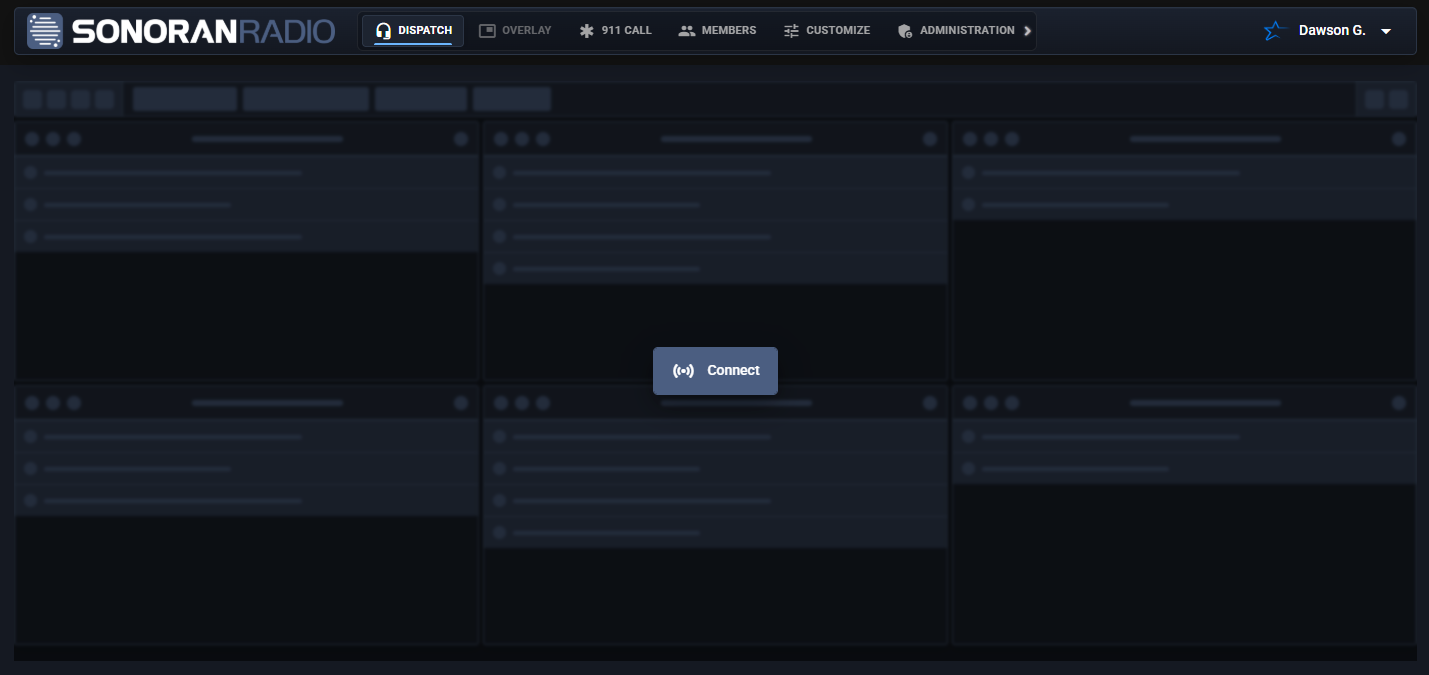 The Overlay tab is beside Dispatch in the top navigation. Use the desktop app to open it; the website displays it disabled.
On the website, the tab is disabled; its tooltip explains that the desktop app is required. The mobile app hides the tab.
To return to the main panel, use the radio’s power button or Back to Portal.
The default ARMA 3 BLUFOR and OPFOR frames use the lower-left button beneath the screen for Back to Portal. For a custom frame, open Customize > Overlay > Manual > Add Button and add Back to Portal for ARMA 3 or Hide for other games. Position it over a button, then select Save changes.
The Overlay tab is beside Dispatch in the top navigation. Use the desktop app to open it; the website displays it disabled.
On the website, the tab is disabled; its tooltip explains that the desktop app is required. The mobile app hides the tab.
To return to the main panel, use the radio’s power button or Back to Portal.
The default ARMA 3 BLUFOR and OPFOR frames use the lower-left button beneath the screen for Back to Portal. For a custom frame, open Customize > Overlay > Manual > Add Button and add Back to Portal for ARMA 3 or Hide for other games. Position it over a button, then select Save changes.
Panic and Sonoran CAD
Use the frame’s Panic button or a custom screen’s Panic element to activate or clear your radio panic. To also update your CAD unit, link the CAD community ID, API key, and server ID for your Radio server under Customize > Dispatch AI > Link Sonoran CAD. Use the same Sonoran account in Radio and CAD, with your CAD unit on duty. See Sonoran CAD Integration for setup and troubleshooting. The CAD API link is required for synchronization; the Dispatch AI Enabled toggle can remain off.Game Signal
The overlay displays signal supplied by supported game integrations. For location-based signal, configure FiveM in-game repeaters, ER:LC virtual towers, or Arma 3 signal towers and repeaters.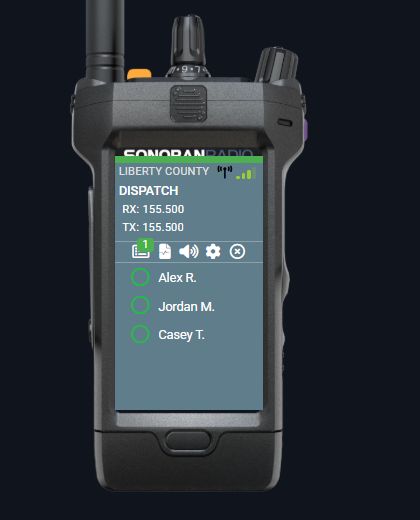 Signal bars show the coverage supplied by your game integration.
Overlay Controls
Hotkeys
Hotkeys
- Open Settings > Hotkeys on the overlay.
- Select the button beside Toggle Desktop Radio and press your preferred key to hide or show the overlay.
- Set Focus Desktop Radio the same way to interact with the radio while playing in fullscreen.
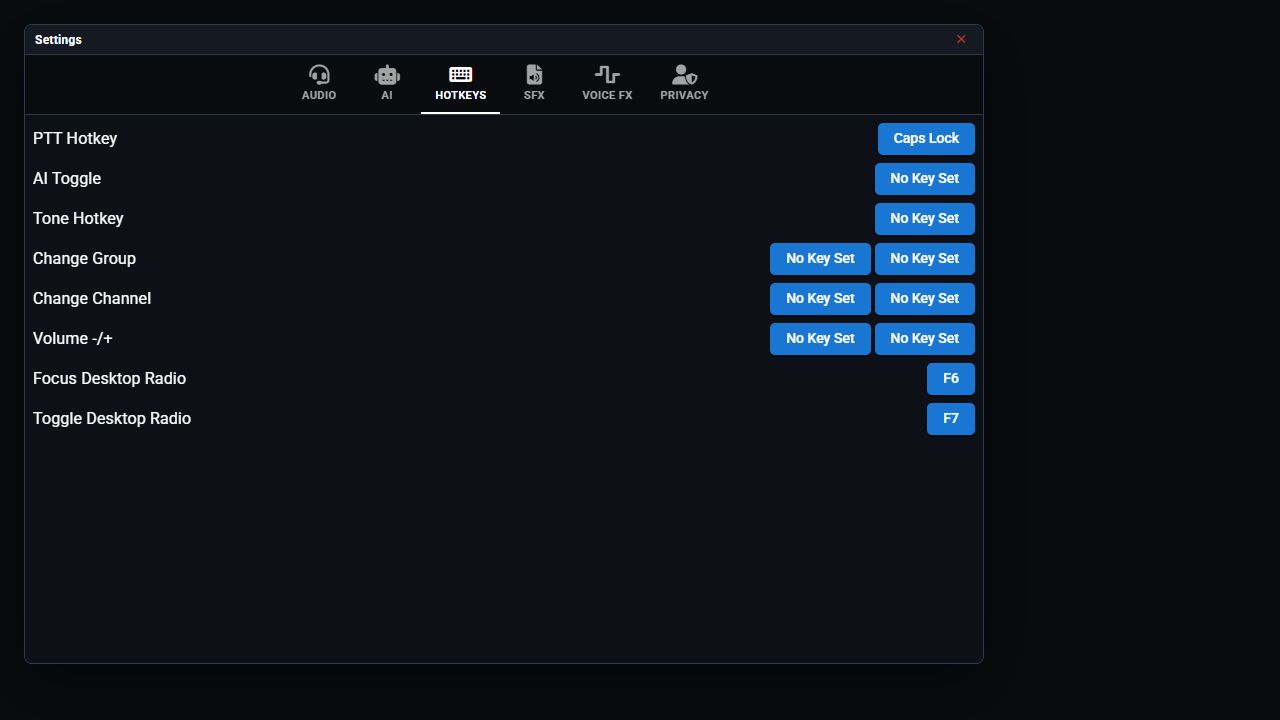 Example hotkeys; choose keys that do not conflict with your game.
Move or resize the radio
Move or resize the radio
Drag the radio body to move it. To resize the whole overlay, drag a corner, or hold Ctrl while dragging the body: up enlarges and down shrinks.A brief resize hint appears when the overlay opens and when you hover or focus a resize corner. There is no permanent resize button, and hovering over the radio screen does not repeatedly show the hint.
Change the radio frame
Change the radio frame
- Open Settings > Audio on the overlay.
- Open Radio Frame.
- Select a frame provided by your community.
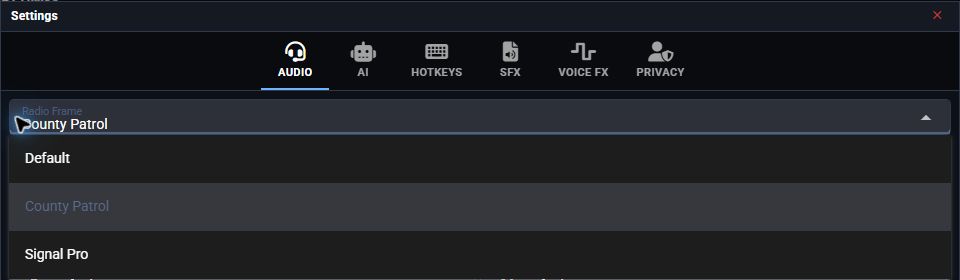 Select a community frame from the Radio Frame dropdown.Arma 3 can select a frame based on your inventory radio. See Radio Items and Team Frames.ER:LC can use its visible ELS controller to switch the selected frame between On-foot and Vehicle layouts. See ER:LC Frame Changes for detection setup and macOS screen permissions.