

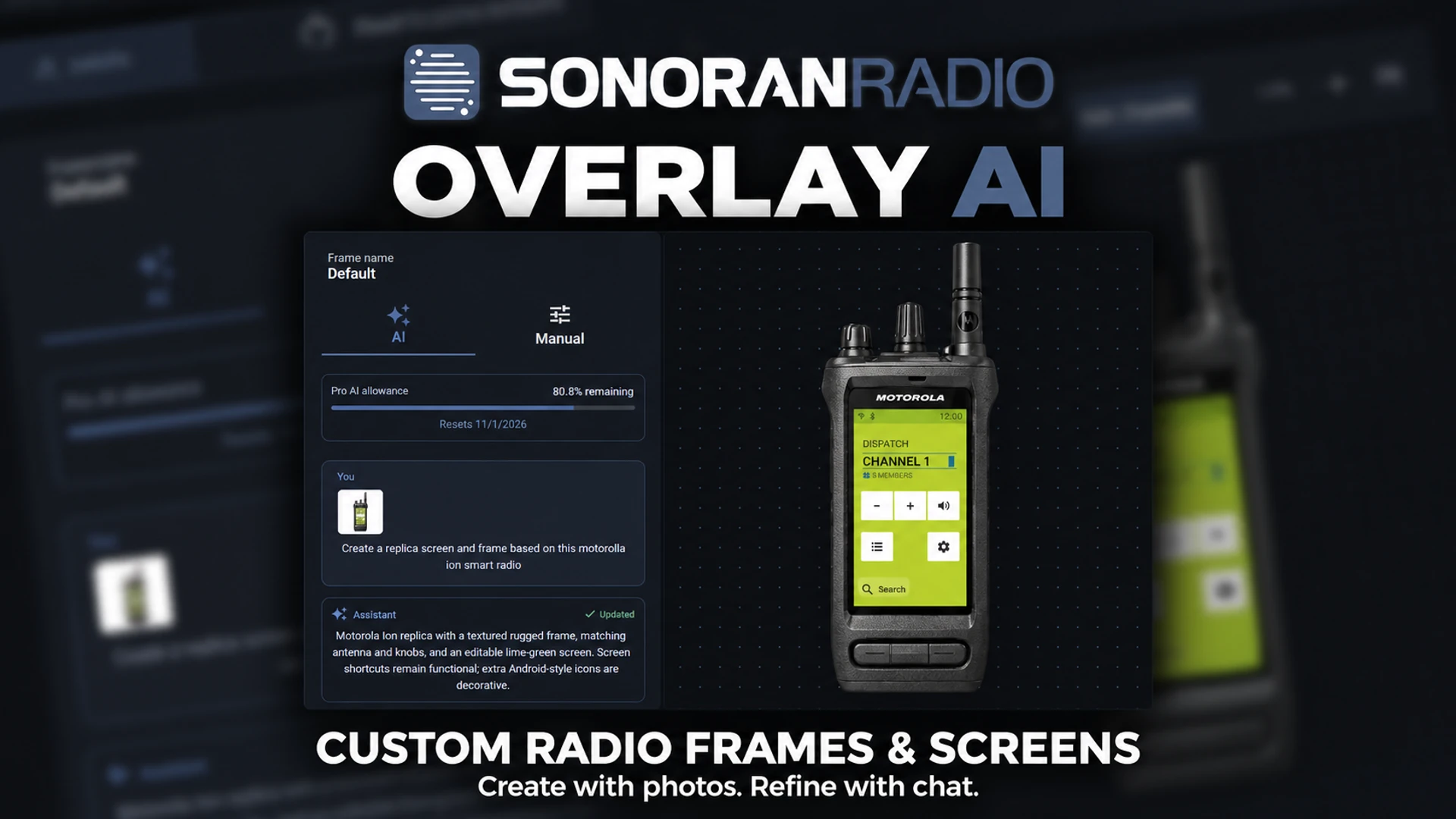
 Create with photos. Refine with chat.
Overlay AI and the Custom screen editor require a Pro community subscription. See View and Compare Plans.
Create with photos. Refine with chat.
Overlay AI and the Custom screen editor require a Pro community subscription. See View and Compare Plans.
Create your first design
- Open your community’s Customize > Overlay page.
- Select an existing frame, or select New Frame, enter a name, choose Blank canvas, and select Create.
- Use the AI tab, which opens by default. Select Add photos to attach reference images, then describe the frame and screen you want in the message box. You can also start with a prompt alone or select a suggested prompt.
- Select Send. The generated design appears on the canvas.
- Review the result and send follow-up instructions. Switch to Manual for direct adjustments.
- Select Save changes to apply the design to your community.
Use reference photos
Attach up to four PNG, JPEG, or WebP images, each 2 MB or smaller. Select Add photos, or drop images into the message area. You can add photos with the first request and with follow-up messages. Clear, front-facing photos help the AI match the radio body and display. Include a close view of the display when its colors, icons, or labels are important. Photos remain attached and are sent with each message until you remove them.Example: turn a radio photo into a frame and screen
Attach photos of the radio you want to recreate, then send a prompt such as:Create a replica frame and screen based on these Motorola Ion photos. Match the radio body, display colors, and icons.The example below shows an attached reference photo and prompt in the AI chat, with the generated frame and screen on the canvas. You can request a different body shape or screen style in the same way.
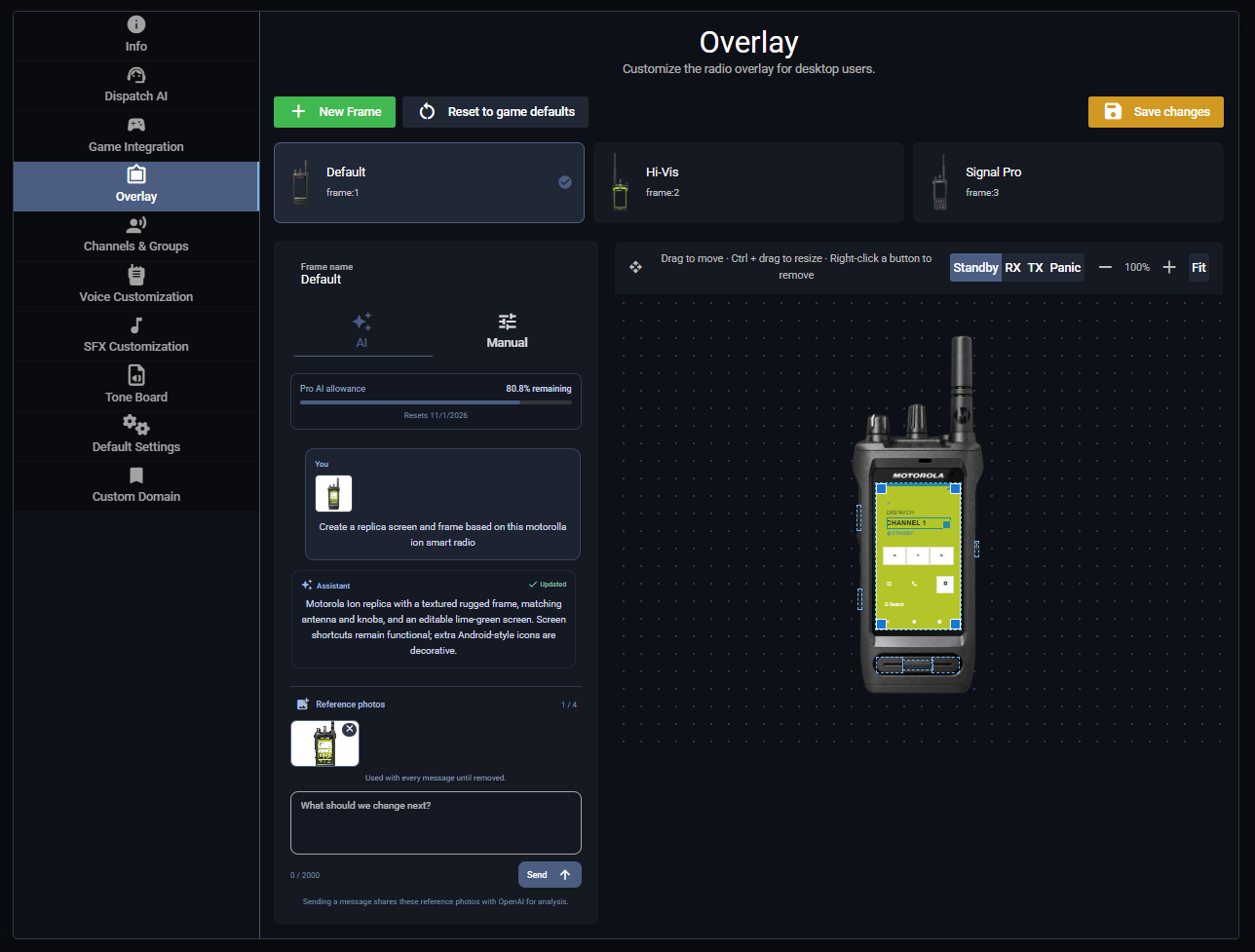 Attach images and a prompt to generate the radio body and screen UI together.
Refine with chat
Describe which parts should change and which should stay the same. You can request changes to the frame, screen colors and typography, icons, labels, and control positions.
The standard radio controls retain their radio actions. Extra text and icons are decorative: they do not create new radio functions.
Make manual adjustments
Open Manual to choose a Screen Theme. The Custom theme exposes these controls:- Colors and type — brand text, screen and state colors, font family, and button corners.
- Items — select a screen item to change its visibility, size, weight, or decorative text and symbol.
- Icon images — choose built-in symbols or upload custom icons.
- Share design — export and import the custom design as JSON.
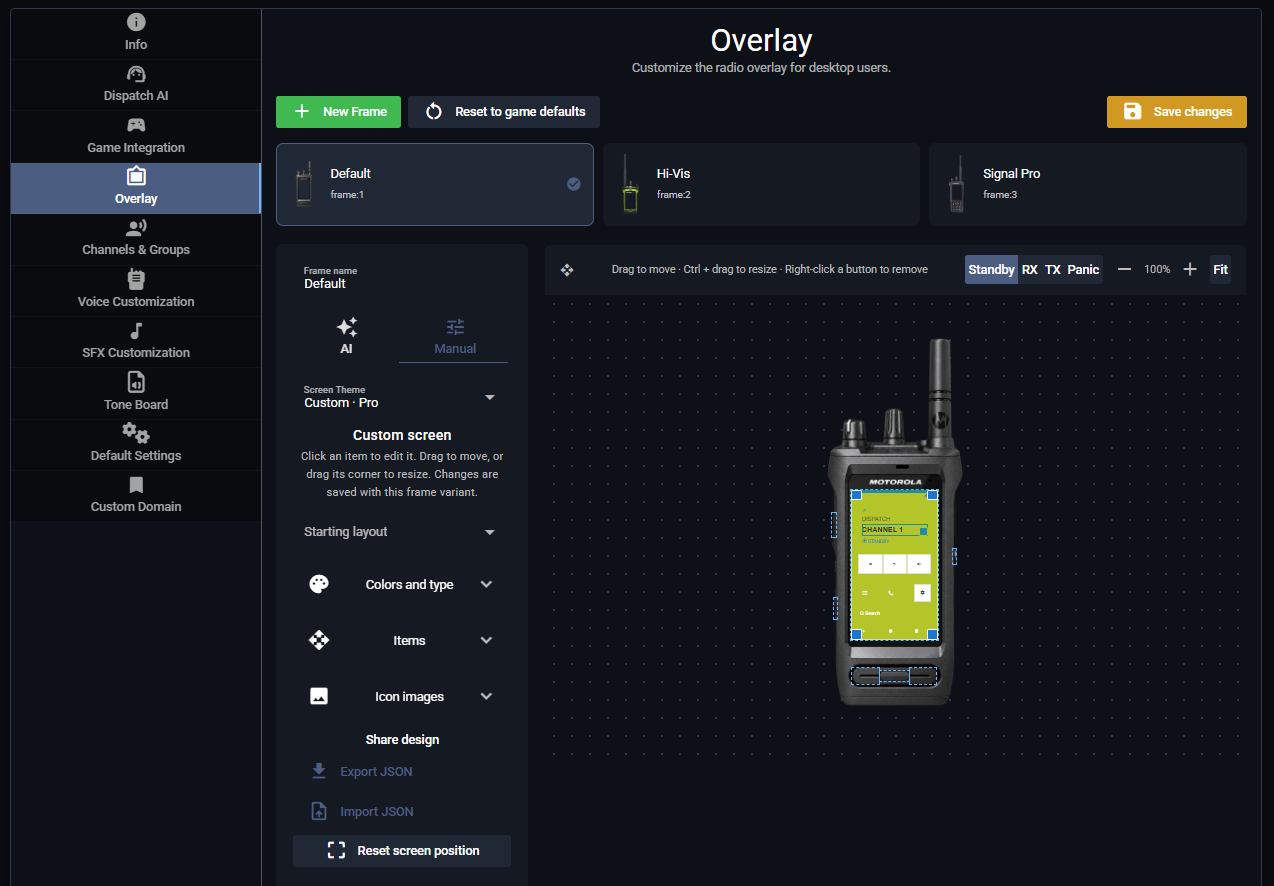 The generated screen stays editable: adjust its colors, icons, text, and layout in Manual.
See Radio Overlay for frame controls and FiveM Radio Frames for in-game selection and access restrictions.
The generated screen stays editable: adjust its colors, icons, text, and layout in Manual.
See Radio Overlay for frame controls and FiveM Radio Frames for in-game selection and access restrictions.