

Create or edit a frame
Select FiveM in Customize > Game Integration, then follow Create a custom overlay. Upload your artwork, position the screen and buttons, and select Save changes. Uploading new custom artwork requires Pro. With Pro, Overlay AI can generate your radio frame artwork and editable screen from text or reference photos. Start with a blank frame or refine an existing one, then select Save changes.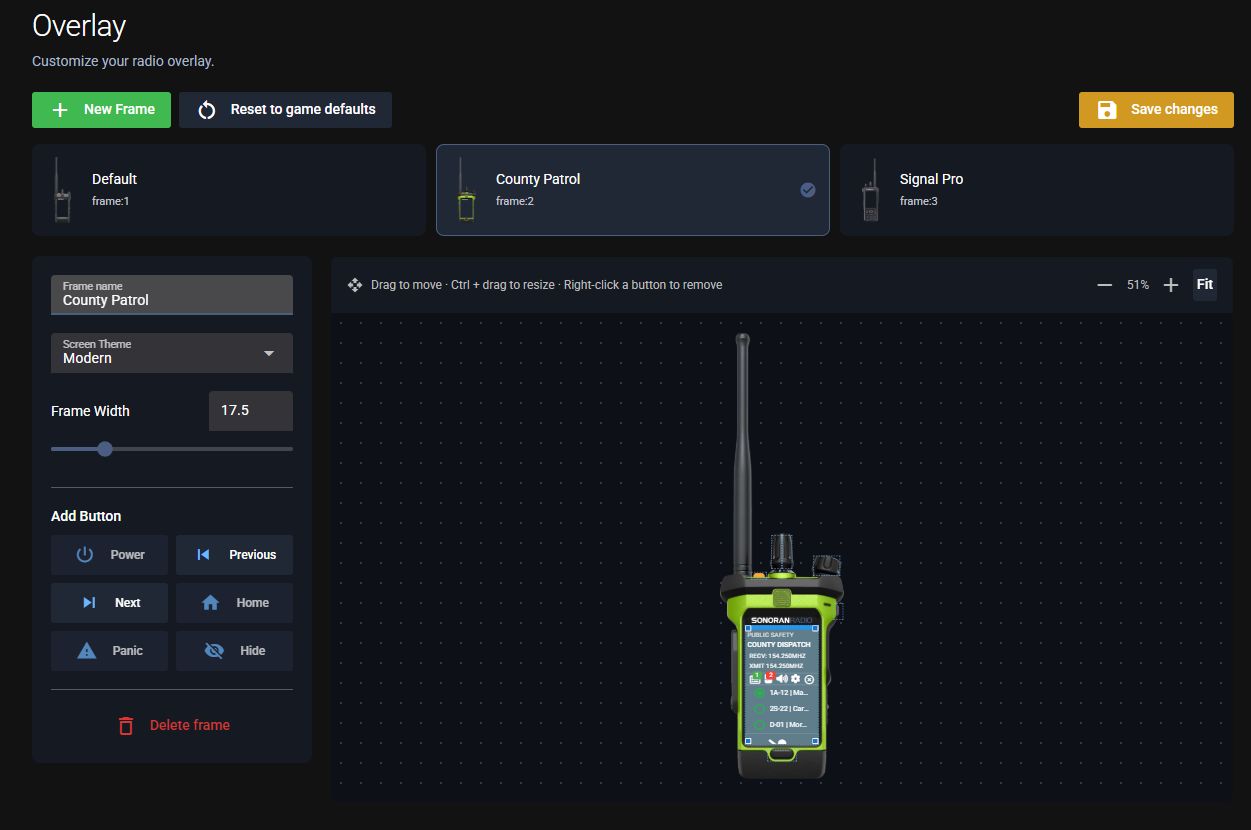 Edit FiveM frames from the Radio panel.
Use an updated FiveM resource. With your server’s push URL configured, saving sends the updated frames to connected players. The resource also checks on startup and roughly every 30 seconds. If a check fails, it keeps the last successfully loaded frames and tries again.
Edit FiveM frames from the Radio panel.
Use an updated FiveM resource. With your server’s push URL configured, saving sends the updated frames to connected players. The resource also checks on startup and roughly every 30 seconds. If a check fails, it keeps the last successfully loaded frames and tries again.
Set a layout for vehicle classes
The On-foot, Vehicle, and Aircraft layout controls appear when the community has FiveM selected as its game. A frame can have several vehicle layouts, each with its own image, screen, buttons, and vehicle classes.- In Customize > Overlay, select the frame you want to edit and choose Vehicle or Aircraft.
- Select Add layout, or choose an existing entry from Vehicle layout or Aircraft layout.
- Under Vehicle classes, select the classes that should use that layout. For example, class
18is Emergency, while15and16are aircraft. Clearing all selected classes makes a vehicle layout match every class. - Use Change image and the editor controls to position its screen and buttons. Use the up and down arrows to set layout order, then select Save changes.
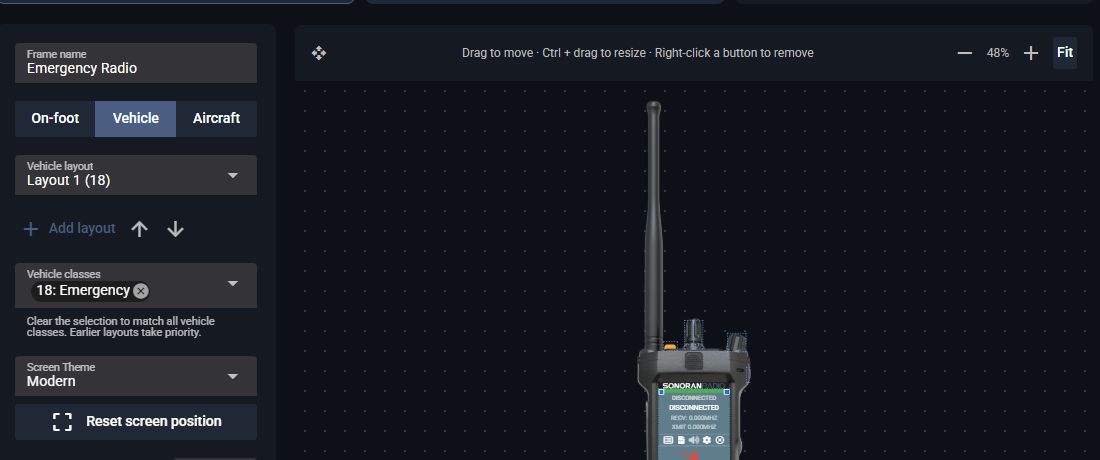 Choose a FiveM vehicle layout and the classes that use it.
Change your frame in game
- Open the radio’s Settings.
- Select the FiveM tab.
- Choose a frame from Radio Frame.
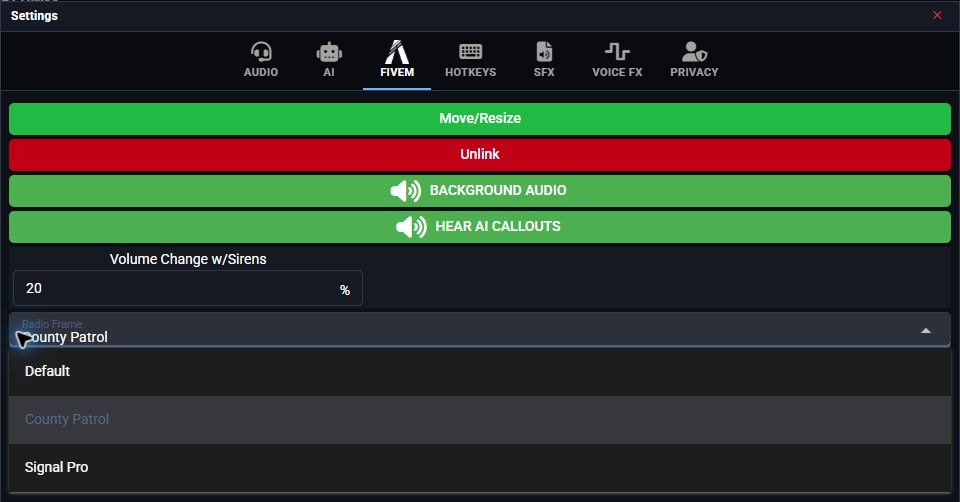 Choose a frame in Settings > FiveM.
Restrict frame access
Create and edit frames in the Radio panel’s Customize > Overlay editor. To control which FiveM players can select each frame, configureConfig.frames in your server’s Sonoran Radio resource config.lua. The in-game radio only lets players choose from the frames available to them; frame setup and permission rules are not configured in that menu.
permissionMode = 'none'lets everyone use all available frames.- Use
ace,qbcore,qbox, oresxto restrict frames by department permissions or job grades. - Copy the ID shown below each frame’s name in the Overlay editor into the department’s
allowedFrameslist. Use the exactframe:<ID>value, such asframe:2; the frame’s display name is not a permission identifier.
sonoranradio.patrol ACE to use two community frames:
sonoranradio.patrol to the players who should use the patrol frames through your server’s ACE configuration. For framework permissions, use permissions.jobs and the allowed grades from the resource’s example configuration. Sonoran CMS can manage ACE permissions from community roles.