

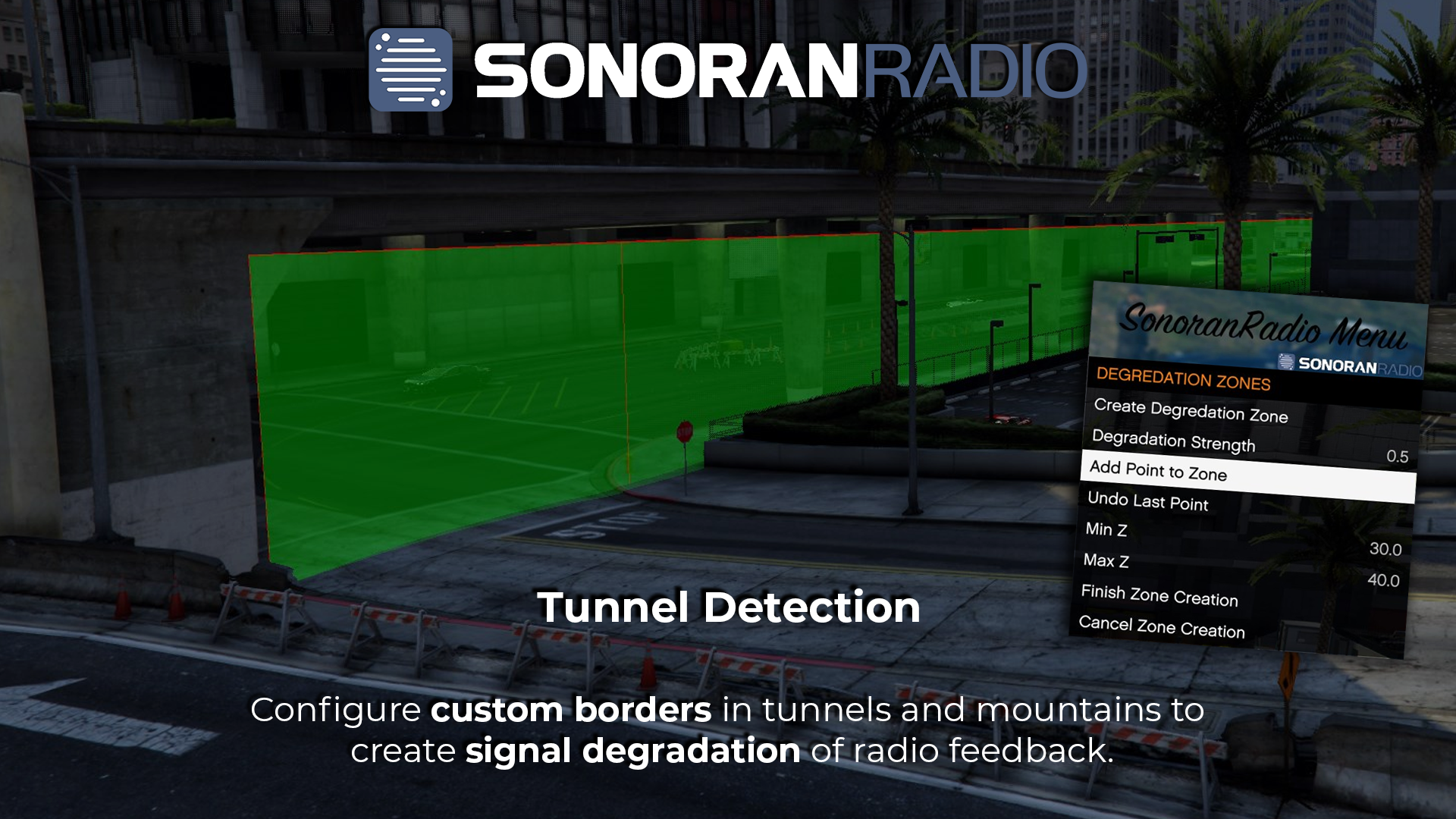
 Sonoran Radio - Tunnel Detection System
What are Degrade Zones?
Degradation zones are areas like tunnels, underground areas, or mountain valleys that would experience signal loss in a realistic scenario. Custom voice effects will distort the audio more as signal loss increases.Creating and Modifying Zones
Via Radio Panel
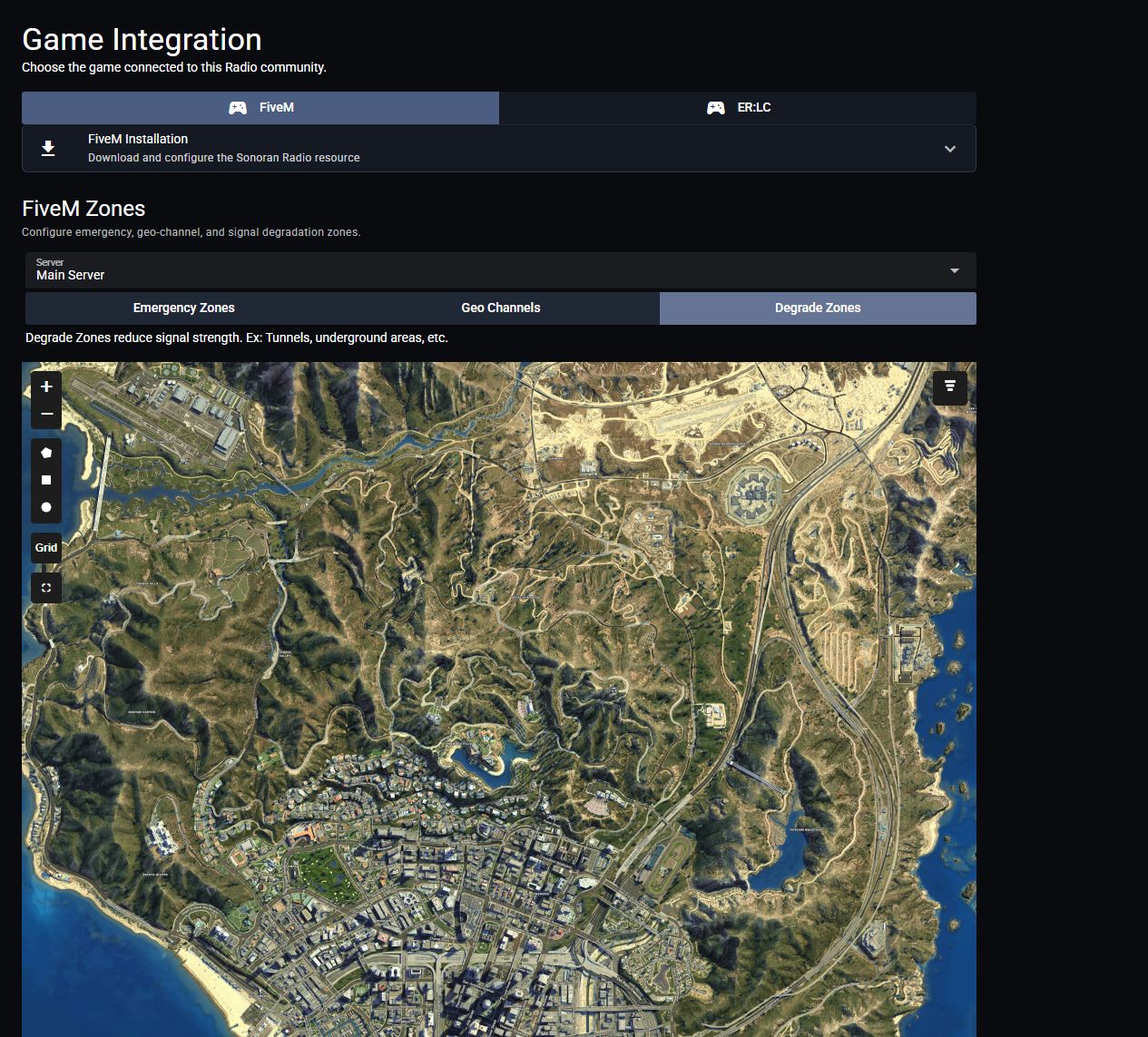
Degrade Zones via Panel
Degrade Zones via Panel
- Open Customization > Game Integration > FiveM.
- Under FiveM Zones, choose your Server and select Degrade Zones.
- Use the polygon, rectangle, or circle tool to draw a zone.
- Select the zone to set its name, Z coordinates (floor and ceiling height), and degrade strength.
Via In-Game Menu
Open the menu with the in-game 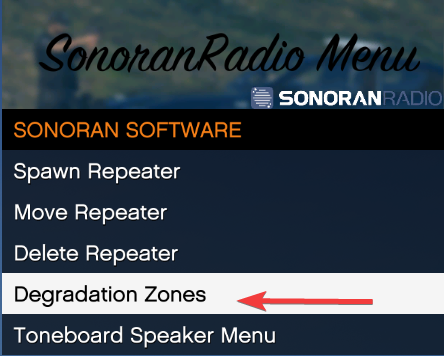 Sonoran Radio -
/radiomenu command and select Degradation ZonesSonoran Radio -2. Zone Configuration Options
2. Zone Configuration Options
In the 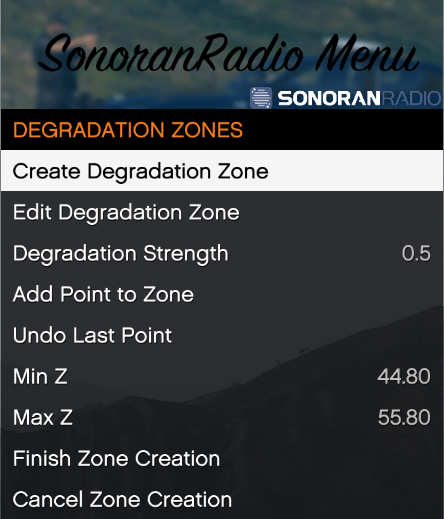 Sonoran Radio - Degradation Zone Options
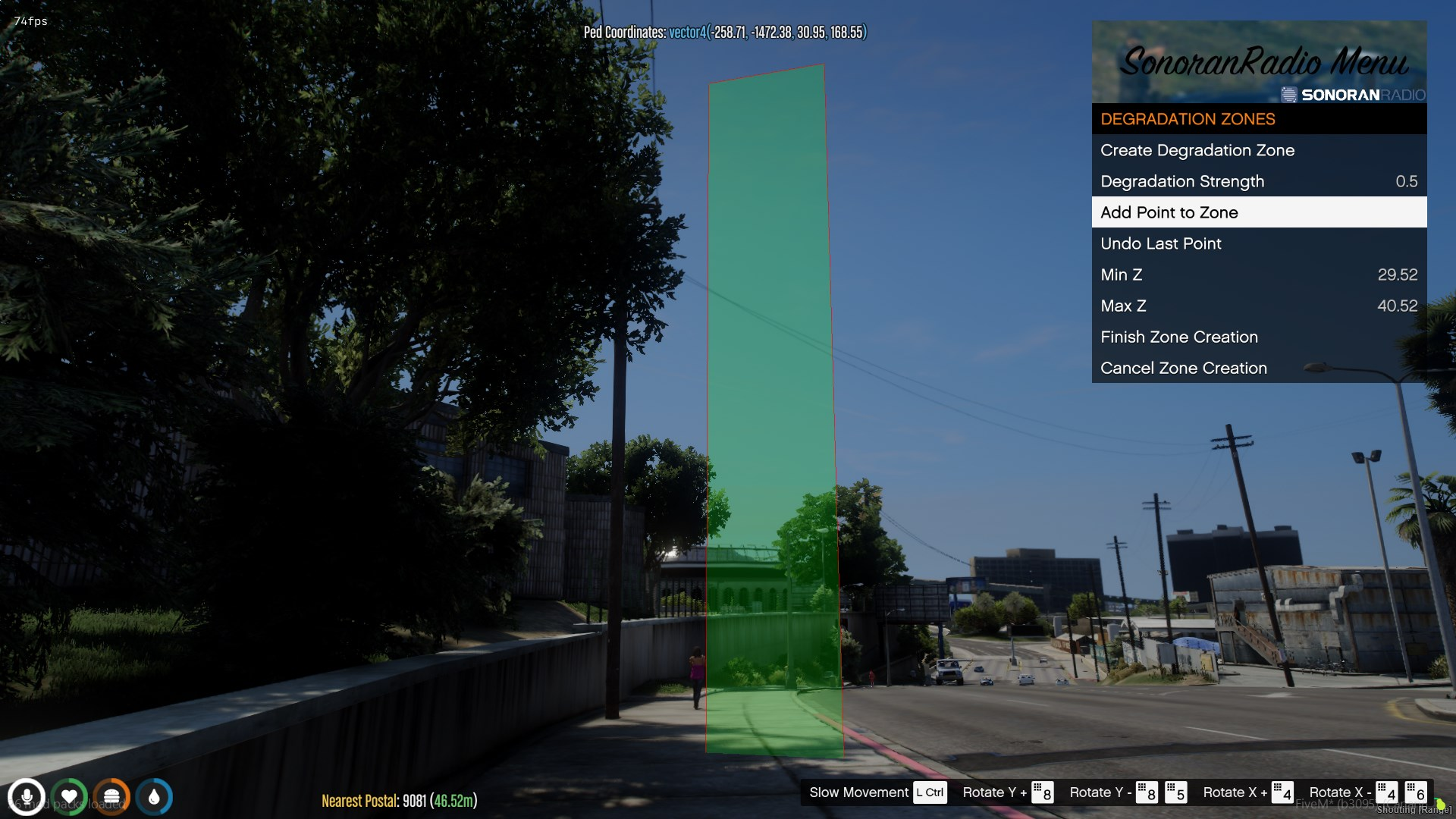 Sonoran Radio - Degradation Zone Poly
- The percent the signal strength will be cut by when inside the zone (0-1).
- Example: 0.5 = 50% voice effect degradation
- Adds another point to the 3D zone
- Removes the last place point in the 3D zone
- The minimum Z value (floor height) of the 3D zone
- The maximum Z value (ceiling height) of the 3D zone
- Finishes the 3D zone and saves to the
- Cancels the 3D zone editor and closes the menu
Degradation Zones menu, you can specify the strength and add points to create a 3D zone.When creating a zone you can visualize via the drawn polygon and manipulate and move your last placed point using the on-screen controlsSonoran Radio - Degradation Zone OptionsSonoran Radio - Degradation Zone PolyStrength- The percent the signal strength will be cut by when inside the zone (0-1).
- Example: 0.5 = 50% voice effect degradation
Add Point to Zone- Adds another point to the 3D zone
Undo Last Point- Removes the last place point in the 3D zone
Min Z- The minimum Z value (floor height) of the 3D zone
Max Z- The maximum Z value (ceiling height) of the 3D zone
Finish Zone Creation- Finishes the 3D zone and saves to the
tunnels.json fileCancel Zone Creation- Cancels the 3D zone editor and closes the menu
3. View and Remove Configured Zones
3. View and Remove Configured Zones
Select 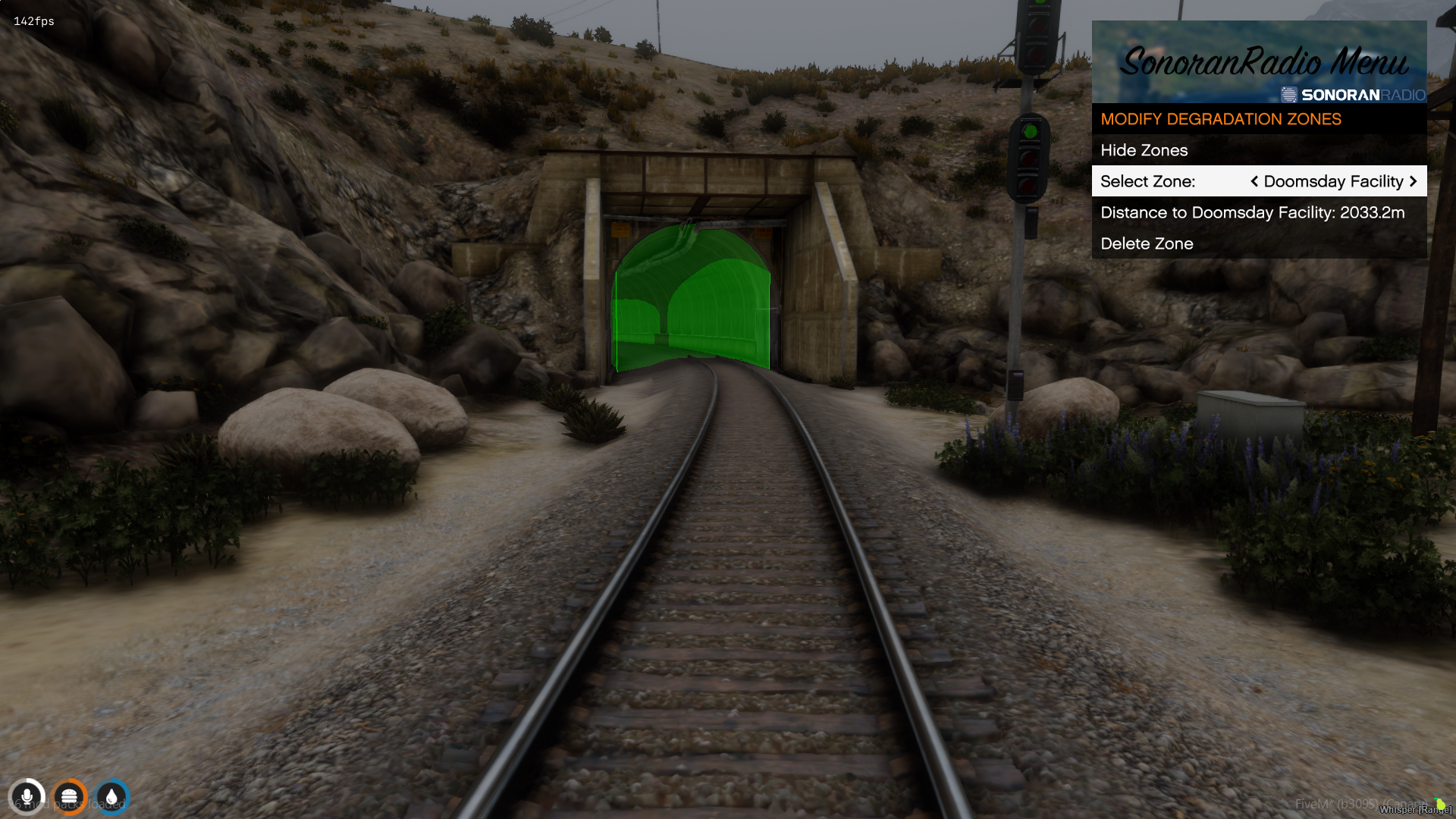 Degradation Zone: Visible
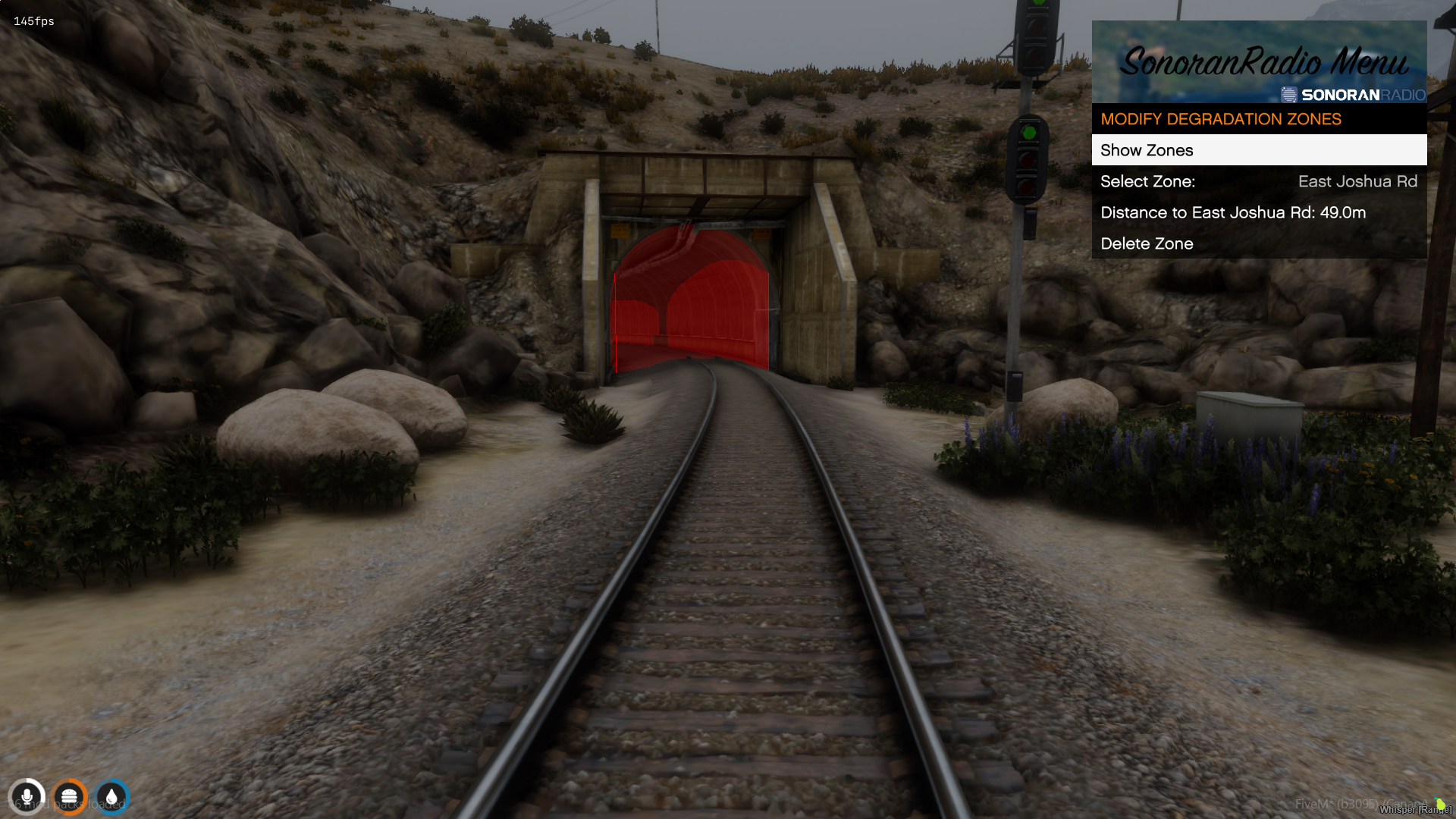 Degradation Zone: Selected
Edit Degradation Zone in the menu and toggle on Show Zones. All configured zones on the map will be displayed in green. If the config.lua’s debug mode is set to true, all zones will also be made visible.Use the Select Zone menu option to swap back and forth between zones. Your selected zone will be displayed in red.Use the Delete Zone menu option to delete the selected (red) zone.Degradation Zone: VisibleDegradation Zone: Selected