

Vehicle Radio Display (Video Tutorial)
The vehicle radio display is a free Tebex script fully compatible with the free version of Sonoran Radio.
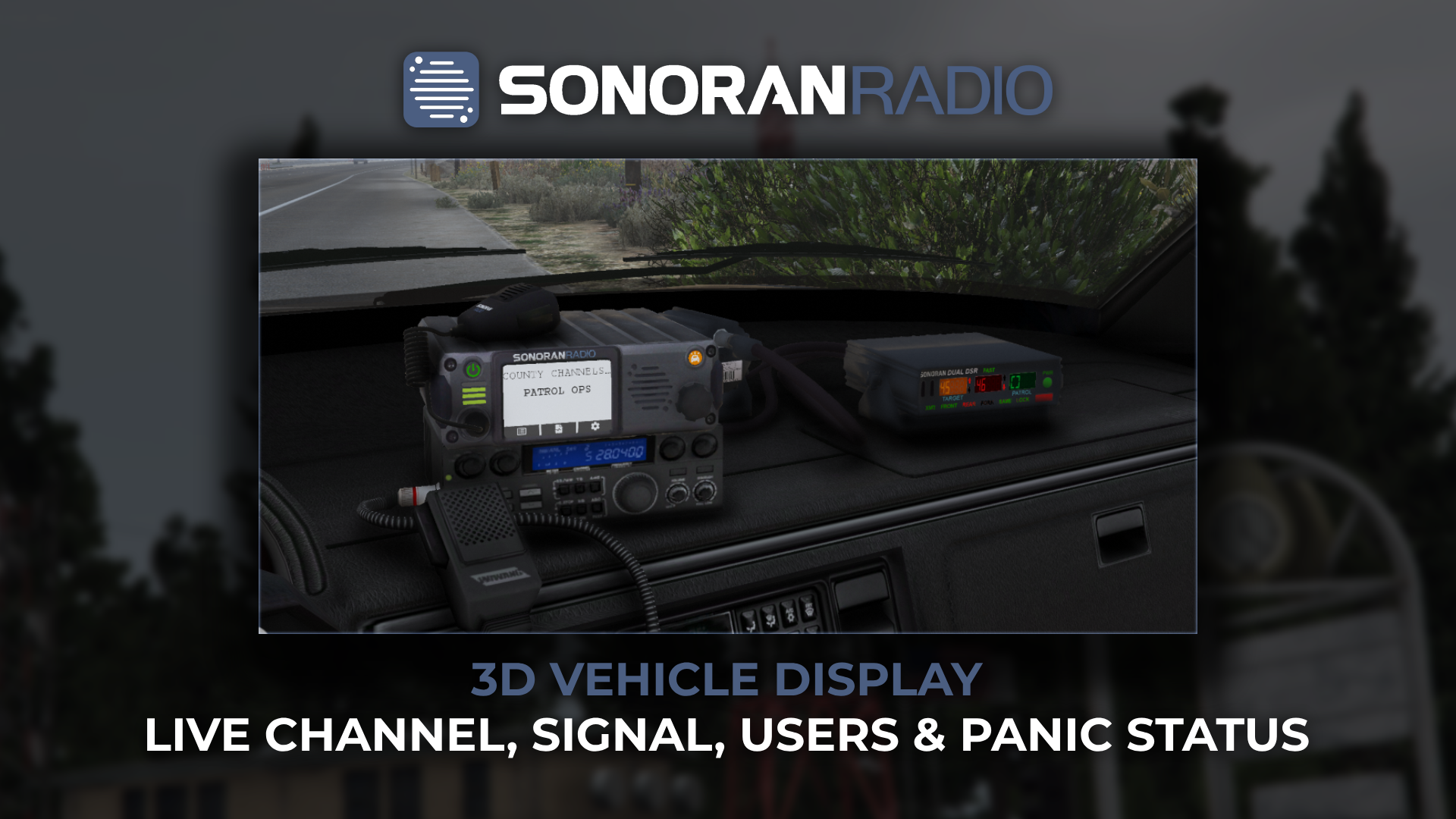 Sonoran Radio - Vehicle Display
Installation (Written)
- Download the Script
“Purchase” the free vehicle radio display from the Sonoran Store.
Once purchased, see: How to download the script from your Keymaster account.
- Install the script
A. Extract Folders
Extract the script’s two folders (sonoran-radiodisplay and sonoran-radiodisplay_helper) to a folder in your server’s resources folder called [sonoranradio].
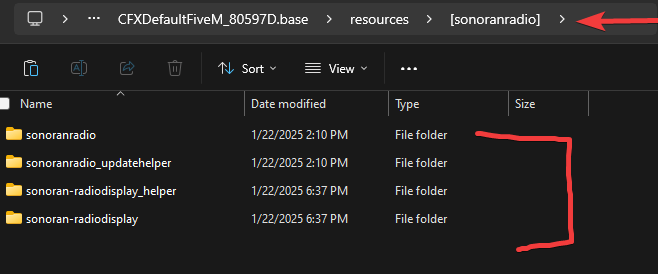 Radio Display - Folders
B. Rename Config Files
Inside of thesonoran-radiodisplay folder:
- Rename
config.changeme.luatoconfig.lua- See more about the configuration options here.
- Rename
radios.changeme.jsontoradios.json
C. Start the Resource
To start the display resource and give the auto-updater permissions to run, paste the following into yourserver.cfg
Configuration
Theconfig.lua file allows you to customize the labels, ACE permissions, and more!
Default config.lua
Default config.lua
Spawning the Radio Display
- Sit in a stopped vehicle and run
/radiodisplay(or your configured menu command). - Select Spawn In-Car Radio, then Sonoran In-Car Radio to open placement for a new radio. To reposition an existing radio, select Attach In-Car Radio, then Position this vehicle’s radio.
Move
Select Move and left-drag a red, green, or blue arrow to move the radio along that axis. Drag a colored square to move along two axes at once.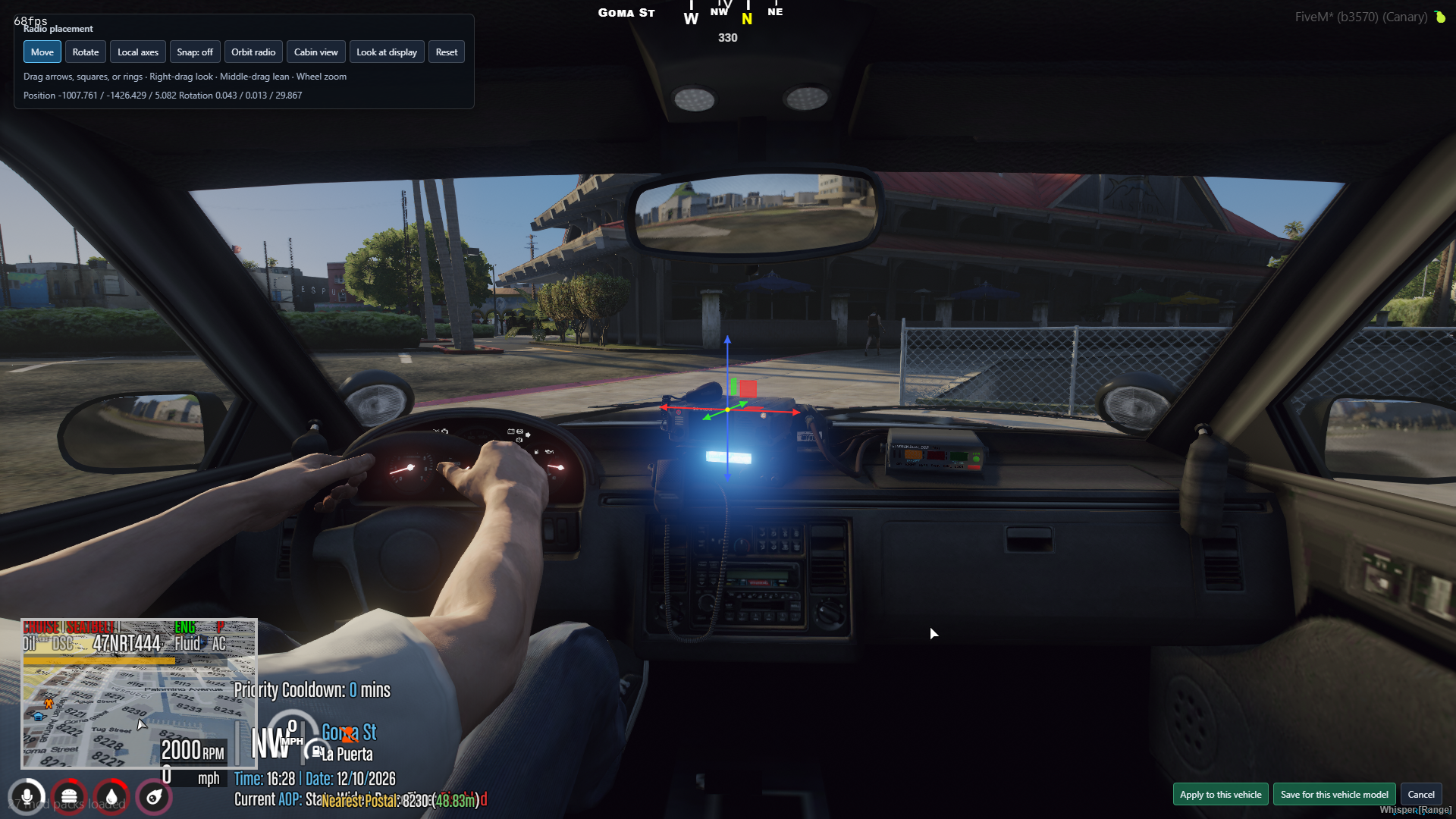 Drag an arrow to move along one axis, or a square to move along two.
Rotate
Select Rotate and left-drag a colored ring to turn the radio around that axis. The outer ring rotates it relative to your current view.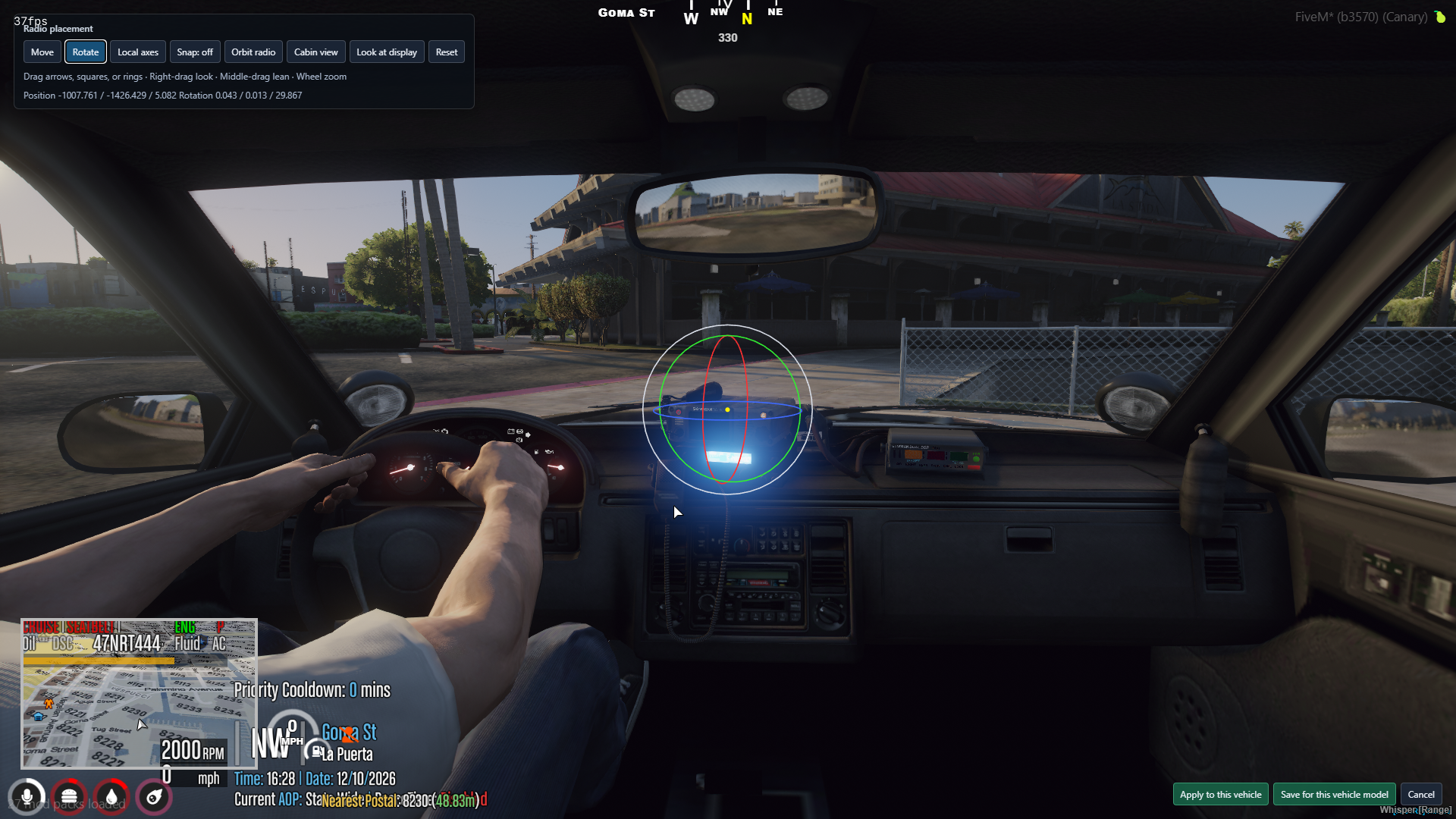 Drag a colored ring to rotate the radio, or use the outer ring to rotate relative to your view.
Switch between Local axes and World axes to align movement and rotation with the radio or the world. Enable Snap for 1 cm movement and 5° rotation steps.
Drag a colored ring to rotate the radio, or use the outer ring to rotate relative to your view.
Switch between Local axes and World axes to align movement and rotation with the radio or the world. Enable Snap for 1 cm movement and 5° rotation steps.
Adjust your view
Apply or save
- Apply to this vehicle applies the placement to the current radio without saving it for other vehicles.
- Save for this vehicle model saves the placement and uses it for vehicles of the same model. This requires administrator access when menu restrictions are enabled.
- Reset restores the radio’s position and rotation from when you opened the editor.
- Cancel leaves an existing radio unchanged, or removes a new radio created for this placement session.
Config.acePerms.aceObjectUseMenu grants menu access and Config.acePerms.aceObjectAdminUseMenu grants administrator access, including model saves.
Keep the vehicle stopped while placing the radio. Moving the vehicle or leaving it cancels placement. Close the tablet or other windows before opening the editor.
radios.json Property Explanation
Commands
Default Vehicles
Additional Display Resources
Loving the radio display? Check out our in-vehicle police radar and radar detector displays!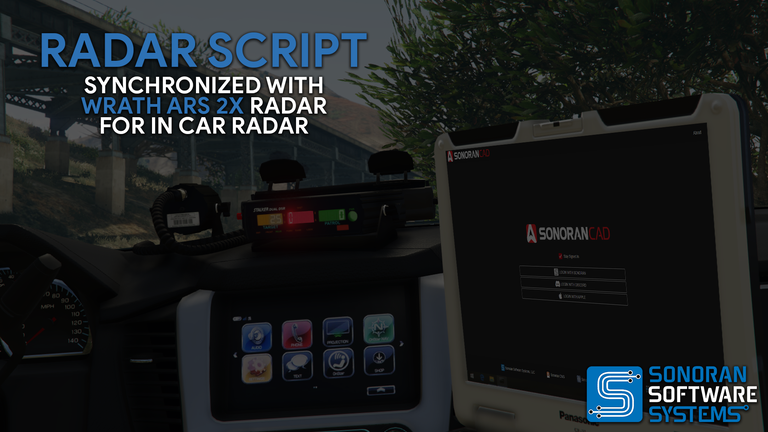 Sonoran Store: Radar Display
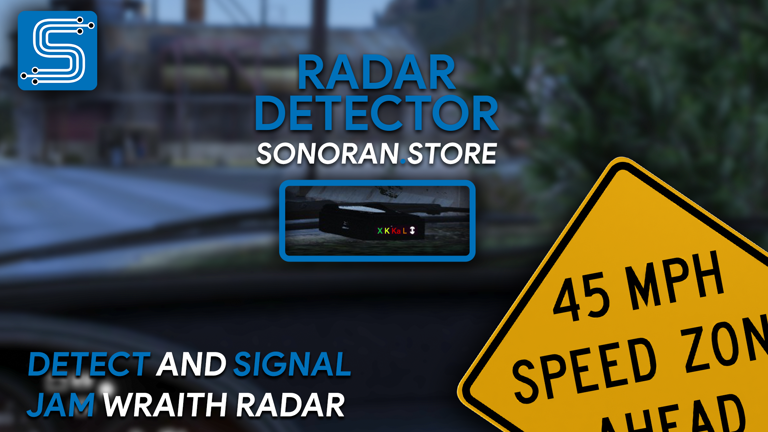 Sonoran Store: Radar Detector
Changelog
v1.0.1
fix: Duplicate radio items when a passenger is in the vehicle
v1.0.0
Initial Release