

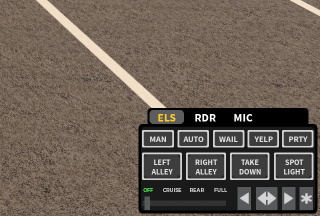
 The bottom-right ELS controller identifies the Vehicle layout even when emergency lights are off.
Configure the community
- In the Radio panel, open Customize > Game Integration and select ER:LC.
- Follow Configure frames and variants to save On-foot and Vehicle layouts in Customize > Overlay.
Enable detection on your computer
- Open ER:LC in the Roblox player and start the Sonoran Radio desktop app.
- Open your Radio community, connect to a channel, and select the Overlay tab beside Dispatch. See Open the Overlay.
- Open the overlay’s Radio Settings > Audio and select the desired radio frame.
- In ER:LC vehicle detection, turn on Use screen detection.
- Leave Roblox window on Find Roblox window automatically, or select the correct Roblox player window if more than one is open. Use Refresh Roblox windows if it is missing.
- Enter a vehicle with an ELS controller and keep the controller visible. Allow a few seconds for the radio to confirm the change. Exit the vehicle to check that the On-foot layout returns.
Allow screen access on macOS
If macOS blocks access, ER:LC vehicle detection displays permission guidance:- Select Open System Settings.
- Open Privacy & Security > Screen & System Audio Recording. Older macOS versions call this Screen Recording.
- Enable Sonoran Radio.
- Fully quit and reopen Sonoran Radio, then reopen the overlay.
- Return to ER:LC vehicle detection and select Check access if needed. For first-time access, this button can request permission from macOS.
Check detection and troubleshoot
The detection status is in Radio Settings > Audio > ER:LC vehicle detection. The frame itself does not display a separate detection badge.
Last ELS controller check shows whether the controller was found, absent, or uncertain. An unreadable capture can temporarily retain the last confirmed layout, so allow a few seconds after restoring the window before checking again.
To select a different radio design while playing, use the previous/next-frame desktop hotkeys. Automatic detection applies the current state to that frame’s saved variants.