

Emergency Call Readouts
- Complete the common Dispatch AI setup.
- Connect your ER:LC private server to Sonoran CAD, including the event webhook, and enable emergency call synchronization for the desired teams.
- Confirm that Radio’s Customization > Dispatch AI links to the same CAD server receiving those calls.
- Complete the Radio ER:LC setup.
- In Radio, open Customization > Game Integration > ER:LC. Select Emergency Zones and choose the Room running Dispatch AI.
- Use Draw Polygon or Draw Circle to create a zone. Select the zone and choose its Transmit channels.
- Submit an ER:LC emergency call inside a zone and check that it reaches CAD and is read over the assigned channels.
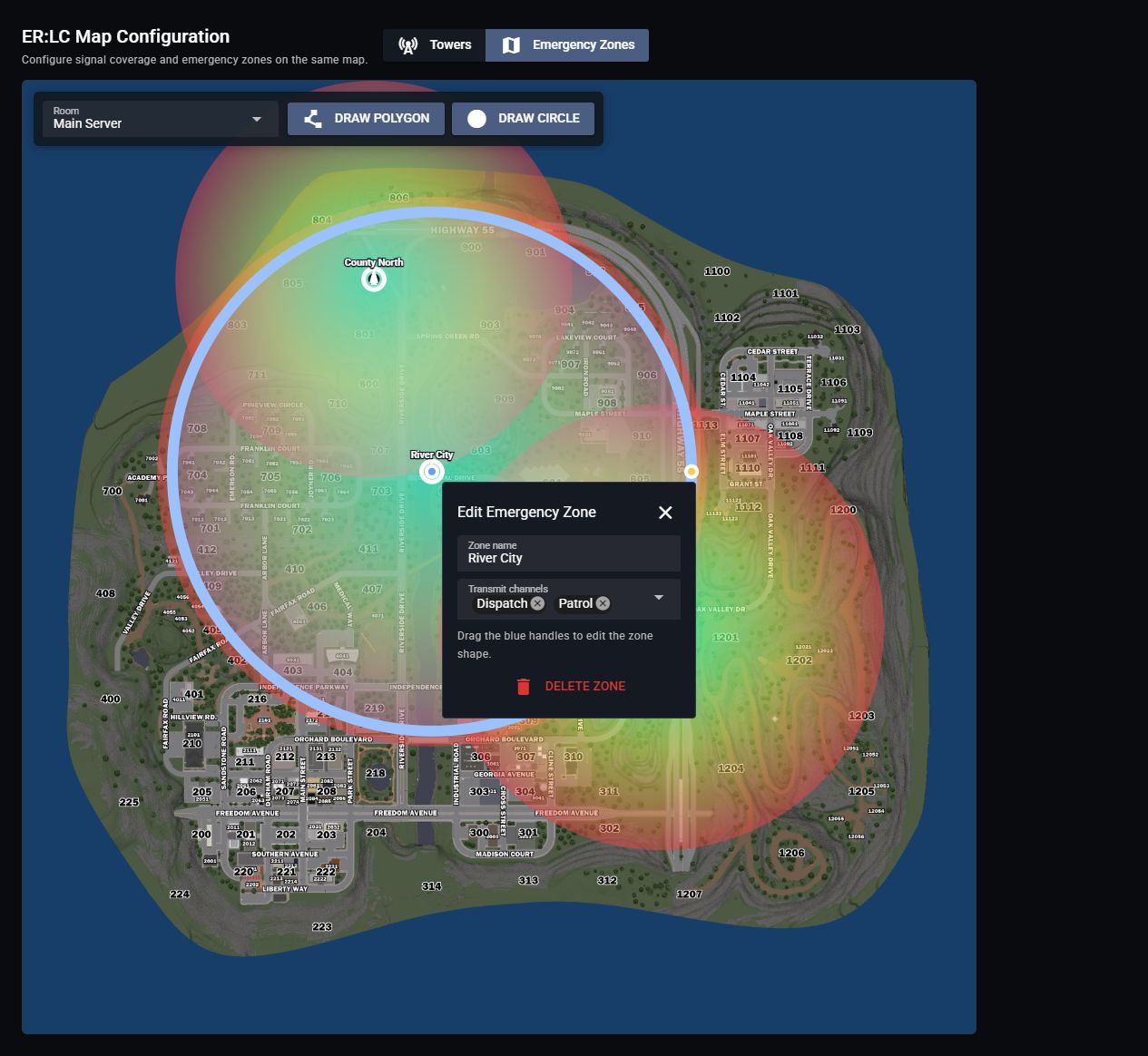 Select the room, draw a zone, and choose which channels receive its emergency call readouts.
Dispatch AI creates a dispatch call, removes the original 911 call, and reads it over the zone’s channels. The imported call must include coordinates inside a configured zone.
Linking ER:LC to Radio provides the Radio integration; the CAD connection imports emergency calls. Both are needed for these readouts.
Select the room, draw a zone, and choose which channels receive its emergency call readouts.
Dispatch AI creates a dispatch call, removes the original 911 call, and reads it over the zone’s channels. The imported call must include coordinates inside a configured zone.
Linking ER:LC to Radio provides the Radio integration; the CAD connection imports emergency calls. Both are needed for these readouts.
A call is not being read out
A call is not being read out
- Confirm the emergency call appears in the linked CAD server.
- Confirm it has coordinates inside an emergency zone.
- Check that the zone has channels assigned for the room running Dispatch AI.
- Confirm Dispatch AI is enabled, has remaining usage, and is not paused for a human dispatcher.
Use the AI While Playing
- Sign in to the Sonoran Radio desktop app and join your community’s Radio server.
- Open the overlay.
- Hold push-to-talk and say, for example, “Dispatch, switch me to Patrol.”