

Before You Begin
You need an ER:LC private server with the API Pack upgrade and permission to customize your Radio community.
- Get Your ER:LC API Key
- In ER:LC, open Menu > Servers > Owned Servers.
- Select your private server. If needed, purchase Upgrade Packs > API Pack.
- Join the server and open Server Info > Edit Server Settings.
- Under ER:LC API, select Edit and copy the key.
- Link the Private Server
- Open your Radio community.
- Navigate to Customize > Game Integration > ER:LC.
- Paste the key into ER:LC API Key and select Link Server.
- Confirm that ER:LC Private Server displays your server’s join code.
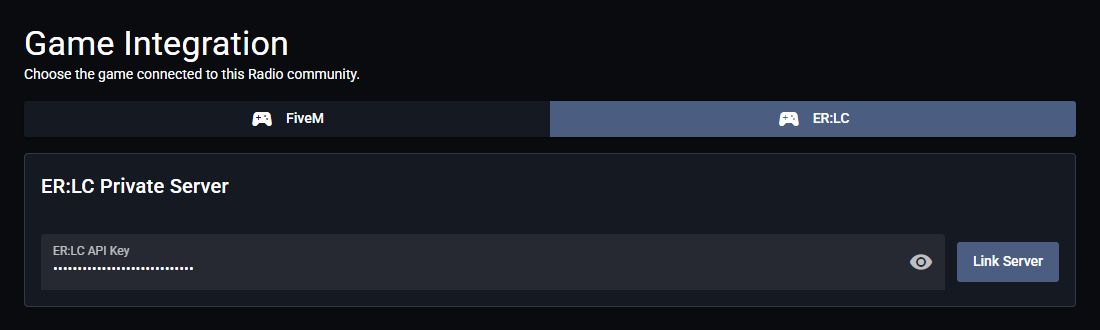 Enter your private-server API key to connect ER:LC.
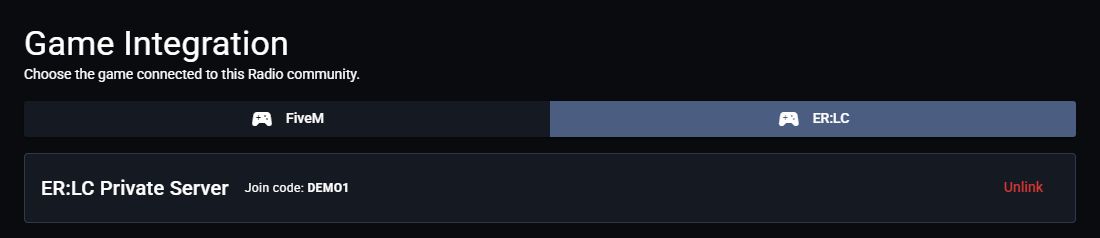 The join code appears once the server is linked.
- Link Your Roblox Account
Each player must link the Roblox account they use in ER:LC to receive location-based signal.
- Sign in to Radio and open the linked community or standalone radio view.
- Select Link Roblox in the red banner above the radio panel.
- Sign in to Roblox and authorize the link.
- Return to Radio. The banner disappears when the linked account is detected.
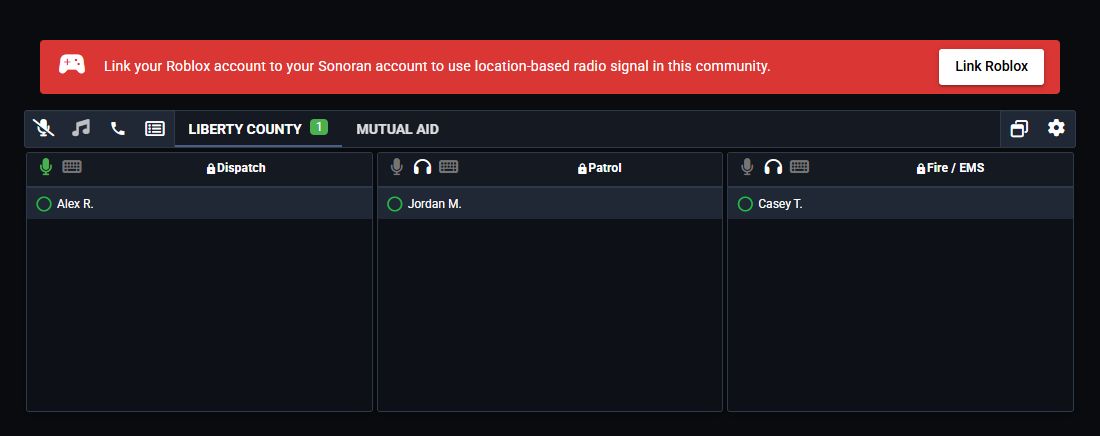 The banner appears above the radio panel for players who have not linked Roblox.
Already linked Roblox through another Sonoran product? You can use that existing link.
The banner appears above the radio panel for players who have not linked Roblox.
Already linked Roblox through another Sonoran product? You can use that existing link.
- Add Coverage and Start Playing
- Place virtual signal towers.
- Join the linked ER:LC private server.
- Connect to your Radio channel in the desktop app and open the overlay.
Replace the API key or disconnect the server
Replace the API key or disconnect the server
- Select Unlink and confirm.
- To reconnect, enter the new API key and select Link Server.