

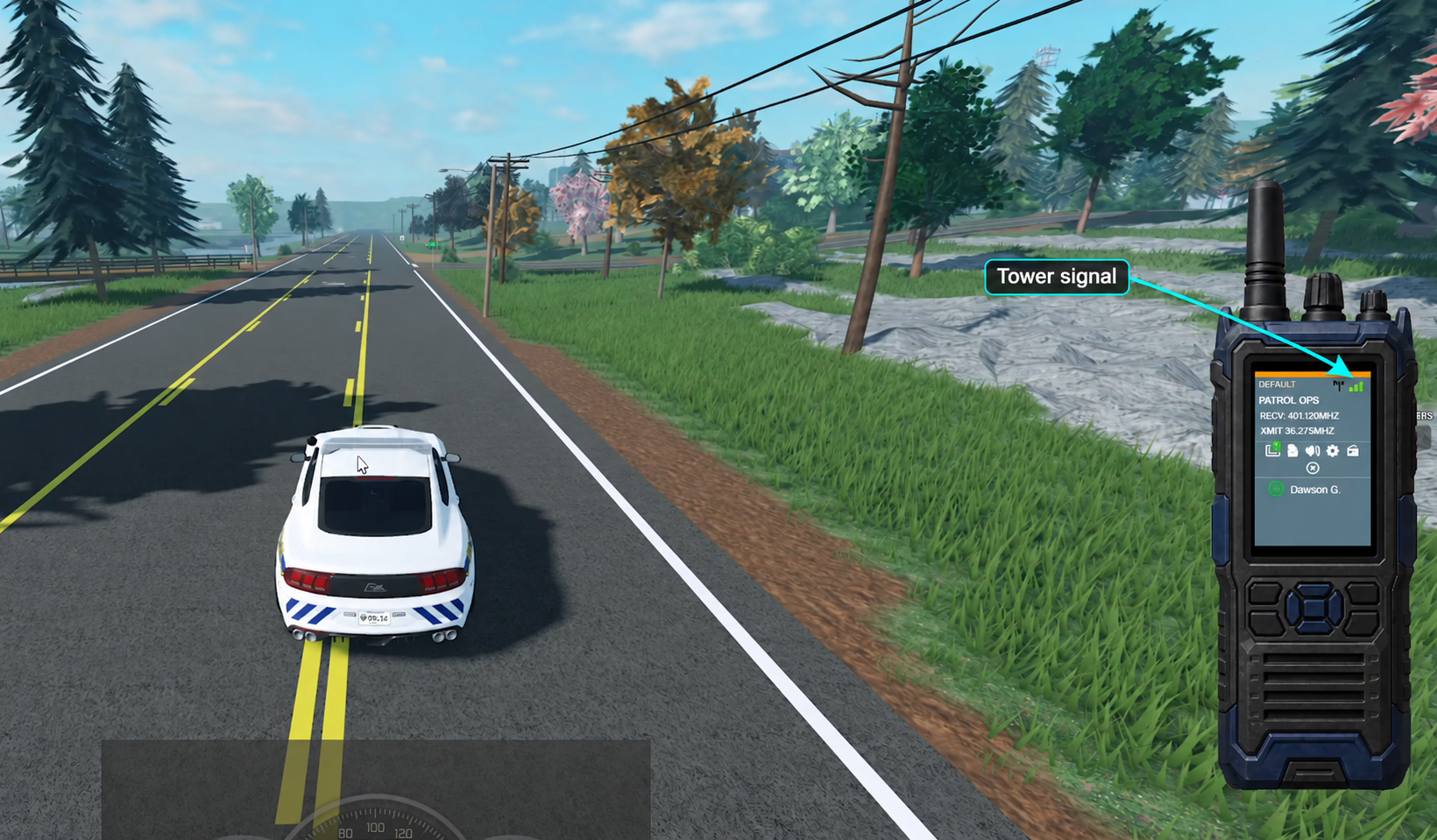
 The overlay’s signal bars reflect your coverage from the virtual towers.
Radio Overlay
Place a Tower
- Open Customize > Game Integration > ER:LC.
- Under ER:LC Map Configuration, select Towers.
- Select Place Tower, then click a location on the map.
- Enter a Tower name and set its Range.
- Click outside the field to finish editing. Changes save automatically.
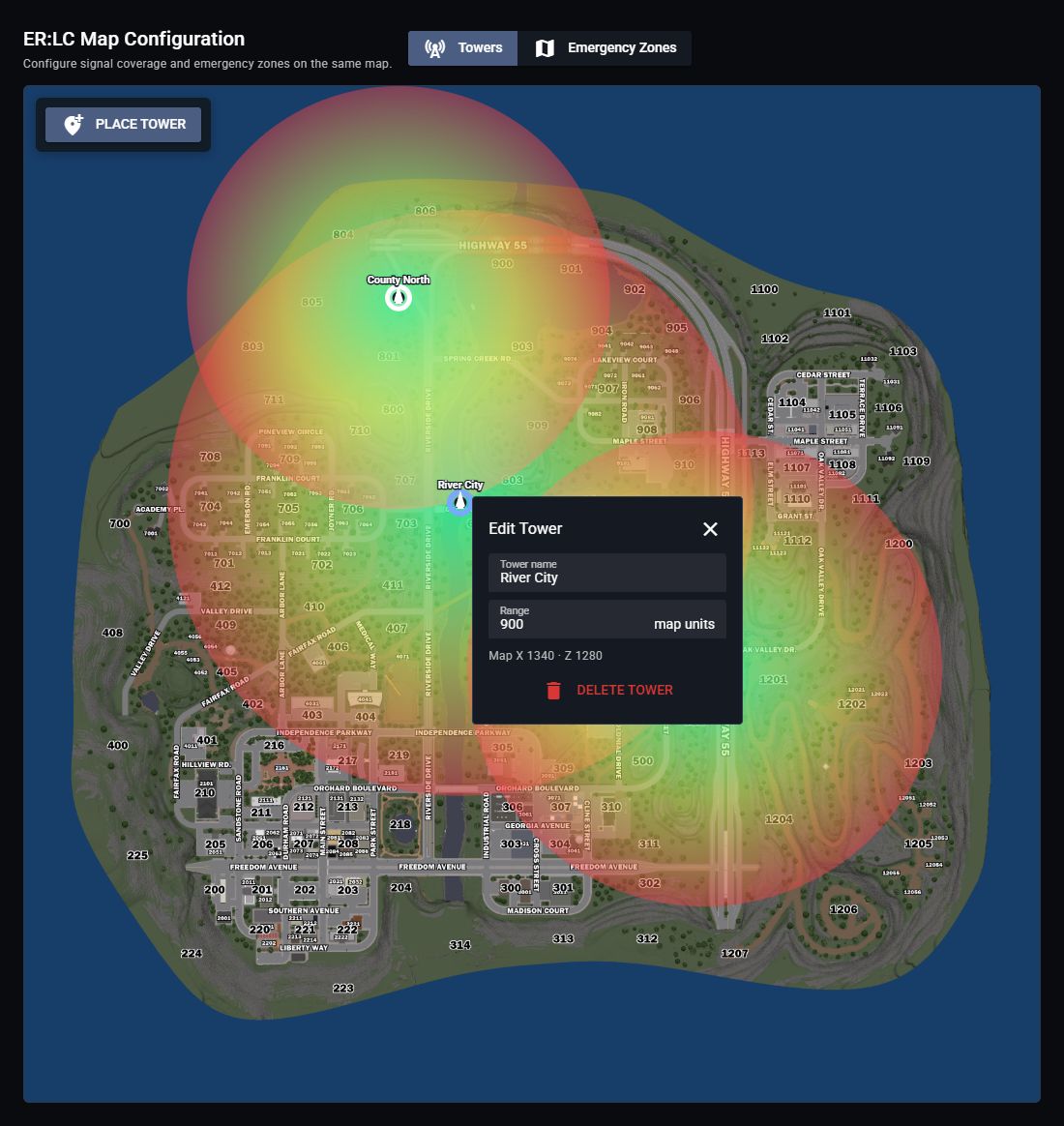 Name each tower and adjust its coverage range.
Click a tower to edit it. Drag its marker to move it, or select Delete Tower to remove it.
With zero towers, Radio keeps signal at 100% even if the user’s Roblox account or player location is unavailable. Placing the first tower enables location-based signal. Removing the last tower restores full signal on the next refresh.
Name each tower and adjust its coverage range.
Click a tower to edit it. Drag its marker to move it, or select Delete Tower to remove it.
With zero towers, Radio keeps signal at 100% even if the user’s Roblox account or player location is unavailable. Placing the first tower enables location-based signal. Removing the last tower restores full signal on the next refresh.
Check Signal Coverage
Green indicates stronger coverage; yellow and red indicate weaker coverage. Outside a tower’s range, it provides no signal. Where towers overlap, players use the strongest available signal. In Towers mode, hover over the map to preview the signal percentage at that location. To make signal quality affect transmission audio, your community needs to configure Custom Voice Effects and assign the effect profile to its radio channels. Enable effects such as Clipping, Digital, or Analog to make audio cut out, distort, or become static-filled as tower signal weakens. Follow the guide below to customize and apply these effects.Custom Voice Effects
View Live Players
Players matched to linked Roblox accounts appear as blue markers with their names and signal percentages. Join the linked ER:LC server and allow a few seconds for the map to refresh.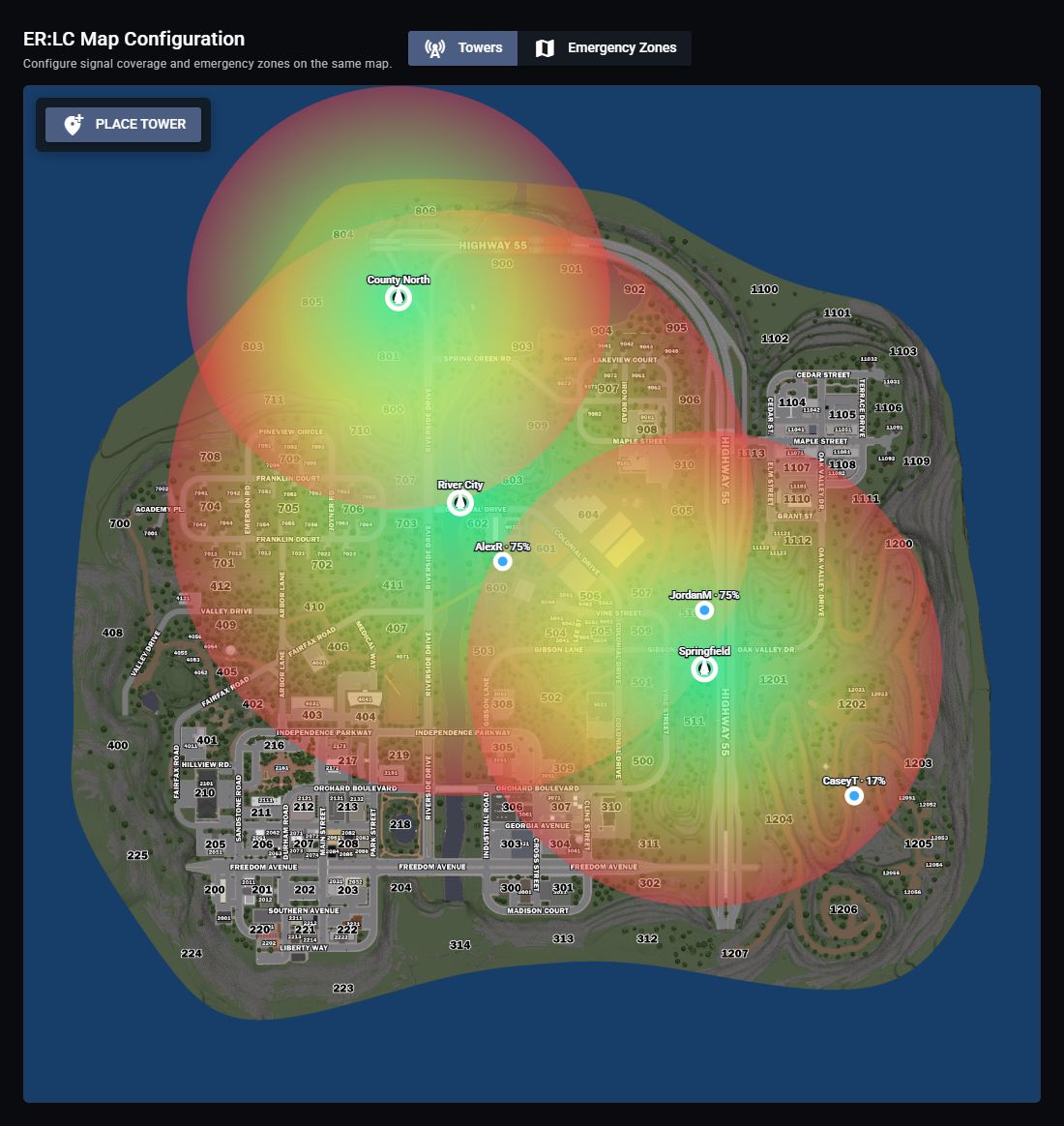 Player markers show how coverage changes across the map.
Configure emergency zones
Configure emergency zones
- Select Emergency Zones in the same map editor.
- Choose the Room.
- Select Draw Polygon and place at least three points, then select Finish Zone. Or select Draw Circle, click its center, then click its edge.
- Enter a Zone name and choose Transmit channels in the zone settings.
A player is missing or has no signal
A player is missing or has no signal
- Confirm the private server is linked under Game Integration.
- Confirm the player joined that ER:LC private server.
- Link the Roblox account the player is using to their Sonoran account.
- Make sure the player is within a tower’s range.
- Allow a few seconds for the next update.