# Installation

## ER:LC Panel Setup

## 1. Create an ER:LC API Key

Your `ERLC API Key` authorizes Sonoran CMS to access your game server information.

### Purchase API Access from ER:LC

ER:LC grants API access as a paid upgrade.

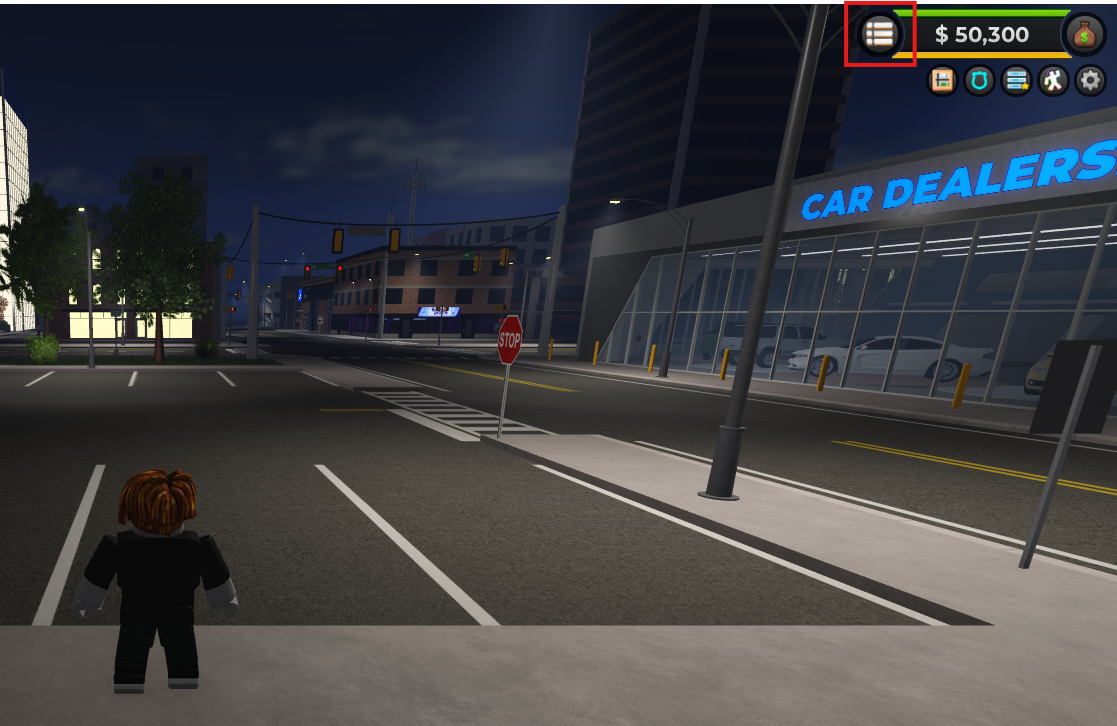
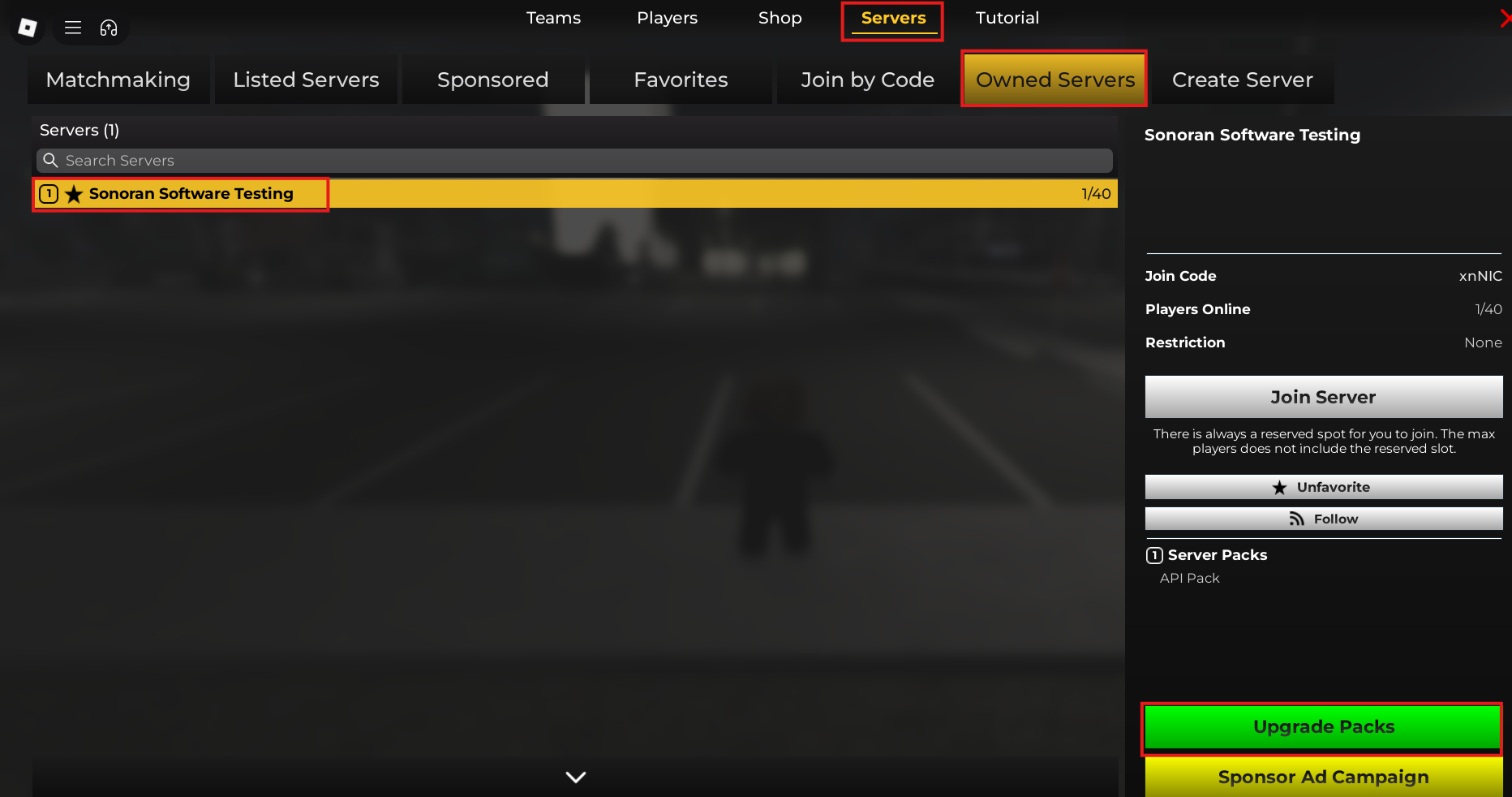
Once in-game, select the `Menu` button at the top left > `Servers` > `Owned Servers` > Select your private server > `Upgrade Packs` > `API Pack`.

<div><figure><img src="https://3006847189-files.gitbook.io/~/files/v0/b/gitbook-x-prod.appspot.com/o/spaces%2F-MdBOa9OFjtdqw9FdXli%2Fuploads%2Fgit-blob-4ef5dba985af0d7614f916acc06930295e34646f%2Fimage.png?alt=media" alt=""><figcaption><p>ER:LC Menu</p></figcaption></figure> <figure><img src="https://3006847189-files.gitbook.io/~/files/v0/b/gitbook-x-prod.appspot.com/o/spaces%2F-MdBOa9OFjtdqw9FdXli%2Fuploads%2Fgit-blob-194bcaf5aa9cd0657880dab7f0487c1187ec0abc%2Fimage.png?alt=media" alt=""><figcaption><p>ER:LC API Pack</p></figcaption></figure></div>

### Copy Your ER:LC API Key

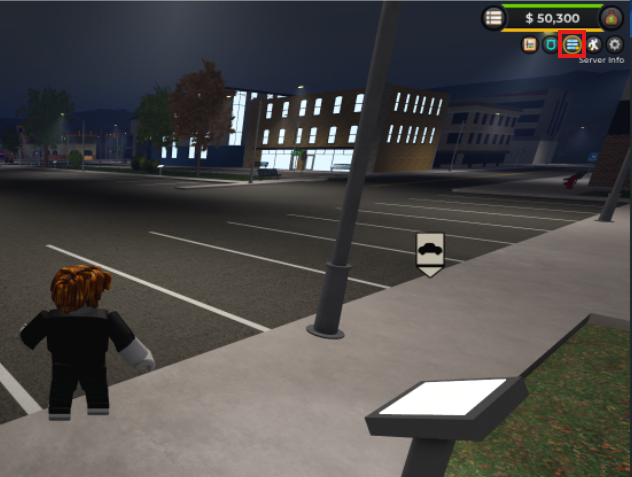
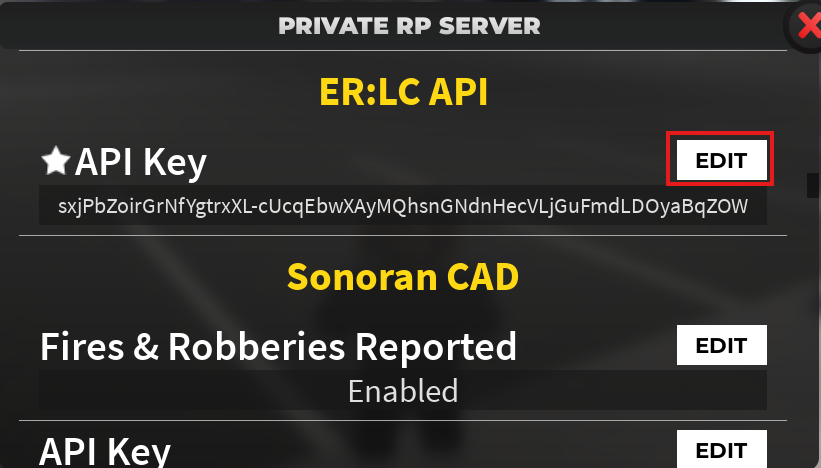
Once in your private ER:LC server, open the `Server Info` tab.

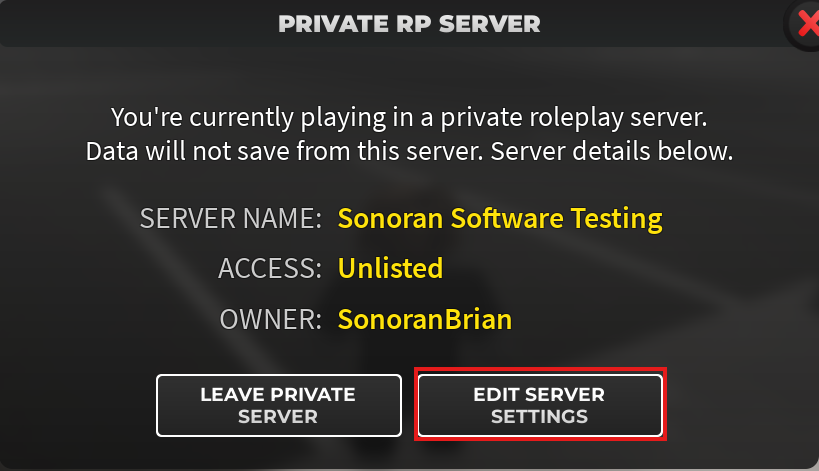
Select `Edit Server Settings` > Navigate To `ER:LC API` > Select `Edit` to Copy.

<div><figure><img src="https://3006847189-files.gitbook.io/~/files/v0/b/gitbook-x-prod.appspot.com/o/spaces%2F-MdBOa9OFjtdqw9FdXli%2Fuploads%2Fgit-blob-dee401b4db43a8b1a81d88e8dc68feba5cc4eeaf%2Fimage.png?alt=media" alt=""><figcaption><p>ER:LC Server Info</p></figcaption></figure> <figure><img src="https://3006847189-files.gitbook.io/~/files/v0/b/gitbook-x-prod.appspot.com/o/spaces%2F-MdBOa9OFjtdqw9FdXli%2Fuploads%2Fgit-blob-087598a72412b263df3d3dcf79a38fec828d59a3%2Fimage.png?alt=media" alt=""><figcaption><p>ER:LC Server Settings</p></figcaption></figure> <figure><img src="https://3006847189-files.gitbook.io/~/files/v0/b/gitbook-x-prod.appspot.com/o/spaces%2F-MdBOa9OFjtdqw9FdXli%2Fuploads%2Fgit-blob-256f3111eff2d2106aac75f2e76cc114073751b4%2Fimage.png?alt=media" alt=""><figcaption><p>ER:LC API Key</p></figcaption></figure></div>

## 2. Enter Your ER:LC API Key

In the CMS navigate to **Admin** (grey gear icon) > **Integrations** > **ER:LC Game Panel**

Paste the ER:LC API key into the setup modal.
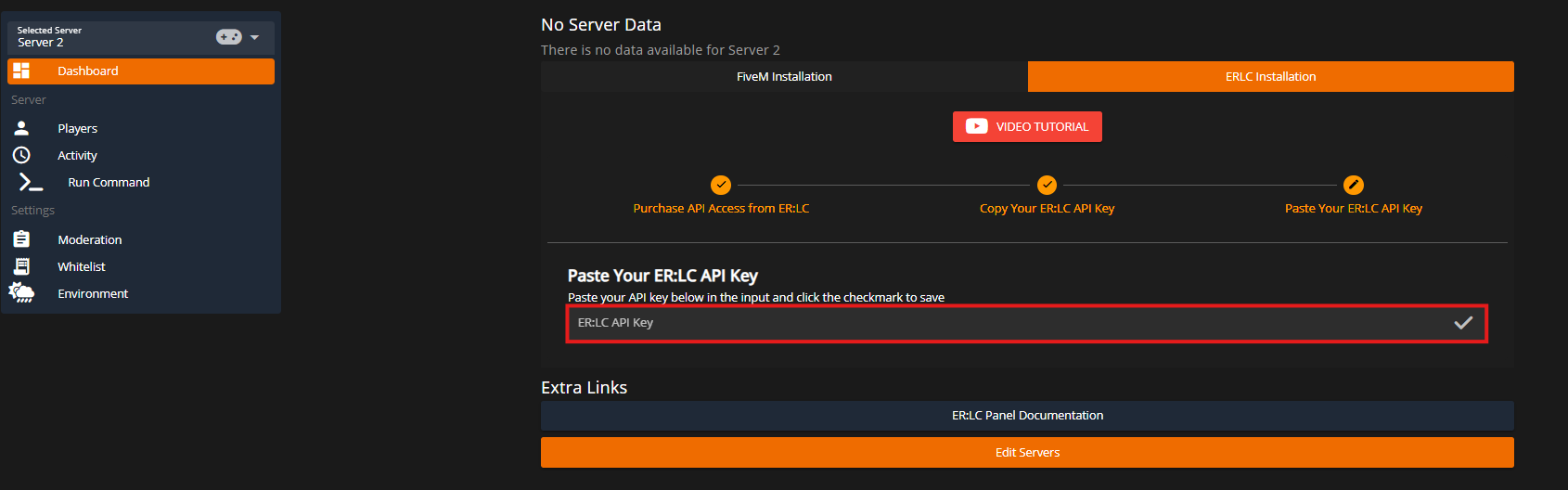
<figure><img src="https://3006847189-files.gitbook.io/~/files/v0/b/gitbook-x-prod.appspot.com/o/spaces%2F-MdBOa9OFjtdqw9FdXli%2Fuploads%2Fgit-blob-12ae33b063aa66ae22f7657e6acc5a57664cca64%2Fimage.png?alt=media" alt="" width="375"><figcaption></figcaption></figure>

## 3. Link Roblox and Discord to CMS

For full functionality, users must link their Roblox and Discord accounts to their CMS account.

The **Discord account link banner** automatically appears once one or more Discord servers are added in the Integrations panel. The **Roblox account link banner** appears when the ER:LC panel is enabled. These banners will show at the top of the CMS for all users who do not have their social accounts linked.

Additionally, you can [enforce Roblox and Discord account linking requirements in the ER:LC Whitelist panel](https://docs.sonoransoftware.com/cms/integration-capabilities/usage/whitelist#social-requirements).

<figure><img src="https://3006847189-files.gitbook.io/~/files/v0/b/gitbook-x-prod.appspot.com/o/spaces%2F-MdBOa9OFjtdqw9FdXli%2Fuploads%2Fgit-blob-7ad23e1bbd1cf236dd47d931e9a784812eb77e99%2Fimage.png?alt=media" alt=""><figcaption></figcaption></figure>

<figure><img src="https://3006847189-files.gitbook.io/~/files/v0/b/gitbook-x-prod.appspot.com/o/spaces%2F-MdBOa9OFjtdqw9FdXli%2Fuploads%2Fgit-blob-127b432cb35eef2c3b418329a6e899f93d938ff3%2Fimage.png?alt=media" alt=""><figcaption></figcaption></figure>

### 4. Import Data from Another Provider

Migrating to Sonoran CMS from another ER:LC management panel provider? Import your data by using the import wizard!

{% content-ref url="usage/migration-import" %}
[migration-import](https://docs.sonoransoftware.com/cms/integration-capabilities/er-lc-game-panel/usage/migration-import)
{% endcontent-ref %}