# Installation

## Video Tutorial

{% embed url="<https://youtu.be/pkdC-qgM64E>" %}

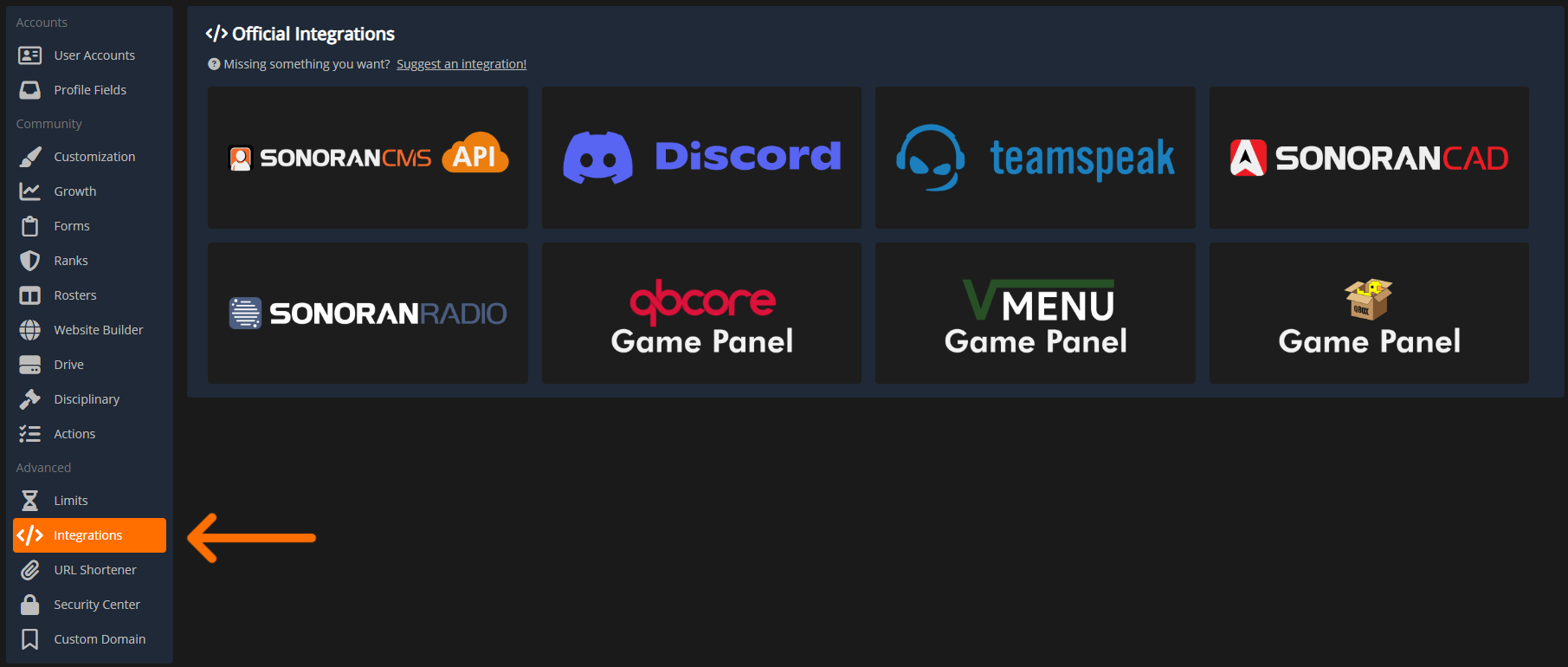
<figure><img src="https://3006847189-files.gitbook.io/~/files/v0/b/gitbook-x-prod.appspot.com/o/spaces%2F-MdBOa9OFjtdqw9FdXli%2Fuploads%2F4ZPt2A4dOjiik63bNSCV%2FScreenshot%20(480).png?alt=media&#x26;token=16d91fc4-79e9-47bf-921b-1f4266c09dc6" alt=""><figcaption><p>Sonoran CMS - Integrations</p></figcaption></figure>

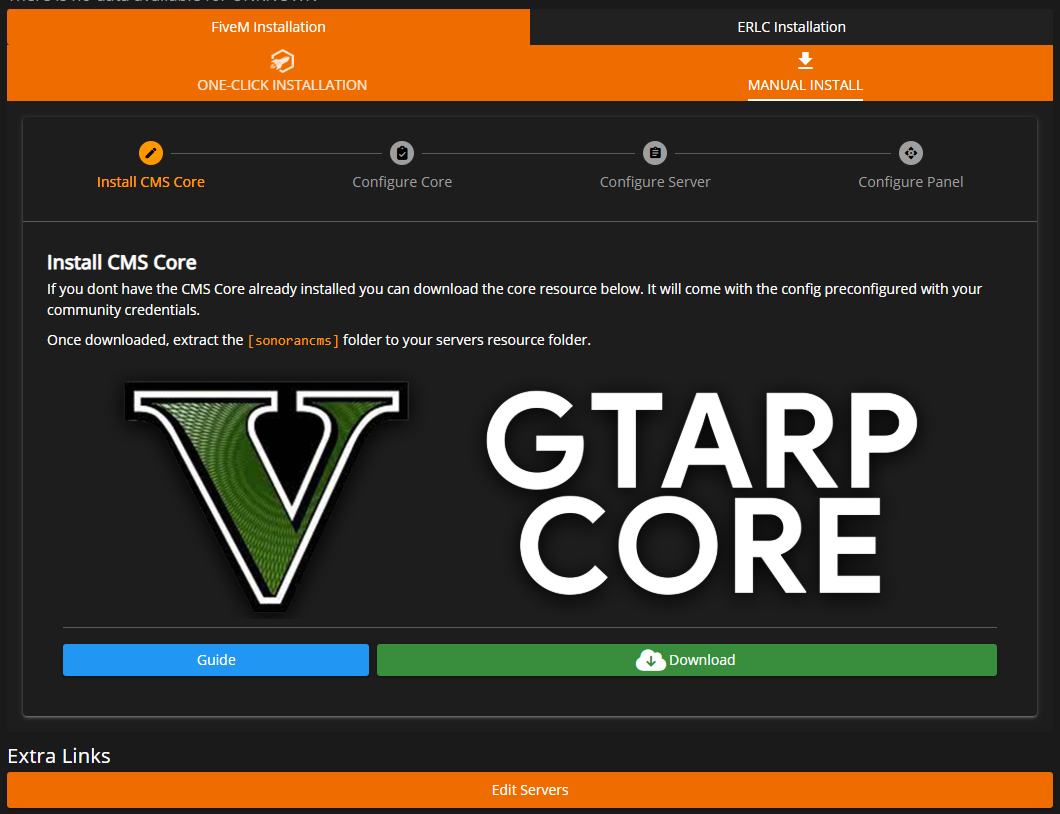
## 1. Install the CMS Core Framework

The QB Core management panel will help walk you through each step.
<figure><img src="https://3006847189-files.gitbook.io/~/files/v0/b/gitbook-x-prod.appspot.com/o/spaces%2F-MdBOa9OFjtdqw9FdXli%2Fuploads%2FjX5h2R0qDY6XSIVk3Ko0%2FScreenshot%20(481).png?alt=media&#x26;token=a25c7516-ba72-4608-9ed6-9f63cd5334c1" alt=""><figcaption></figcaption></figure>

Download the CMS Core. This download will already have the config filled with your Community ID (or UUID) and API Key.

## 2. Configure the Core

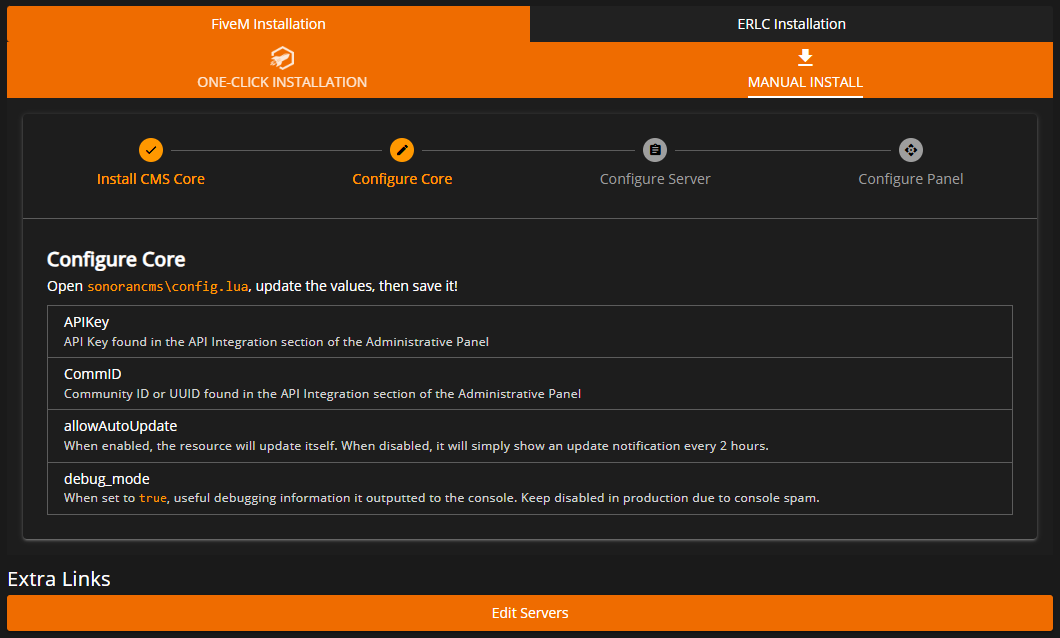
<figure><img src="https://3006847189-files.gitbook.io/~/files/v0/b/gitbook-x-prod.appspot.com/o/spaces%2F-MdBOa9OFjtdqw9FdXli%2Fuploads%2FJTDVdgXboGFzxVD7SHbR%2FScreenshot%20(482).png?alt=media&#x26;token=90076d94-b882-4182-89d6-e5b02f1af2b4" alt=""><figcaption></figcaption></figure>

Once installed, the `config.lua` will configure your Community ID (or UUID) and your API key. It is recommended to keep all remaining config options with their default values.

## 3. Configure your Server

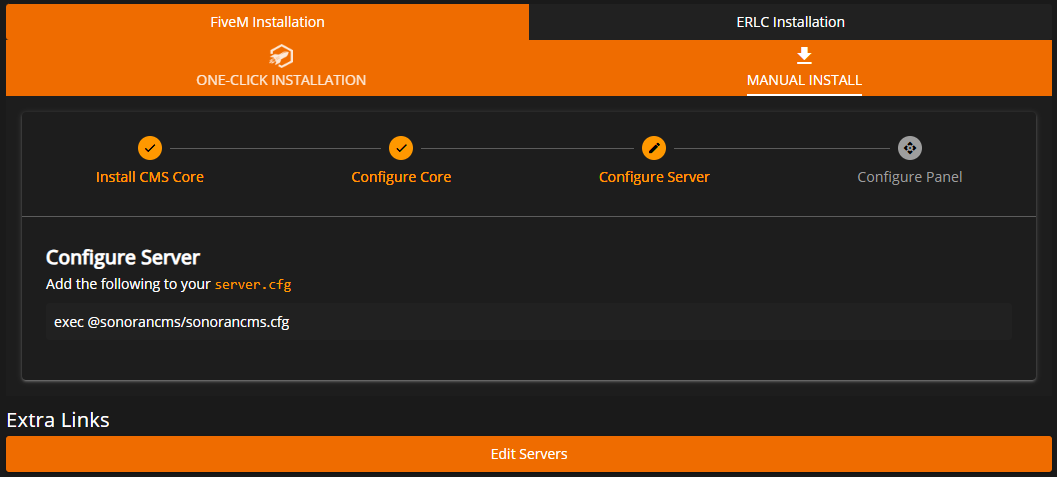
In your `server.cfg` file, add the following lines to run the CMS core resource and grant permissions to the auto-updater.
```
# file system permissions (if using QB-Core)
add_filesystem_permission sonorancms write qb-core

# file system permissions (if using QBox)
add_filesystem_permission sonorancms write qbx_core
add_filesystem_permission sonorancms write ox_inventory

exec @sonorancms/sonorancms.cfg
```

<div align="center" data-full-width="false"><figure><img src="https://3006847189-files.gitbook.io/~/files/v0/b/gitbook-x-prod.appspot.com/o/spaces%2F-MdBOa9OFjtdqw9FdXli%2Fuploads%2FKNQNCpAtnEoAqrPIvR3t%2FScreenshot%20(483).png?alt=media&#x26;token=344e12f5-6c6a-4cfd-892f-09756e473385" alt=""><figcaption></figcaption></figure></div>

## 4. Configure your Server (Required for QB-Core and QBox)

Due to recent changes to FiveM there is now security limitations to the file system which the game panel uses to update Items, Jobs, Gangs, etc. This requires the `add_filesystem_permission` line(s) to be added to the `server.cfg` shown above, as well as the author of the resources to be updated. You can find out more information on why this is required [here](https://docs.fivem.net/docs/developers/sandbox/#file-system-permissions).

**QB-Core Specific**

* Update `qb-core/fxmanifest.lua` author line to the following:
  * `author ''`

**QBox Specific**

* Update `ox_inventory/fxmanifest.lua` author line to the following:
  * `author ''`

*Note: We're working on making this not a requirement in the future but need to work with the respective resource developers to get it updated.*

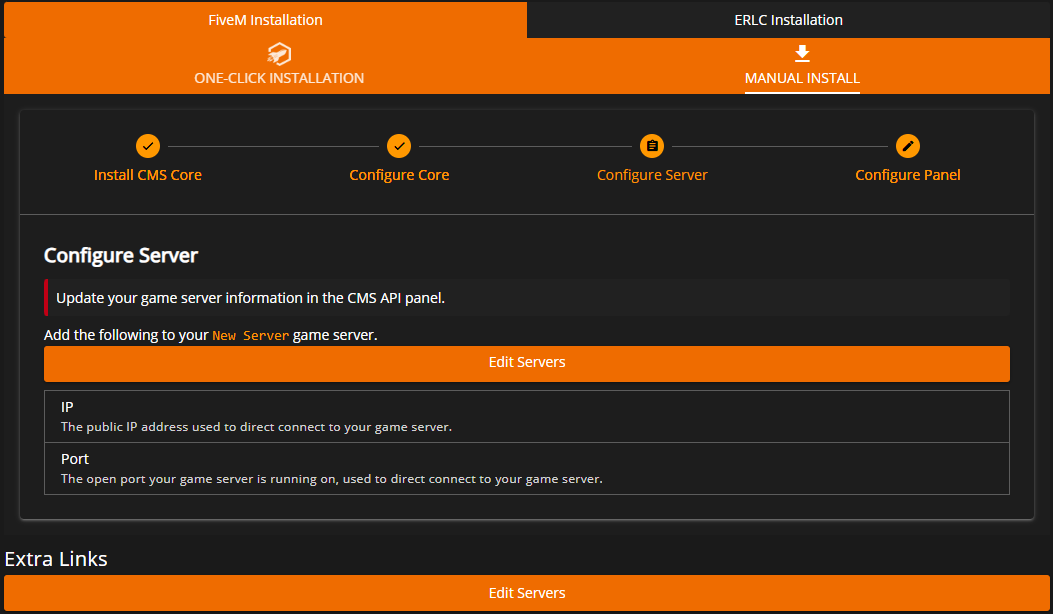
## 5. Configure the Panel

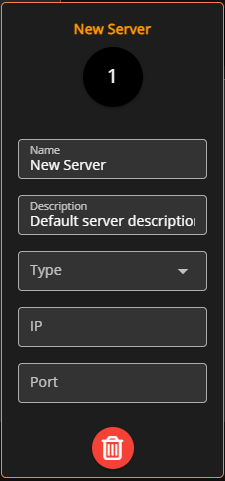
Select `Edit Servers` to include the IP address and port used to direct connect to your server.
<figure><img src="https://3006847189-files.gitbook.io/~/files/v0/b/gitbook-x-prod.appspot.com/o/spaces%2F-MdBOa9OFjtdqw9FdXli%2Fuploads%2F3kckE5VUi7c6xhjjctoE%2FScreenshot%20(487).png?alt=media&#x26;token=4b44b108-7384-4293-b25f-44da1c046d8d" alt=""><figcaption></figcaption></figure>

<figure><img src="https://3006847189-files.gitbook.io/~/files/v0/b/gitbook-x-prod.appspot.com/o/spaces%2F-MdBOa9OFjtdqw9FdXli%2Fuploads%2Fw2dQqzRvcdynWbCc9KWX%2FScreenshot%20(485).png?alt=media&#x26;token=af2cebf0-935e-4751-83fa-fb5889b29a0c" alt=""><figcaption></figcaption></figure>

## 6. Grant Permissions

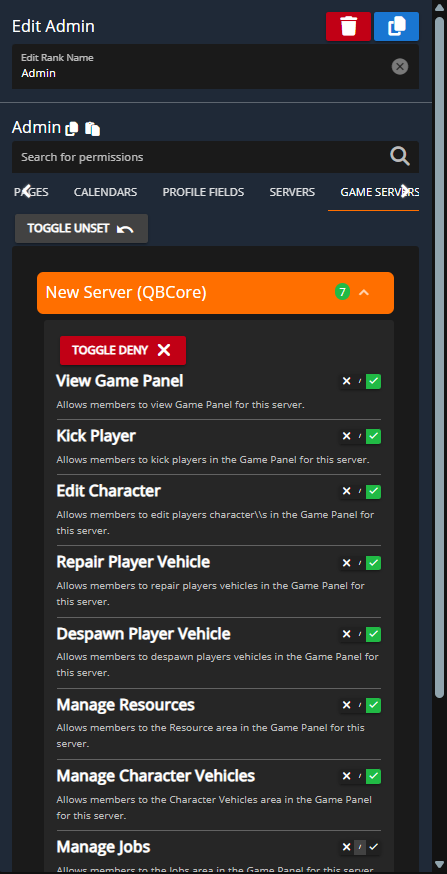
By default, only community owners will have access to the QB Core management panel.

In the [Rank Manager](https://docs.sonoransoftware.com/cms/tutorials/user-management/creating-departments), you will need to add the associated permissions under the tab `Game Servers`   &#x20;

<figure><img src="https://3006847189-files.gitbook.io/~/files/v0/b/gitbook-x-prod.appspot.com/o/spaces%2F-MdBOa9OFjtdqw9FdXli%2Fuploads%2FIbjoeArc4wWjcRFyIWBf%2FScreenshot%20(488).png?alt=media&#x26;token=d8e20df3-7d37-4db1-b9a8-1d4bcfc3991b" alt=""><figcaption></figcaption></figure>

## 7. Using the Game Panel

View the next guide below to start using the QB Core game panel.

{% content-ref url="qbcore-and-qbox-panel" %}
[qbcore-and-qbox-panel](https://docs.sonoransoftware.com/cms/integration-capabilities/fivem-game-panel/qbcore-and-qbox-panel)
{% endcontent-ref %}