

Finding your TeamSpeak UID
- Press
CTRL+IorCMD+Iwhile in TeamSpeak to open the Identities popup
 TeamSpeak - Identities Popup
- Copy the Unique ID of the identity that you use to connect to your server (almost certainly the first one)
- If your Unique ID isn’t shown, click Show Advanced on the bottom of the identities popup
Adding your UID to CMS
- Open your Community Settings by using your profile dropdown on the top-right of your screen
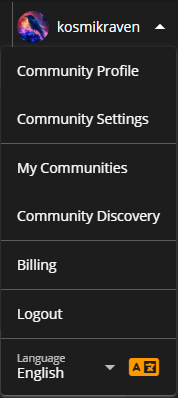 Sonoran CMS - Community Settings
- Paste your UID into the TeamSpeak UID input in the popup
- If the TeamSpeak section isn’t shown, then that means your community hasn’t setup TeamSpeak integration correctly
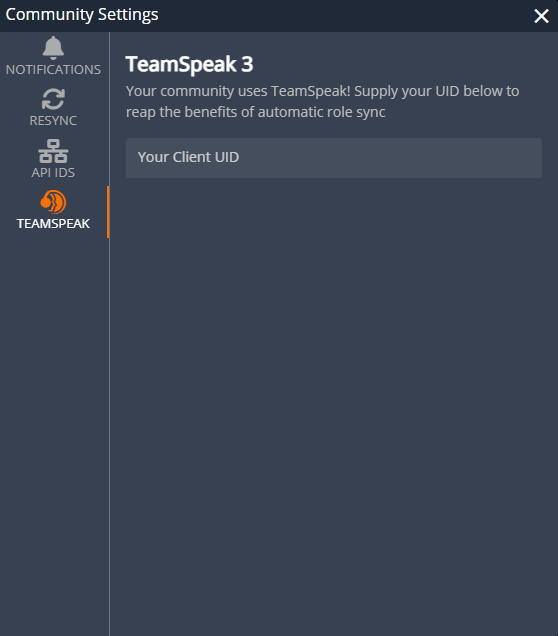 Sonoran CMS - TeamSpeak UID Input
- Make sure you are connected to your server’s TeamSpeak, then click Save TeamSpeak UID
- You should receive a message in TeamSpeak containing a code, paste the code into the new popup on CMS and click OK to verify that the TeamSpeak UID belongs to you

 Sonoran CMS - TeamSpeak Verification
