# Browser Microphone Permissions

## Error Code

If you see the following error message displayed, the Sonoran Radio website has not gotten microphone access from your browser. This prevents you from connecting to the radio.

<figure><img src="https://1542307009-files.gitbook.io/~/files/v0/b/gitbook-x-prod.appspot.com/o/spaces%2FfCk5zoeun5gx3ujYW6eg%2Fuploads%2FYajPp4yPKBHEpsKCdHEH%2Fimage.png?alt=media&#x26;token=2aa51129-0da0-4605-9dc6-9e2924fda2ce" alt="" width="303"><figcaption></figcaption></figure>

## Granting Microphone Permissions

### Via Quick Menu

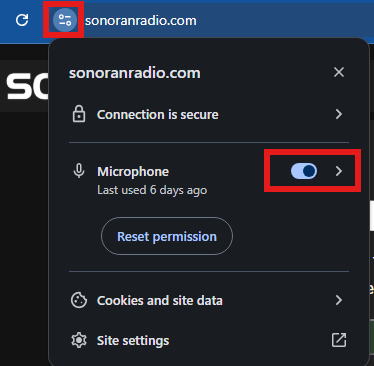
Select the icon to the left of the URL bar and ensure `Microphone` access is enabled.

<figure><img src="https://1542307009-files.gitbook.io/~/files/v0/b/gitbook-x-prod.appspot.com/o/spaces%2FfCk5zoeun5gx3ujYW6eg%2Fuploads%2FqiUyt11nrIfiAnaHjM7O%2Fimage.png?alt=media&#x26;token=9596ec0a-7177-45ca-b2e4-a662912b1c8a" alt="" width="187"><figcaption></figcaption></figure>

### Via Chrome Settings

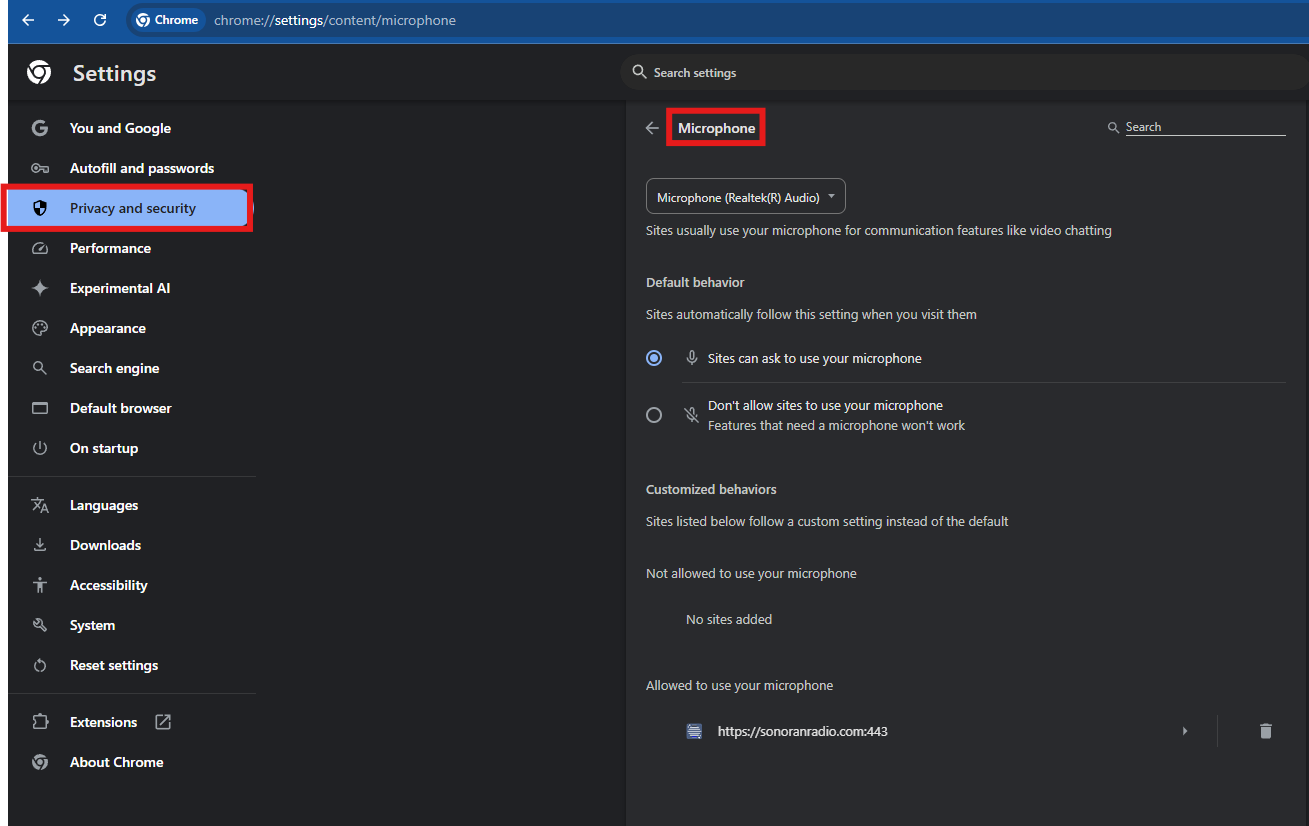
In Chrome, paste the following into the URL bar and hit enter: `chrome://settings/content/microphone`

Ensure that sites are allowed to ask for microphone access, and that `sonoranradio.com` is not blacklisted from microphone access.
<figure><img src="https://1542307009-files.gitbook.io/~/files/v0/b/gitbook-x-prod.appspot.com/o/spaces%2FfCk5zoeun5gx3ujYW6eg%2Fuploads%2F8p1wYEZLa2lJb90HSYBb%2Fimage.png?alt=media&#x26;token=225b43ff-6895-4b93-bb2a-9e01334f5703" alt="" width="375"><figcaption></figcaption></figure>