

FiveM Client Debug logs
At times, our support team may request debug logs from your local radio. This contains important information from the radio webpage (running inside the in-game radio in an iframe).Toggle Debug Mode On
- Select the settings gear and click on the header of the settings panel seven times.
- At the bottom, a red section labeled
Debug Modewill appear, indicating that it has been correctly enabled. - Restart the radio (power on/off) to start capturing fresh logs. Once you have re-created the issue, continue on with sending the logs as described below.
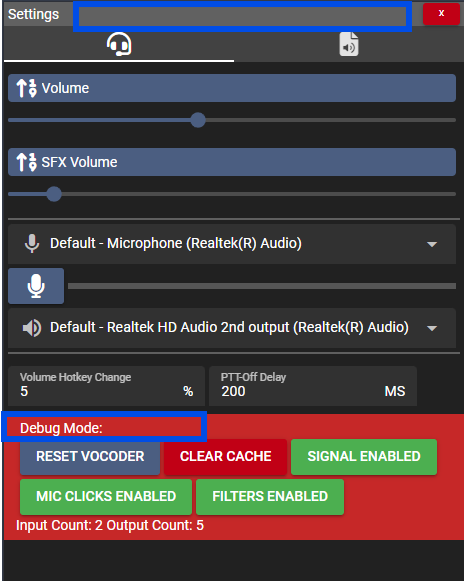 Sonoran Radio: Debug Mode
Flagging Timestamps
In some cases, you may be asked to add a timestamp flag when an issue occurs. Once the particular issue occurs press theFlag Timestamp button in the debug menu, enter in a brief description, and press Ok.
This will manually add a debug log to help our developers narrow down the time window.
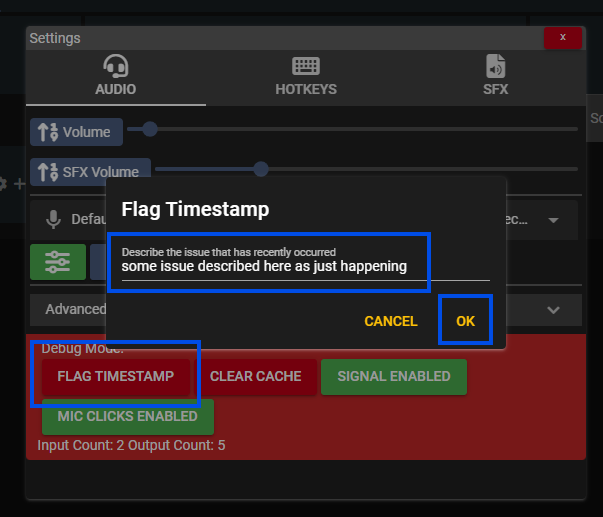 Flag Timestamp
Sending Client Debug logs
- Open your in-game console by pressing
F8 - Select
Open Log - Send the latest file located at
C:\Users\USER\AppData\Local\FiveM\FiveM.app\logs
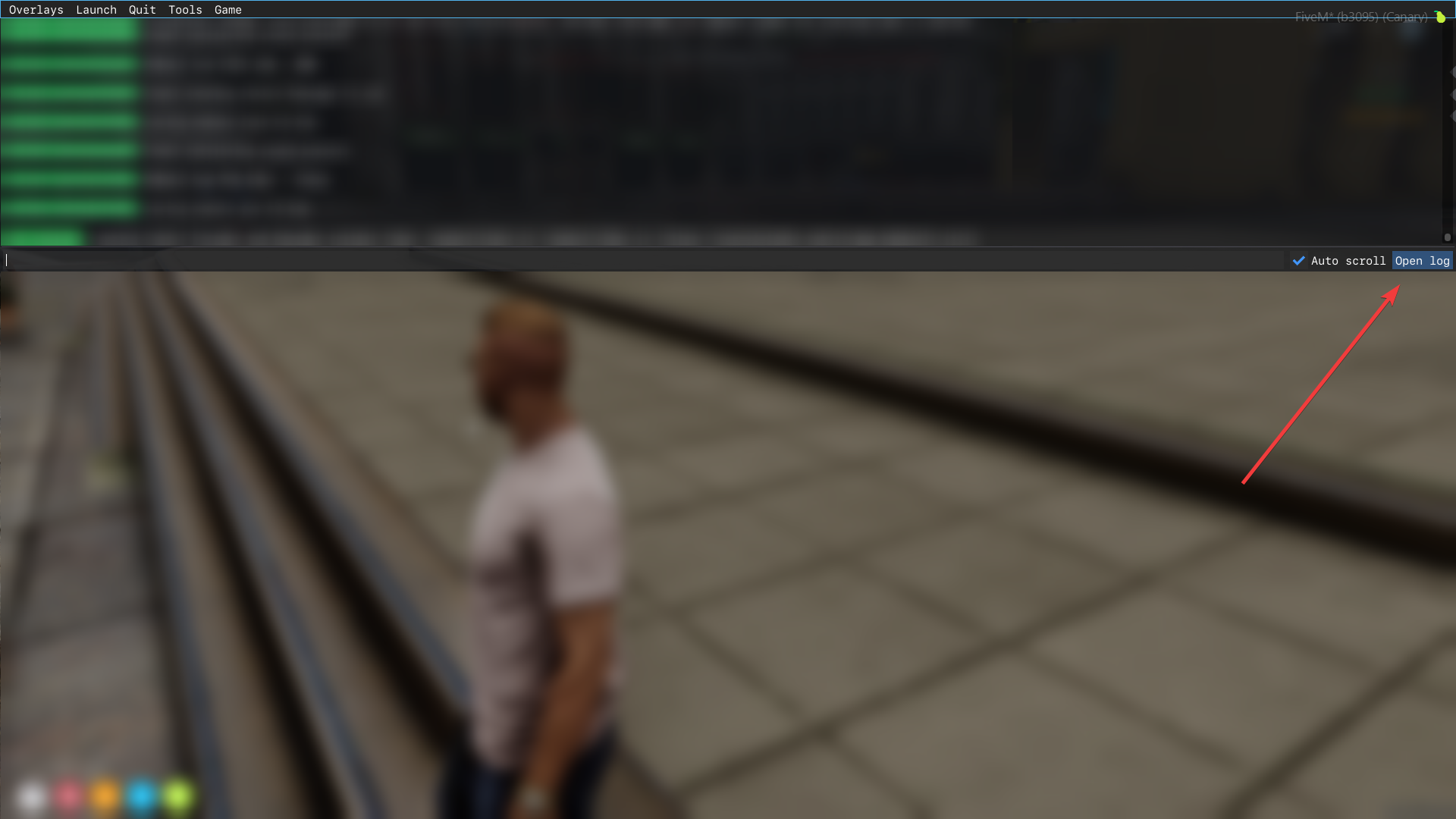 FiveM: Open Client Log
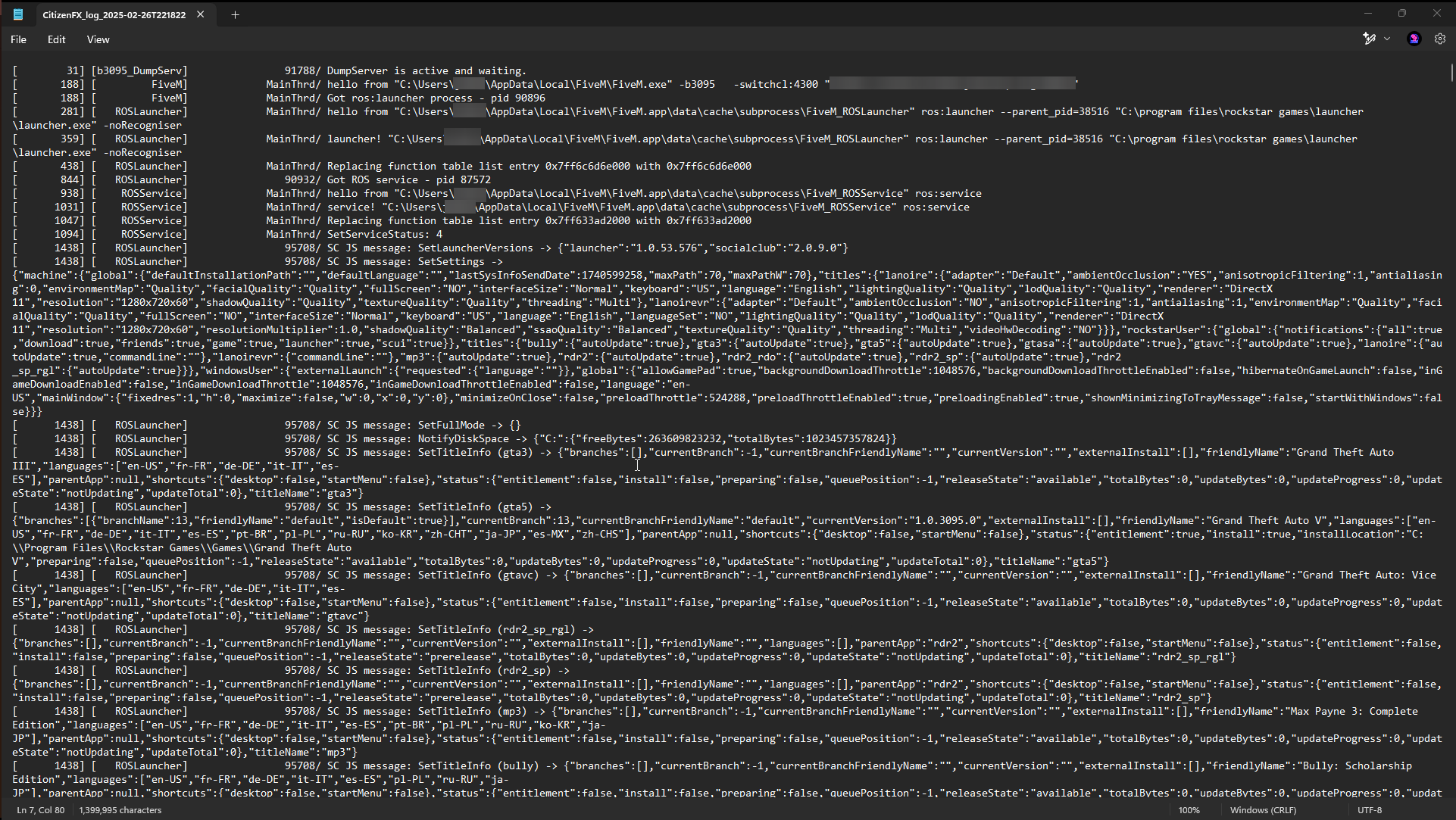 FiveM: Client Log