

Acquire the Script
After purchasing the script through the Sonoran store you may download the script through the keymaster account that purchased the script. Upon downloading extract the file to a safe place.Install Prerequisite
If you are using the Sonoran CAD FiveM Integration, DO NOT install a second copy of WK_Wars2x, it is included and updated with the
sonorancad resource.Install the Script
- Inside the script package you just extracted will be two folders. Copy both to a folder in your server’s resources folder called
[sonoranscripts]note the[]in the name, without them it will not work.
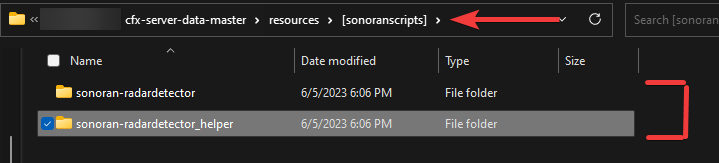 Sonoran Software - Radar Detector - Folders
- In the
sonoran-radarddetector/configfolder there will be a file calledconfig.CHANGEME.luayou should rename that to beconfig.luaand configure the settings inside as you would like them to be configured based on the configuration documentation below.
- Drag the
radar_detector.pngfrom/sonoran-radardetector/into the following folder:/resources/[qb]/qb-inventory/html/images
-
a.) Import the
ESX Installme.sqlfile into your ESX database If NOT using******ox_inventory** ****continue to step 5 b.) Add the following code to the/ox_inventory/data/items.luafile -
Finally, in your
server.cfgadd the following:
Configuring the Script
Default config.lua
Default config.lua
Configuration Breakdown
Commands
Usage
Place a detector
- Sit in a compatible vehicle and bring it to a complete stop. Close any tablet or other open interface.
- Run
/detectormenuto open the detector menu. Your server may use a different command if configured. - Select Spawn Radar Detector, then select Spawn Radar Detector in the submenu to open the mouse placement editor.
- Use Move and Rotate to position the detector inside the vehicle.
- Select Apply to this vehicle to install the detector at the chosen position.
In framework mode, you need a Radar Detector/Jammer item in your inventory. The item is used when the installation is accepted. Selecting Cancel before applying leaves the item in your inventory.
Move
Select Move, then left-click and drag a colored arrow to move along one axis. Drag a colored square to move along two axes at once.Screenshot placeholder — Move controls: In-game cabin view with the detector selected, Move active, colored arrows and squares visible, and the toolbar and Apply to this vehicle button in frame.
Rotate
Select Rotate, then left-click and drag a colored ring to turn the detector around that axis. The outer gray ring rotates it around your viewing direction.Screenshot placeholder — Rotate rings: In-game cabin view with the detector selected, Rotate active, colored rotation rings and the outer gray ring visible, and the toolbar and Apply to this vehicle button in frame.
Placement controls
Keep the vehicle stationary while placing the detector. Placement cancels if the vehicle moves or you leave it.
Reposition a detector
Run/detectormenu in the stopped vehicle, select Attach Radar Detector, then Position radar detector with mouse. Use the same Move and Rotate controls, then select Apply to this vehicle to keep the new placement. Cancel keeps the previous placement.
Use the detector and jammer
After applying the placement, reopen/detectormenu and select Radar Remote Menu. Use Toggle Radar Detector Power to turn it on, then use Toggle Detection Mode and Toggle Jamming Mode as needed.
Placement troubleshooting
- If the editor will not open, stop the vehicle, close other interfaces, and check that the vehicle is compatible and you have menu access. In framework mode, also check that you have the detector item.
- If you lose sight of the detector, select Look at detector or Cabin view.
- If repositioning reports that you do not control the detector, retry once you have control of it.