# Desktop App - Clear Cache

You may need to manually clear your Sonoran CAD desktop application's cache for troubleshooting steps. The guide below will walk you through the process.

### 1. Open Your AppData Folder

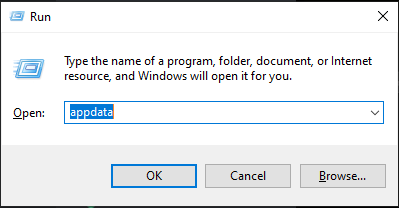
In the window search bar type `run` and open the run application.\
Enter `appdata` then hit `Ok`<br>

![Windows - Run AppData](https://232668649-files.gitbook.io/~/files/v0/b/gitbook-legacy-files/o/assets%2F-M4pGN81fb4R6zFhodcu%2F-MXA55wLkmGdBjWCuiJb%2F-MXA5fBpKHs1rMUU2jFI%2Fimage.png?alt=media\&token=f66c6bbe-c6fd-4f52-b168-69beab0bf1d5)

### 2. Delete the Cache Folder

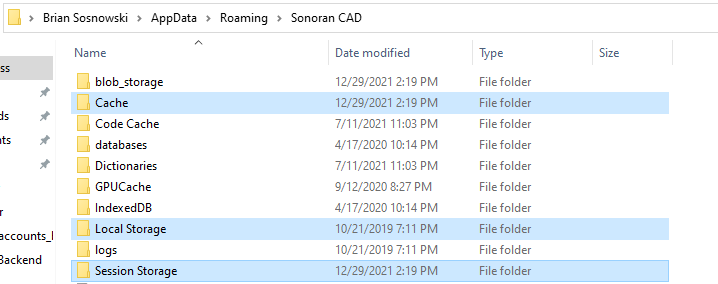
Navigate to `Roaming` > `Sonoran CAD` and delete the `Cache`, `Local Storage`, and `Session Storage` folders.

![Desktop App - Cache Folders](https://232668649-files.gitbook.io/~/files/v0/b/gitbook-x-prod.appspot.com/o/spaces%2F-M4pGN81fb4R6zFhodcu%2Fuploads%2FWIcRMJ06dqzImEFafPpO%2Fimage.png?alt=media\&token=897daf05-d84f-4360-815f-449ef7d29612)