

Introduction
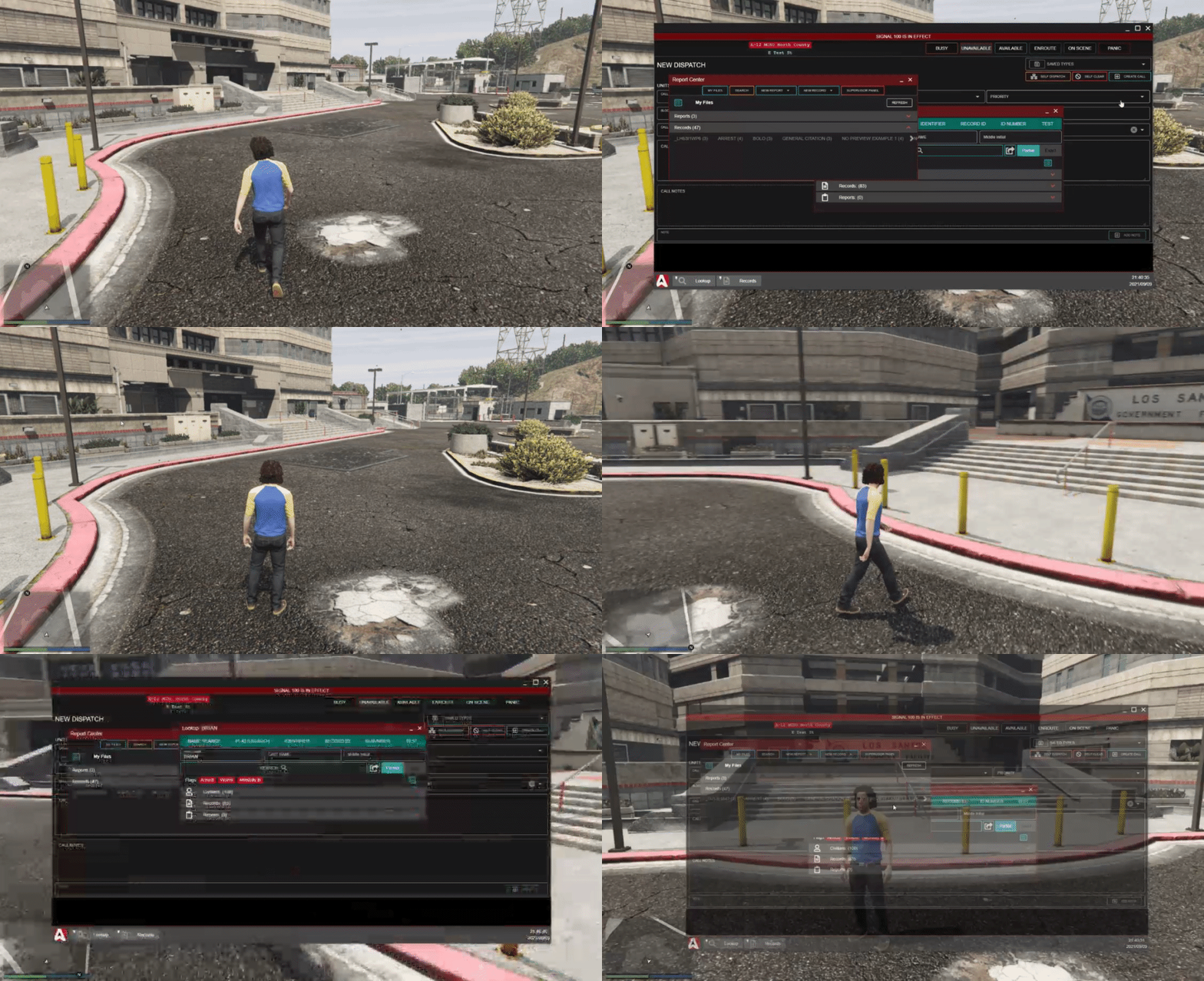
Many users utilize Steam’s browser/overlay system. The Steam browser utilizes an out-of-date version of CEF to run. Because of this, the Steam browser is known for it’s infamous freezing, lagging, and general lack of support for developers. While the Steam browser works well for basic websites, some users may experience issues with larger web apps like Sonoran CAD.Accessing the CAD In-Game
- Download the Desktop App
Download our official Windows desktop application. This allows support for our global hotkeys, bodycam, and more!
- Configure your Hotkey
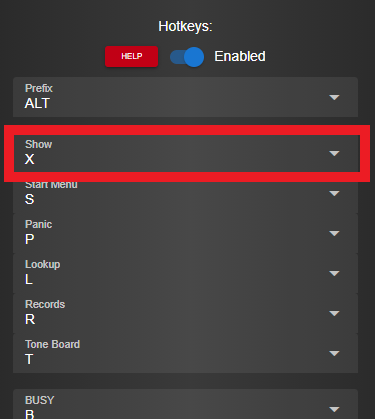
Once you’ve opened the desktop app, open the settings modal to configure your show hotkey.When pressed, this will open the desktop app on-top of your game client.
- Configure your Game Client
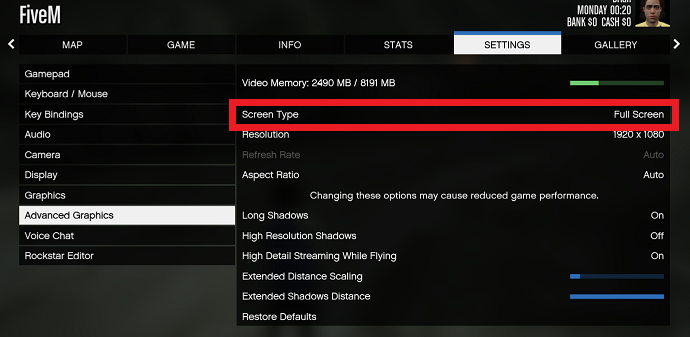
Depending on what game you’re running, ensure it’s in “Borderless Windowed” mode. This means the game is running as a window, with no top border.
In GTAV, this mode is actually just called Full Screen.
- Auto-Hide Windows Taskbar (Optional)
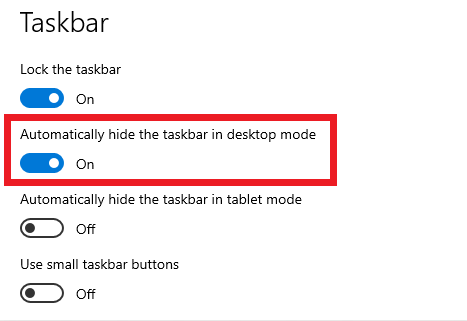
Specifically with streamers, some users may want to hide the Windows taskbar that appears when the CAD is placed on top of the game.
To do so, simply right-click the taskbar > Taskbar Settings > Automatically Hide the Taskbar
- Utilize the Hotkey
In-game, simply press your hotkey to toggle the CAD display both on and off.When the CAD is toggled off, your game will automatically regain focus!