

- Connect Discord
Follow Connect your server, then open Administration > Advanced > Discord Integration > Role sync. You can also select Set up role sync in Administration > Accounts.
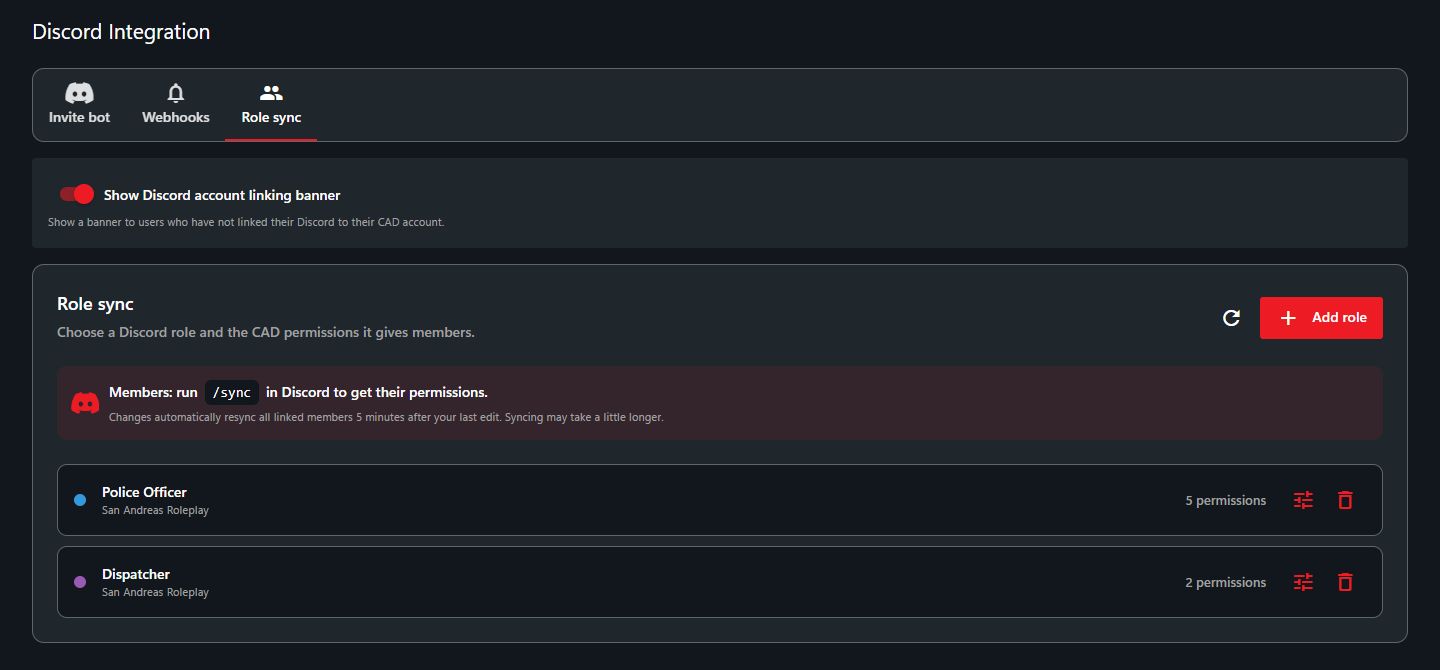 Each role shows its Discord server and assigned permissions.
If this community uses Sonoran CMS, configure CAD permissions in CMS. CAD role mapping is disabled for CMS-managed communities.
- Add a role
- Select Add role.
- Type a role name and select it. Check the role color and server name.
- Choose permissions under Access, Records, and Administration.
- Wait for Saved automatically, then select Done.
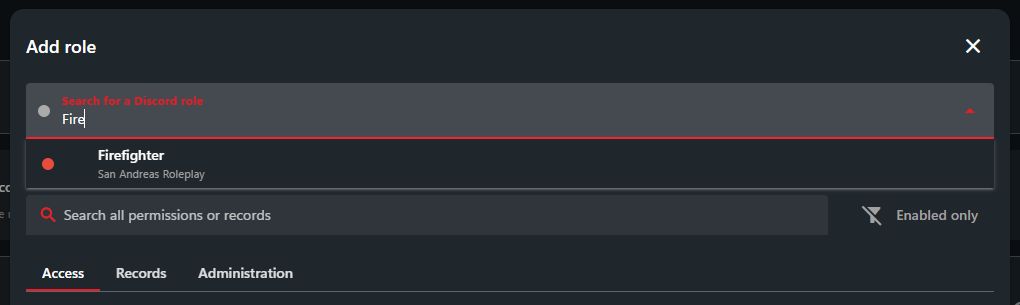 Choose the role from the correct Discord server.
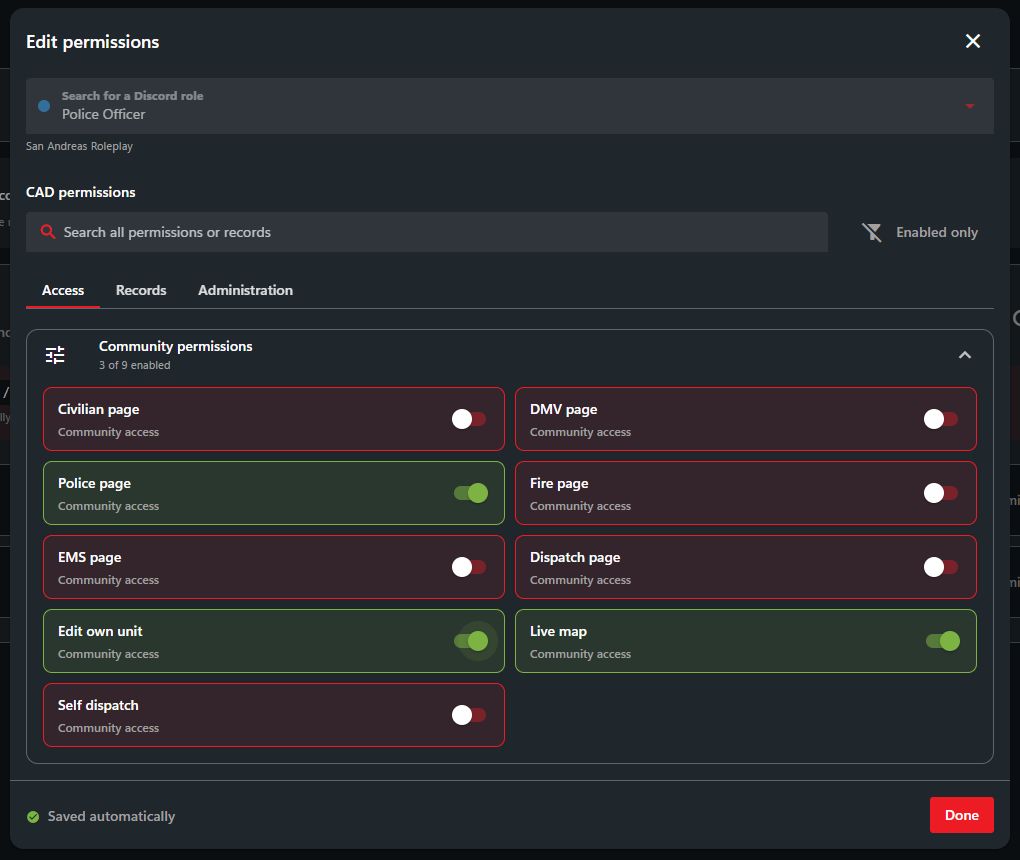 Choose the permissions this role gives members.
Under Records, expand a template to choose what members can view, create, edit, or delete. See Account permissions for permission details.
Choose the permissions this role gives members.
Under Records, expand a template to choose what members can view, create, edit, or delete. See Account permissions for permission details.
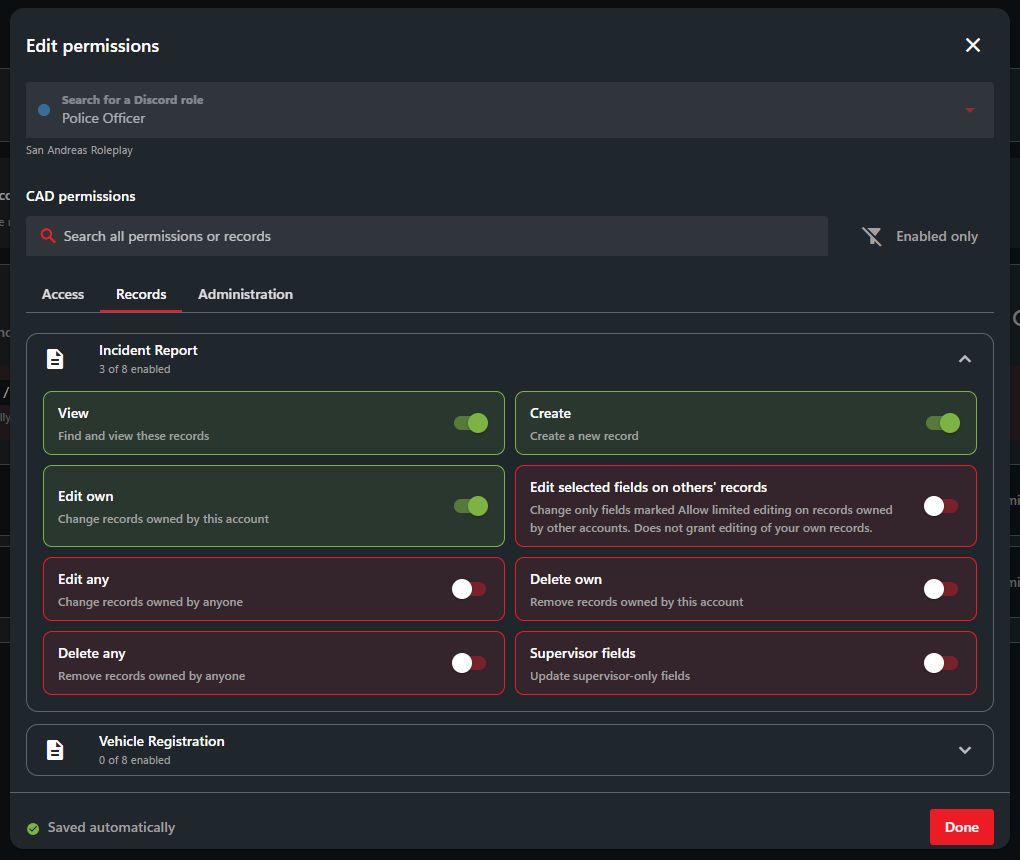 Set permissions separately for each record template.
- Sync members
- Members join your CAD community.
- Members run
/syncin Discord. If their account needs linking, the bot shows them how.
Edit or remove a mapping
- Select the Edit permissions icon beside a role to change its permissions. Changes save automatically.
- To remove a mapping, select the Remove role icon and confirm. This removes the mapping, not the Discord role.