# Scene Diagram Builder

<figure><img src="https://232668649-files.gitbook.io/~/files/v0/b/gitbook-x-prod.appspot.com/o/spaces%2F-M4pGN81fb4R6zFhodcu%2Fuploads%2FcnwZ0Kknq0cxgzLuHux0%2Fbase%20(1).png?alt=media&#x26;token=63def9c8-ce77-44ac-90c4-28df4532eb56" alt=""><figcaption><p>Sonoran CAD: Scene Diagram Builder</p></figcaption></figure>

## Adding the Diagram Builder

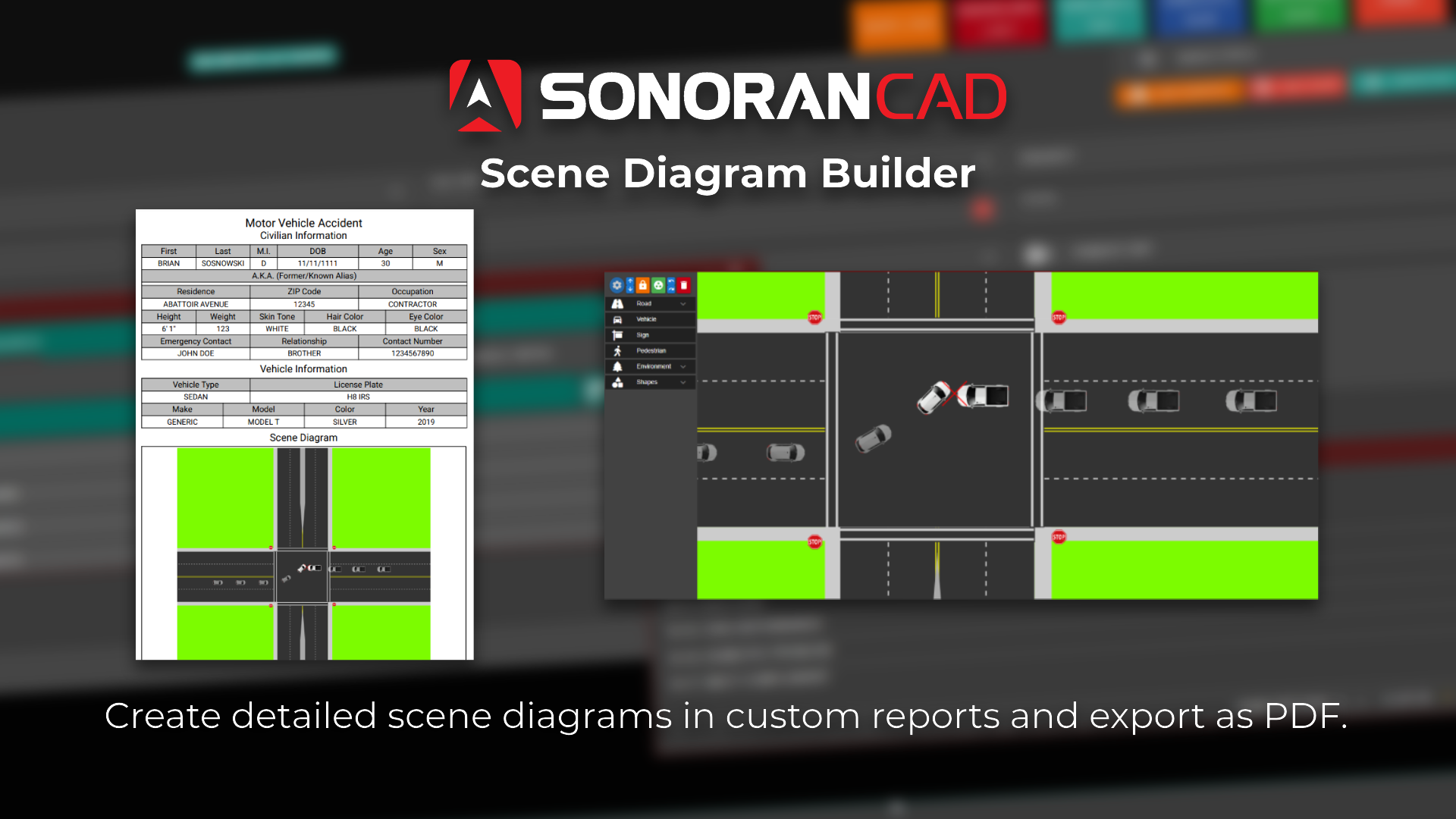
The scene diagram builder allows you to create detailed visuals of vehicle accidents, crime scenes, and more.

The diagram builder can be added to any [custom record template](https://docs.sonoransoftware.com/cad/tutorials/customization/creating-custom-record-and-report-types). Select `Diagram` from the `Premade Sections` dropdown.

## Using the Diagram Builder

Custom records with a diagram section will show an interactive canvas inside the record. Select the edit icon to open up the builder.
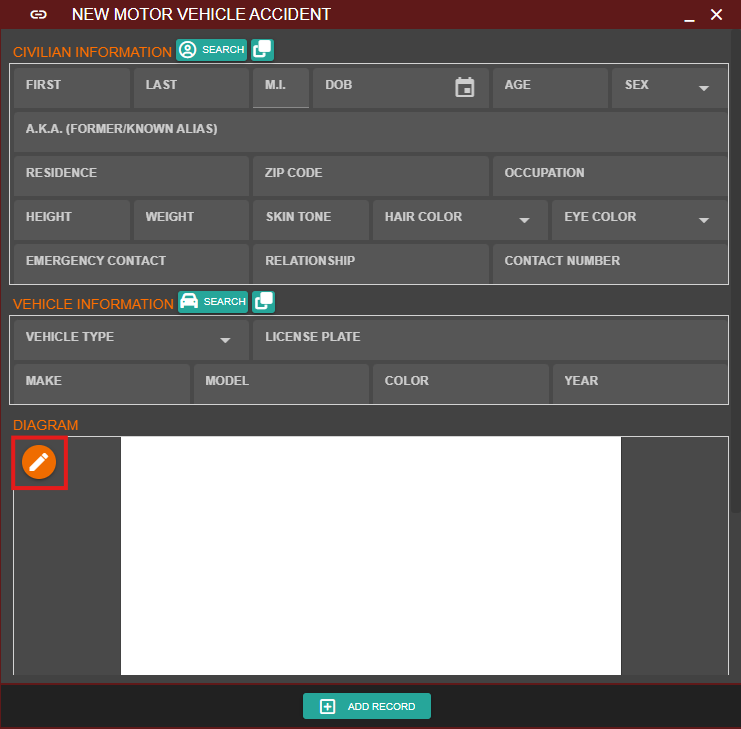
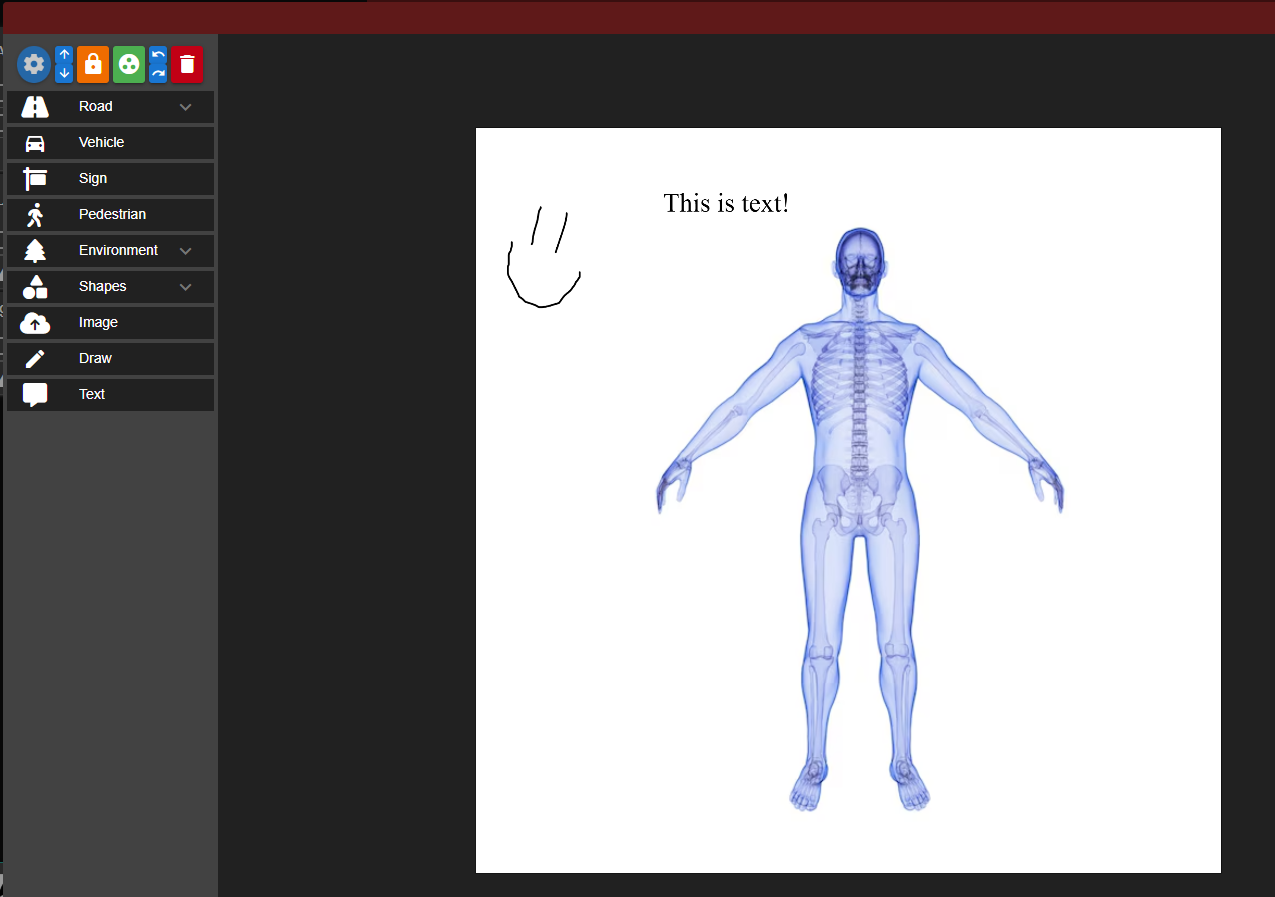
<div><figure><img src="https://232668649-files.gitbook.io/~/files/v0/b/gitbook-x-prod.appspot.com/o/spaces%2F-M4pGN81fb4R6zFhodcu%2Fuploads%2FvvqISe0Id9cGsB5xZcLc%2Fimage.png?alt=media&#x26;token=fbd9827b-134e-44cc-a3a8-d5ec6d10a199" alt="" width="371"><figcaption><p>Record: Diagram Viewer</p></figcaption></figure> <figure><img src="https://232668649-files.gitbook.io/~/files/v0/b/gitbook-x-prod.appspot.com/o/spaces%2F-M4pGN81fb4R6zFhodcu%2Fuploads%2FoFMvfmUvd33LeRzlXOZ8%2Fimage.png?alt=media&#x26;token=03b5f8a5-8840-4420-8fa7-753fd7e44c53" alt="" width="375"><figcaption><p>Diagram Builder</p></figcaption></figure></div>

### Adding, Editing, and Removing Elements

#### Adding

* Drag-and-drop items from the toolbox to the canvas.

#### Editing

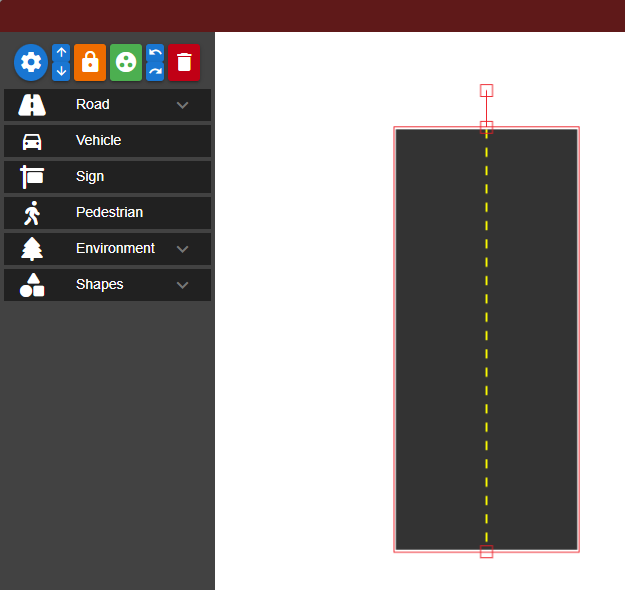
* When selected, items can be moved, resized, and edited.
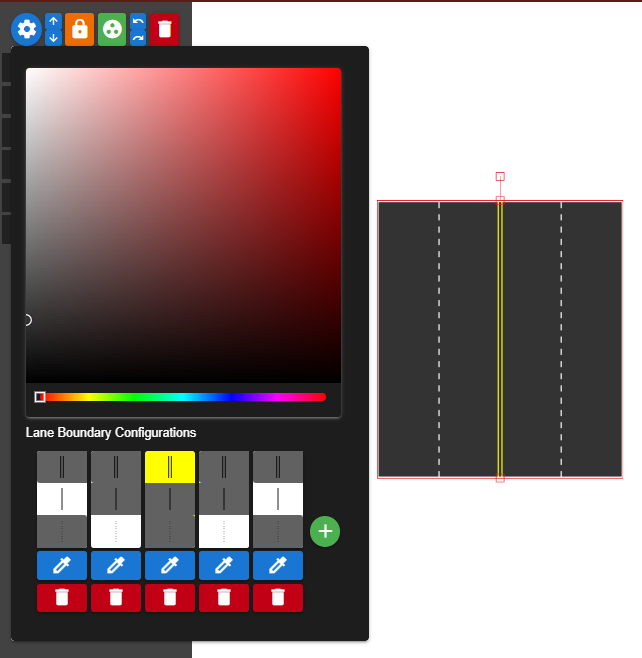
* When an item is selected, the gear icon will open up an options menu for more customization.
* Select multiple items at once with `SHIFT` + `CLICK`.

#### Removing

* Select the item(s) and click the trash icon ([or the shortcut](#shortcuts)) to remove

<div><figure><img src="https://232668649-files.gitbook.io/~/files/v0/b/gitbook-x-prod.appspot.com/o/spaces%2F-M4pGN81fb4R6zFhodcu%2Fuploads%2FySa60G4hCvGdn7zFEoR3%2Fimage.png?alt=media&#x26;token=112dc520-da8e-417a-af23-2d8a2b0d72e6" alt="" width="313"><figcaption><p>Diagram: Road Element Resize</p></figcaption></figure> <figure><img src="https://232668649-files.gitbook.io/~/files/v0/b/gitbook-x-prod.appspot.com/o/spaces%2F-M4pGN81fb4R6zFhodcu%2Fuploads%2FMmFZecyUW87GoWPGT6t6%2Fimage.png?alt=media&#x26;token=696f97f9-a3c3-40eb-9abd-261d786e316c" alt="" width="321"><figcaption><p>Diagram: Road Element Options</p></figcaption></figure></div>

### Shortcuts

The diagram builder is packed with powerful shortcuts to help quickly build the scene.

Hover over any of the top action items for a tooltip listing the shortcut.
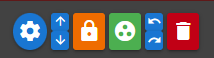
<figure><img src="https://232668649-files.gitbook.io/~/files/v0/b/gitbook-x-prod.appspot.com/o/spaces%2F-M4pGN81fb4R6zFhodcu%2Fuploads%2FA335gskRWlXBI21odbNO%2Fimage.png?alt=media&#x26;token=079bf738-0b68-4ccd-abd3-9c10c23e5e91" alt=""><figcaption><p>Diagram Builder: Action Buttons</p></figcaption></figure>

<details>

<summary>List of Shortcuts</summary>

| Shortcut                               | Description                                                                                     |
| -------------------------------------- | ----------------------------------------------------------------------------------------------- |
| `O`                                    | Opens the item options/settings when an element is selected.                                    |
| `UP ARROW` or `SHIFT` + `UP ARROW`     | <p>Moves the selected item up a layer.<br>Shift option brings it to the very top.</p>           |
| `DOWN ARROW` or `SHIFT` + `DOWN ARROW` | <p>Moves the selected item down a layer.<br>Shift option brings it to the very bottom.</p>      |
| `L`                                    | Locks the selected item(s) from moving.                                                         |
| `G`                                    | Groups or ungroups the selected items together. Use `SHIFT` + `CLICK` to select multiple items. |
| `CTRL` + `Z`                           | Undo last action(s)                                                                             |
| `CTRL` + `SHIFT` + `Z`                 | Redo last action(s)                                                                             |
| `DELETE`                               | Delete selected item(s)                                                                         |
| `CTRL` + `C`                           | Copy selected item(s)                                                                           |
| `CTRL` + `V`                           | Paste copied item(s)                                                                            |

</details>

### Default Images and More

Communities can also customize the diagram builder to have default images (like a [medical diagram](#using-the-diagram-builder)) for each record type. Simply hit the edit (pencil icon) in the custom record builder on the diagram to customize and save the template.