

Accessing the Roster Editor
Rosters can be configured in the Admin panel > Rosters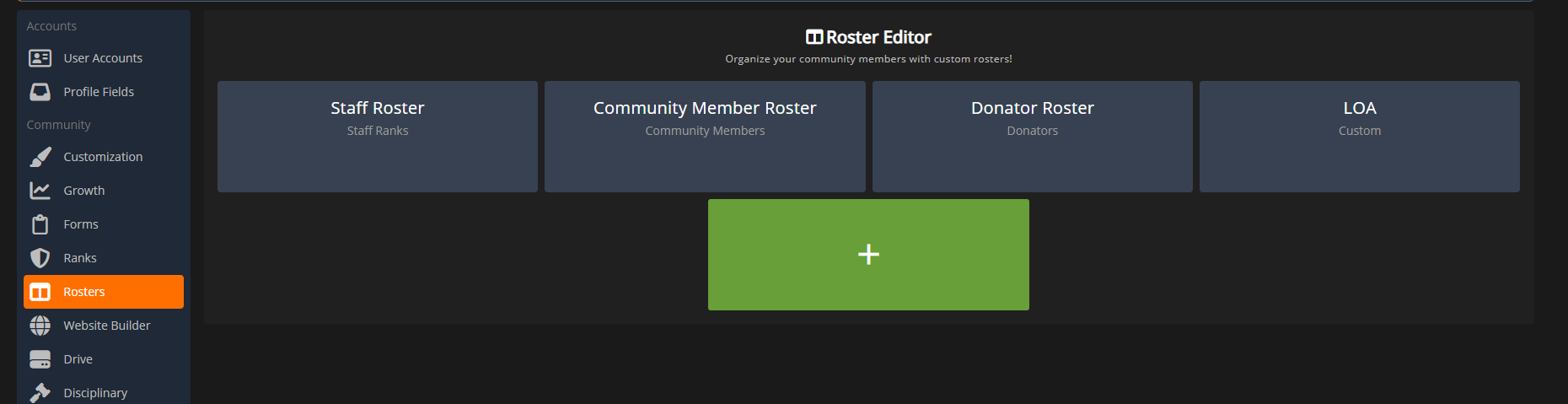 Hover over a roster to View or Edit, or use the Add Roster button to create a new one.
Creating Rosters
Roster Types
There are three types of rosters to choose from:- Selected Ranks: This allows you to select specific CMS ranks. Anyone with these ranks will automatically appear on the roster.
- Manual: This allows you to manually add each member and row to the roster.
Roster Columns
Drag-and-drop columns to add them to your custom roster.General Columns
General Columns
The General columns include text, textarea, select, checkbox, date, and time.
Member Columns
Member Columns
The Member Data columns include automatic fields for the user like their ID, name, rank, primary identifier, and current disciplinary points.
Time Columns
Time Columns
The Time columns include automatic fields like time log hours, activity tracker hours, and last active date.Activity Tracker Hours
- This column shows the current amount of in-game time for the selected date range. These hours are automatically calculated whenever a user joins and leaves your game server.
- This column shows the current amount of player time from the clock in/out system. It must be pointed to a form type with the time clock section added.
Roster Customization
Column Styles
Column Styles
Select a column to open the editor. Here, you can customize the alignment, text color, cell color, and more.
Actions
Actions
Roster columns can have additional conditional options to set the values and styles. Select a column to open the editor and select the Actions tab. The flowchart can be expanded to add IF/THEN conditions to set the value(s) and style(s).Ex: This flowchart sets the Status column to Active if their in-game hours (via activity tracker column) is greater than 1.5 hours. If not, it will set the status column to In-Active or Exempt based on them having a specific rank or not.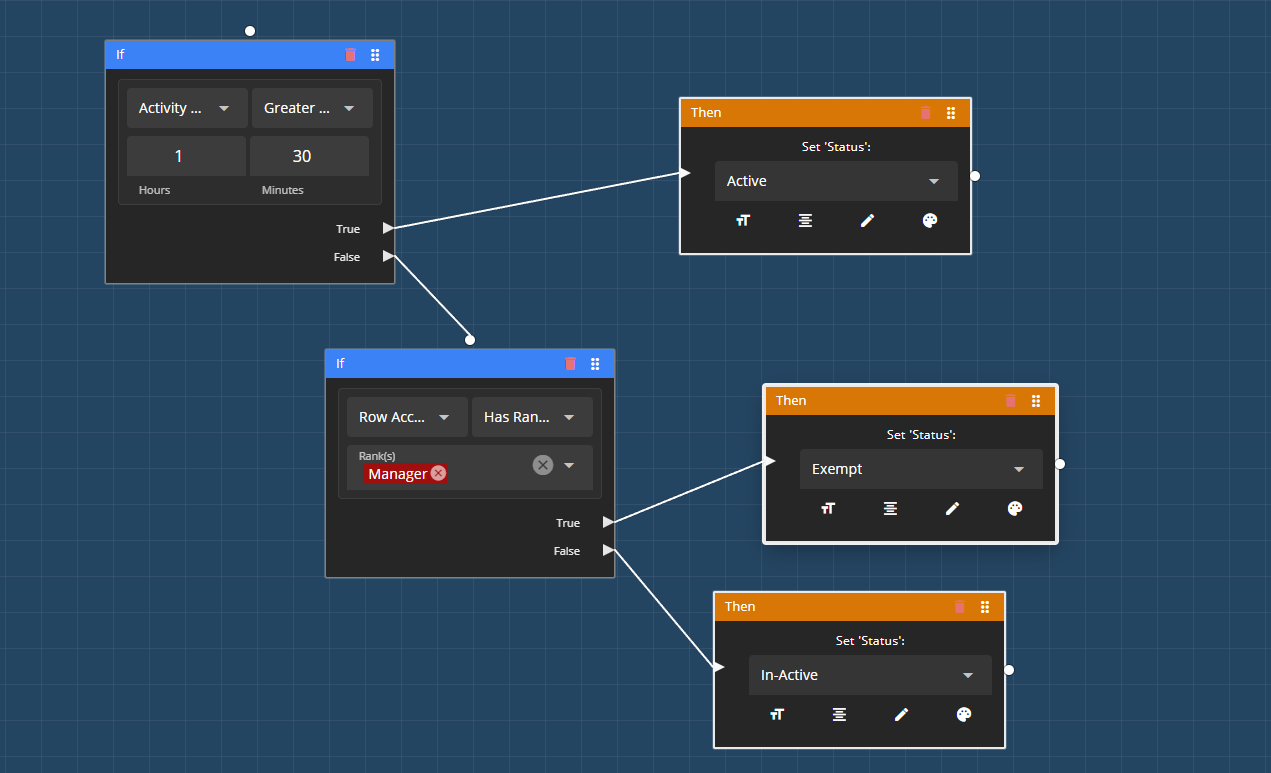
Roster Permissions
Column Permissions
Column Permissions
Columns can also be set to only be visible based on a user’s ranks. Select a column to open the editor and use the Permissions tab. On the Allowed Ranks to View button, select the custom CMS ranks that are allowed to view the column.
Roster Permissions
Roster Permissions
The rank manager allows communities to configure who can view, edit, download, and other roster options.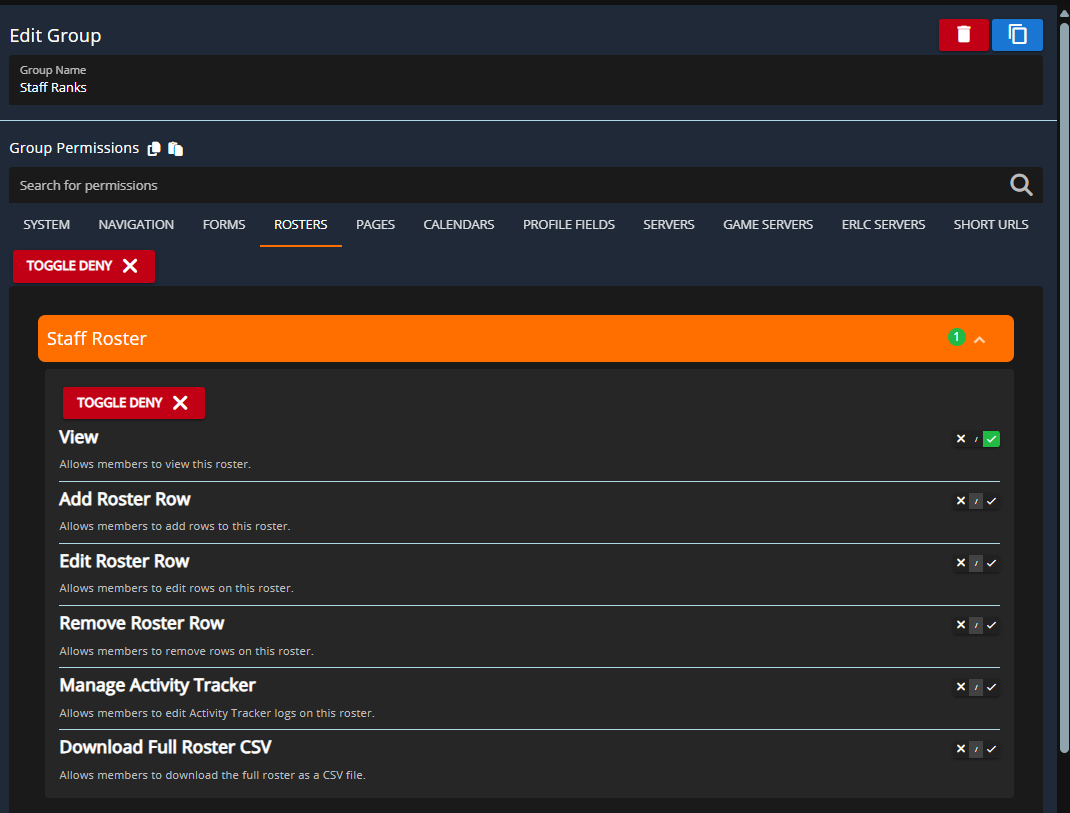 Sonoran CMS - Rank Editor - Roster Permissions
Sonoran CMS - Rank Editor - Roster Permissions