

The resource must be named
sonoran-bandanas and the resource must be started with ensure sonoran-bandanas.This EUP asset is escrow protected by Tebex. Learn more about what this means.
Download the Resource
- Sign in to the Cfx.re Portal.
- Open the purchased assets or packages area for the account that owns the Bandanas pack.
- Download the Bandanas
.zipfile to your computer.
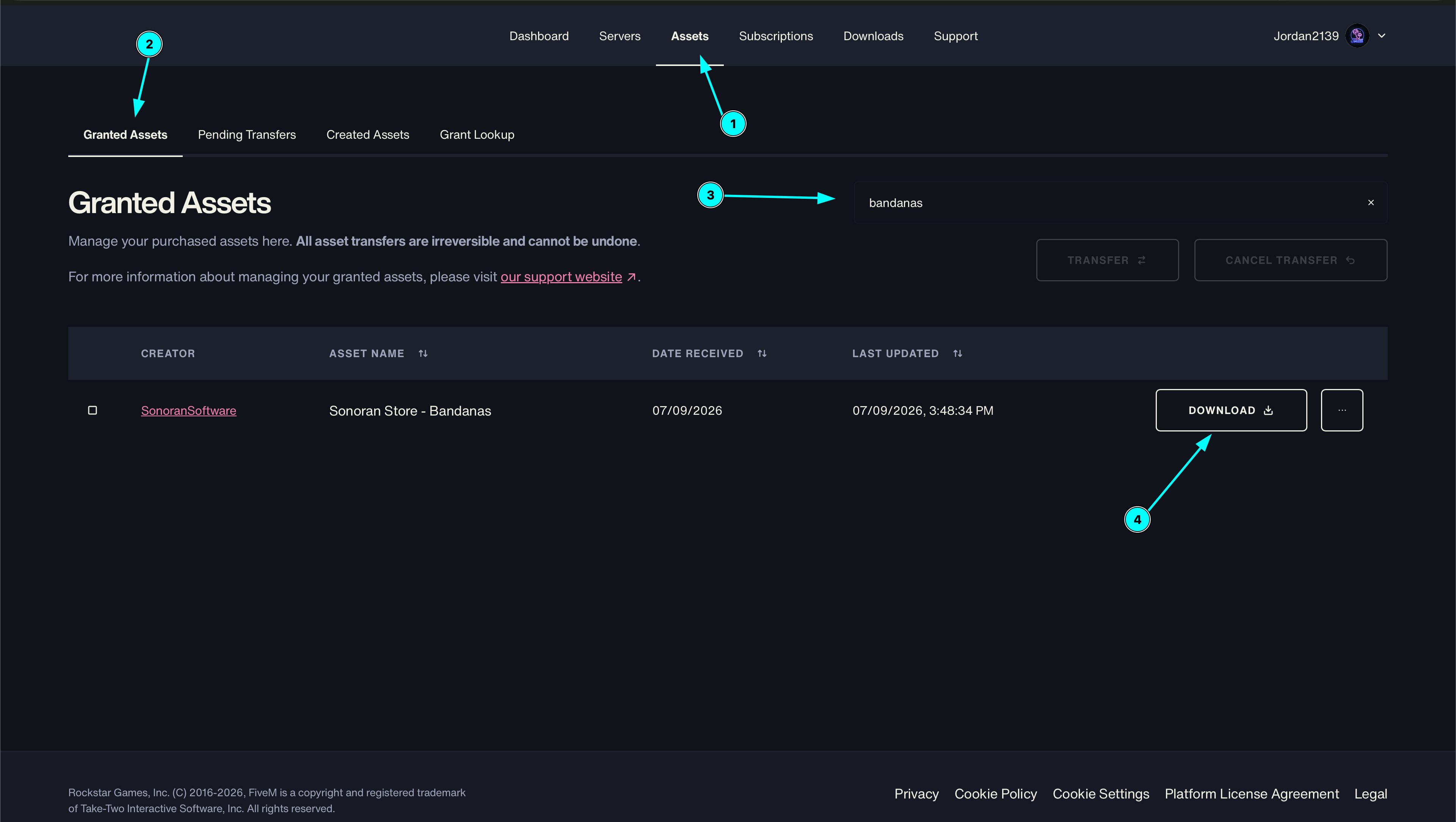 CFX Portal - Download
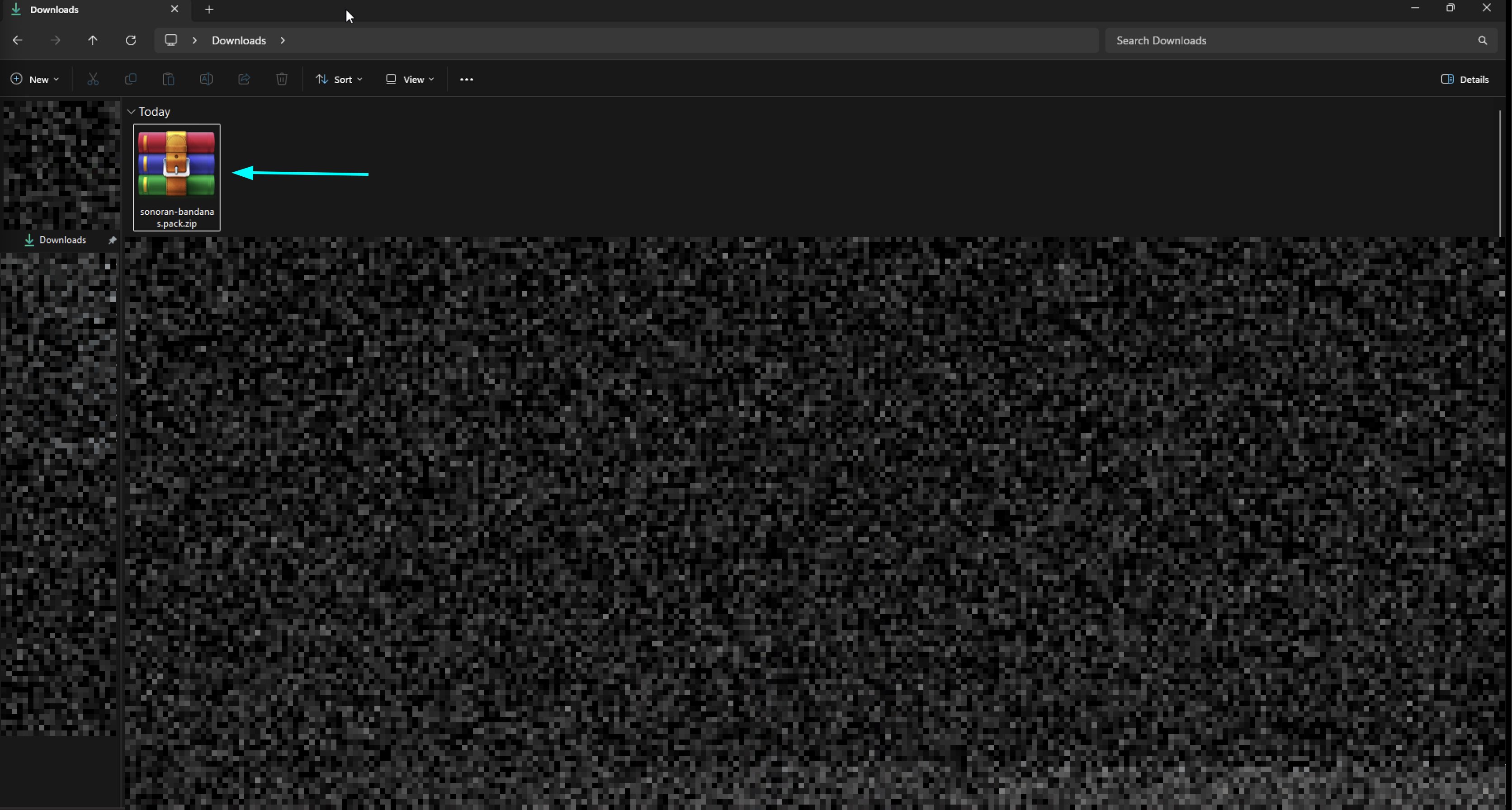 Windows - Downloaded ZIP File
Install the Resource
- Extract or unzip the downloaded file.
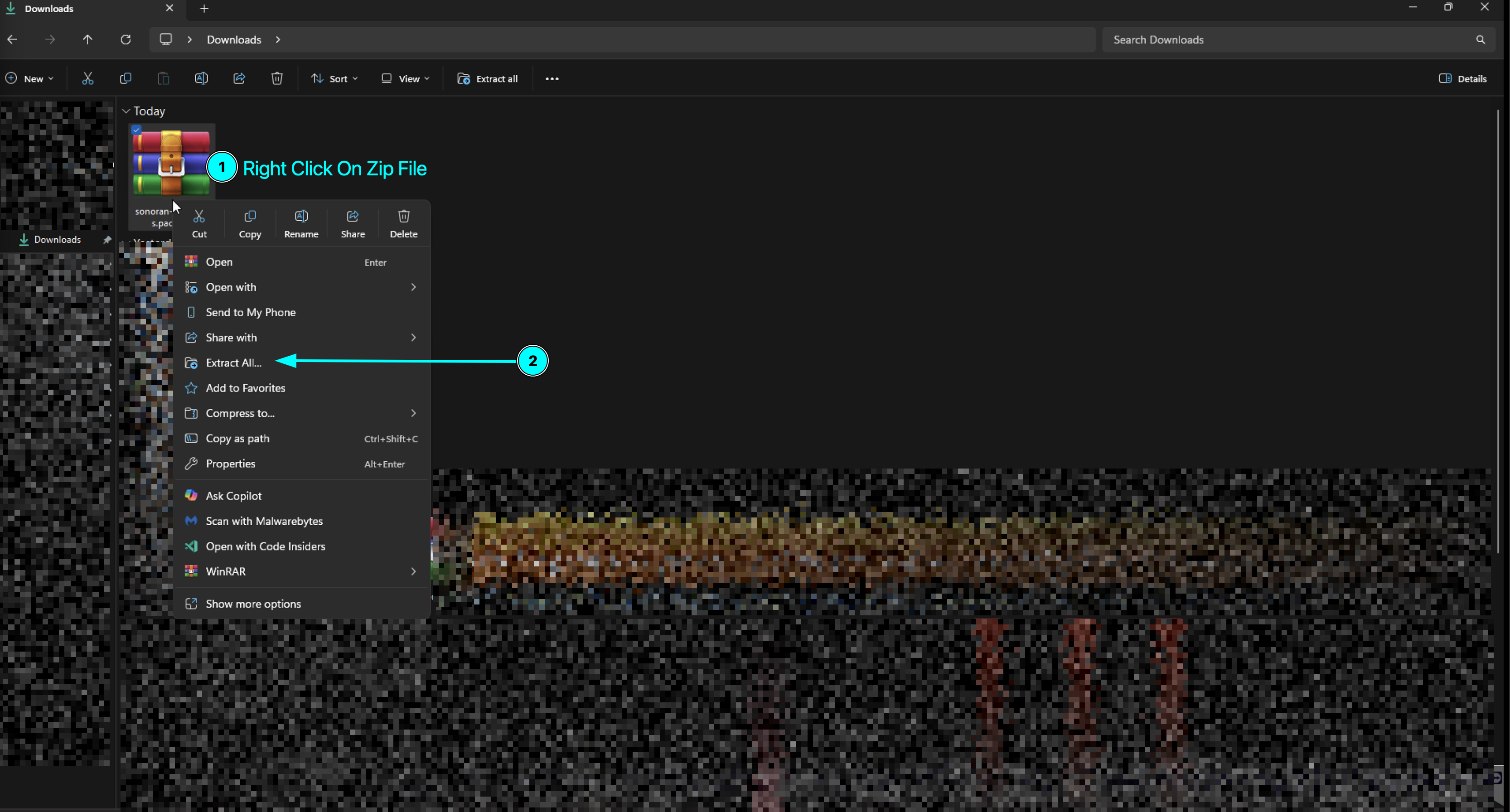 Windows - Extract Zip File
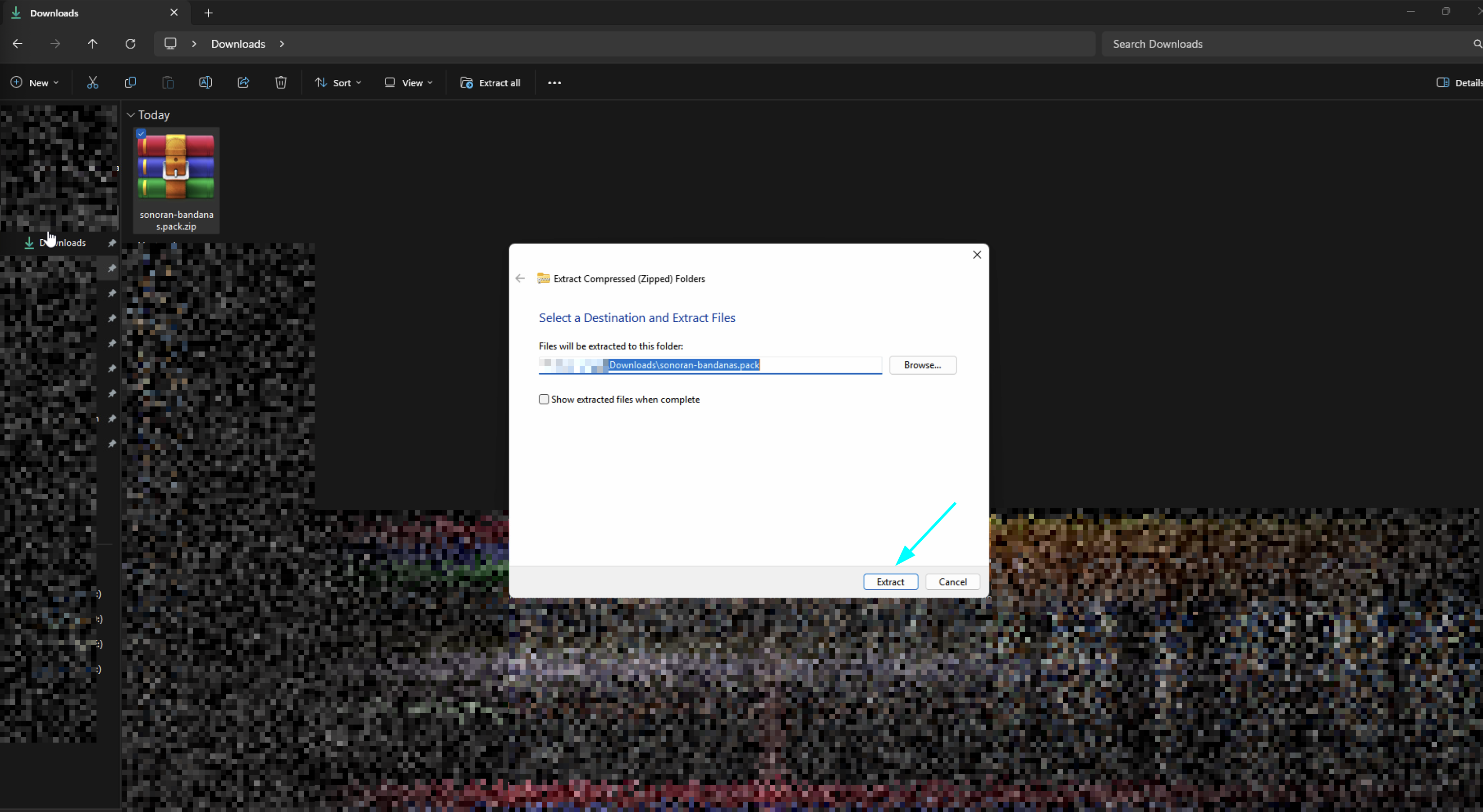 Windows - Choose Extract Location
-
Open the extracted package and locate the resource folder. The folder should be named exactly:
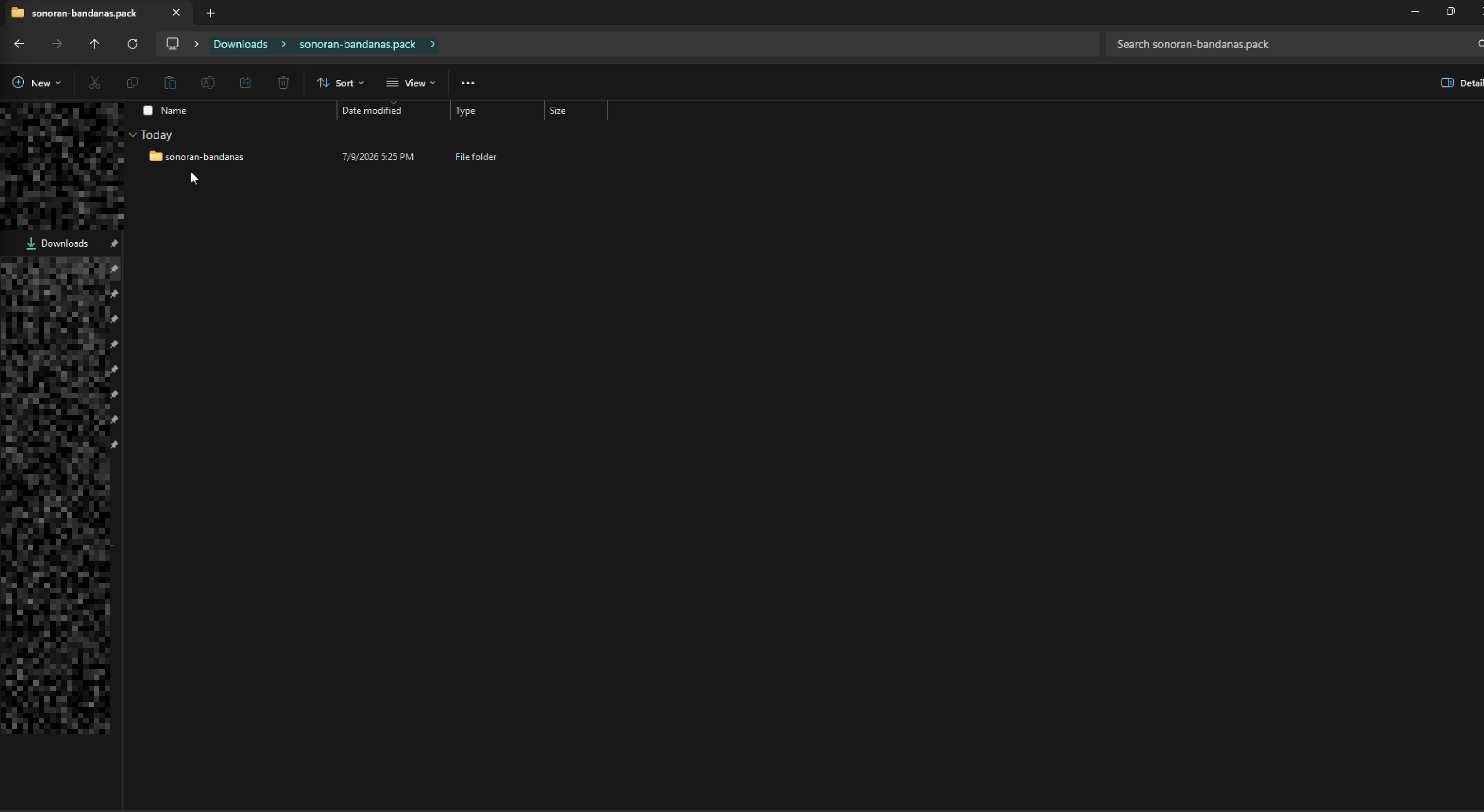
-
Copy the complete
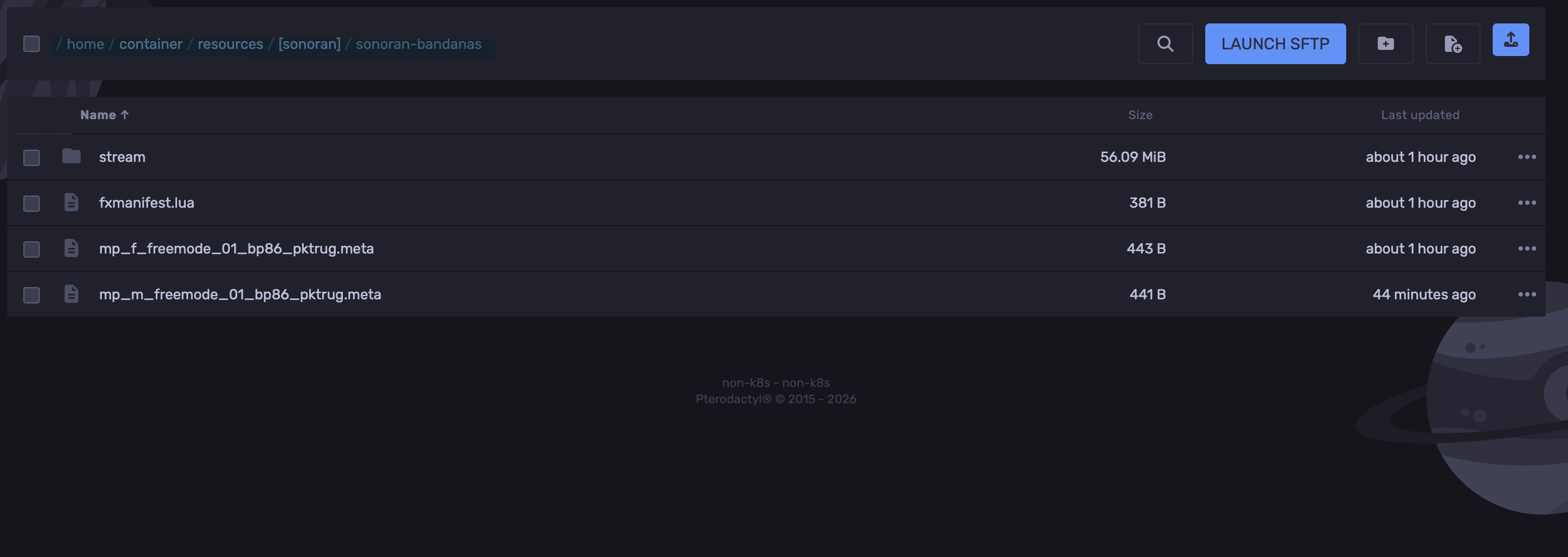
sonoran-bandanasfolder into your server’sresourcesdirectory. A typical layout is:Do not put the folder inside an additional nested folder. The resource manifest should be directly insideresources/sonoran-bandanas/.
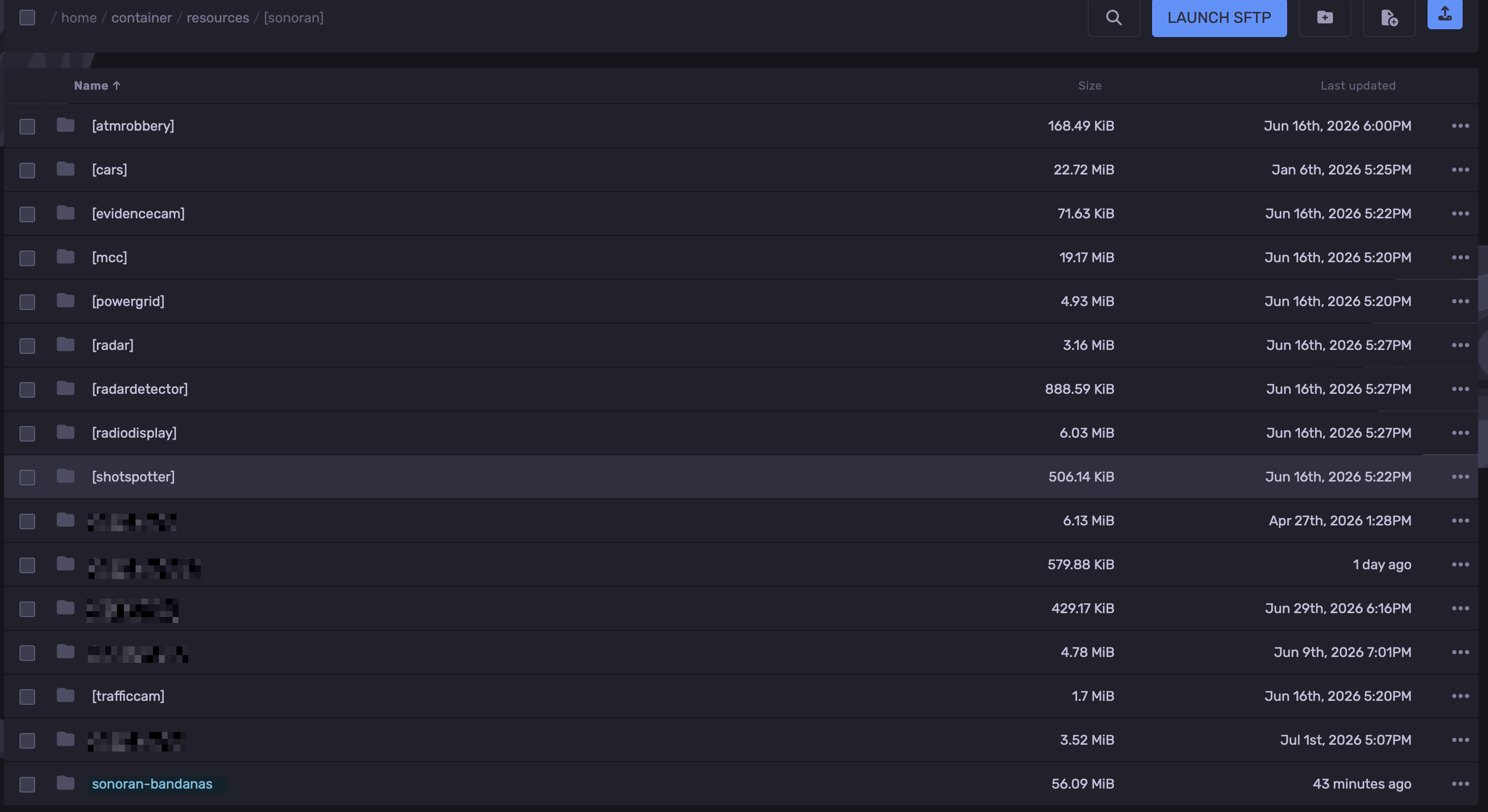 Pterodactyl - Uploaded FIle
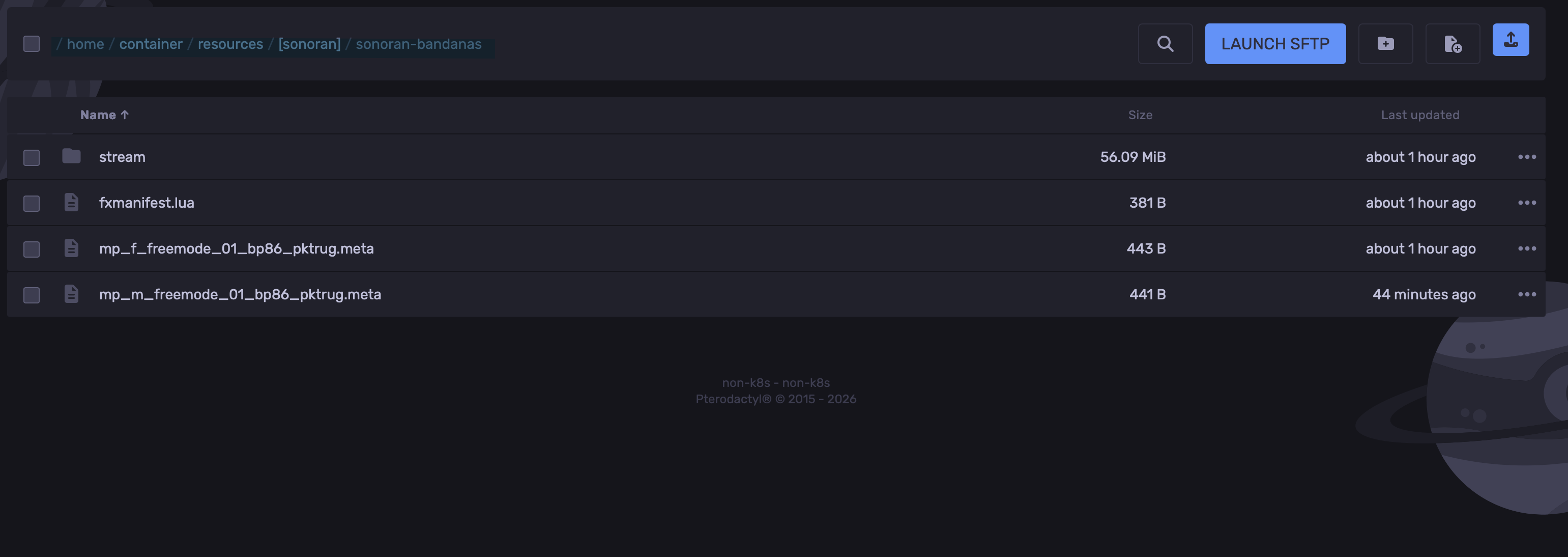 Pterodactyl - sonoran-bandanas folder
-
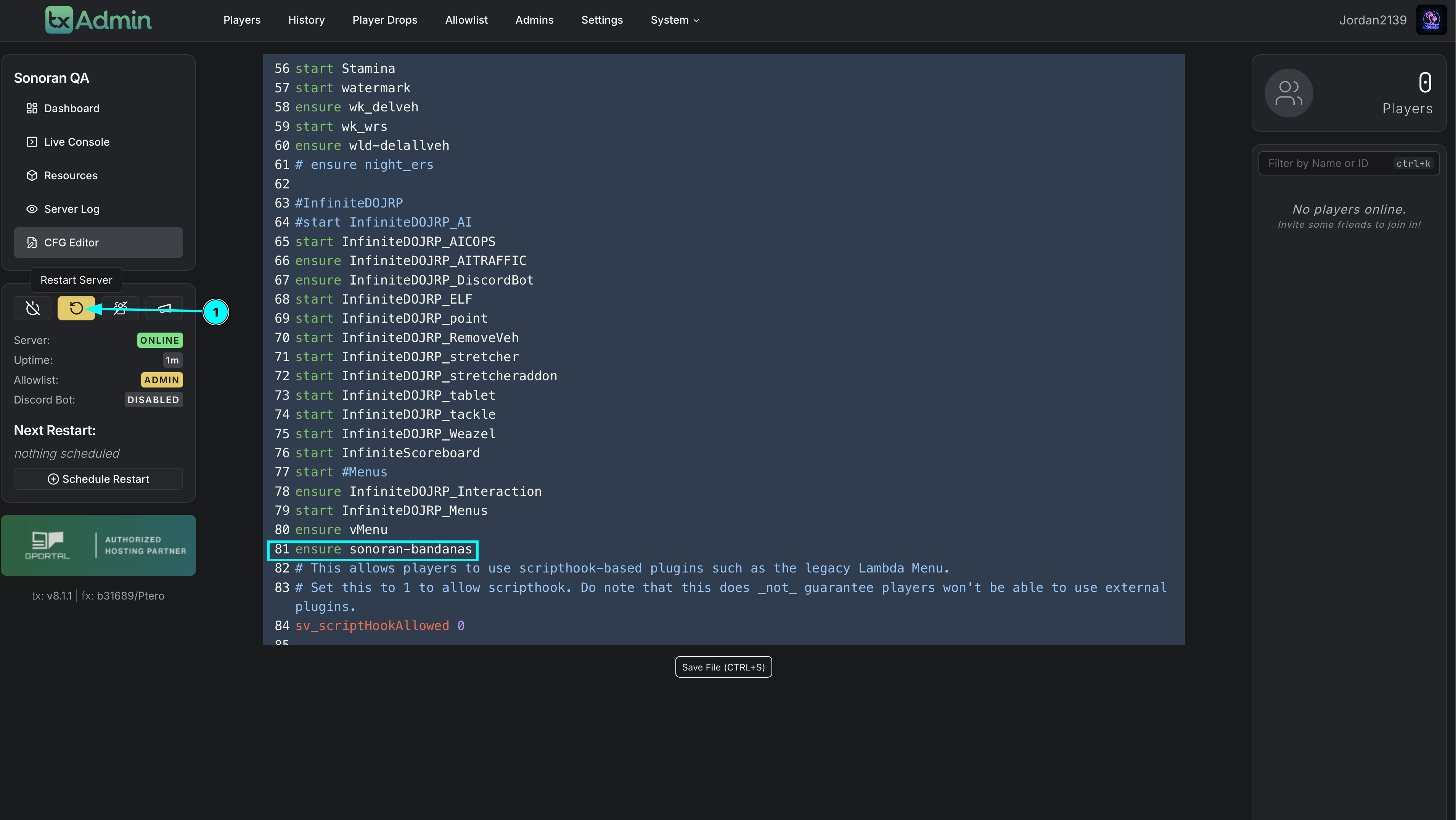
Open your
server.cfgand add the following line:Place it with the other resources that are started when the server boots.
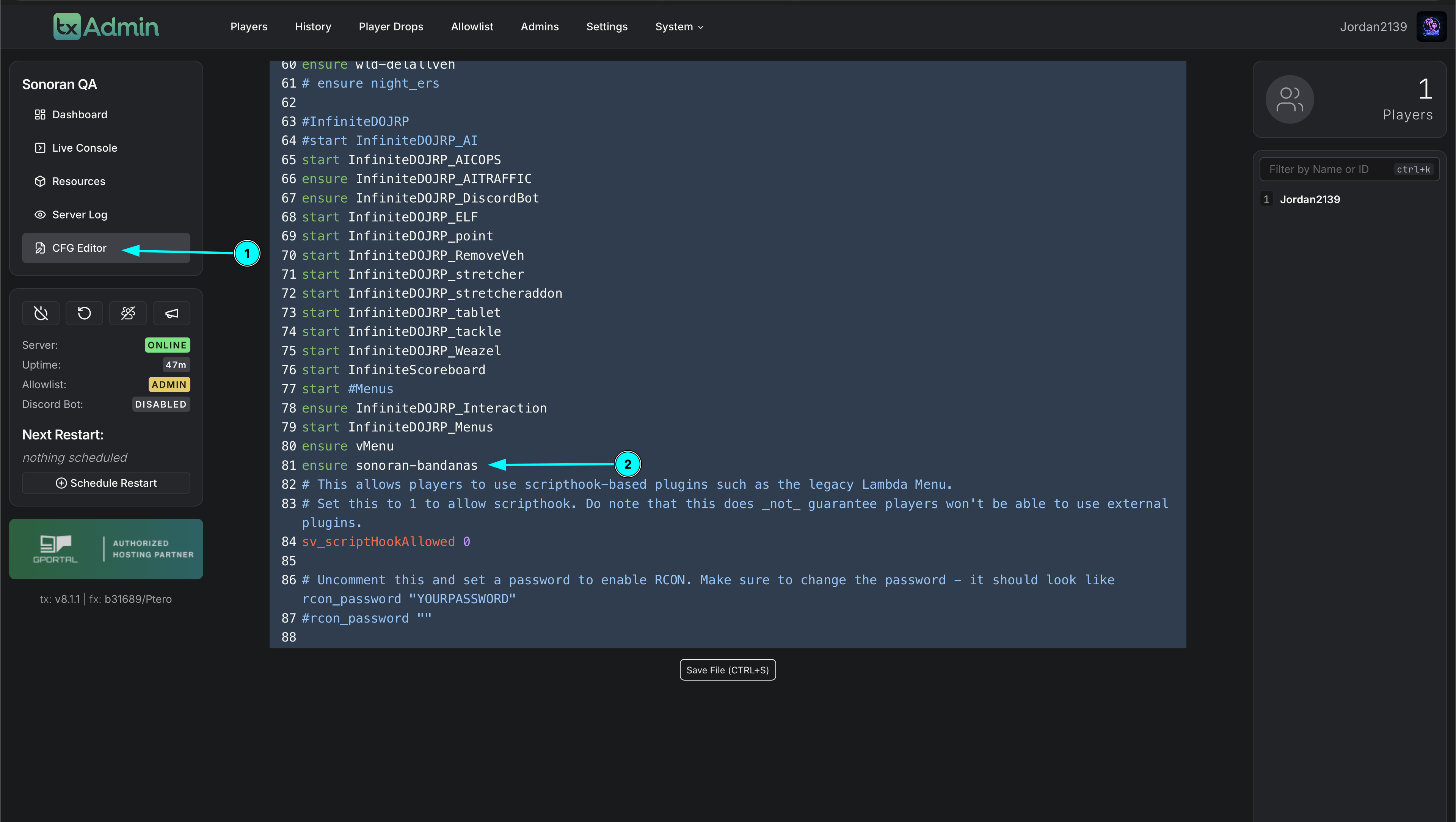
- Save
server.cfgand fully restart the FiveM server.
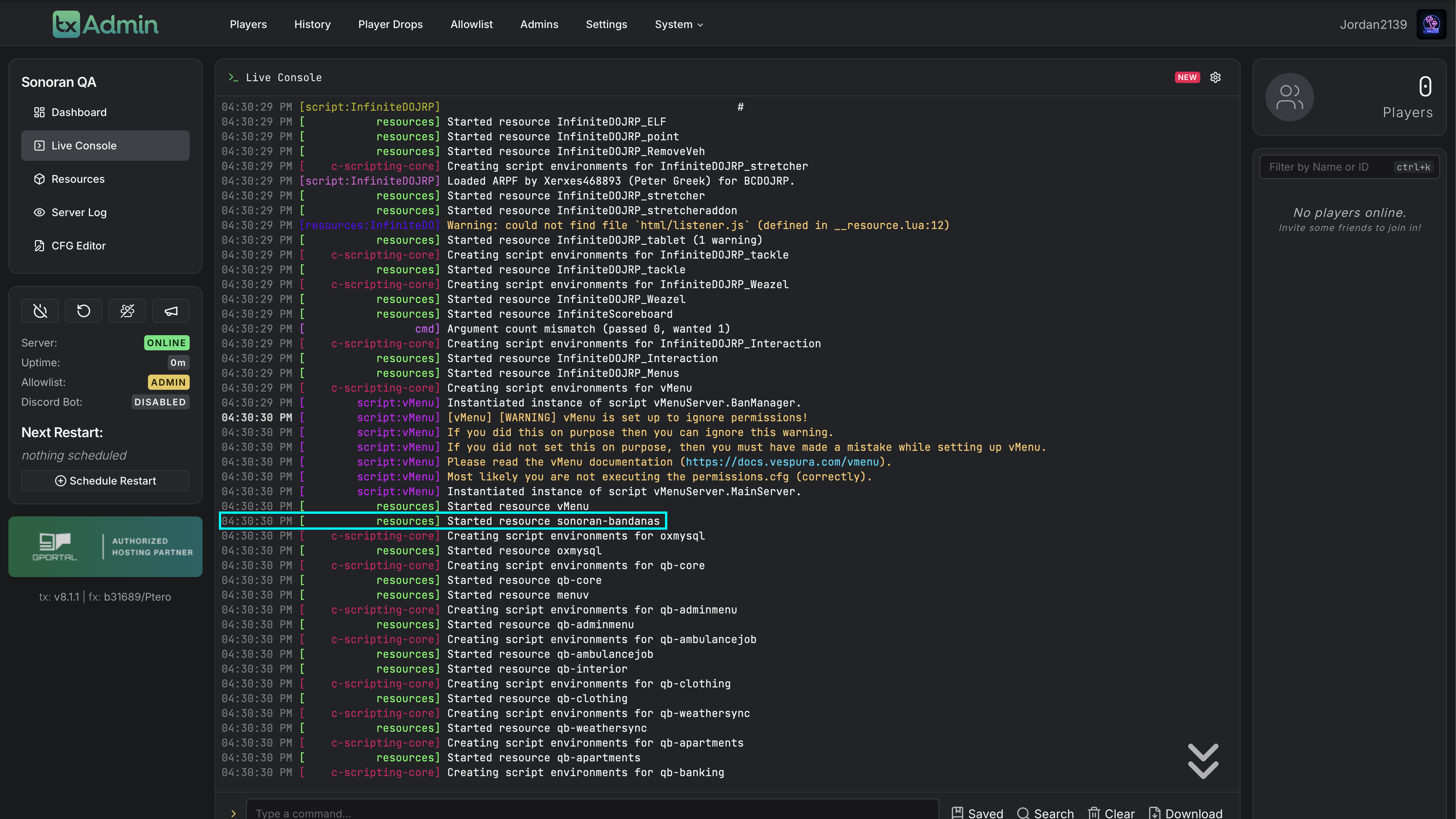
- Check the server console during startup. You should not see a missing resource, manifest, or file error for
sonoran-bandanas.
Locate the Bandanas In-Game
The Bandanas pack is available as an EUP accessory through vMenu.- Join the server with a character that can access vMenu’s clothing options.
- Open vMenu.
- Go to the EUP / Player Appearance clothing menu.
- Open the Neck and Scarves category.
- Scroll to the end of the category. The Bandanas are located in slots 200–208 on vMenu.
- Select a slot to preview and equip the bandana. Use the texture/variation controls to cycle through the available designs.
The exact appearance of the menu can vary slightly depending on your vMenu version and other EUP resources installed on the server. The Bandanas should still be at the end of Neck and Scarves, in slots 200–208.
EUP Streamed-Asset Troubleshooting
If the resource starts but the Bandanas do not appear, appear invisible, or cause players to disconnect or crash when selecting them, the issue is usually related to FiveM streamed EUP asset limits rather than theensure line.
- Confirm the resource is installed correctly
- Confirm the folder is named
sonoran-bandanas. - Confirm it is directly inside the server’s
resourcesfolder. - Confirm
server.cfgcontainsensure sonoran-bandanas. - Confirm the server was fully restarted after the resource was added.
- Confirm the server console does not report a missing manifest or failed file load.
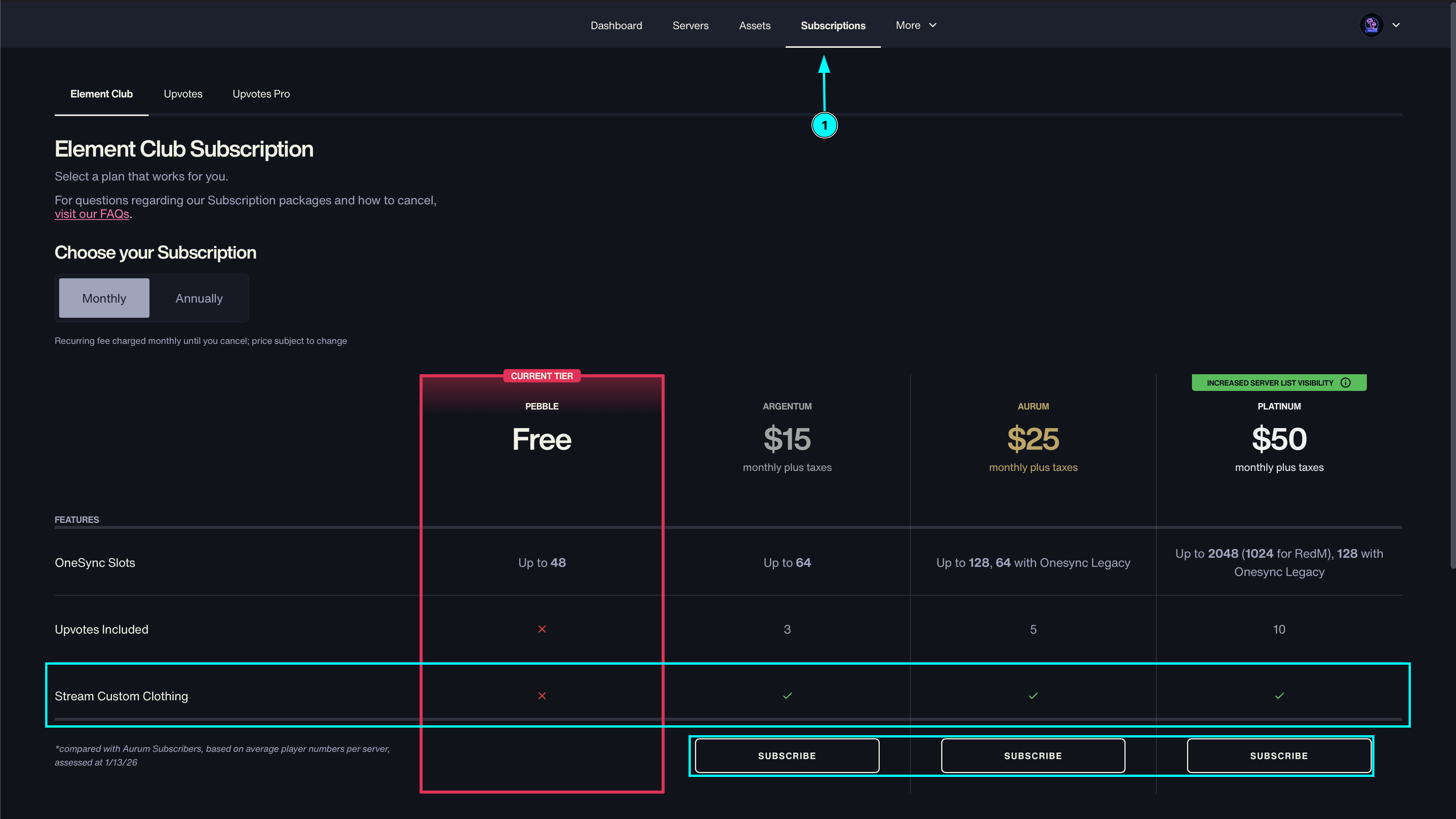
- Check your Cfx.re Element Club subscription
Some EUP streamed assets require an active Cfx.re Element Club subscription. If the resource is installed correctly but streamed clothing assets are not loading, verify that the server owner account has the required Element Club subscription for the EUP assets being used.
- Sign in to the Cfx.re Portal.
- Check the server owner’s Element Club subscription status.
- Confirm the subscription is active on the account associated with the server’s Cfx.re license/key.
- Restart the server after the subscription or account association is corrected.
- Set the server to a maximum of 10 players
If EUP assets still fail to stream, temporarily set the server’s maximum player count to 10. Add or update this line in server.cfg:
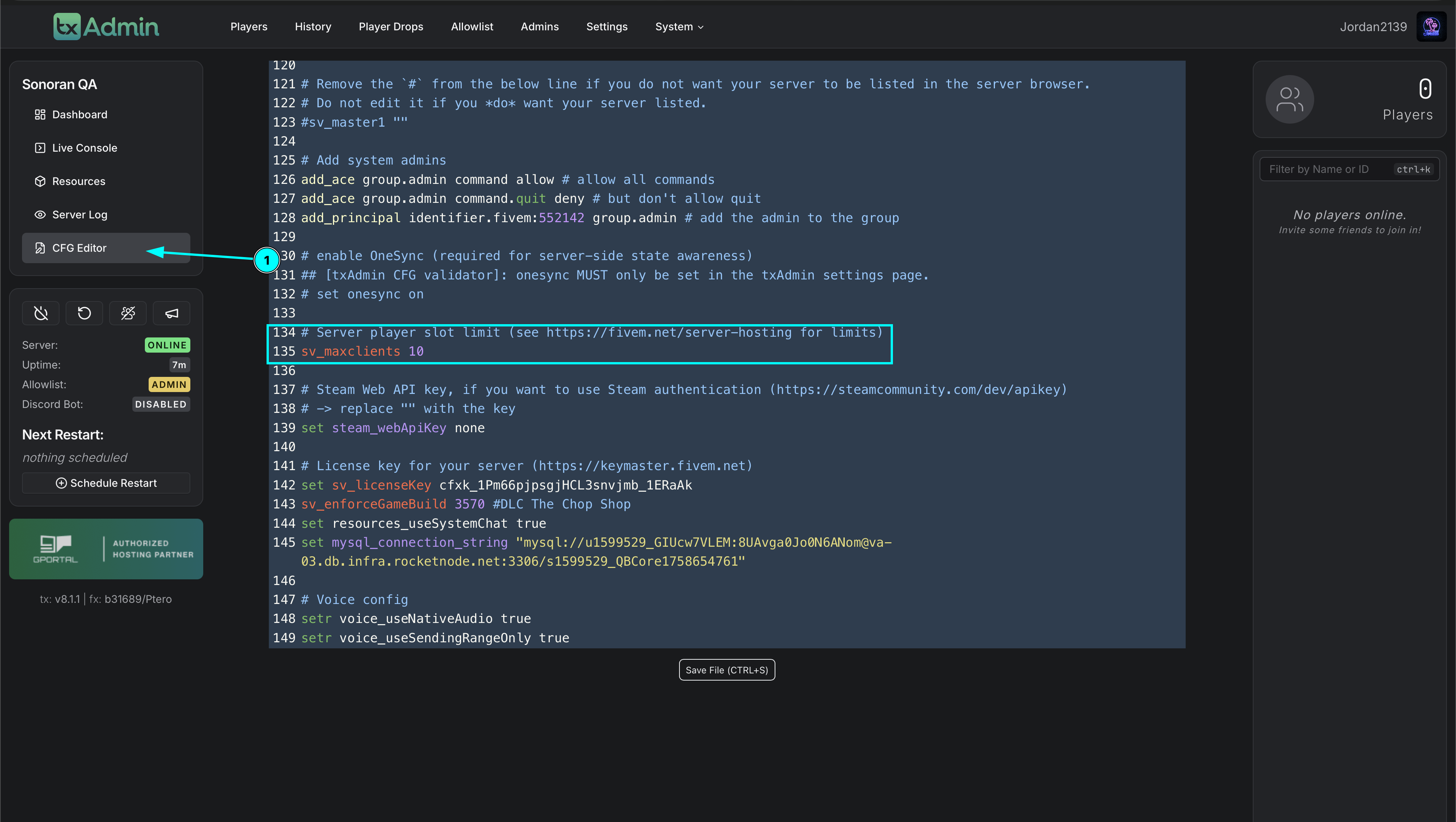 TxAdmin - Setting Max Players to 10
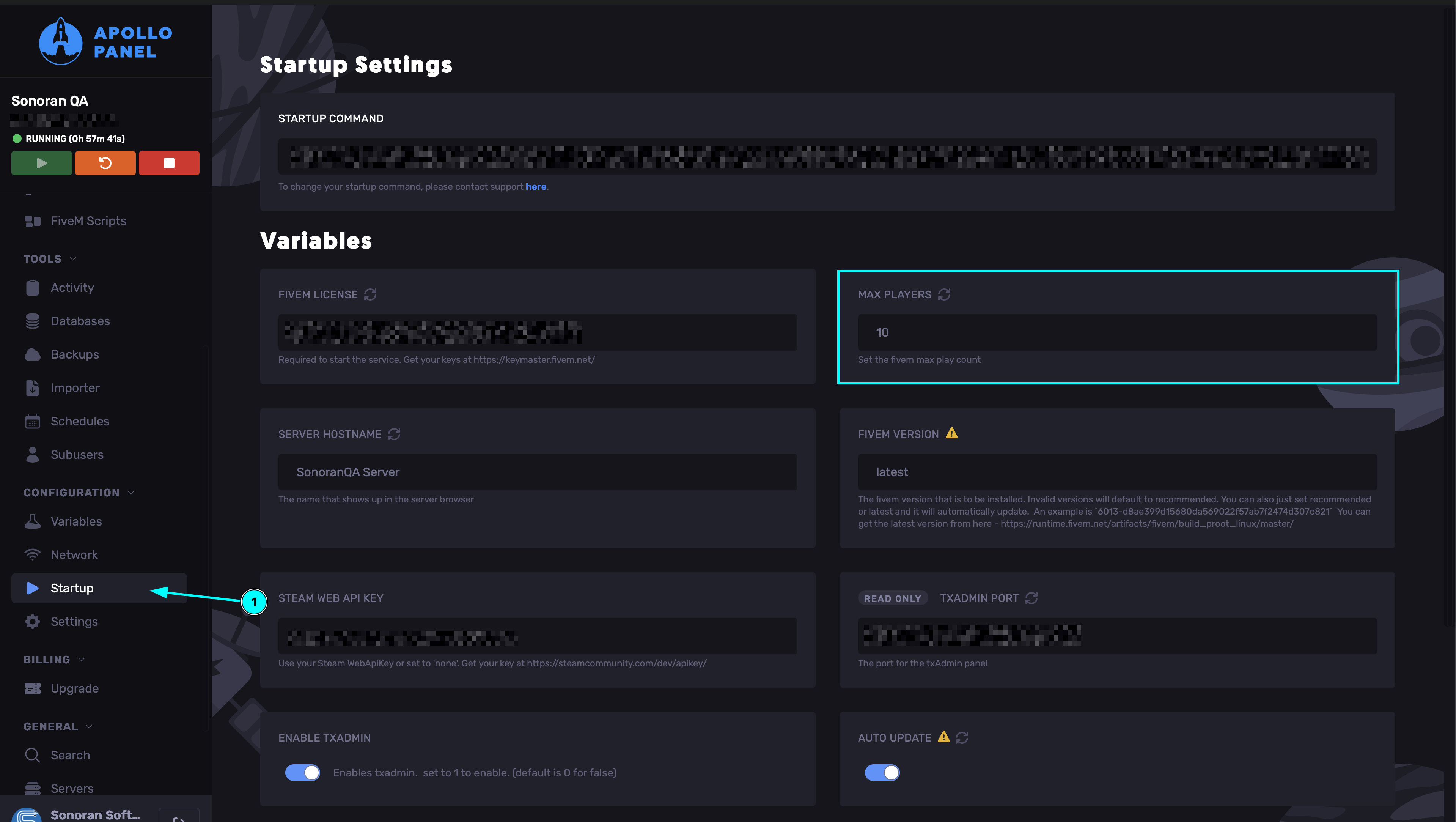 RocketNode Panel - Setting Max Players to 10
Use the 10-player limit as a troubleshooting step while testing streamed EUP assets. Once the assets are working, you can test a higher player count again if your server setup and Cfx.re requirements support it.
- Clear client cache and test again
After changing streamed assets or server settings:
- Stop FiveM.
- Clear the FiveM client cache using your normal FiveM cache-cleaning procedure. Do not delete your entire FiveM installation.
- Restart FiveM and reconnect to the server.
- Open vMenu and check Neck and Scarves, slots 200–208, again.
- Test for resource conflicts
Temporarily test with other recently added EUP or clothing resources disabled. If the Bandanas appear after another resource is disabled, re-enable resources one at a time to identify the conflict.
- Review the client and server logs
Look for errors mentioning:
sonoran-bandanas- streamed assets
- EUP clothing components
- asset or archetype limits
- texture or drawable loading
Quick Verification Checklist
Use this checklist after installation:- The folder is named
sonoran-bandanas. - The folder is directly inside the server’s
resourcesdirectory. -
server.cfgcontainsensure sonoran-bandanas. - The server was fully restarted.
- The resource has no startup errors.
- vMenu opens successfully.
- Neck and Scarves is available in the EUP menu.
- The Bandanas are visible in slots 200–208.
- If assets do not stream, Element Club status was checked and
sv_maxclients 10was tested.
Escrow Protection
Sonoran’s Bandana EUP is protected through Tebex and Cfx.re Asset Escrow. This helps prevent unauthorized redistribution, leaks, and resale.Runs as a Separate Resource
Because the asset is escrow-protected, the Bandana EUP must run as its own separate resource and cannot be merged into an existing clothing pack. The resource is heavily optimized for smooth performance, and textures can still be customized.Texture Customization
This EUP cannot be edited through Durty Cloth Tool due to Asset Escrow restrictions. Textures can still be modified by opening the included.ytd file in OpenIV.