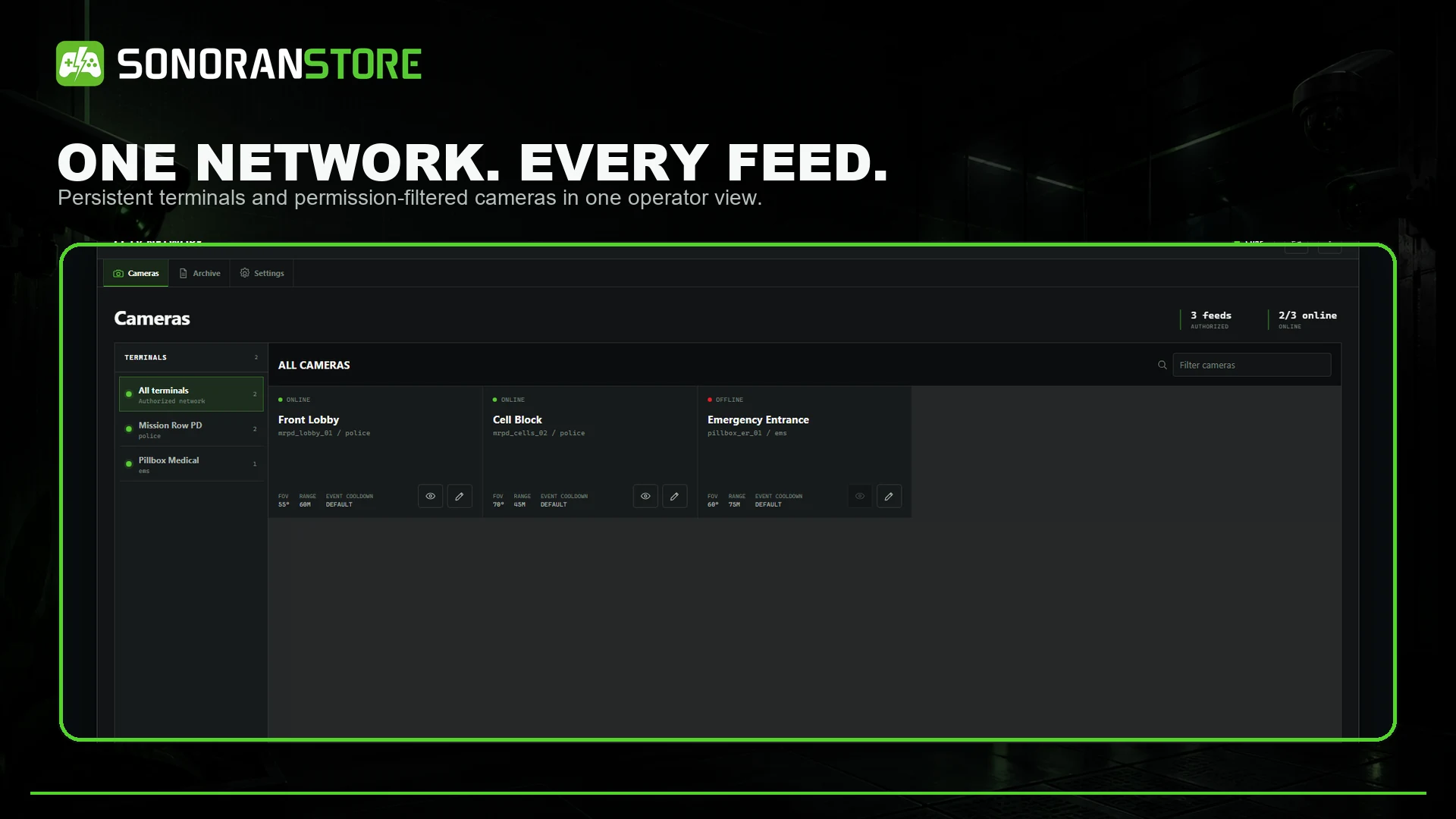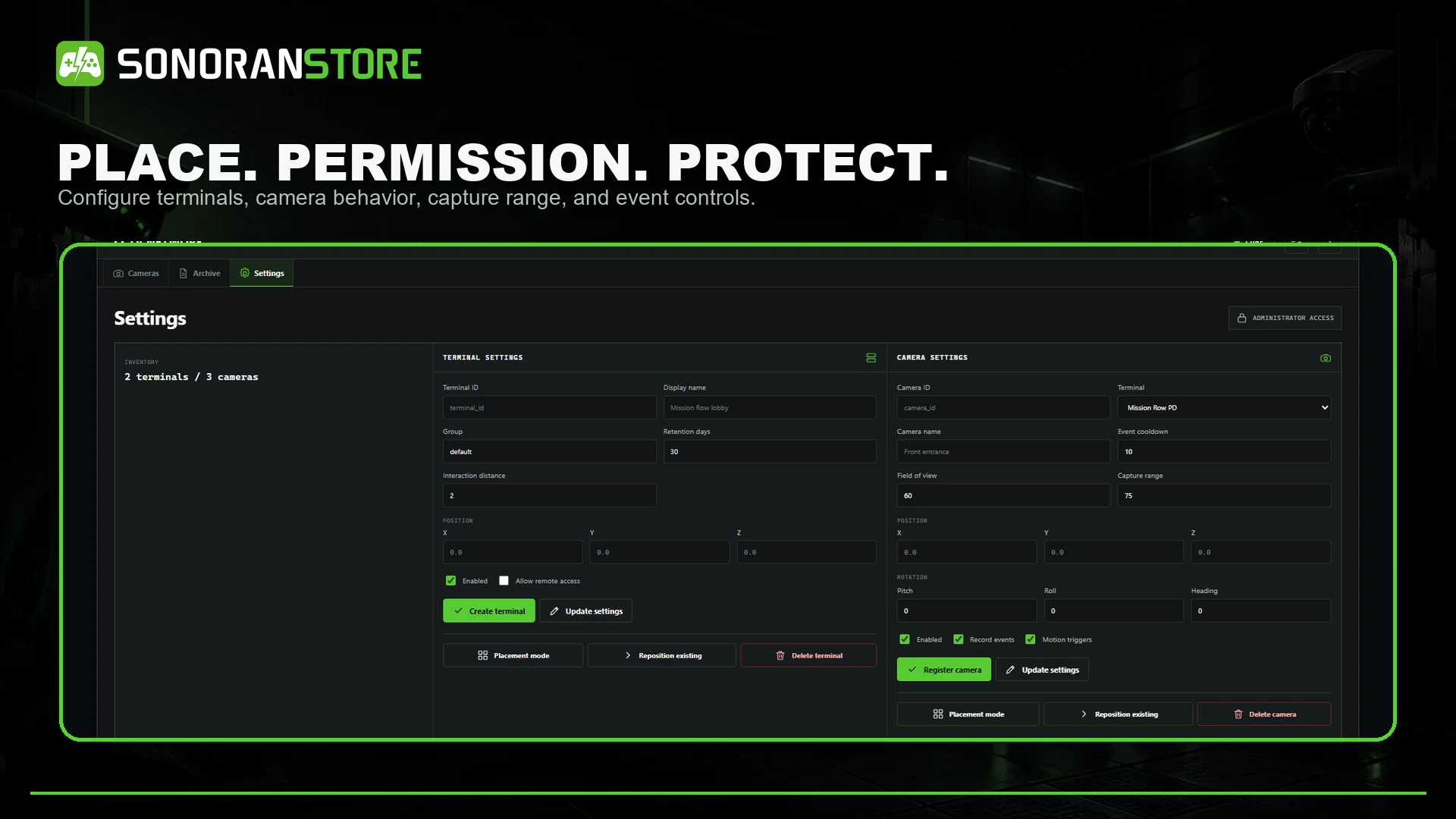
> For the complete documentation index, see [llms.txt](https://docs.sonoransoftware.com/llms.txt). Markdown versions of documentation pages are available by appending `.md` to page URLs; this page is available as [Markdown](https://docs.sonoransoftware.com/store/cctv/camera-setup.md).

# Camera Setup

Create CCTV terminals and cameras, place them in-world, and optionally enroll map or MLO camera props.

A terminal controls which cameras an operator can see and how long recordings are retained. Cameras define the viewpoint, field of view, capture range, motion behavior, and viewing capabilities.

<figure><img src="https://954277862-files.gitbook.io/~/files/v0/b/gitbook-x-prod.appspot.com/o/spaces%2FA1LA3ay59CDyDKnfXPfc%2Fuploads%2Fgit-blob-ac36b35a0c16f5aed061f8041c5c23b1554b133f%2Fcctv-admin-controls.webp?alt=media" alt="CCTV terminal and camera administration"><figcaption><p>Create, place, reposition, and manage terminals and cameras from the Settings tab.</p></figcaption></figure>

## Create a terminal

1. Run /cctv with cctv.admin.
2. Open **Settings**.
3. Enter a unique terminal ID and a customer-facing display name.
4. Choose a group and retention period.
5. Set the interaction distance and enable remote access only if required.
6. Select **Placement mode** to place the terminal, or enter coordinates.
7. Save the terminal.

Use groups such as police, fire, or a location name to keep access narrow. Terminal access can be controlled with `cctv.terminal.<terminalId>` and remote groups with `cctv.remote.<group>`.

## Create a camera

1. Select the destination terminal.
2. Enter a unique camera ID and name.
3. Configure the event cooldown, field of view, and capture range.
4. Enable recording and motion triggers as required.
5. Select **Placement mode** to position and aim the camera.
6. Save the camera.
7. Open the live view and confirm the intended area is visible.
8. Trigger a test recording and verify its historic playback.
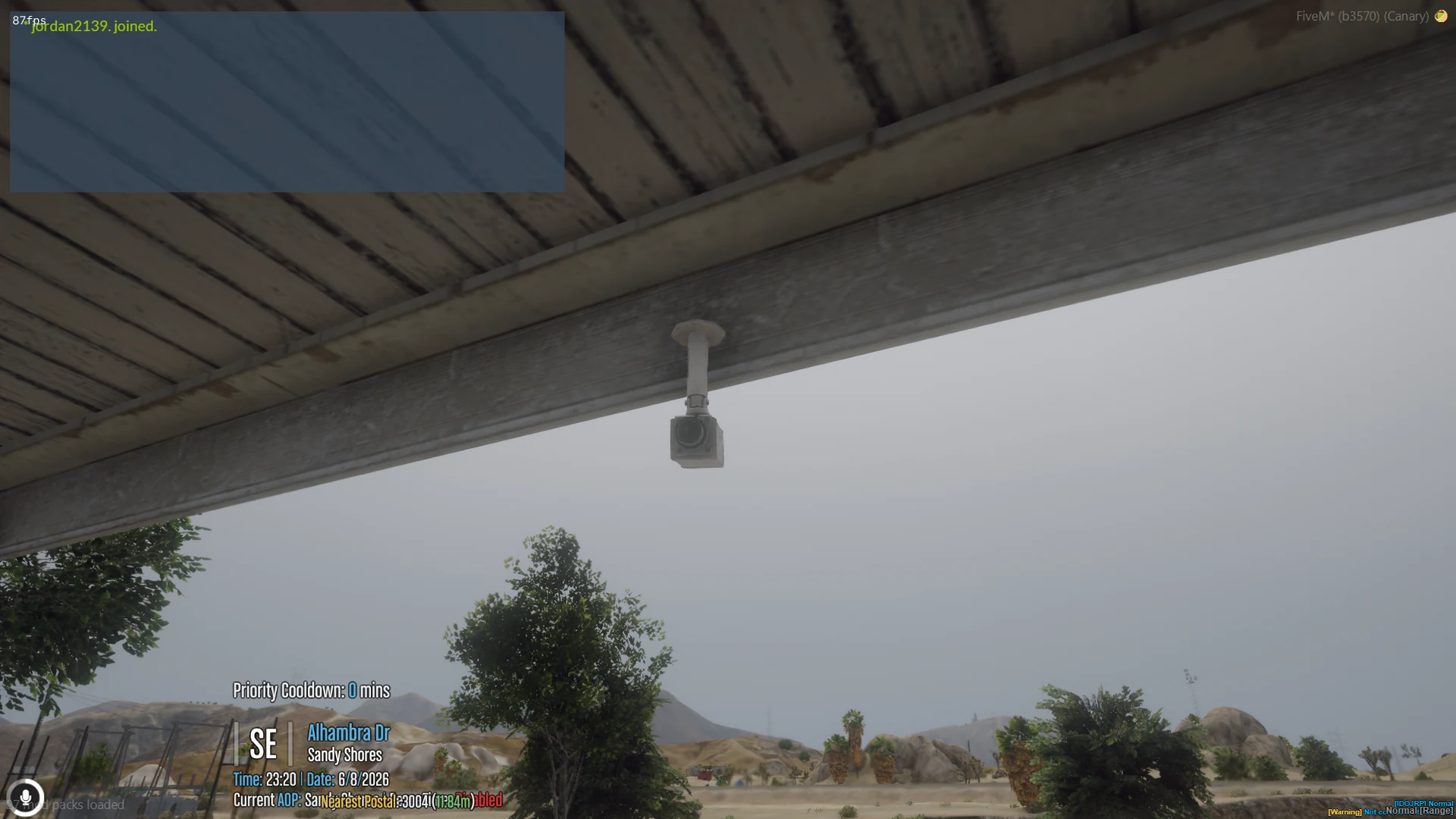
<figure><img src="https://954277862-files.gitbook.io/~/files/v0/b/gitbook-x-prod.appspot.com/o/spaces%2FA1LA3ay59CDyDKnfXPfc%2Fuploads%2Fgit-blob-2d6aad0ca18708589a320f2b9713b76d5a5e7c3d%2Fcctv-physical-camera.webp?alt=media" alt="A physical CCTV camera placed in the game world"><figcaption><p>A configured CCTV camera mounted in the game world.</p></figcaption></figure>

## Camera defaults and limits

| Setting               | Shipped value                           |
| --------------------- | --------------------------------------- |
| Model                 | prop\_cctv\_cam\_01a                    |
| Field of view         | 60 degrees                              |
| Zoom range            | 25–90 degrees                           |
| Capture range         | 75 metres                               |
| Motion cooldown       | 10 seconds per entity                   |
| Cameras per terminal  | Up to 32                                |
| Maximum capture range | 250 metres                              |
| Recording and motion  | Enabled                                 |
| Zoom                  | Enabled                                 |
| Pan and tilt          | Disabled unless supported by the camera |

Moving or deleting a live camera does not change the angle saved with an already finalized recording.

## Camera models and offsets

Custom map or MLO models must be added to the allowed-camera list and given a model-specific position offset, rotation offset, and field of view. CCTV models do not all point along the same local axis, so test each model in its actual interior.

Always verify a manual camera's live view, historic playback perspective, routing bucket, and duplicate behavior before enabling automatic discovery.

## Automatic map and MLO cameras

Automatic discovery is optional and disabled by default. When enabled, CCTV scans nearby streamed camera props and registers them as normal logical cameras.

Edit eventsCctv/config/cameras.lua:

```lua
Config.AutoEnrollMapCameras.enabled = true
Config.AutoEnrollMapCameras.scanOnResourceStart = true
Config.AutoEnrollMapCameras.scanOnAreaChange = true
Config.AutoEnrollMapCameras.scanCooldown = 10000
Config.AutoEnrollMapCameras.scanRadius = 250.0
Config.AutoEnrollMapCameras.maxAutoEnrolledCameras = 500
Config.AutoEnrollMapCameras.activateOnDiscovery = true
Config.AutoEnrollMapCameras.persistDiscoveredCameras = true
```

The shipped compatible model list includes:

```
prop_cctv_cam_01a, prop_cctv_cam_01b, prop_cctv_cam_02a,
prop_cctv_cam_03a, prop_cctv_cam_04a, prop_cctv_cam_04b,
prop_cctv_cam_04c, prop_cctv_cam_05a, prop_cctv_cam_06a,
prop_cctv_cam_07a
```

For a custom model, add it to both configured model allowlists and define its offsets:

```lua
Config.AutoEnrollCameraModelSettings['my_mlo_cctv'] = {
    positionOffset = { x = 0.0, y = -0.35, z = 0.15 },
    rotationOffset = { x = -15.0, y = 0.0, z = 180.0 },
    fov = 65.0
}
```

## Discovery commands

```
/camerascan
/cameraautoscanstatus
/cameracleanauto confirm
/cameracleanauto stale confirm
```

These commands require cctv.admin. Enter an MLO before scanning so its objects are streamed. Review the status repeatedly before using a cleanup command; cleanup does not remove manually configured cameras.

<figure><img src="https://954277862-files.gitbook.io/~/files/v0/b/gitbook-x-prod.appspot.com/o/spaces%2FA1LA3ay59CDyDKnfXPfc%2Fuploads%2Fgit-blob-fe9e045bf911657af03dd60b8a1c2cea59177d8a%2Fcctv-camera-network.webp?alt=media" alt="CCTV camera network showing terminals and camera feeds"><figcaption><p>Configured and automatically enrolled cameras use the same operator network.</p></figcaption></figure>


---

# Agent Instructions
This documentation is published with GitBook. GitBook is the documentation platform designed so that both humans and AI agents can read, navigate, and reason over technical content effectively. Learn more at gitbook.com.

## Querying This Documentation
If you need additional information that is not directly available in this page, you can query the documentation dynamically by asking a question.

Perform an HTTP GET request on the current page URL with the `ask` query parameter, and the optional `goal` query parameter:

```
GET https://docs.sonoransoftware.com/store/cctv/camera-setup.md?ask=<question>&goal=<endgoal>
```

`ask` is the immediate question: it should be specific, self-contained, and written in natural language.
`goal` is optional and describes the broader end goal you are ultimately trying to accomplish on behalf of the user. GitBook uses it to tailor the answer towards what is most useful for that goal.

The response will contain a direct answer to the question and relevant excerpts and sources from the documentation.

Use this mechanism when the answer is not explicitly present in the current page, you need clarification or additional context, or you want to retrieve related documentation sections.