

Find a recording
The terminal can search the information attached to accessible evidence, including:- Recording ID
- Vehicle or plate
- Department
- Incident or case number
- Citation number
- Arrest-report number
Six replay views
Every Dashcam recording includes these vehicle-mounted viewpoints:
The saved recording keeps its vehicle-camera definition, so a reviewer can return after the original vehicle or scene is gone.
Playback controls
Open Structured Replay from the selected record. The terminal supports:- Play and pause
- Restart
- Seek with the timeline
- Skip backward or forward 10 seconds
- Step backward or forward
- Playback speeds of 0.25x, 0.5x, 1x, 2x, and 4x
- Switching among all six views
- Exiting replay and returning to the evidence terminal
Evidence details
Depending on permissions, reviewers can:- Set the classification
- Add or update incident, case, citation, and arrest-report numbers
- Add operational notes
- Lock or unlock the record
- Archive or unarchive the record
- Change retention days
- Delete an unlocked, unpreserved record with a substantive reason
Shipped classifications and retention
Changing a record’s classification applies that classification’s configured retention policy. A retention value of 0 means the record has no automatic expiry. Review your local policy and available storage before extending retention.
Record metadata is stored under eventsCore/data/recordings by default. Back up evidence securely before updates or storage changes.
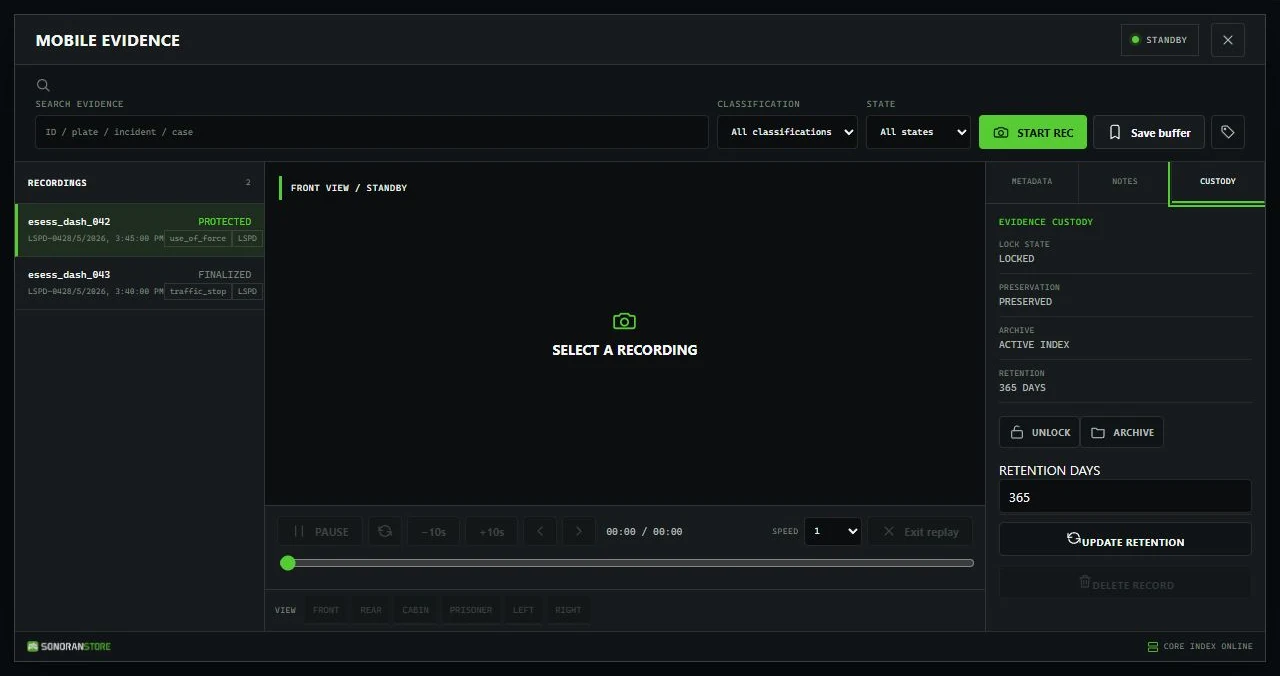 Authorized evidence custodians can protect, archive, retain, or delete records from the same review terminal.