

Open and close the notepad
Run/notepad or press F7 with the default configuration. Use Close or press Escape to leave the notepad.
While it is open, the player performs a writing animation with notepad and pencil props. The animation and props stop when the interface closes or the resource stops.
<!— IMAGE HERE (writing animation) —>
Write and navigate
Each page has a bold Title field and a lined Note area. Changes save automatically after a short pause.- Select Previous to move to the preceding note.
- Select Next to move forward.
- Selecting Next on the last completed note creates a new blank page.
- Only one untouched blank page is kept at a time.
- Select the scissors control in the upper-right corner to tear out the current page.
CAD Sync
The notepad syncs with the CAD’s tablet resource submodule. Once signed into the tablet, add the notepad to your custom layout. Notes will sync between the in-game tablet and the CAD. The notepad is still available for standalone use in-game, if not using Sonoran CAD and the tablet resource. <!— Todo IMAGE (hyperlinks, NCIC, and in-CAD view) —>Name and plate searches
With CAD sync available, highlight a name or license plate in the note body and right-click the selection. Choose Search CAD as name or Search CAD as plate. Name searches accept one to three name parts. The notepad synchronizes the note before requesting the search through the signed-in CAD tablet. The selected text becomes a linked lookup annotation. Hover over linked text to inspect the stored return, or select it to run or refresh the lookup. These annotations are preserved when the notes synchronize with CAD. Searches require the current tablet relay and a linked, signed-in CAD session. If a search is already pending, wait for it to finish before starting another. Editing the note during a search can cancel that search; select the current text and try again.Local-only mode
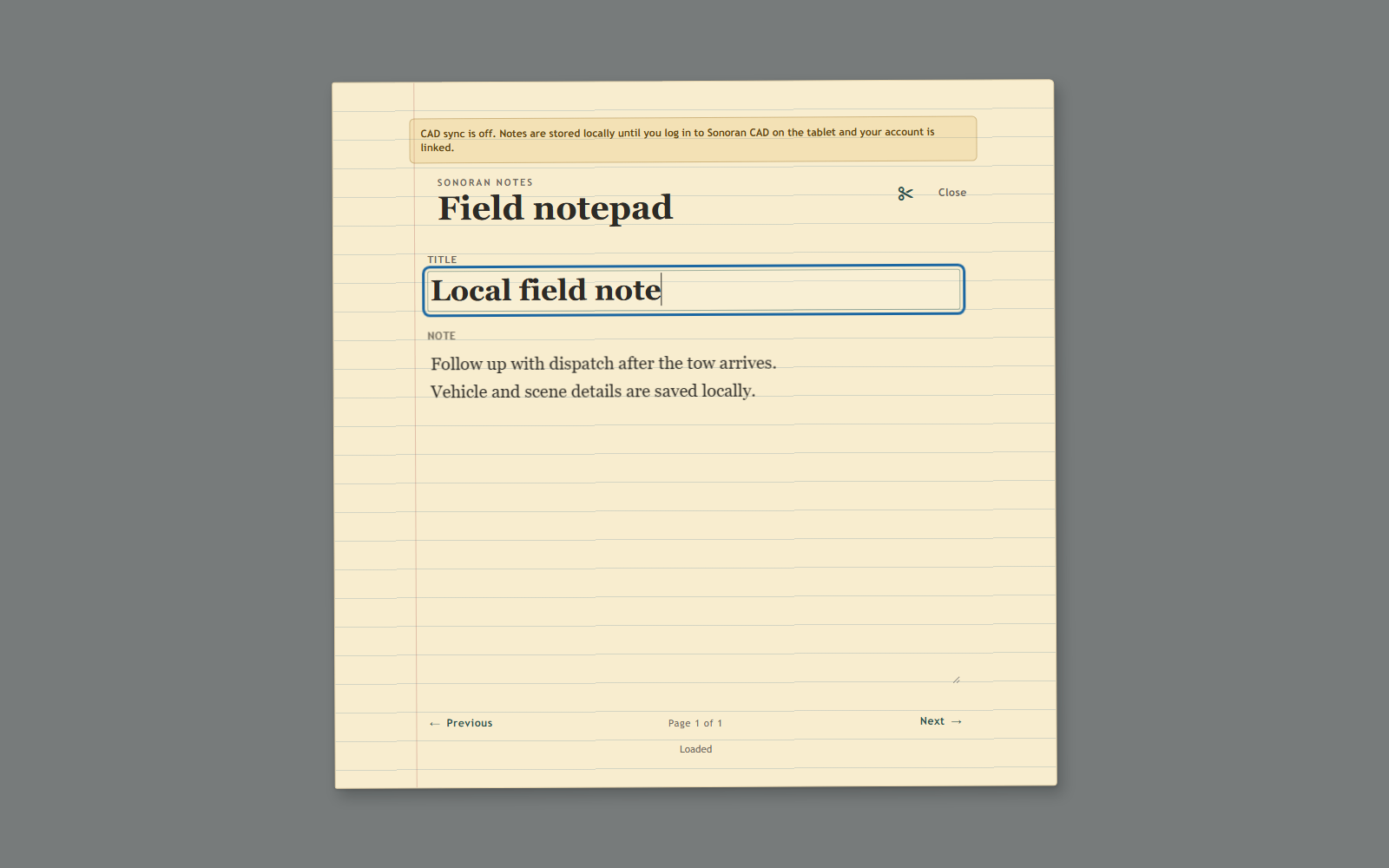
If you are not using the CAD’s tablet resource submodule or are not signed into the tablet, a compact warning appears above the notebook header. Editing, page navigation, and removal continue to work.
The local-only warning explains why CAD sync is off without blocking the notebook.
Local-only changes are marked for synchronization. When the tablet later reports a linked, signed-in CAD session, Notepad sends the current local list to CAD.