

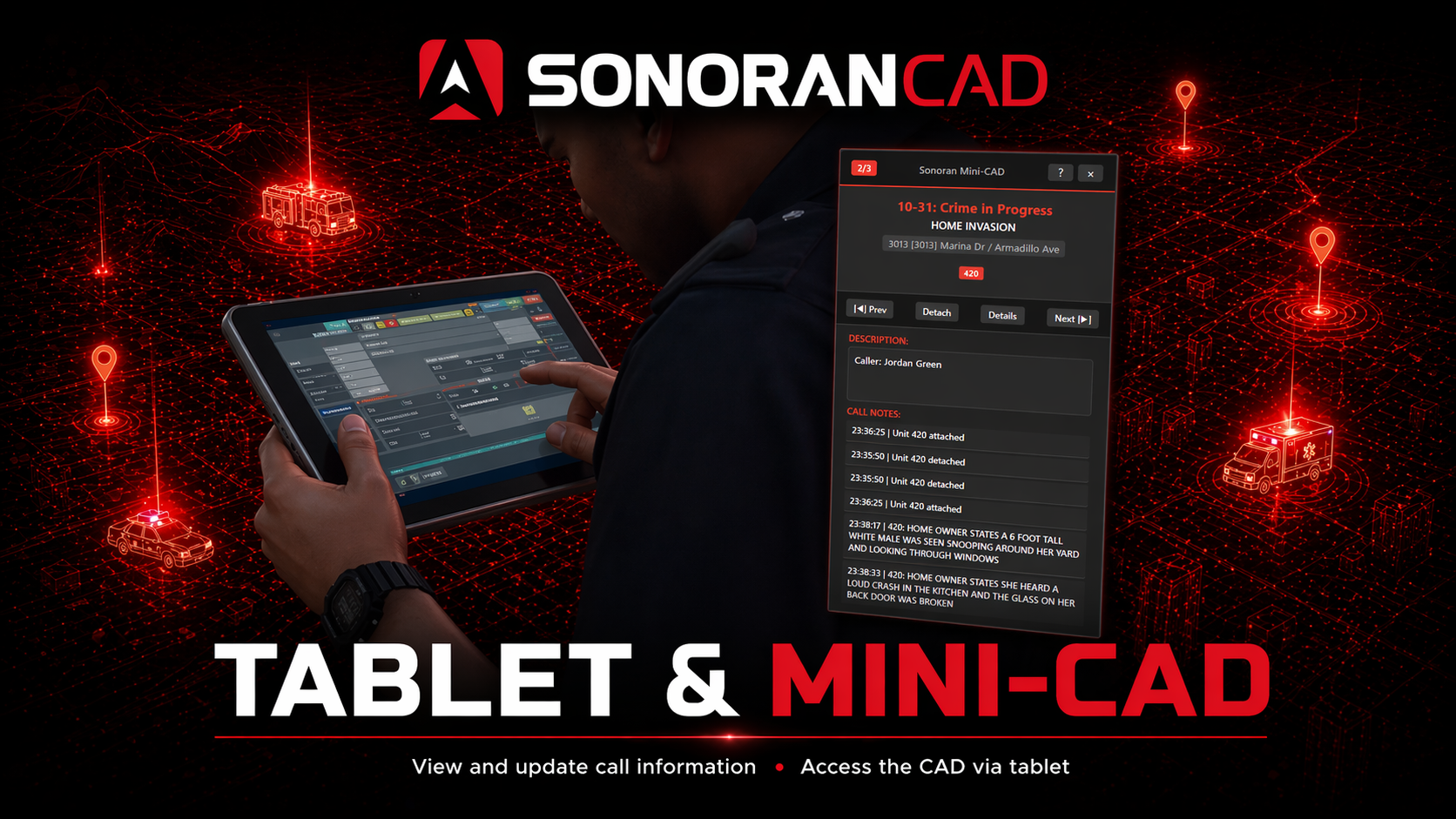
 Sonoran CAD - Mini-CAD
Activation Guide
- Download and Install the Resource
This resource is already enabled by default inside of the
sonorancad.cfg when installing the Sonoran CAD FiveM resource.The tablet resource must be running to use vehicle and station laptop screens with CAD Display.
- Ensure Players are Linked
Ensure the player has already linked their CAD for this integration to work.
Configuration
Optional: URL Convar
Optional: URL Convar
If you wish to use a custom login page, you can set a convar in your server.cfg.
The easiest way to show your custom login page is to use a query string.
EX:Fill in with your actual URL above with the comid you want.
The easiest way to show your custom login page is to use a query string.
"https://sonorancad.com/?comid=YOUR_COMMUNITY_ID_HERE"Simply replace YOUR_COMMUNITY_ID_HERE in the URL with your community ID.EX:
https://app.sonorancad.com/?comid=midwestrpAdd the following to your server.cfg before starting the tablet resource:Keybinds
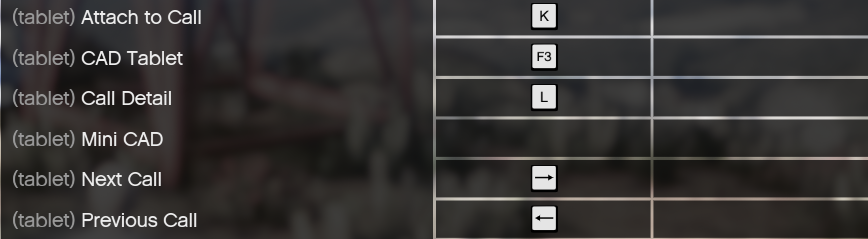
Users can customize keybinds for the tablet and Mini-CAD. Navigate to Settings > Keybinds > FiveM and look for the keybinds under the resourcetablet.
Commands
The commands below use the default/tablet command. Running /tablet by itself shows command help; use /tablet open to open the handheld tablet.
/tablet openOpens the in-game tablet/tablet size [width] [height]Resize the tablet to best fit your screen. This size persists on reload of the client./tablet checklinkChecks again whether your CAD account is linked to the server’s community./tablet refreshForce-refresh the page when it’s not loading properly./tablet mini openOpens the mini-CAD/tablet mini helpDisplays a list of commands for the mini-CAD/tablet mini prevPages to the previous dispatch call on the mini-CAD/tablet mini nextPages to the next dispatch call on the mini-CAD/tablet mini attachAttaches to the dispatch call on the mini-CAD/tablet mini detailToggles expanded information on the mini-CAD/tablet mini refreshManually refresh the call information on the mini-CAD/tablet mini size [width] [height]Resize the mini-CAD to best fit your screen. This size persists on reload of the client.

Mini-CAD Usage
The mini-CAD displays as an overlay in-game.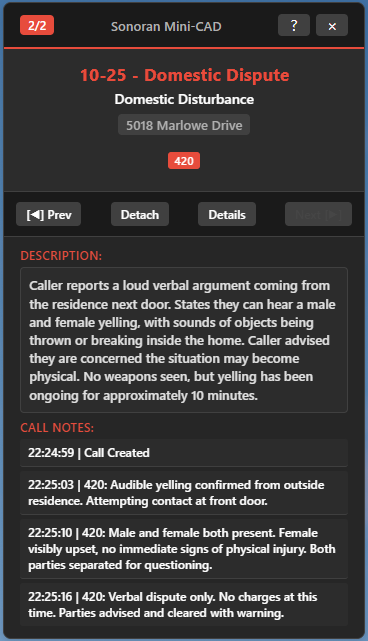
Move and Close
You can close or move the Mini-CAD by opening the tablet, and interacting with the Mini-CAD window.Controls
- Use the
Left Arrow Keyto display the previous call. - Use the
Right Arrow Keyto display the next call. - Use the
Kkey to attach or detach to/from the displayed call. - Use the
Lkey to toggle display of the call details. - All these commands can be edited from the Keybinds menu.
Tablet Usage
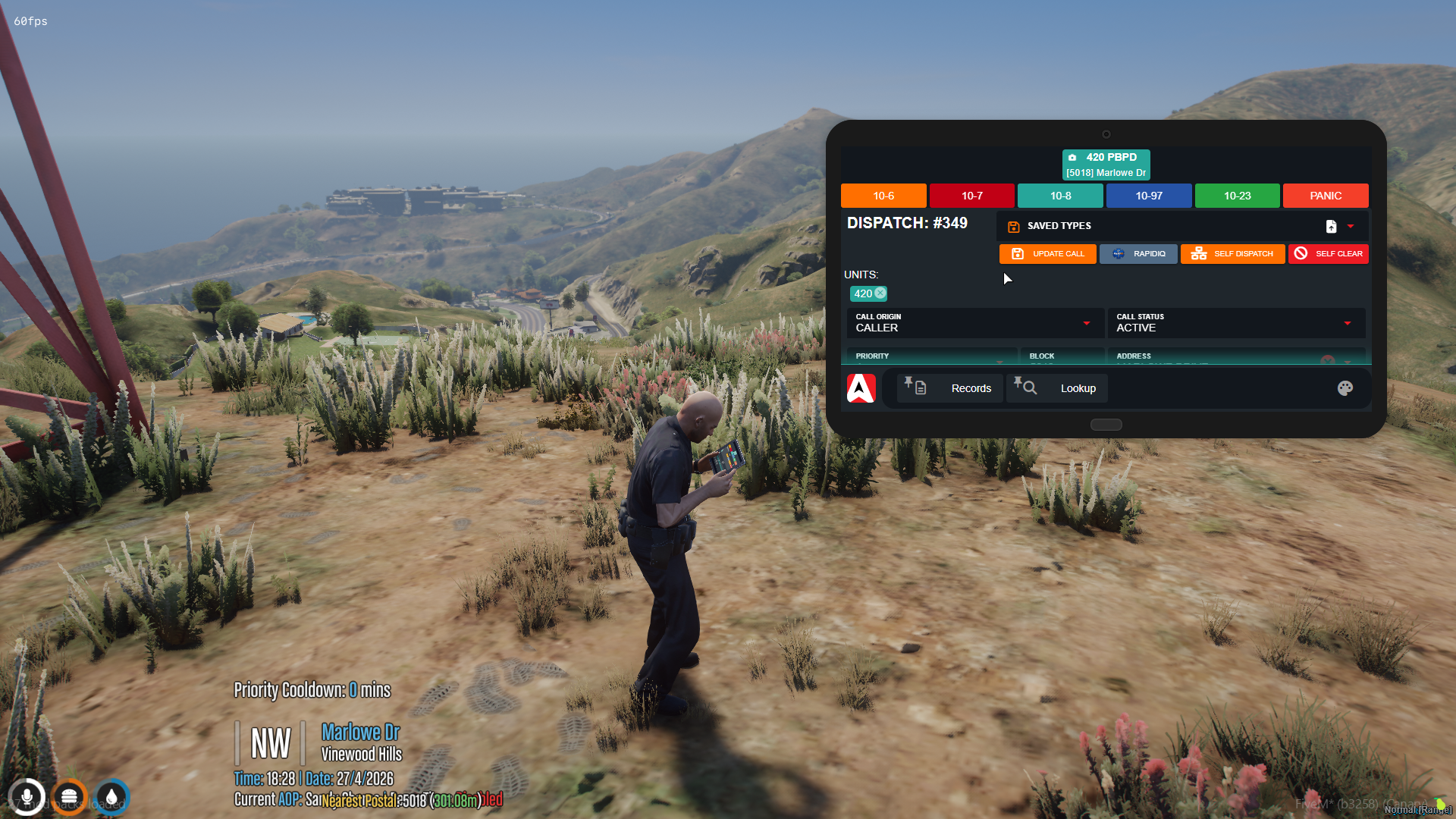 When in-game, the tablet can be used to view your unit’s Sonoran CAD police, fire, ems, or dispatch panel.
With the CAD Display submodule enabled, nearby players can see a periodically refreshed image of your CAD on the handheld tablet prop. Their view may lag behind what you are doing.
When in-game, the tablet can be used to view your unit’s Sonoran CAD police, fire, ems, or dispatch panel.
With the CAD Display submodule enabled, nearby players can see a periodically refreshed image of your CAD on the handheld tablet prop. Their view may lag behind what you are doing.
Using a Vehicle or Station Laptop
With CAD Display enabled, you can use CAD directly on a configured vehicle or station laptop:- Close the handheld tablet, then press G while seated near the vehicle display or standing near the station laptop.
- If another player controls the laptop, wait for them to accept your request. Once you have control, the camera moves toward the laptop screen.
- Click, scroll, and type normally in CAD. Your login and current page carry over between the handheld tablet and laptop.
- Click Exit computer beneath the screen when you are finished. Use this button if Escape does not respond while a CAD text field has focus.
Auto User Link
When a user signs into the CAD using the in-game tablet, their account will be automatically linked. If your account is not recognized, run/link in game and follow the linking instructions, then run /tablet checklink.
Known Issues
Timeout SonoranCAD::mini:CallSync
Timeout SonoranCAD::mini:CallSync
Timeout SonoranCAD::mini:CallSync
Some users may see 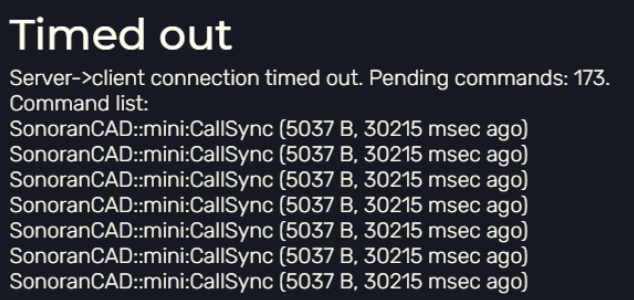
SonoranCAD::mini:CallSync listed multiple times after recieving a timeout.When your client recieves a timeout from the server for any reason, it will display a list of the most recent requests. Because Sonoran’s Mini-CAD runs frequent sync requests, these will consequenty be displayed.This is not an issue with or related to Sonoran CAD. This is a general timeout between the client and server listing all recent calls as diagnostic information.Tablet Showing Grey
Tablet Showing Grey
Tablet Showing Grey
Some users may get a grey, black or blank screen when using the Sonoran Login method before and then opening the tablet and it just being a grey screen.To resolve this, close FiveM, then to go to your 
FiveM Application Data folder then to data and then delete the nui-storage folder.If you still are having issues reach out to our support team.