

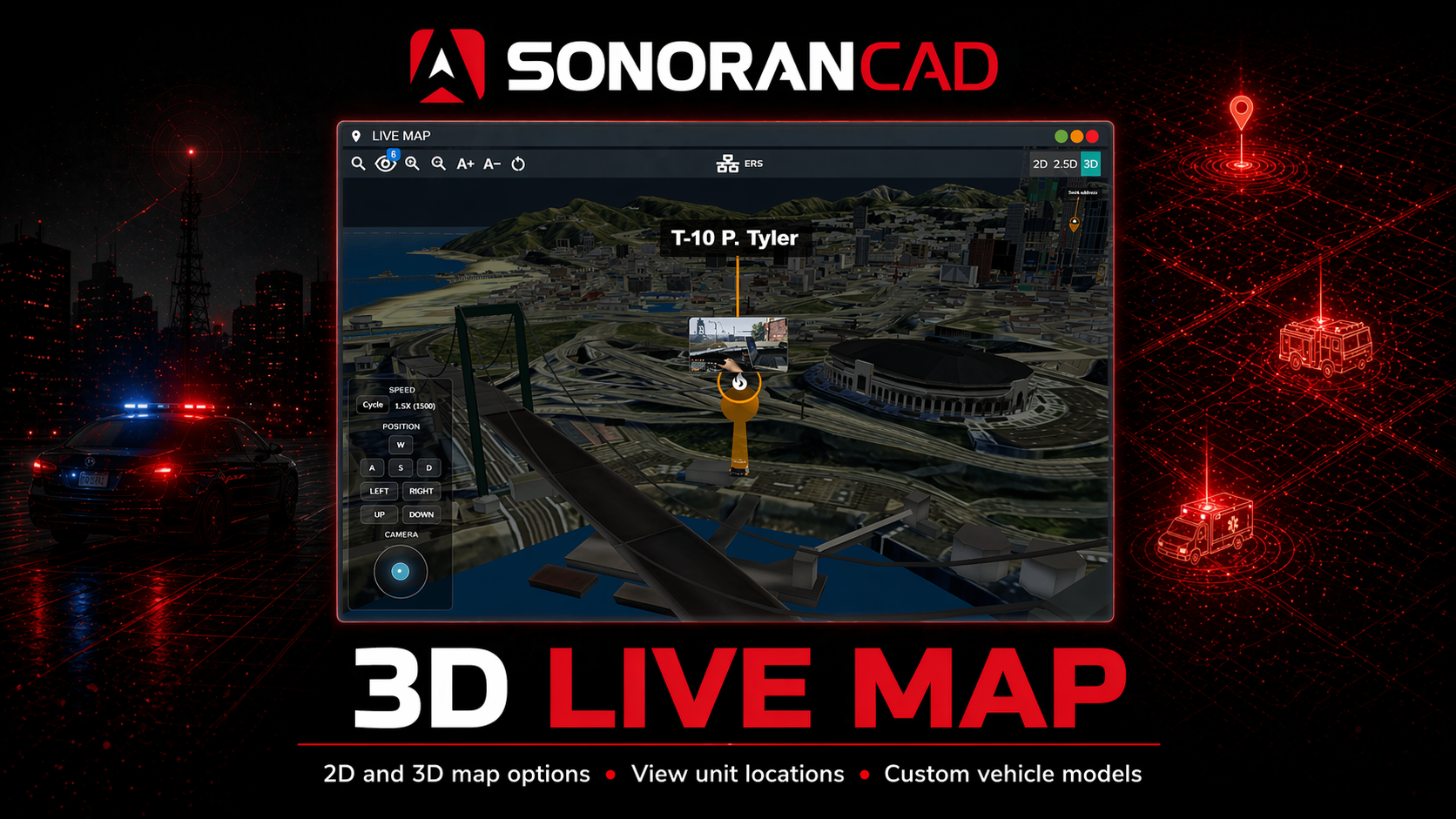
 Sonoran CAD - Live Map
This submodule is built into the Sonoran CAD FiveM resource and requires no additional configuration.
- 2D Map Selection
In the admin panel, navigate to Advanced > In-Game Integration > Live Map
Here, you can enable and select a default map option for GTA, Roblox, or others. Additionally, pro communities can upload a custom map.
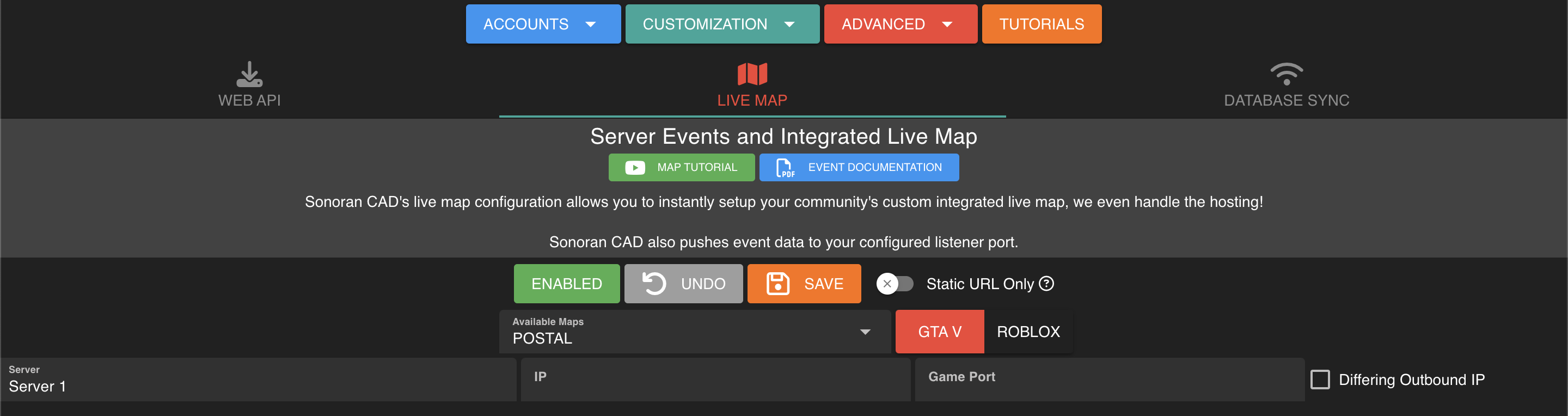 Sonoran CAD - Live Map Type Selection
- Link In-Game
Don’t forget to have each community member link their in-game user to the CAD.
For FiveM users, run /link in-game.
For Roblox users, ensure your Roblox account is linked to your Sonoran account.
- User Access Permission
Users will need to be granted access to view the live map. This can be done via Discord role sync, permission key, or by manually granting permissions in the admin menu.
4. Enjoy!
In the Police, Fire, EMS, or Dispatch window you can now click the “Live Map” button to view your new live map! Selecting a blip will show it’s updated position and unit information. This is found in the task bar’s start menu under Unit Management > Live MapYou can also pin the live map button to your taskbar for easy access.
The live map will only show units that are in your server and also actively logged into the police, fire, or EMS panel in the CAD. Be sure to have your API ID set.
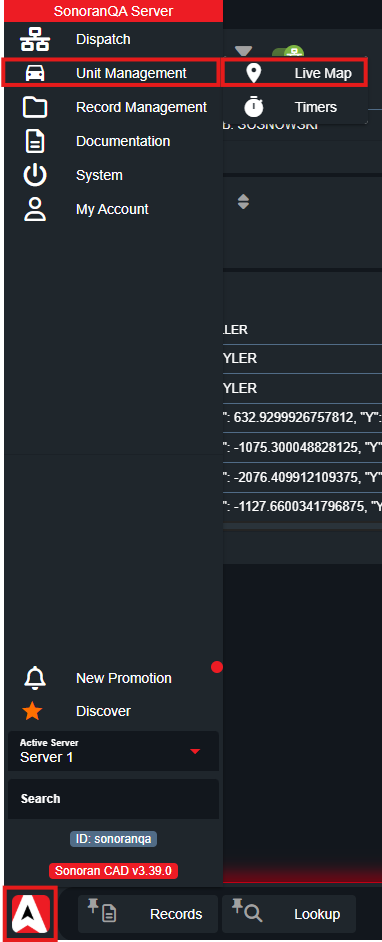
Using the Live Map
Map Controls
Postal and Location Search
With the postals submodule configured, you can manually enter and search for a postal code on the live map. Units, emergency calls, and dispatch calls with locations will also display a red pin icon. Clicking the icon will open the map and zoom to the location.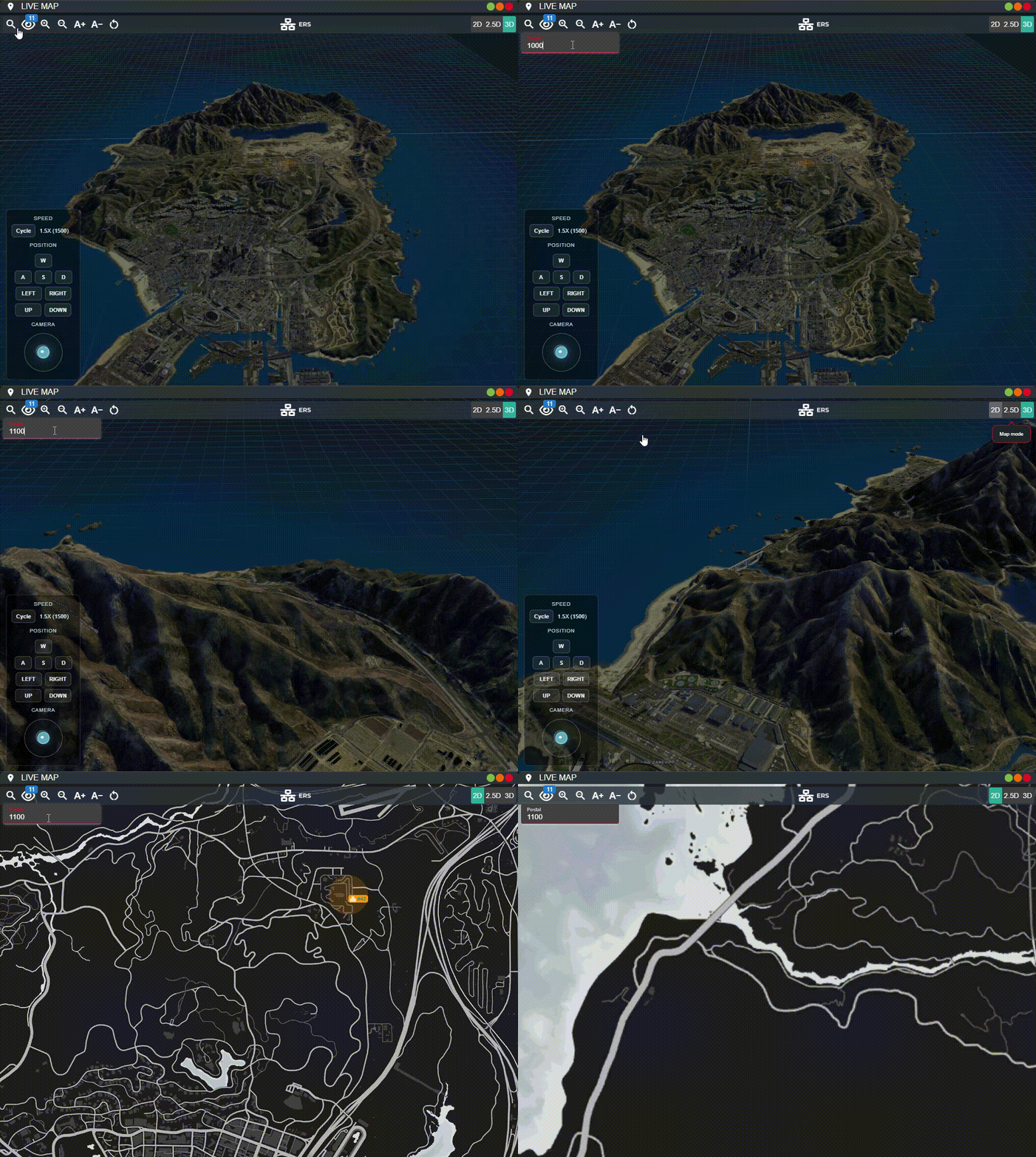
Blip Customization
You can toggle specific blips visibility and outline colors for police, fire, EMS, and dispatch.
Unit Blips
Unit blips display the live location of all police, fire, EMS, and dispatch units in-game. You can hover over a unit for brief details, or click on one for more options. You can also easily filter the map to specific units by selecting them in the active units panel.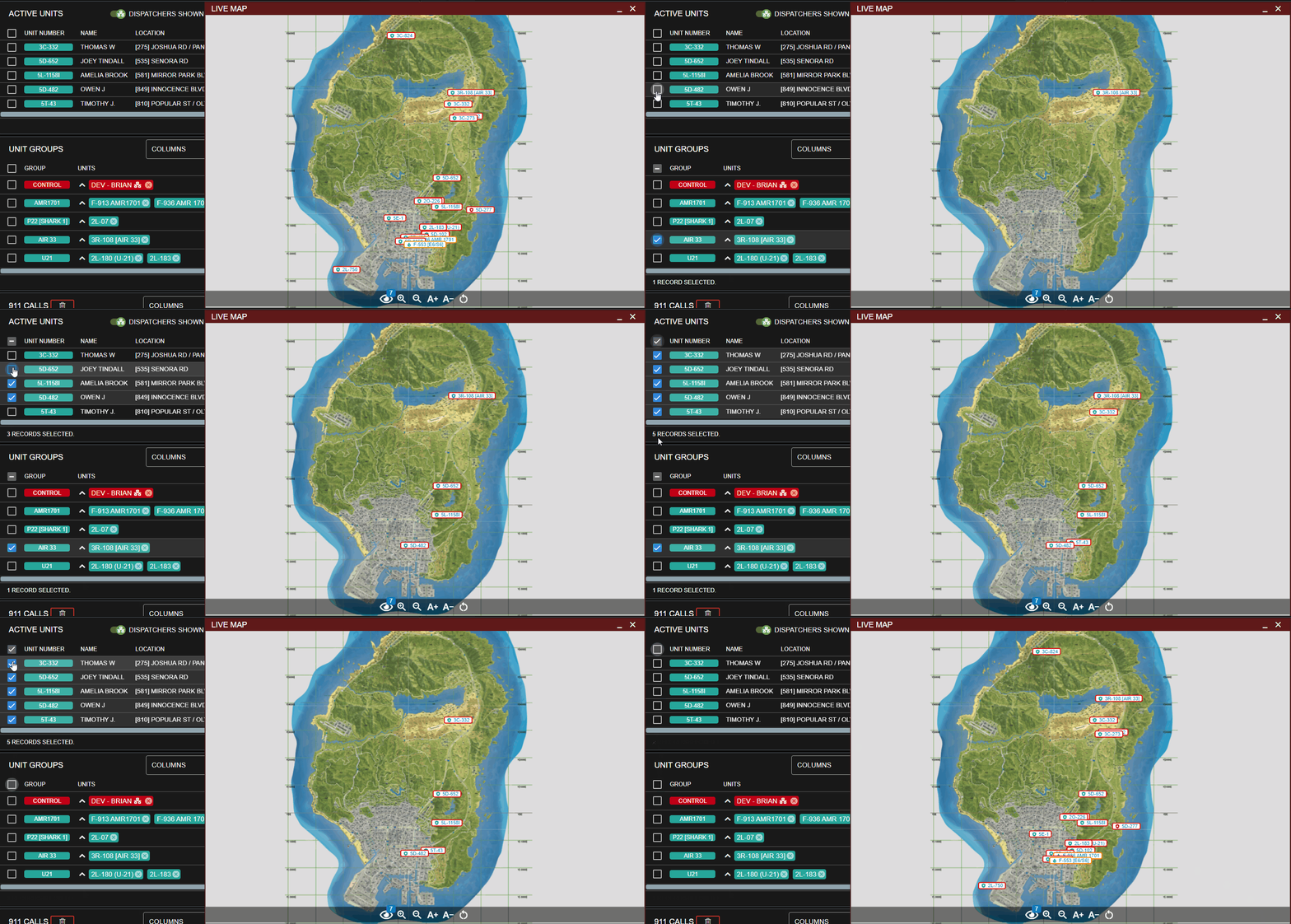
Menu Options
Clicking on a unit blip allows you to add the unit to a call, add the unit to a group, send the unit lookup results, edit the unit’s information, toggle their panic state, and more.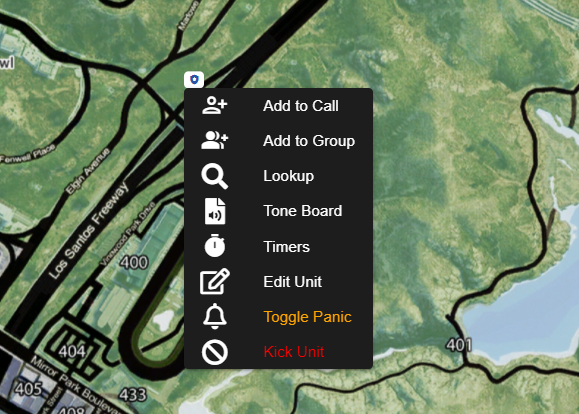
Drag-and-Drop
- Roblox 2D
- FiveM 2D
- FiveM 3D
Unit Blips Support:
- Drag to the call editor
- Drag to an active call
- Drag to a unit group
- Drag to the unit group header to create a new group
- Drag to the lookup window or minimized tab
- Drag to the timer window or minimized tab
- Drag to the tone board window or minimized tab
Emergency Call Blips
Emergency calls placed in-game will also appear on the live map. You can hover over the blip for the call details.Menu Options
Clicking on the emergency blip allows you to import the call to your editor or remove the emergency call.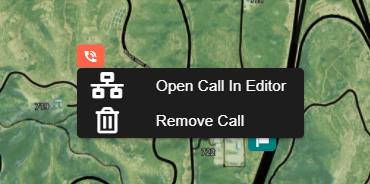
Sonoran Street Signs
Sonoran Street Signs adds custom Live Map markers that open each sign’s Integration Panel editor. Give CAD roles access to the overview and individual sign controllers. See the Street Signs integration guide for setup and permissions.FiveM Custom Map
Sonoran CAD allows communities to upload custom map images to the integrated, hosted live map. If your community does not use one of the map types provided, you can upload the images manually.Extract Images
Extract Images
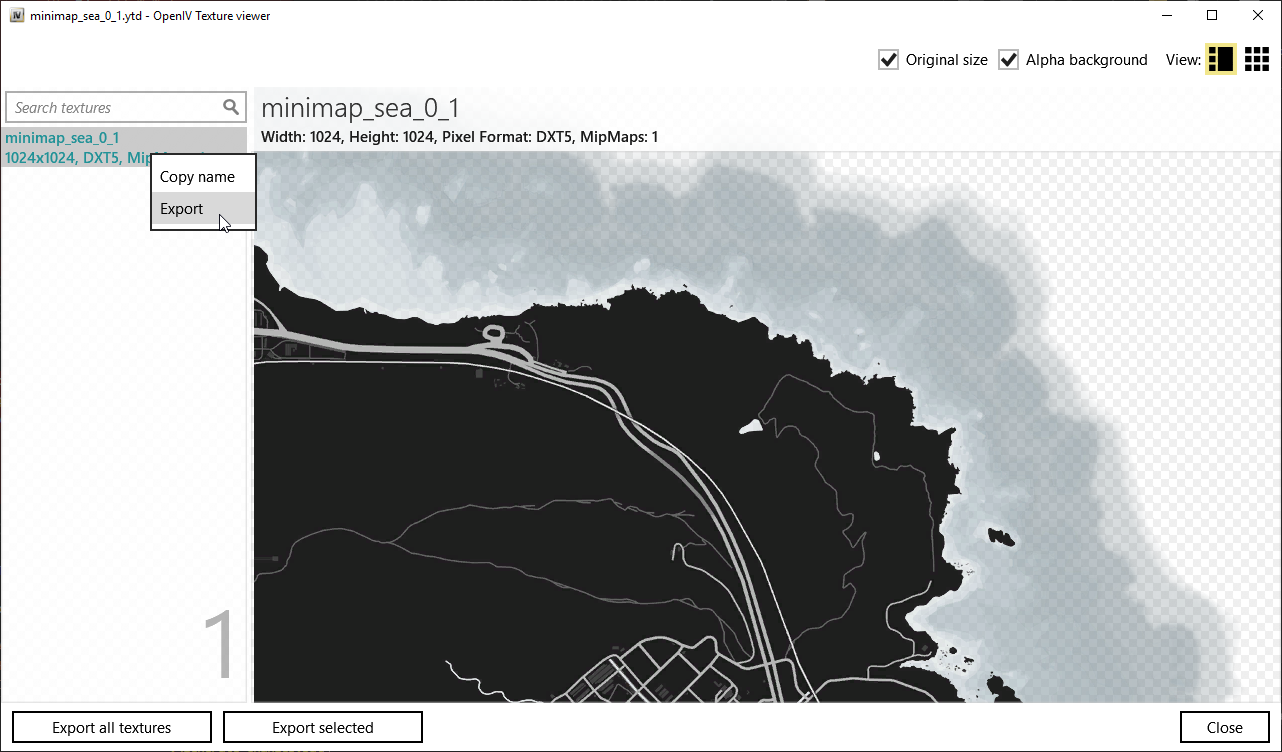
Extract the images from the YTD files with a program like OpenIV.
You will need six files named exactly as follows:

You will need six files named exactly as follows:
minimap_sea_0_0.pngminimap_sea_0_1.pngminimap_sea_1_0.pngminimap_sea_1_1.pngminimap_sea_2_0.pngminimap_sea_2_1.pngUpload Images
Upload Images
Navigate to Admin > Advanced > In-Game Integration > Live Map and Push Events
Select “Upload Custom” and upload all six correctly named files.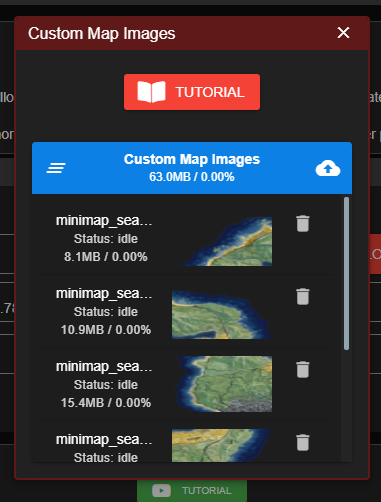
Select “Upload Custom” and upload all six correctly named files.
File Size
File Size
Custom map images are limited to 30MB each. However, if you are uploading more than 100MB of images total, you will need to upload in separate batches.
Roxwood Expansion
Roxwood Expansion
Roxwood Expansion
If your community is utilizing the Roxwood map expansion, there will be additional tiles to upload.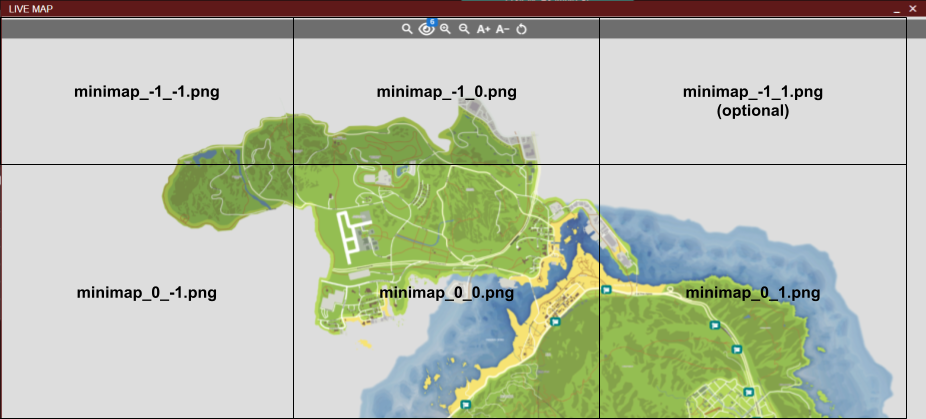
minimap_sea_-1_-1.pngminimap_sea_-1_0.pngminimap_sea_-1_1.png(Optional, blank tile to the right)
minimap_sea_0_-1.pngminimap_sea_0_0.pngminimap_sea_0_1.png
Cayo Perico Expansion
Cayo Perico Expansion
Cayo Perico Expansion
If your community is utilizing the Cayo Perico map expansion, there will be extra tiles to upload. Ensure these are named as: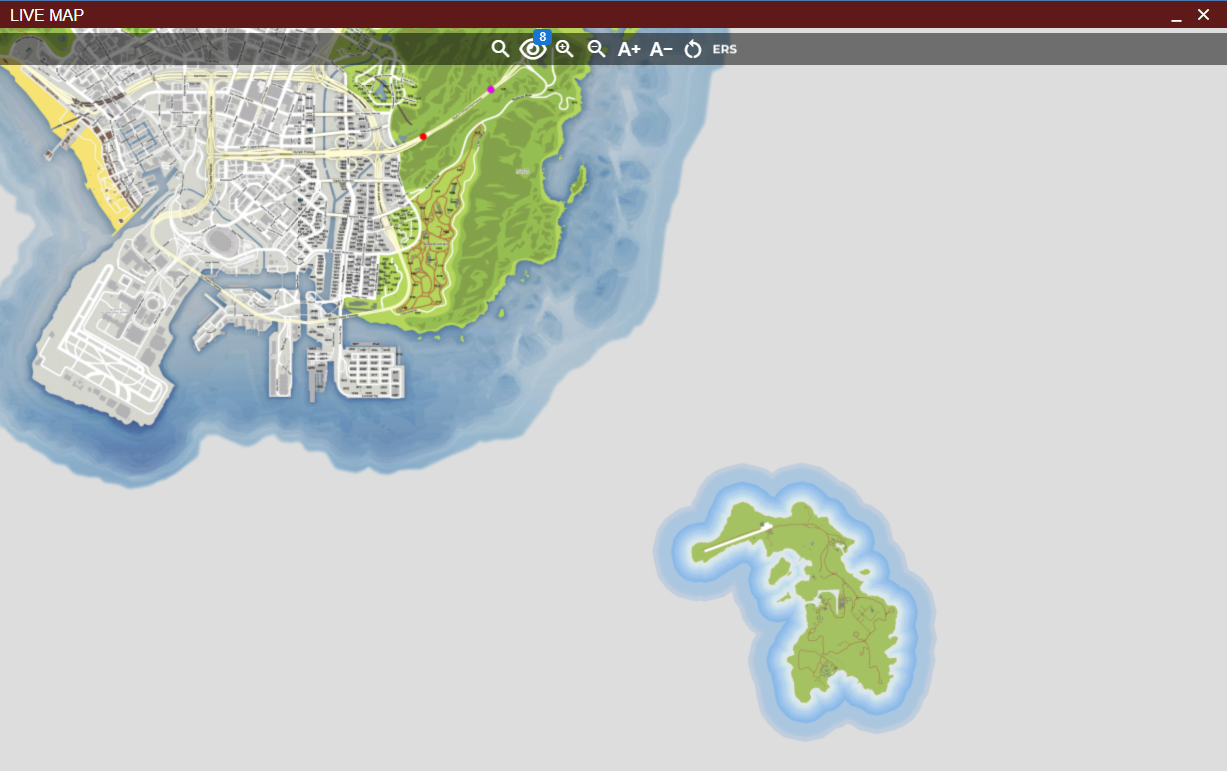
minimap_sea_2_1.png- Bottom right of the main island + top right of Cayo Perico
minimap_sea_2_2.pngminimap_sea_3_1.pngminimap_sea_3_2.png
Roblox Custom Maps
3D Live Map
Troubleshooting
3D Live Map not Loading
The 3D live map uses WebGL, an open source something. In Chrome, navigate tochrome://gpu/ and check if WebGL is Disabled. If so, try the following steps:
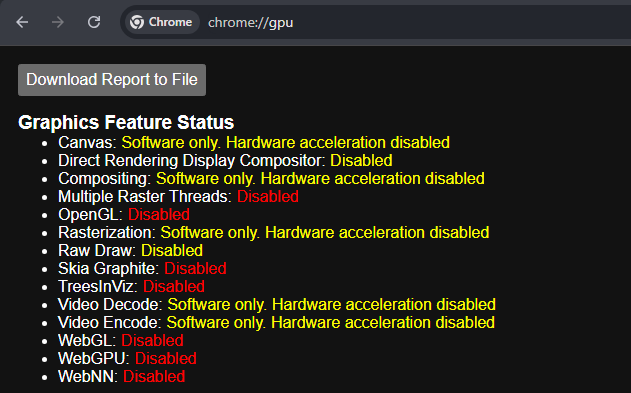
- Chrome > Settings > System > Use Graphics Acceleration When Available
- Ensure Graphics Drivers are Up-to-Date
- Fully restart your web browser
Custom Blip Integration Panels
Custom blips can display interactive Integration Panels inside their menus in both 2D and 3D map views. Click a configured custom blip to view its controls. The connected integration must publish the panel and its state, process actions, and send back the updated result. Developers can attach a panel and instance using the blip’sdata entries. The Smart Signs example shows an individual sign editor, including the API setup and action handling. This is a custom integration example; adding a blip alone does not implement the game-side controls.