

Activation Guide
- Download and Install the Resource
This submodule is already enabled by default when installing the Sonoran CAD FiveM resource.
The tablet resource must be running to use vehicle and station laptop screens.
- Adjust the Configuration
The CAD display settings are stored inside of the /configuration/caddisplay_config.lua file.
Notifications are handled by the Sonoran CAD core. See Core Configuration for settings and supported values.
The standard laptop includes a screen alignment profile. Custom screens may need screen alignment before players can interact with them.
ACE Permissions
Whencommands.restricted is true (the default) and permissionMode is "ace" (the default), the server checks these configurable nodes:
sonoran.caddisplayallows a player to open the menu and use or attach a CAD display.sonoran.caddisplay.adminallows menu access and saving or deleting vehicle-model placements.sonoran.caddisplay.worldallows saving and deleting station-display placements. If this value is blank, the current resource falls back toaceObjectAdminUseMenu.
builtin.everyone:
framework.adminJobNames to choose which jobs can manage vehicle and station placements.
Commands
/caddisplayopens the vehicle display menu when seated in a supported vehicle, or the station display menu when on foot./caddisplay calibrateopens screen alignment for display administrators. This is only needed for custom or misaligned screens.

Keybind
The default keys are G to use a nearby display or request control, Y to accept a control request, and L to deny one. Navigate to Settings > Keybinds > FiveM and look for the keybinds under the resourcesonorancad.

Usage
a. Prop Spawning
- Stop the vehicle and stay seated. Run
/caddisplay, choose Spawn CAD Display, and select the laptop. - Drag the colored arrows to move the laptop, or the colored squares to move it along two directions at once. Select Rotate to use the rotation rings. Snap helps make small, even adjustments.
- Choose Apply to this vehicle to use the placement on your current vehicle. Administrators can choose Save for this vehicle model to reuse it for future vehicles with the same spawn code.
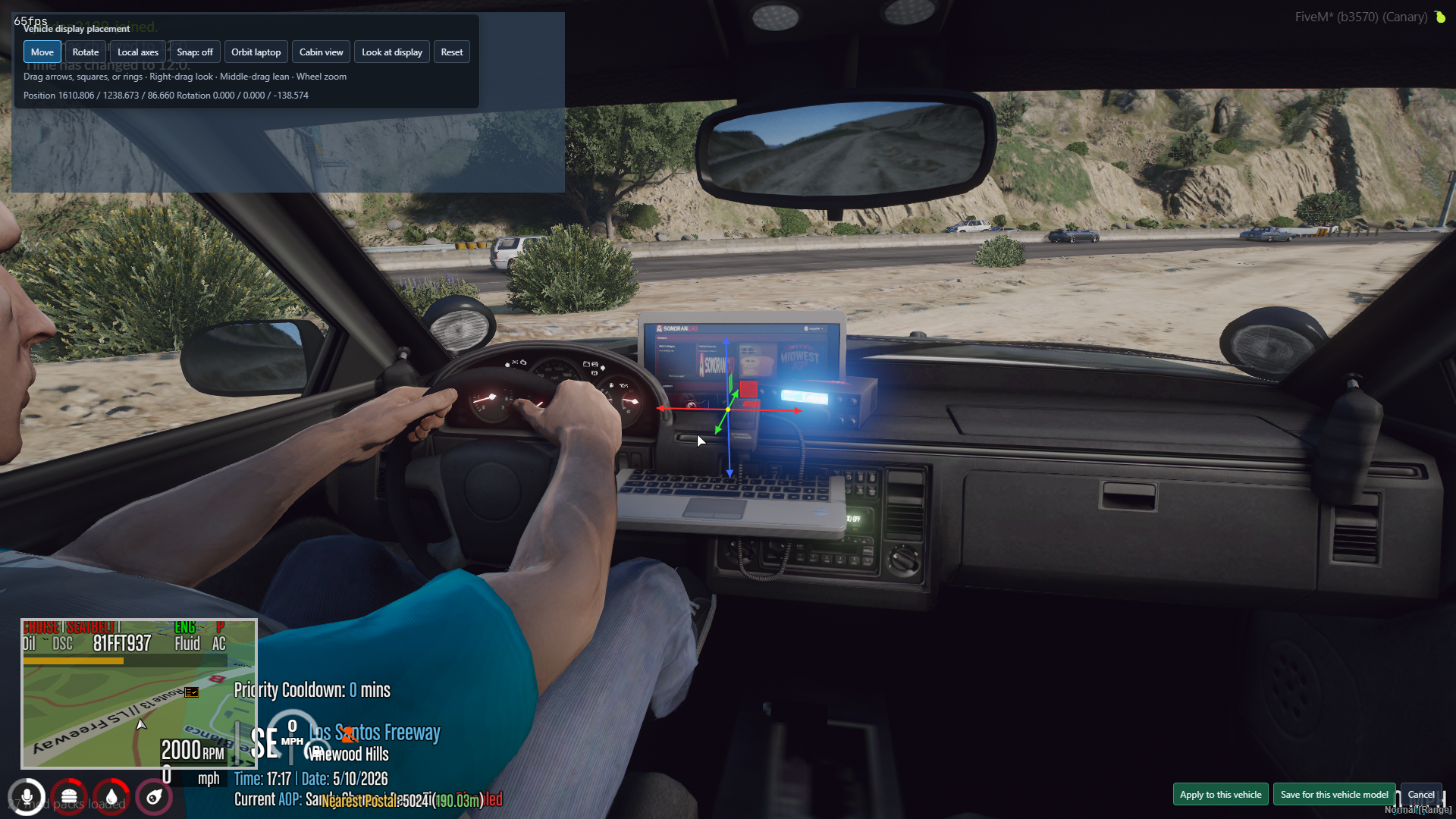 Move the laptop using the colored arrows and squares.
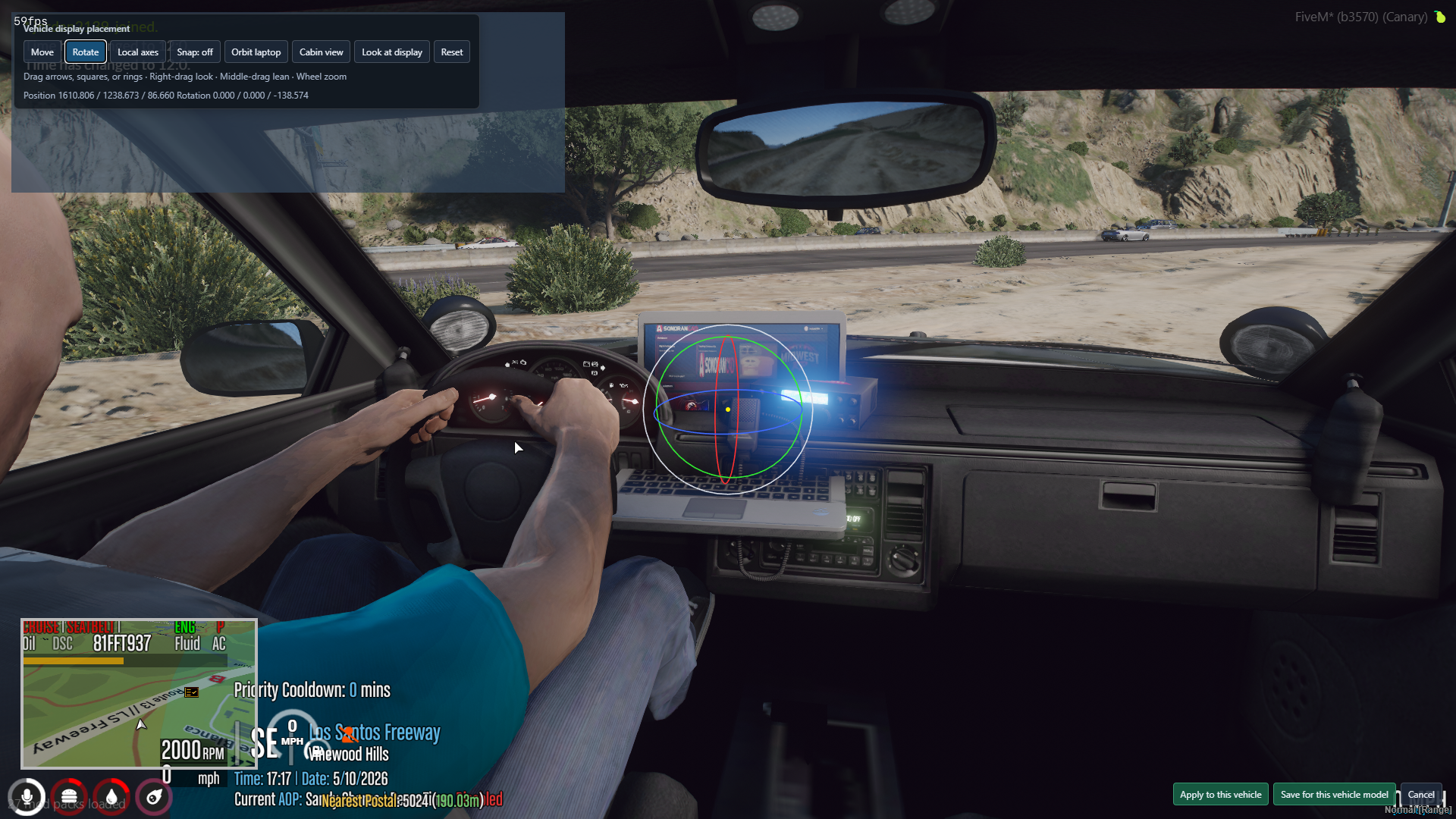 Select Rotate and drag the colored rings to adjust the laptop’s angle.
To reposition an existing laptop, open Attach CAD Display and choose Position this vehicle’s display with mouse. Cancel discards your preview; closing without applying does not save a new placement. Keep the vehicle stopped throughout editing.
The editor opens a cabin view aimed at the laptop. These controls help check its position:
Select Rotate and drag the colored rings to adjust the laptop’s angle.
To reposition an existing laptop, open Attach CAD Display and choose Position this vehicle’s display with mouse. Cancel discards your preview; closing without applying does not save a new placement. Keep the vehicle stopped throughout editing.
The editor opens a cabin view aimed at the laptop. These controls help check its position:
These view controls do not change your normal gameplay camera settings. Built-in vehicle screens cannot be moved with the prop editor; use screen alignment to fit the CAD to them.
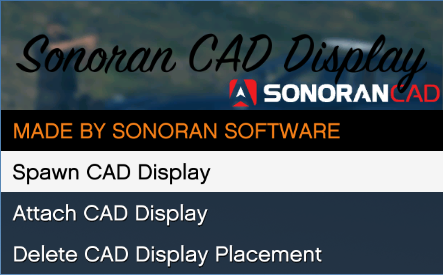 Sonoran CAD - CAD Display - Main Menu
b. Using Built-in Laptops
You can also use your vehicle’s built-in laptop as the CAD Display, without spawning a separate laptop prop. Built-in screens need both the texture setup below and a screen alignment profile for interaction. The texture name alone does not tell CAD Display where the screen is inside your vehicle.b. Continued
b. Continued
- This option requires additional configuration and third-party software. To begin, navigate to the
caddisplay_config.luafile located in the/sonorancad/configurationfolder. ThebuiltinScreenssection of this configuration file is where you define vehicles equipped with built-in laptops. - To obtain the
texturename you will need to use a third-party software such as OpenIV. - Within OpenIV, click File in the top-right corner, then select Open Folder and navigate to the folder containing your vehicle files
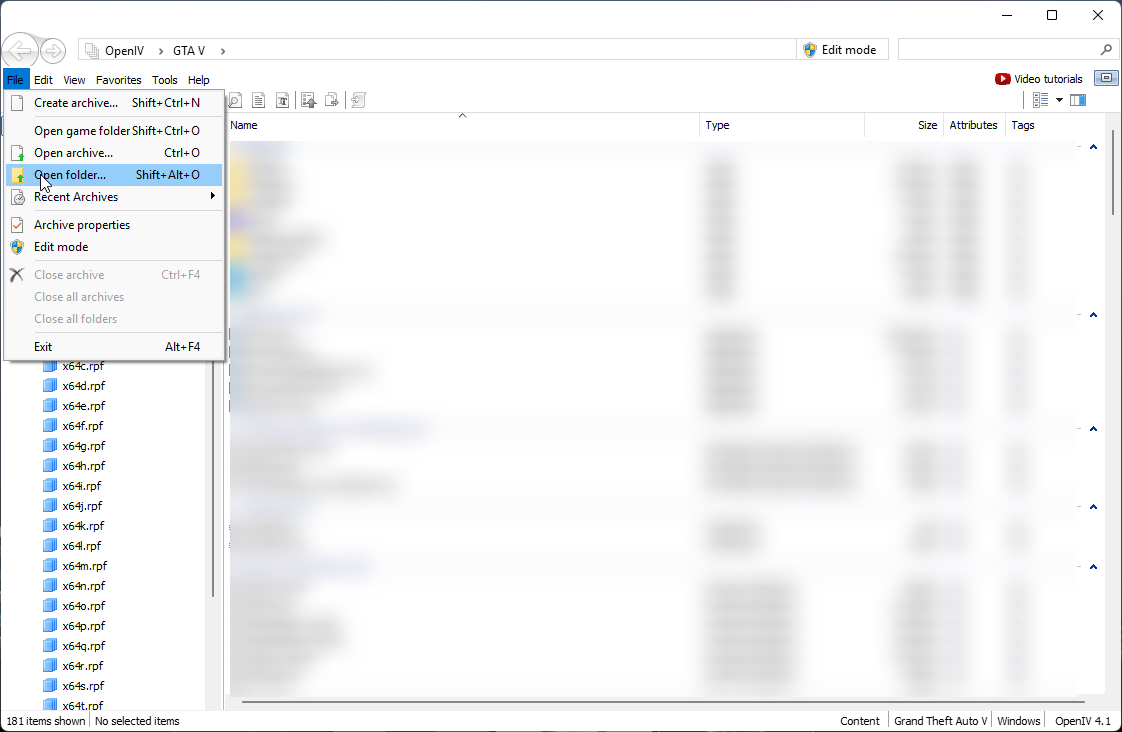 OpenIV - Open Folder Button
 OpenIV - File Explorer
- Once OpenIV opens your selected folder, you will see your vehicle files. From here, open the
SPAWNCODE.ytdfile. A.ytdfile is a texture dictionary that contains the textures used by the vehicle, such as screens, decals, and interior displays. For this tutorial, the spawn code used isb3.
 OpenIV - YTD Viewer
- Within the OpenIV Texture Viewer, scroll through the textures and locate the laptop screen texture. In the case of
b3, the texture name islaptop_screen. Some vehicles may include multiple screen textures; ensure you select the one used for the in-vehicle laptop display.
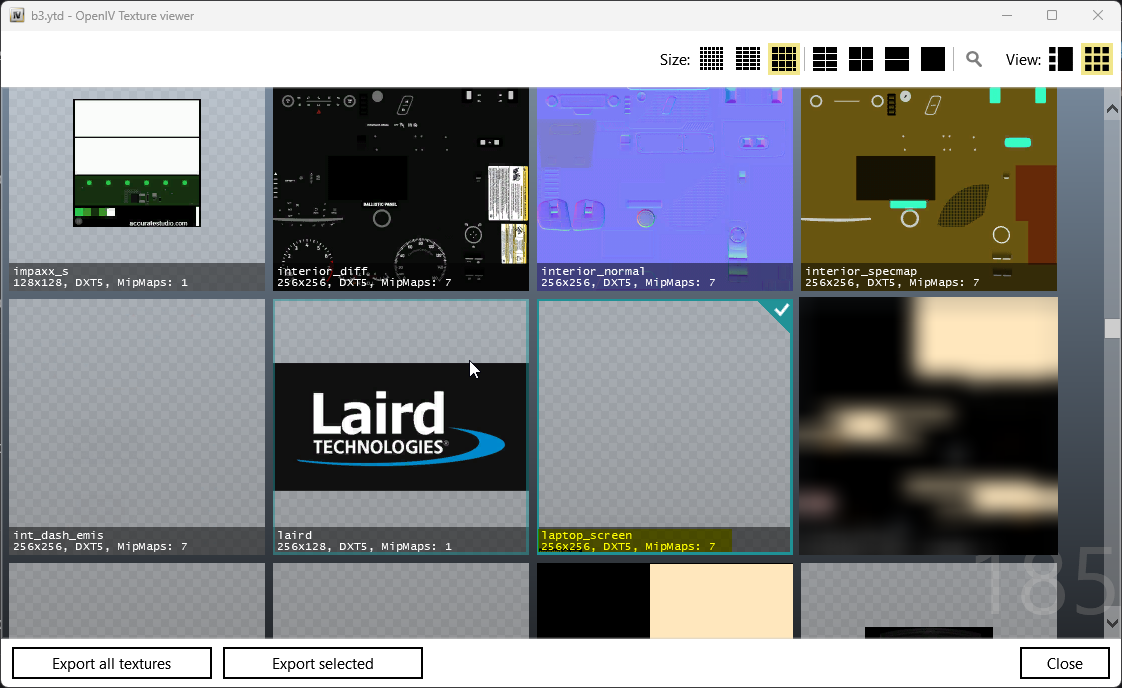 OpenIV - YTD Viewer - Laptop Screen Texture
- Now that all required information has been gathered, you can begin adding it to the configuration. Be sure to note the texture’s dimensions as shown in OpenIV, as this information is required for proper display. Important: The texture dimensions must match exactly, or the display may not render correctly. For the tutorial vehicle, the configuration should appear as follows:
c. Using the Screen
- Close the handheld tablet if it is open. Sit in a vehicle with a configured display, or stand close to a station laptop.
- Press G. If another player controls the display, they must approve your request first.
- Once you have control, the camera moves toward the screen. Click, scroll, and type in CAD as you would in the tablet. Your CAD login and current page stay loaded when switching between the tablet and laptop.
- Click Exit computer below the screen to return to the game. If Escape does not close the view while you are typing inside CAD, use Exit computer.
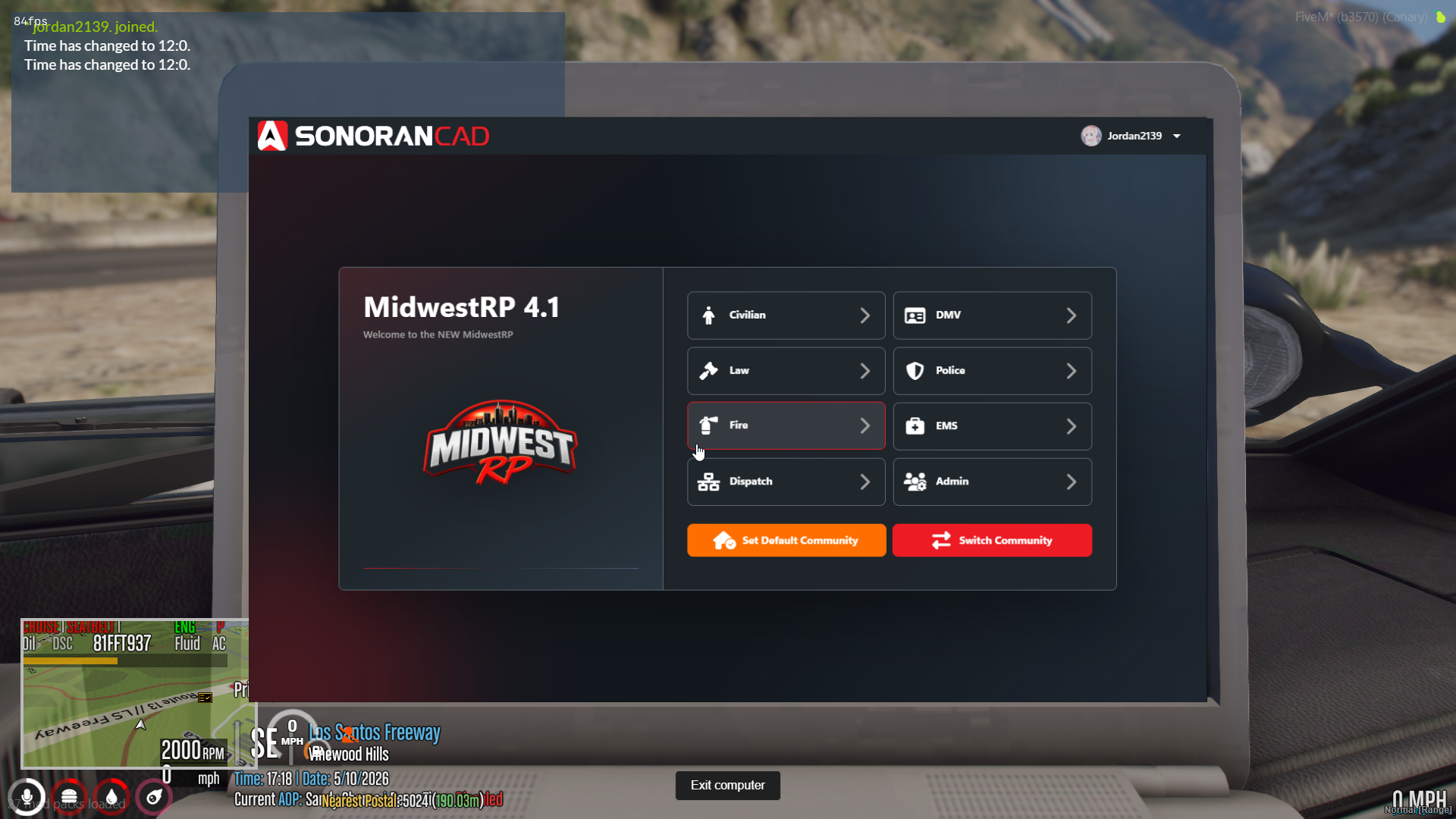 Use CAD directly on the laptop screen and select Exit computer when finished.
You do not need to open the tablet first.
Use CAD directly on the laptop screen and select Exit computer when finished.
You do not need to open the tablet first. /tablet open remains available for handheld use.
Nearby players see a periodically refreshed image of the controlling player’s CAD on the display. Their view can lag behind your clicks and typing. They must take control to interact with CAD themselves. The CAD Tablet also shows your CAD screen on the handheld prop for nearby players.
d. Passing Laptop Control
To transfer control of a laptop, have the other player press G while seated near the vehicle display or standing near the station display. This sends a control request to the current user. Only one player may control the laptop at a time. The current user can press Y to accept the request or L to deny it. If you are typing in CAD, click Exit computer first so the key is not entered into a CAD field. If accepted, the requesting player takes control using their own CAD session.Station CAD Display Props
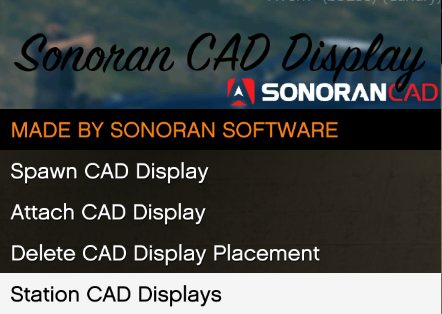
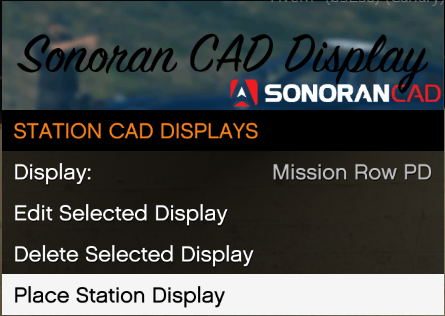
Station CAD Displays are saved laptops that stay in police stations or other locations around the map.- With station administration permission, run
/caddisplaywhile on foot to open Station CAD Displays. You do not need to be in a vehicle. - Choose Place Station Display, or select an existing display and choose Edit Selected Display.
- Use the same colored arrows and rotation rings as vehicle placement. Right-drag to orbit the laptop, middle-drag to pan, and use the mouse wheel to move closer or farther away. Frame object brings the laptop into view; Original view restores the starting camera.
- Click Save station display to keep your placement, or Cancel to discard your changes.
worldDisplays.enabled first.
Screen Alignment for Server Owners
Use this when CAD does not fit the laptop screen, or a custom screen reports a missing interaction profile. The standard laptop already includes a starting profile.- Close the tablet and other menus. Stand within 3 meters of the station display, or sit in the stopped vehicle containing the screen.
- Run
/caddisplay calibrate. You need menu access and administration permission for the vehicle or station display you are adjusting. - Place the four numbered markers on the visible screen corners, viewed from the front: top-left, top-right, bottom-right, bottom-left. Aim and click to place a marker; press Tab to select the next one.
- Use the arrow keys and Page Up/Page Down to fine-tune the markers, including their depth. Hold Shift for smaller movements or Ctrl to move all four together. If clicking does not land on the screen, use these keys instead.
- Press Enter to apply the alignment locally, then G to test it. R resets the corners, F flattens the fourth corner if needed, and Backspace cancels.
- To keep the alignment for everyone, copy the block printed in the F8 console into your active
caddisplay_config.lua. For a separate laptop prop, place it insideinteraction.models. For a built-in screen, place it inside that vehicle’sbuiltinScreensentry. Replace any existing profile for the same model, then restartsonorancad.
Pressing Enter only applies a temporary test on your client. The alignment is lost after a resource restart unless you copy it into the configuration. Calibration does not save or move the laptop’s placement.
Troubleshooting Laptop Interaction
- G does not open the laptop: close the handheld tablet and other menus, move closer, and check the on-screen notification. Server owners should confirm both
sonorancadandtabletare running. - Missing screen profile or an incorrectly aligned screen: use the screen alignment steps above. Built-in screens need their own profile even if their texture already shows CAD.
- Laptop interaction is disabled: the server owner can enable
interaction.enabled. Players can use/tablet openin the meantime. - Placement will not start: stop the vehicle and close any other camera or placement mode before trying again.