# Record Printer

<figure><img src="/files/T2qJHh5S8CTpceeMQgoB" alt=""><figcaption></figcaption></figure>

## What is the Record Printer?

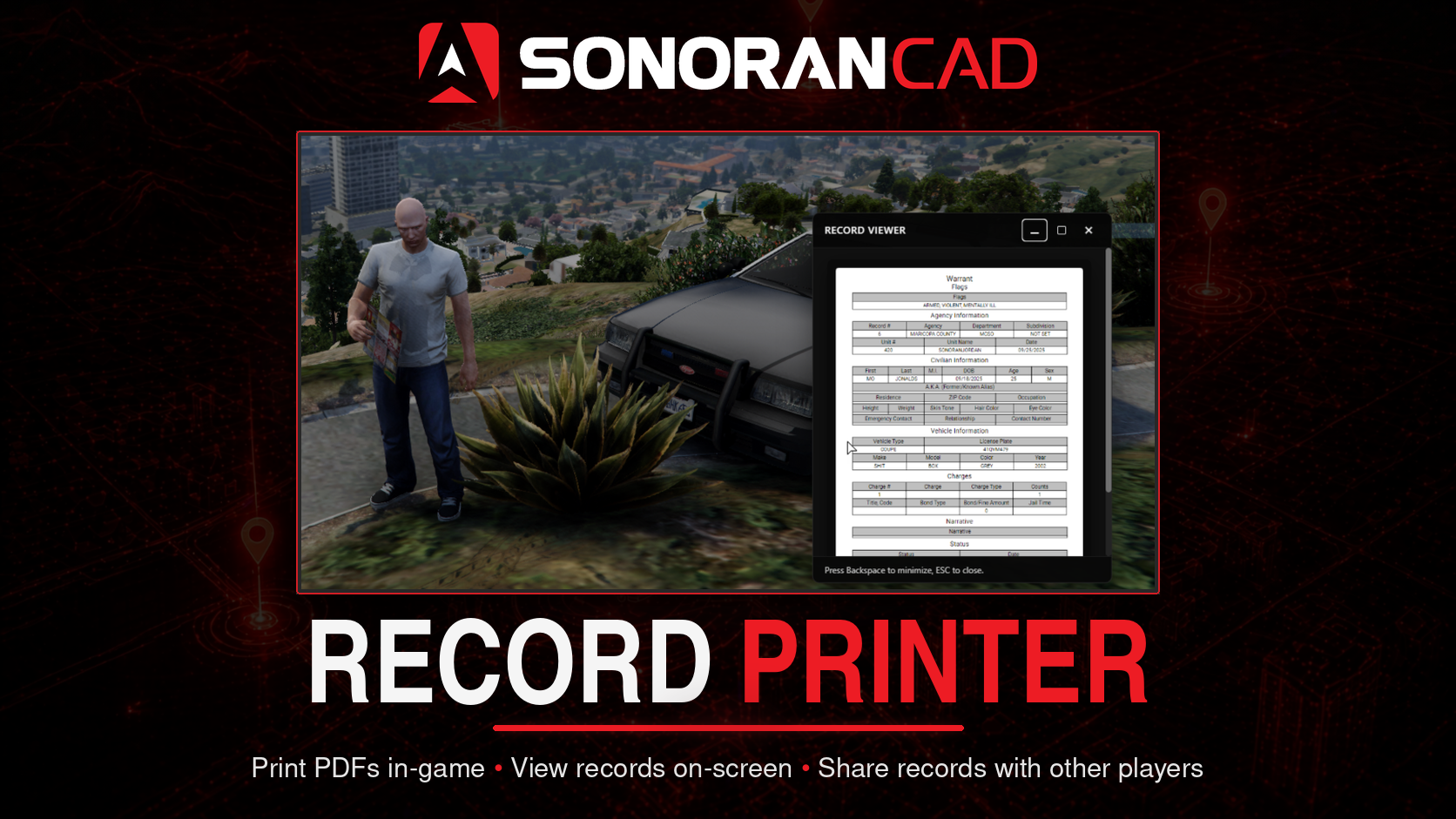
Sonoran CAD’s Record Printer seamlessly connects CAD records with the in-game world, enabling officers to generate and view official documents directly through an interactive in-game printer.

Records can be **printed at configurable printer objects or within vehicles**, shared as **inventory items**, and **viewed entirely in-game**.

## Activation Guide

### 1. Download and Install the Resource

{% hint style="info" %}
This submodule is already **enabled by default** when installing the [Sonoran CAD FiveM resource](/cad/integration-plugins/in-game-integration/fivem-installation.md).
{% endhint %}

### 2. Adjust the Configuration

The CAD display settings are stored inside of the `/configuration/recordPrinter_config.lua` file.

{% hint style="info" %}
Record Printer user-facing notifications also use the shared FiveM notification system configured in `/configuration/config.json` with `notificationSystem`.
{% endhint %}

### 3. Ensure Players are Linked

Ensure the players have already [linked their CAD](/cad/integration-plugins/in-game-integration/link-user-in-game.md) for this integration to work.

### Configuration

The record printer settings are stored inside of the core configuration file.

<details>

<summary><code>recordPrinter_config.lua</code></summary>

| Variable                 | Description                                                                     |
| ------------------------ | ------------------------------------------------------------------------------- |
| `recordPurgeDays`        | The number of days that the downloaded PDF's will be stored on the local server |
| `commandPrefix`          | Base command prefix, e.g. /printer queue, /printer print, /printer share        |
| `printQueueCommand`      | Command the view the print queue                                                |
| `printCommand`           | Command used to print PDF's in-game                                             |
| `clearPrintQueueCommand` | Command to clear the print queue                                                |
| `shareCommand`           | Command to share a queued or printed record with other players                  |
| `acceptShareCommand`     | Command to accept a shared record into your queue or your hand                  |
| `maxPrintsPerQueue`      | Max number of print requests a user can have in their queue at a time           |
| `vehicleConfig`          | Configuration of LEO vehicles that have a printer                               |
| `printerObjects`         | Array of in-game printer objects that can be walked up to and print records     |
| `printerCoords`          | Array of specific in-game coordinates where a print station is                  |
| `frameworks`             | Framework activation configuration                                              |
| `translations`           | List of translations                                                            |

</details>

## Commands

In-game commands can be used to

* `/printer queue` Opens the print queue
* `/printer print [id]` Print a specific record from the queue
* `/printer clearqueue` Clears the current print queue
* `/printer recordshare` Shares a record with the closest player
* `/printer accept` Accepts a record share from another user

<figure><img src="/files/t8ycx4OzPyZvadDakP3u" alt=""><figcaption></figcaption></figure>

## In-Game Usage

### Sending Files From Sonoran CAD

When in-game, units must also be actively signed into the dispatch, police, fire, or EMS panel.

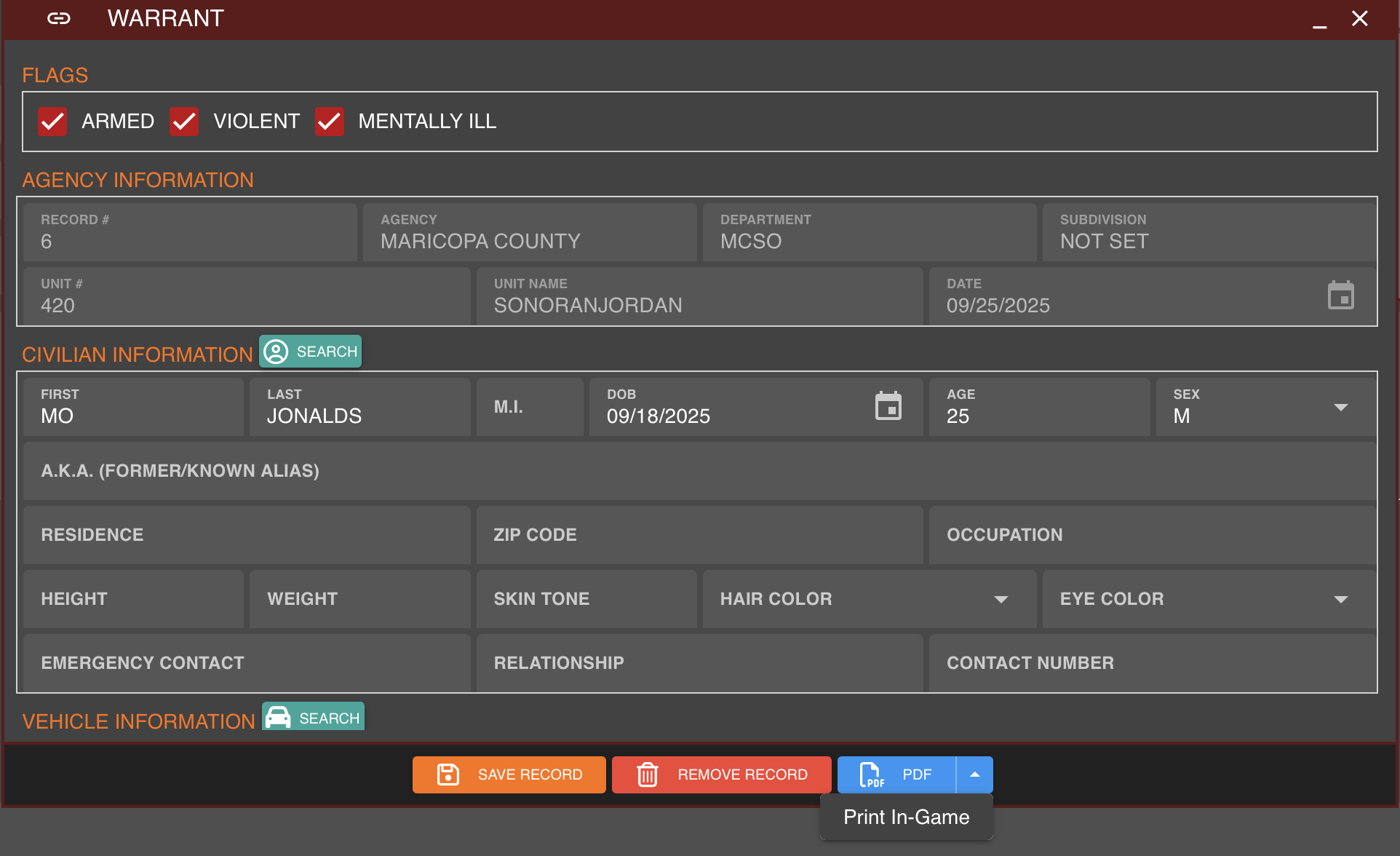
Using the records section in CAD, navigate to the record you would like to print, click the **down arrow** next to the blue **PDF** button and press **Print In-Game**.

<figure><img src="/files/t9XGbaZYgIyO0OMt5w9h" alt="" width="375"><figcaption><p>Sonoran CAD - Print Record Option</p></figcaption></figure>

### Printing In-Game

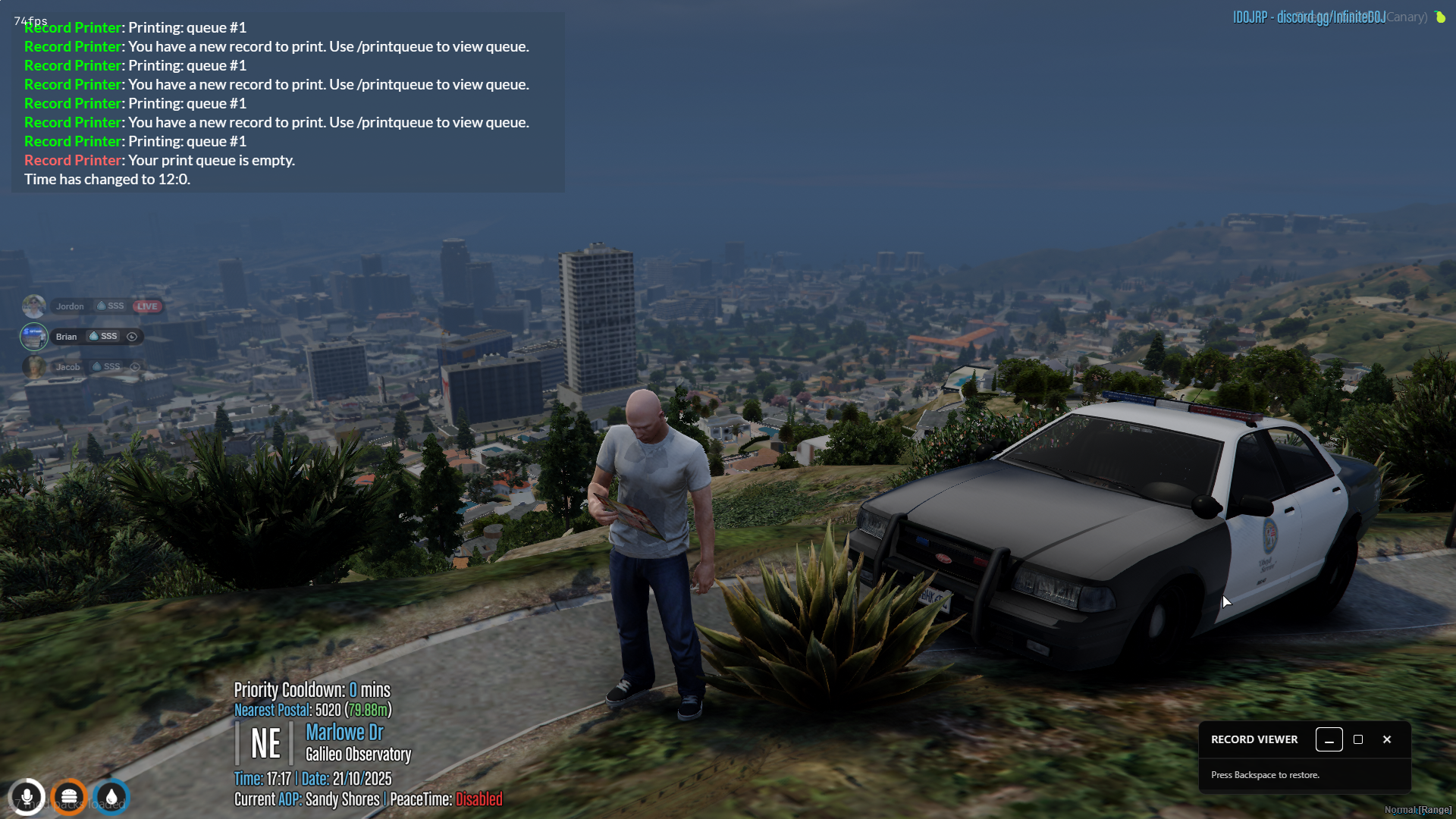
After selecting **Print In-Game**, an in-game notification will appear stating "**You have a new record to print. Use `/printer queue` to view queue**".

You can print this file by using the command `/printer print <PRINT QUEUE #>` near a configured printer (`printerObjects`) or inside a configured vehicle (`vehicleConfig`).

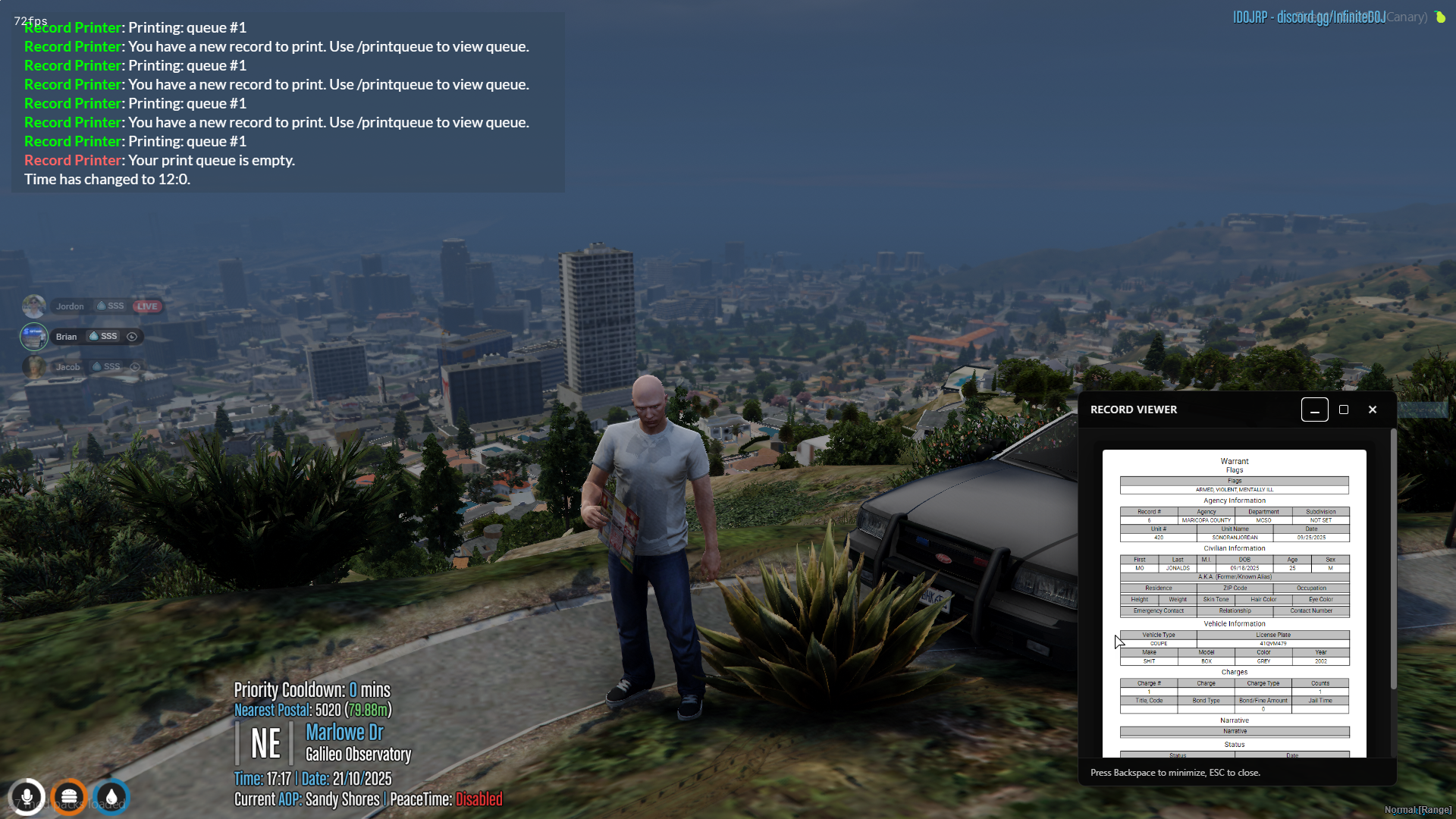
Once printed, the PDF will be placed in your hand with a viewer shown on your in-game screen. Buttons on-screen will allow you to maximize, minimize, and exit the window.

If configured, closing the record will [place it in your player inventory](#inventory-support). Otherwise, the record will be deleted.
<div><figure><img src="/files/JjUC7fyIUnetudW4MV9q" alt="" width="375"><figcaption></figcaption></figure> <figure><img src="https://media.discordapp.net/attachments/624489051172503555/1430304995680714873/image.png?ex=68fb4514&#x26;is=68f9f394&#x26;hm=2ad7541a1e41ee61844b25fc133e110c058263a66a9f516212f6699953935f83&#x26;=&#x26;format=webp&#x26;quality=lossless&#x26;width=3456&#x26;height=1944" alt=""><figcaption></figcaption></figure> <figure><img src="/files/jy9wIO8udRP8H651zcDZ" alt="" width="375"><figcaption></figcaption></figure></div>

### Drop Record on Ground

In standalone mode, selecting the **Drop on Ground** icon will drop the item on the ground. Other users can interact with the drop to pick it up and view the record.
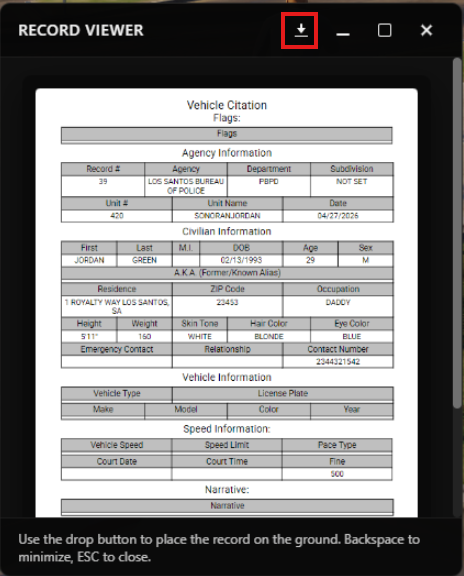
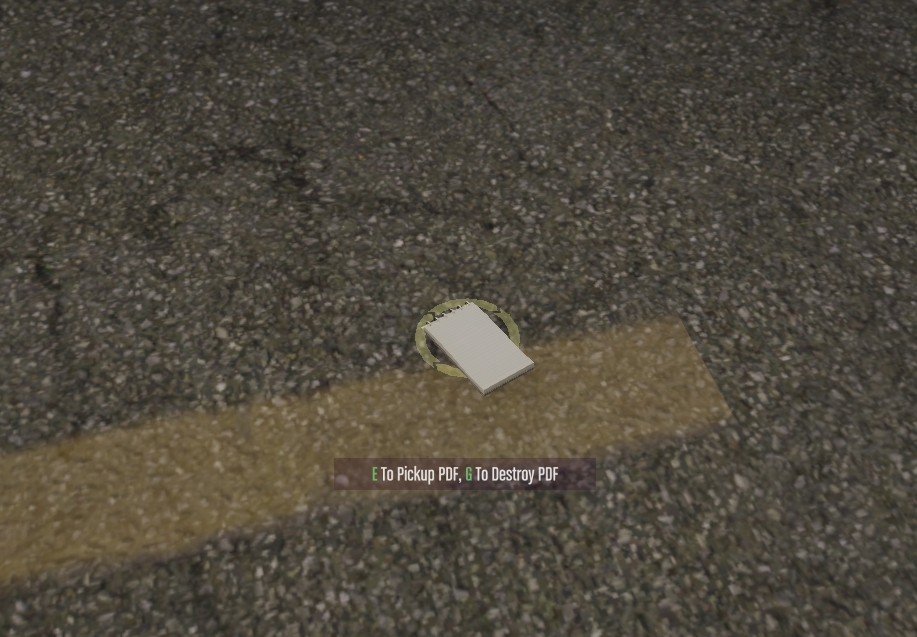
<div><figure><img src="/files/wKfs5b5FkXDXrrcK6n1S" alt="" width="232"><figcaption></figcaption></figure> <figure><img src="/files/bIuV7tOsyPUe074nii1U" alt="" width="375"><figcaption></figcaption></figure></div>

### Inventory Support

Records can be stored and shared as an inventory item. The `frameworks` configuration item allows for inventories like ESX, QB Core, OX Inventory, and more.

<details>

<summary>Optional: Ox Inventory Support</summary>

If you are using `ox_inventory` on the ESX Framework you must add the following to your `ox_inventory/data/items.lua` file in order for records to work properly:

```lua
["sonoran_evidence_pdf"] = {
        label = "Police Record",
        weight = 1,
        stack = false,
        close = true,
        consume = 0,
        server = {
            export = 'sonorancad.sonoran_evidence_pdf'
        },
    },
```

</details>

### Sharing Records on Non-Framework Servers

You can now share records on non-framework servers via the newly added commands `/printer recordshare` and the target user can use the command `/printer accept` to accept a PDF. If you are in front of someone you can directly hand them the PDF in your hand, or you can "email" the record to their print queue from anywhere on the map. The record must be in your print queue in order to email it.


---

# Agent Instructions: Querying This Documentation

If you need additional information that is not directly available in this page, you can query the documentation dynamically by asking a question.

Perform an HTTP GET request on the current page URL with the `ask` query parameter:

```
GET https://docs.sonoransoftware.com/cad/integration-plugins/in-game-integration/available-plugins/record-printer.md?ask=<question>
```

The question should be specific, self-contained, and written in natural language.
The response will contain a direct answer to the question and relevant excerpts and sources from the documentation.

Use this mechanism when the answer is not explicitly present in the current page, you need clarification or additional context, or you want to retrieve related documentation sections.