

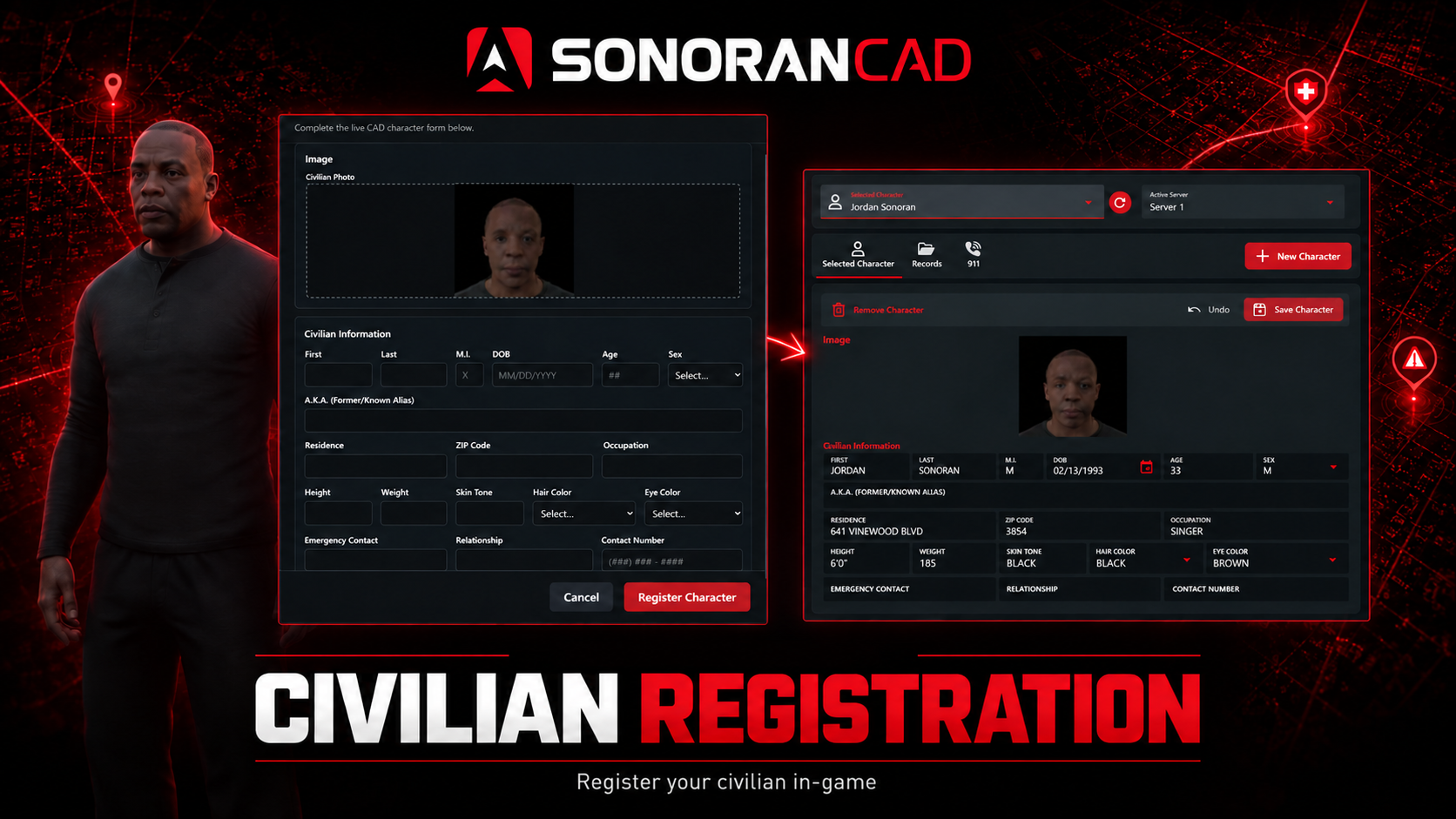
 Civilian Registration makes character creation from in-game simple.
For standalone (menu) based servers, a registration window with your custom character record form is shown with a single button to generate a character selfie.
For framework servers with DB sync, this submodule syncs in-game selfies/mugshots to the existing automatic character records.
Civilian Registration makes character creation from in-game simple.
For standalone (menu) based servers, a registration window with your custom character record form is shown with a single button to generate a character selfie.
For framework servers with DB sync, this submodule syncs in-game selfies/mugshots to the existing automatic character records.
Activation Guide
- Download and Install the Resource
This submodule is already enabled by default when installing the Sonoran CAD FiveM resource.
- Configure the Submodule
Open sonorancad/configuration/civreg_config.lua. Keep enabled = true and templateId = 7 for civilian character registration.
- Optional: Configure Database Sync Mode
If both Database Sync and its Character mapping are enabled in CAD, CivReg uses database mode automatically.
Run the database sync AI configuration tool after starting the civilian registration submodule. This will automatically map any image field in your character record to the newly generated sonoran_mugshot database column.
Advanced: SQL Information
Advanced: SQL Information
On every start in database mode, CivReg runs
ADD COLUMN IF NOT EXISTS to add a nullable sonoran_mugshot MEDIUMTEXT column. MEDIUMTEXT is required because a base64 portrait can exceed the 65,535-byte capacity of MySQL TEXT.The standard database targets are:If your framework uses a customized table or character ID column, update
databaseSync.qbCore or databaseSync.esx in civreg_config.lua. Keep the portrait column named sonoran_mugshot, then use that column in the CAD field mapping.
- (Optional) Customize Your Character Template
In CAD, open Admin > Customization > Custom Records and review the civilian character template. See Creating Custom Record and Report Types for editing fields and sections. Add an editable Image field if players should attach a selfie, and make that field required if a portrait is mandatory.
In your database sync mapping configuration, the image field must be mapped to the sonoran_mugshot column that the CivReg plugin will automatically add to your players table. The database sync AI configuration tool will set this up for you automatically.
In standalone mode, templates are cached for 60 seconds by default. After saving a template change, allow the cache to expire, then close and reopen /civreg to load the updated form. An already-open form does not refresh automatically.
- (Optional) Configure Optional Autofill and Portrait Uploads
For identity autofill, follow Framework Autofill. For templates with image fields, review Portrait Uploads and the image size limit.
Player Guide
Standalone Mode
Register a Character in Standalone Mode
Register a Character in Standalone Mode
- Run
/civreg, or your server’s configured registration command. - Fill out the character record form. Click on any image fields to take an automatic selfie.
- Select Register Character to create the record. Users can optionally use
/linkin-game to assign the character to their CAD account in the civilian panel.
Take a Character Selfie
Take a Character Selfie
In standalone mode, finish loading your character and any appearance changes, then click an image field to take a fresh selfie. Avoid changing characters or clothing while the photo is being taken. If the capture fails, wait until your appearance has finished loading and click the image field again.The portrait shows your character without masks, hats, glasses, ear accessories, or neck accessories. Those items stay on your in-game character; you do not need to remove or re-equip them for the photo.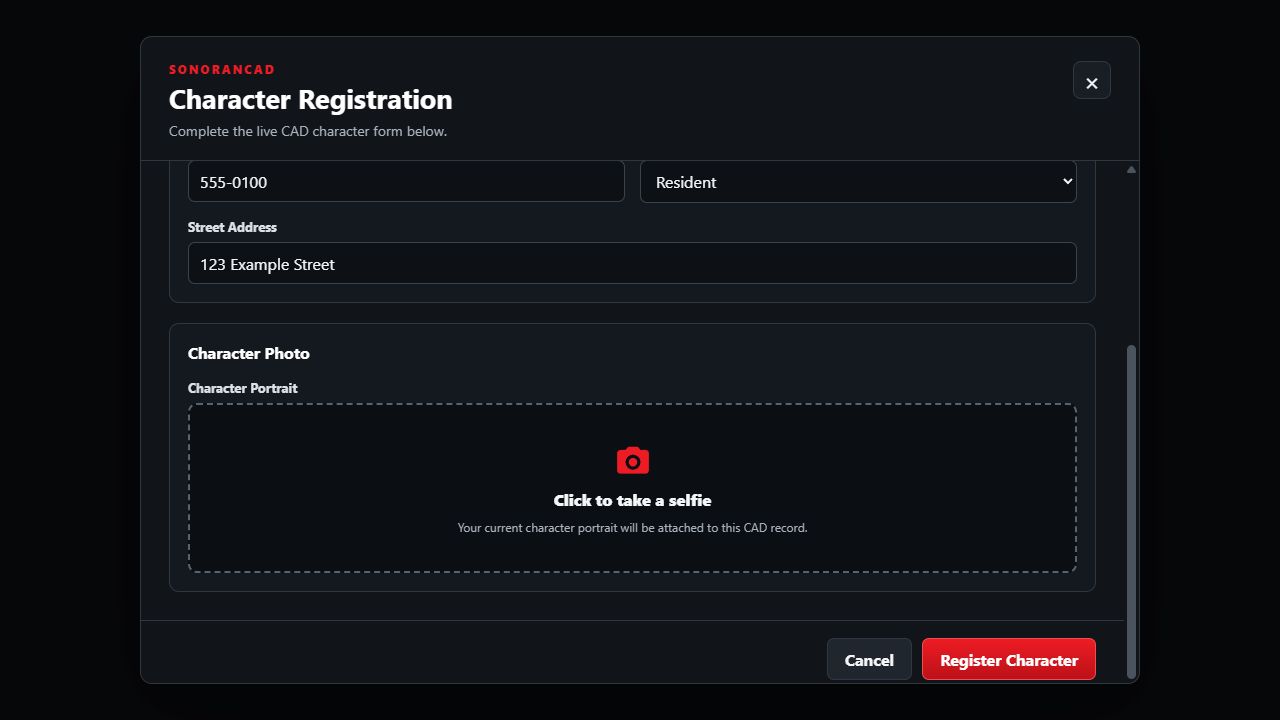 Scroll to an image field and select Click to take a selfie to capture your current in-game character.
Scroll to an image field and select Click to take a selfie to capture your current in-game character.Framework Autofill
Configure Framework Autofill
Configure Framework Autofill
Autofill is optional. Players can complete the registration form without a framework. To prefill supported identity values:For example, if your first-name field has the custom Field Mapping ID
- Configure and enable Framework Support (ESX/QBCore).
- Start the supported framework before Sonoran CAD and set
usingQBCoreappropriately inframeworksupport_config.lua. - Match
autofillFieldIdsincivreg_config.luato your character template’s Field Mapping ID values. - Restart Sonoran CAD and open a new registration form while playing a loaded framework character.
givenName, change only that entry to first = "givenName". These mappings control autofill; they do not create or rename template fields.Only values supplied by the framework and mapped to an existing template field are prefilled. Missing values leave the template’s default or an empty field for the player to complete. Prefilled fields remain editable unless marked read-only in CAD. These autofill settings apply to the API-mode form. Database mode updates only the
sonoran_mugshot column; your existing CAD DB Sync mappings supply the remaining character fields.Database Sync Mode
Update a Character Portrait in Database Sync Mode
Update a Character Portrait in Database Sync Mode
If your community has database sync enabled for civilian records, the CivReg submodule will automatically switch into database sync mode on startup.
- Select the character you want to play in QBCore or ESX and finish spawning into the server.
- Allow the character’s face, clothing, and accessories to finish loading. CivReg waits for 10 seconds with no appearance changes before taking a fresh portrait. Clothing changes during this wait restart it, so the photo may take longer than 10 seconds after joining.
- The portrait is saved to that framework character’s database record for CAD to display through your existing DB Sync image mapping.
/civreg in this mode; it displays a reminder that registration and portraits are automatic. Selecting a character on the CAD civilian page does not take a new portrait. To retry an automatic capture, reselect the character in your server’s character menu and let it fully load again.Portrait Uploads
Portraits are saved directly with the character data. You do not need to set up a public image address or host the photos separately. The default maximum photo size is 1 MiB; if a photo is rejected, retake it and review the displayed error with your server administrator.Configuration Reference
Configuration Reference
Configuration Reference
Edit
sonorancad/configuration/civreg_config.lua and restart the resource after changes.Troubleshooting
Troubleshooting
Troubleshooting