# Station Alert

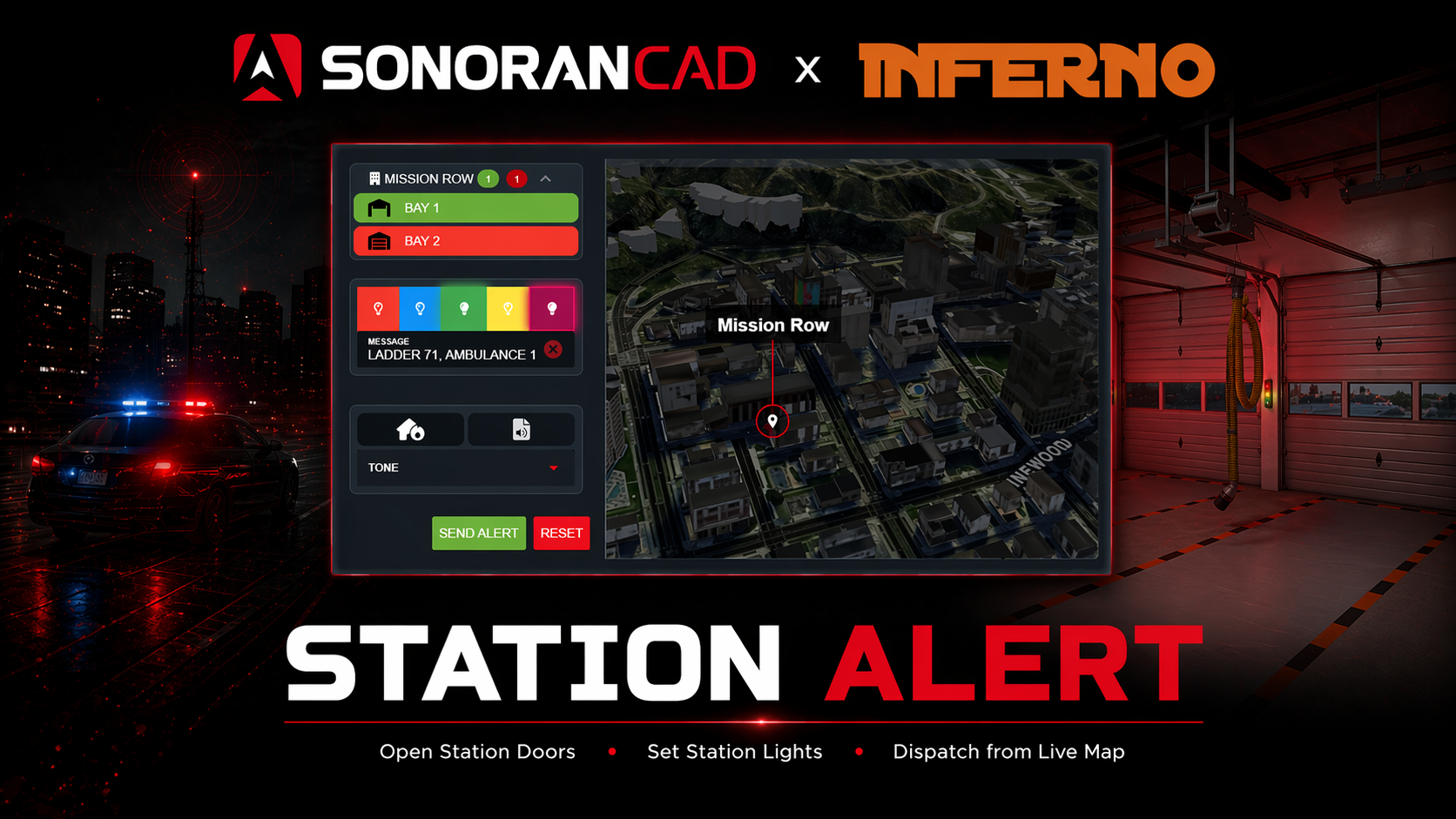
<figure><img src="/files/6CmLCoffqNgPAG2SvI16" alt=""><figcaption><p>Sonoran CAD x Inferno Collection</p></figcaption></figure>

{% hint style="info" %}
Station Alert is an officially integrated third-party resource from Inferno Collection and is not included in the Sonoran CAD FiveM resource.
{% endhint %}

## Installation Guide

### 1. Download the Resource

Users can get the Station Alert resource from Inferno Collection.

* For Sonoran CAD **Pro** users, [download the FREE Station Alert (Sonoran Edition) package](https://sonoran.link/FtMqEnXF).
* For all other Sonoran CAD users, [purchase the paid Station Alert package](https://sonoran.link/AUd3Abat).

This resource is managed through Tebex and will require you to login with FiveM. Be sure to login **using the account that has the keymaster license** for your server.

Once purchased you can [download the resource from the CFX.re portal](https://portal.cfx.re/assets/granted-assets?search=Station+Alert).

### 2. Install the Resource

We suggest installing the `inferno-station-alert` folder within the `[sonorancad]` folder your integration framework is installed in. The final result would look like the image below:
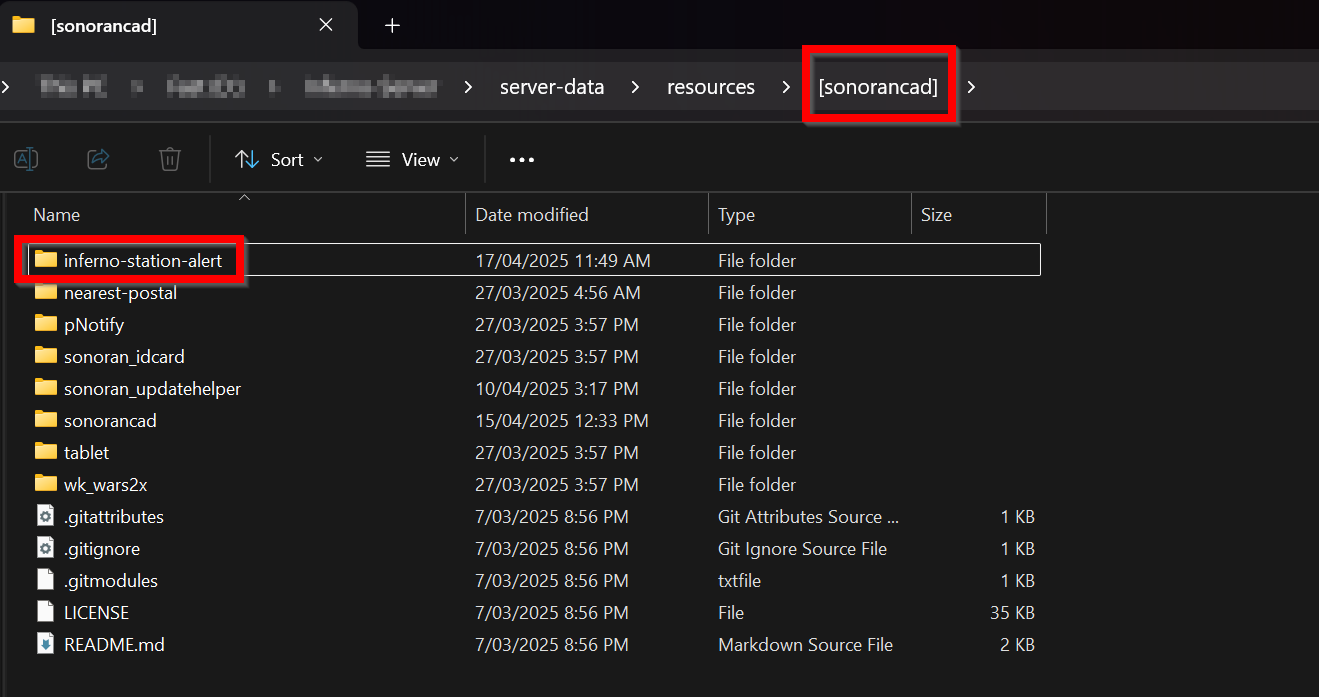
<figure><img src="/files/jFGVR9God0m4hASRJCJK" alt="" width="375"><figcaption><p>Station Alert: CAD Installation</p></figcaption></figure>

### 3. Start the Resource

In your `server.cfg` add the following new lines:

```lua
exec @inferno-station-alert/config.cfg
ensure inferno-station-alert
```

### 4. Configuration Options

Information on adding stations, lights, speakers, and more can be found in the [quick start guide](https://docs.inferno-collection.com/resources/station-alert/usage/).

The [configuration documentation](https://docs.inferno-collection.com/resources/station-alert/config/) provides further customization options.

## Usage

### 🌎 Live Map

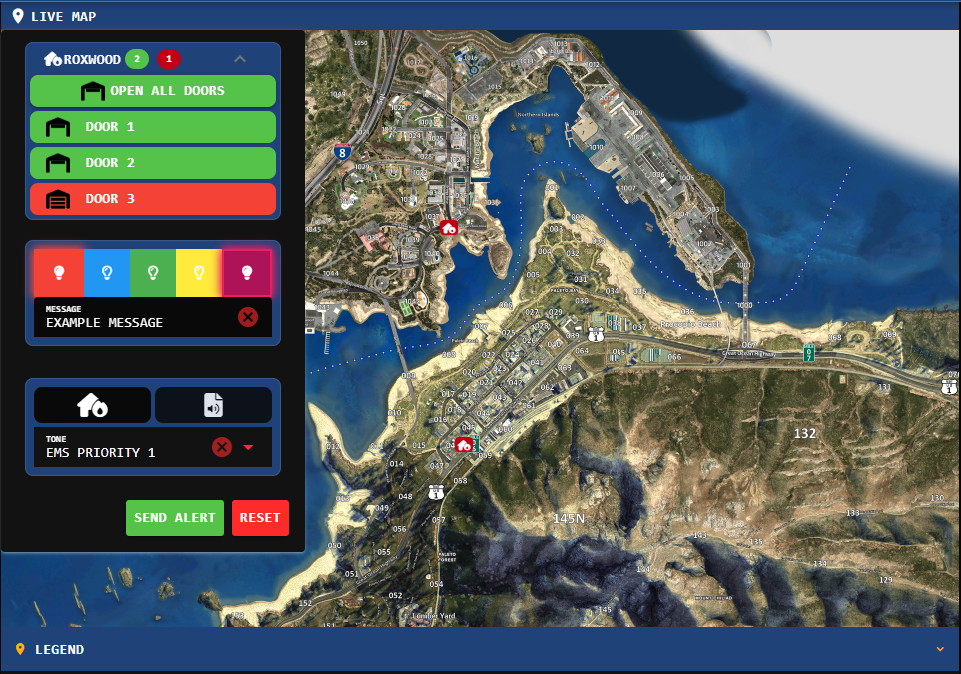
On the live map, ensure you toggle station blips on. Clicking on a station will open the alert panel.

The following example:

* Opens the `Engine 19` door at station `Davis`
* Closes the `Ambo 61` door at station `Davis`
* Sets the station indicator light to `Blue`
* Plays `Example Message` as text-to-speech at station `Davis`
* Plays `Tone1` from the station alert resource tones at station `Davis`

<figure><img src="/files/xqqCIaVLZjCvkBGUYDka" alt="" width="375"><figcaption><p>Station Alert: Live Map</p></figcaption></figure>

### 🚨 Station Alert Panel

Dispatchers can also access the dedicated `Station Alert` panel under `Unit Management`.

Here, you can type-to-filter and select multiple stations at once.
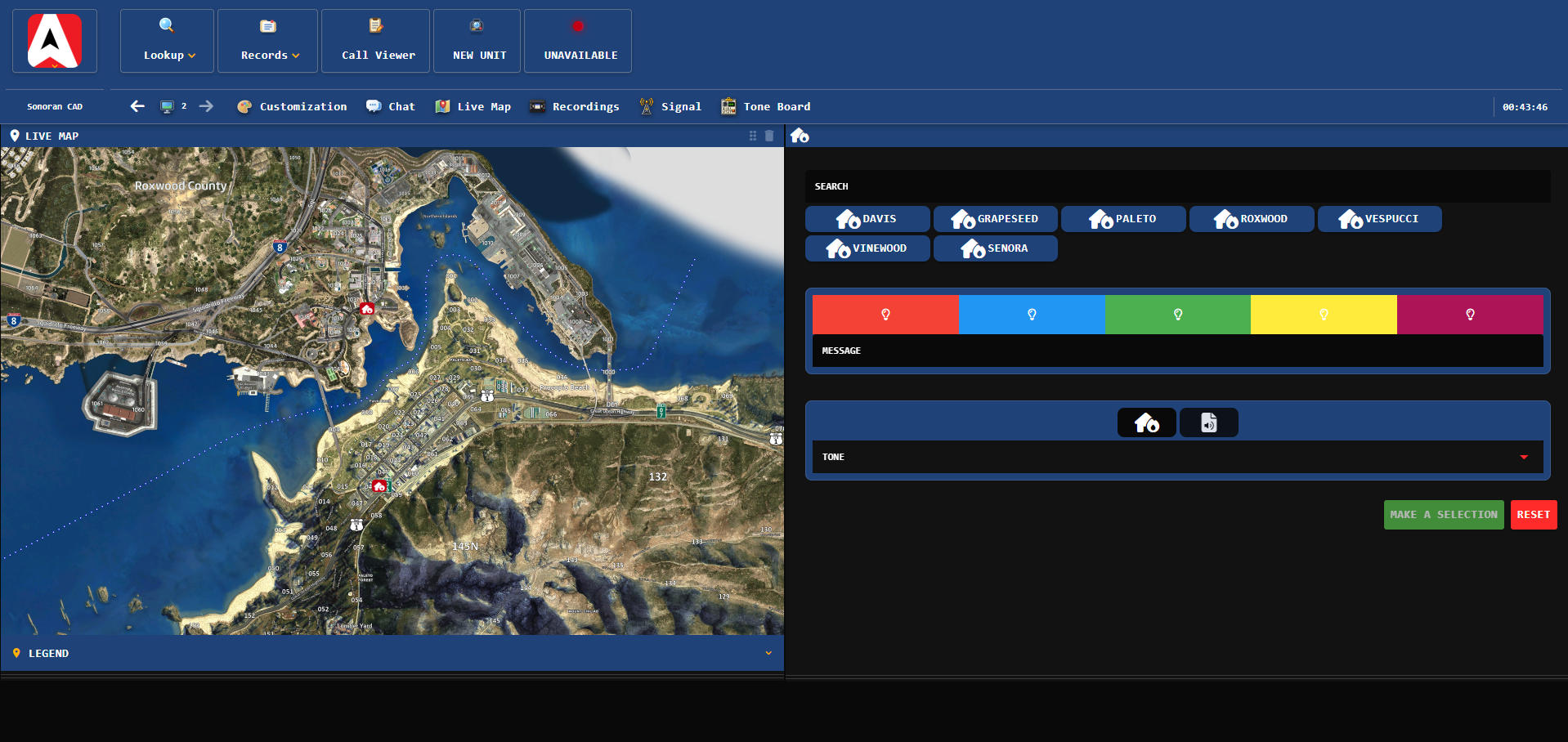
<figure><img src="/files/uTl52zWwFnOdJeZqmi9z" alt="" width="375"><figcaption><p>Station Alert: Panel</p></figcaption></figure>

### 📞 Dispatch Call Editor

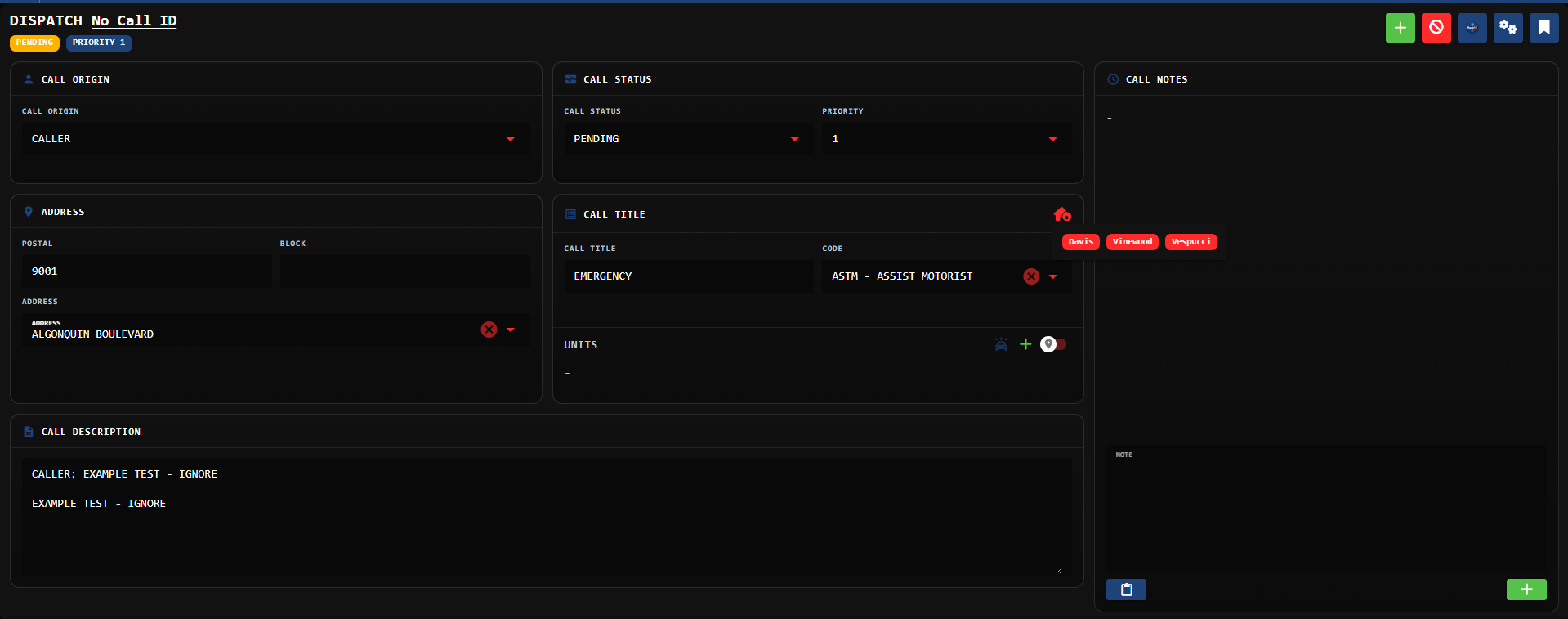
The dispatch call editor has a shortcut to quickly access nearby stations from an emergency call.

When an emergency call from in-game is imported into the dispatch editor, the `Nearby Stations` icon will be available. Selecting one of these nearby stations opens the station alert builder with the `Message` box prefilled with call information.

<figure><img src="/files/w1wPC3fclfwli134lBg8" alt="" width="375"><figcaption><p>Station Alert: Call Editor</p></figcaption></figure>


---

# Agent Instructions: Querying This Documentation

If you need additional information that is not directly available in this page, you can query the documentation dynamically by asking a question.

Perform an HTTP GET request on the current page URL with the `ask` query parameter:

```
GET https://docs.sonoransoftware.com/cad/integration-plugins/in-game-integration/available-plugins/station-alert.md?ask=<question>
```

The question should be specific, self-contained, and written in natural language.
The response will contain a direct answer to the question and relevant excerpts and sources from the documentation.

Use this mechanism when the answer is not explicitly present in the current page, you need clarification or additional context, or you want to retrieve related documentation sections.