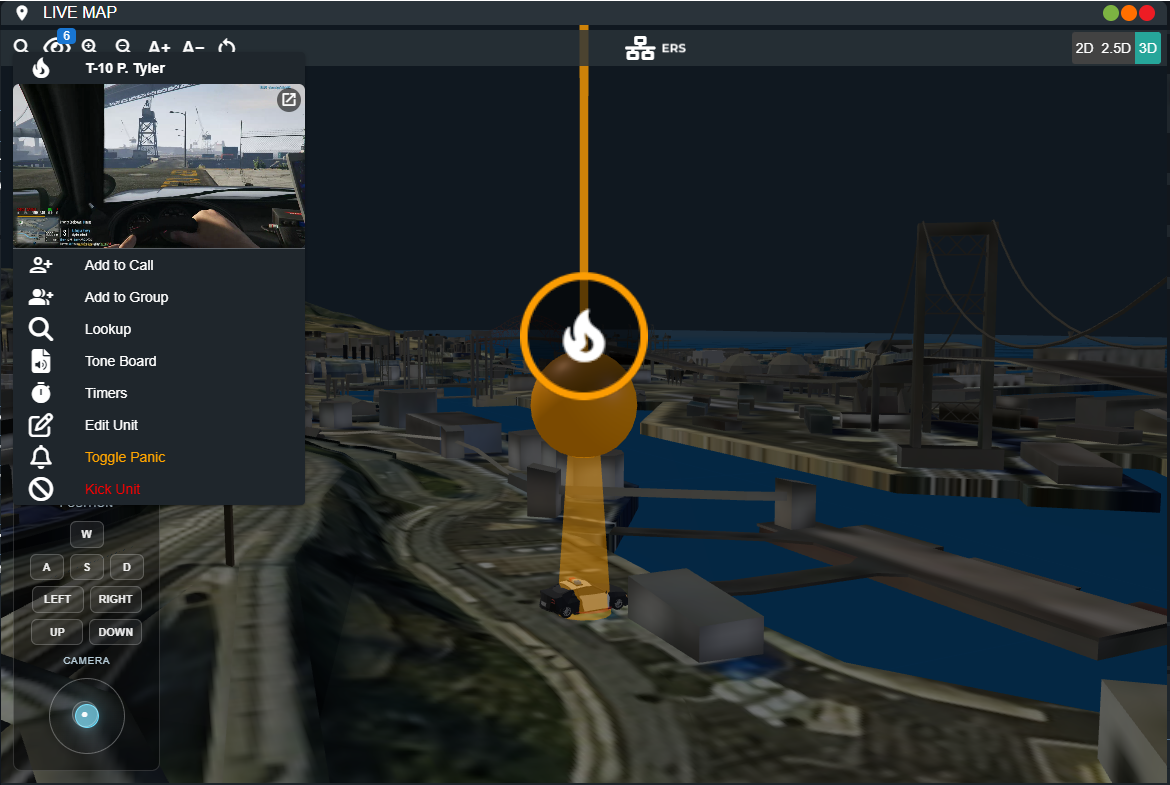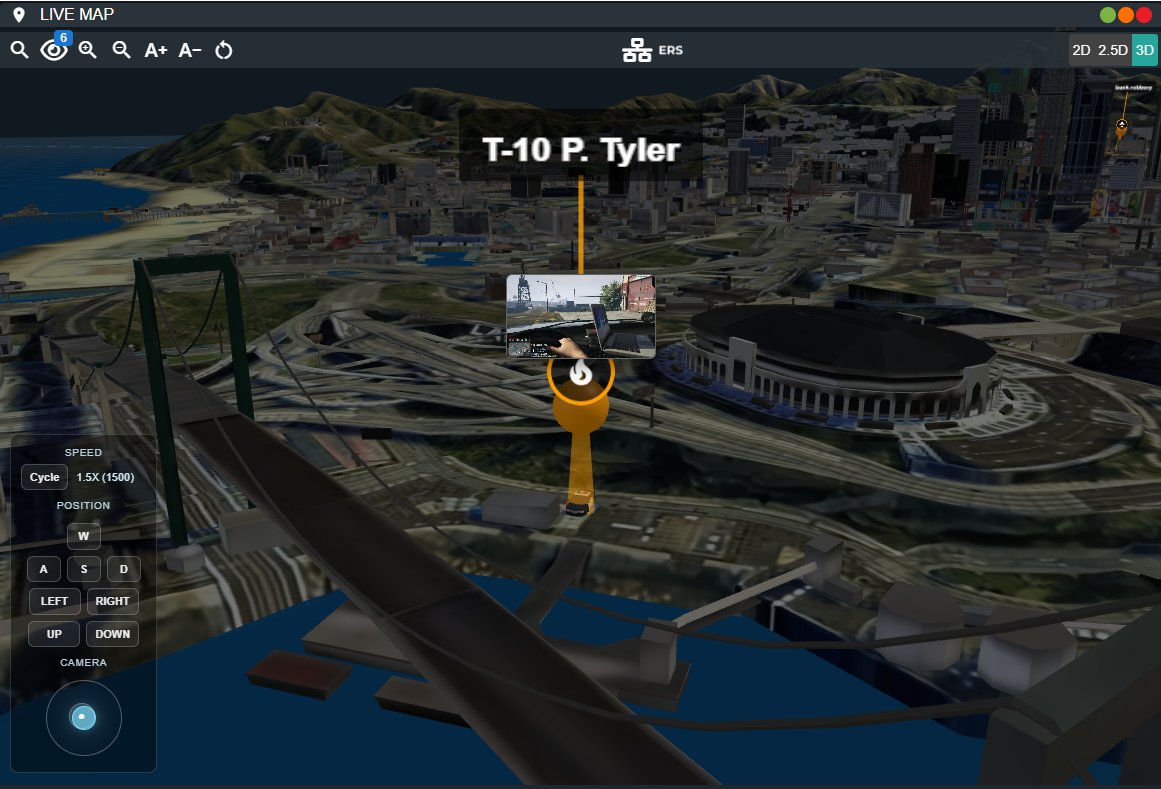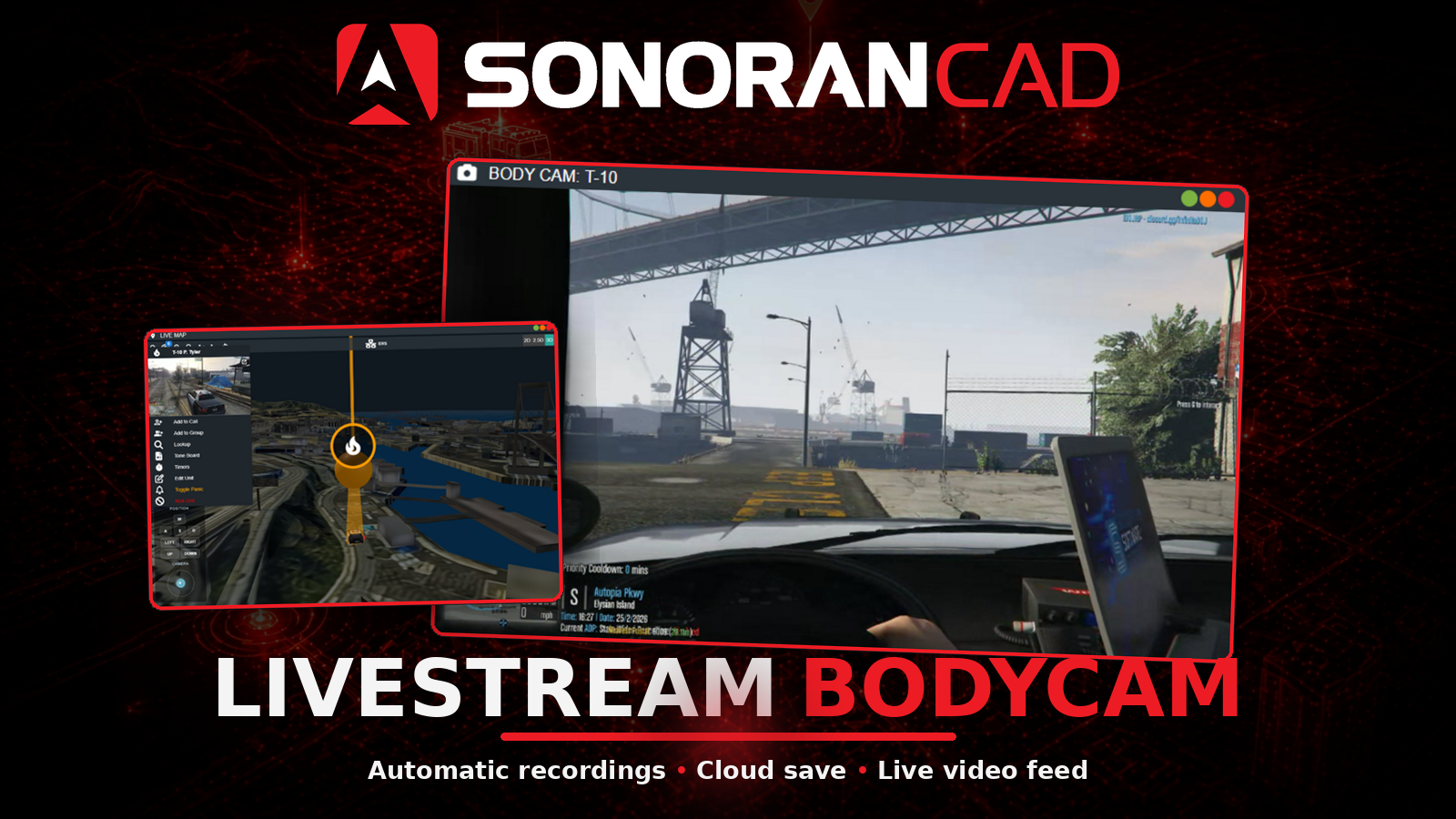
What is the live Body Camera?
Sonoran CAD is the only external CAD system offering livestream video from in-game users accessible through the live map, active units preview, or a dedicated window.Activation Guide
- Download and Install the Resource
This submodule is already enabled by default when installing the Sonoran CAD FiveM resource.
The locations submodule includes all logic required to send bodycam images to the CAD and is already enabled by default. Keep this submodule enabled to maintain functionality.
The locations submodule includes all logic required to send bodycam images to the CAD and is already enabled by default. Keep this submodule enabled to maintain functionality.
- Adjust the Configuration
The bodycam settings are stored inside of the /configuration/bodycam_config.lua file.
Configuration Options
Configuration Options
- Ensure Players are Linked
Ensure the player has already linked their CAD for this integration to work.
In-Game Usage
When in-game, units must also be actively signed into the dispatch, police, fire, or EMS panel. On first usage, players will be prompted to grant permission for the bodycam:
Commands
In-game commands can be used to/bodycamToggle the bodycam on or off/bodycam soundDisplays your current local sound volume/bodycam sound 0Mutes bodycam sounds locally; use a value from0to1, such as/bodycam sound 0.2for 20% volume/bodycam frequencyDisplays your current beep interval in seconds/bodycam frequency 30Sets your bodycam beep interval to 30 seconds; accepts whole seconds from1to3600/bodycam animToggles the bodycam animation on and off locally/bodycam overlayToggles the bodycam overlay on and off locally/bodycam forceoffEnables the force-off state, if your server has granted you permission

Keybind
Users can customize a keybind to toggle their bodycams on and off. Navigate to Settings > Keybinds > FiveM and look for the keybind Toggle BodyCam under the resourcesonorancad.

Body Camera Overlay
When your bodycam is on and being viewed in the CAD a periodic beep and body overlay will appear on your screen.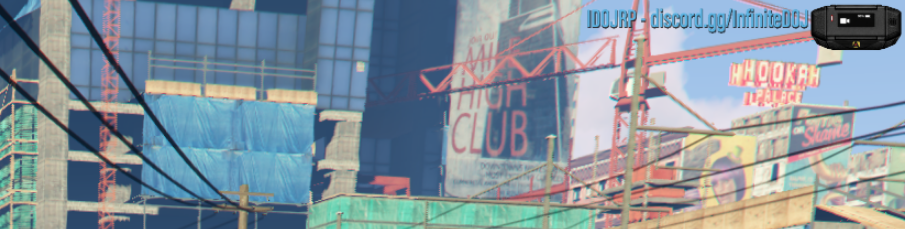
Turning Off a Camera Being Viewed
The normal/bodycam toggle cannot turn your camera off while someone is viewing it in CAD. Have all viewers close the camera window and stop viewing its live map or active-unit preview, then try again. If a viewer disconnects unexpectedly, allow a short delay for the connection to clear.
If your server has granted you force-off access, you can use /bodycam forceoff to stop it while viewers are connected. The in-game message only suggests that command when you have access; otherwise, wait until all viewers stop watching.
Closing or losing one viewer does not end the camera feed for other viewers or interrupt an ongoing recording.
Beeps
The FiveM body camera plays periodic beeps while activated. These settings are separate from the desktop/web screen-sharing camera, even when CAD is opened inside an in-game tablet. Changing the CAD Modify Identifier > Bodycam sound settings does not change FiveM’s bodycam sounds.Per-Player Commands
/bodycam sound 0or/bodycam sound 0.0mutes local bodycam sounds, including start/stop and reminder beeps./bodycam sound 0.2restores the default 20% volume./bodycam sounddisplays your current volume. Values from0to1are accepted. WithbeepType = "native", zero mutes the beeps, but nonzero values do not adjust GTA’s native sound volume./bodycam frequency 30sets a 30-second interval./bodycam frequency 290sets a 290-second interval. Use whole seconds from1to3600;/bodycam frequencydisplays the current value.
bodycam command, use its configured name instead.
These commands require the updated FiveM resource. Server administrators must install the update and restart the resource before players can use zero-volume muting or the frequency command.
Server Configuration
Insonorancad/configuration/bodycam_config.lua:
beepFrequencysets the default interval in milliseconds. Use30000for 30 seconds or290000for 290 seconds. The in-gamefrequencycommand uses seconds.enableBeeps = falsedisables the recurring beep loop, but does not silence start/stop tones or received nearby-camera beeps. A player frequency override does not re-enable a disabled loop.beepRangedetermines how far away nearby players can hear the camera.
Automatic Activation
The body camera will automatically activate when an officer activates their lights or draws a firearm.autoEnableWithWeaponsenables automatic activation when one of theweaponsitems are used.autoEnableWithLightsto enabled automatic activation when emergency lights are enabled.
Force Off
Use/bodycam forceoff to keep your bodycam off, including automatic activation and viewing requests. Use /bodycam to turn it back on.
By default, force off requires the sonorancad.bodycam.forceoff FiveM ACE permission. CAD account permissions do not grant this access.
Grant Access
Add this example toserver.cfg (or a permissions file executed by it), replacing YOUR_LICENSE with the player’s license identifier:
add_principal line for each player. Restart the server to apply, or run the lines in the server console for immediate access.
Disable the Permission Check
To allow everyone to use force off, set this value insonorancad/configuration/bodycam_config.lua:
sonorancad to apply. To require a different ACE permission instead, set forceOffAce to that permission and use it in your add_ace rule.
Other bodycam subcommands do not require this ACE permission. The bundled keybind permissions do not grant force-off access.
Unit Duty Requirement
By default, therequireUnitDuty configuration value is set to true. This requires the unit to be logged into the Police, EMS or Fire portions of CAD in order to activate their bodycam.
Animation
When toggling your body camera on or off an animation will play. To disable this, setenableAnimation to false.
In-Game Recording
By default, each recording includes a 30-second shadow buffer followed by 1 minute 30 seconds of video, for a maximum total length of 2 minutes. The shadow buffer length can be adjusted withrecording.shadowBufferSeconds, but the total recording length cannot exceed 2 minutes.
Recording can be started manually using a configurable keybind located under Keybinds -> FiveM -> Sonoran CAD. You can also enable automatic bodycam recording through recording.autoRecordEvents.
Developers can also trigger bodycam recordings with a client event.
Recordings can be viewed in the CAD under Unit Management > Body Cam Recordings
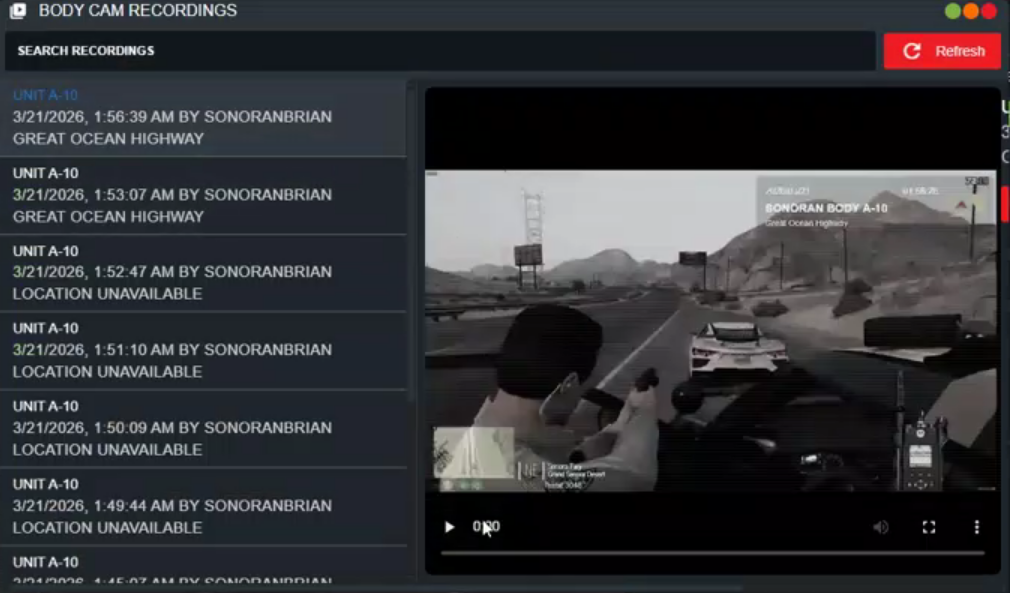
CAD Usage
Active Units
In the active units panel, hover over the camera icon to view a preview of their bodycam.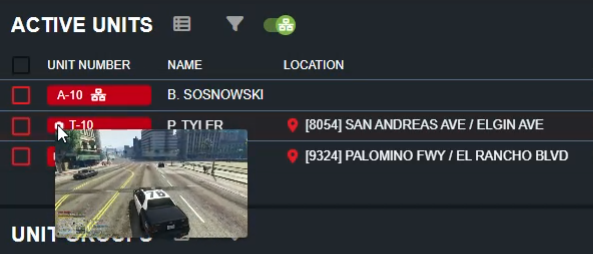
Window
Click on the active unit preview or the pop out button on the live map to open a dedicated bodycam viewer window.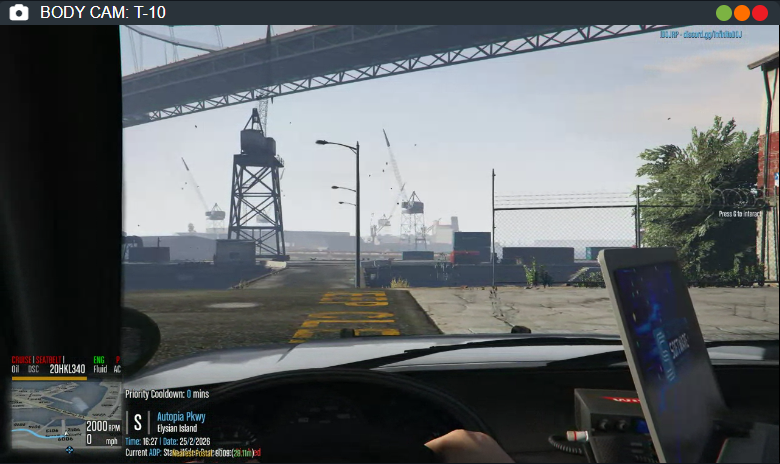
Live Map
In the live map, selecting a unit or hovering near a unit in the 3D map will show the bodycam.