

Open the sign menu
Run/sign to open Sonoran Street Signs. Select Nearby signs or All signs, then choose the sign you want to manage. Your permissions determine which actions appear.
Administrators can select Full sign controller to browse all signs in one editor. In-game saves still require you to be within three meters of the selected sign’s control panel, including in the full controller. Use Sonoran CAD for remote message updates.
Screenshot placeholder: The /sign menu showing Place a new sign, Nearby signs, and All signs.
Show or hide map blips
Street Sign map blips start hidden by default. To show them, open chat and enter/signblips. Run the same command again to hide them. A chat suggestion helps you find the command, and a confirmation tells you whether the blips are shown or hidden.
This changes only your own in-game map. Your choice stays in effect through sign edits and refreshes, then resets to the server’s default when you reconnect or the resource restarts. It does not change Sonoran CAD Live Map markers.
If the server disables blips for everyone, /signblips reports that they are disabled and its chat suggestion is hidden. Server owners can change the map blip settings.
Place or move a sign
- Select Place a new sign.
- Enter a unique Sign ID and an optional Display label so you can find it later.
- Select Start placement.
- Use the on-screen controls to move and rotate the preview. Snap to ground helps position the support.
- Select Save placement, or Cancel placement to discard it.
Screenshot placeholder: Placement preview beside a roadway, with movement controls and Save placement visible.
Edit the message
Walk to the control panel at the base of a sign and pressE, or select Open visual editor from its menu. Remain close to the control panel while editing and saving.
- Select a text block to change its message. Click an empty grid cell to add another block.
- Each text block has its own message, including blocks on the same row.
- Use Add Icon to add a road symbol, then select its icon in the item controls.
- Drag blocks and their resize handles to adjust the layout. Delete Item removes the selected block.
- Stack Lines rebuilds a simple text layout and removes the existing layout, including icons.
- Check the preview, then select Save sign and wait for the save confirmation.
Escape or switching signs. Changes in the editor do not save automatically.
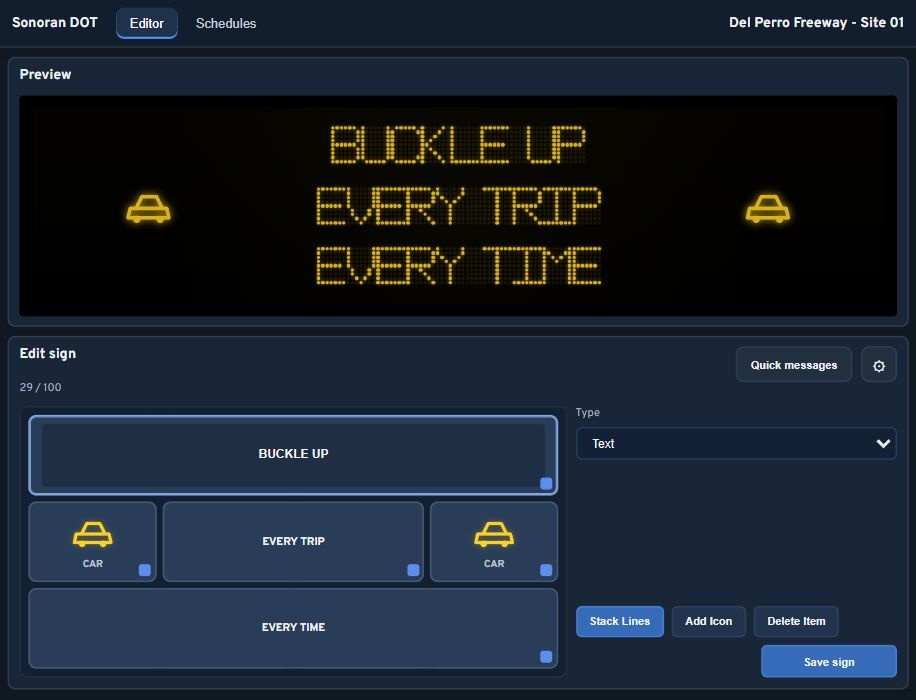 Browser preview of the editor using sample sign data.
Quick messages
Select Quick messages, choose Safety, Traffic, or Closure, and select a message. Check the resulting preview and select Save sign to apply it.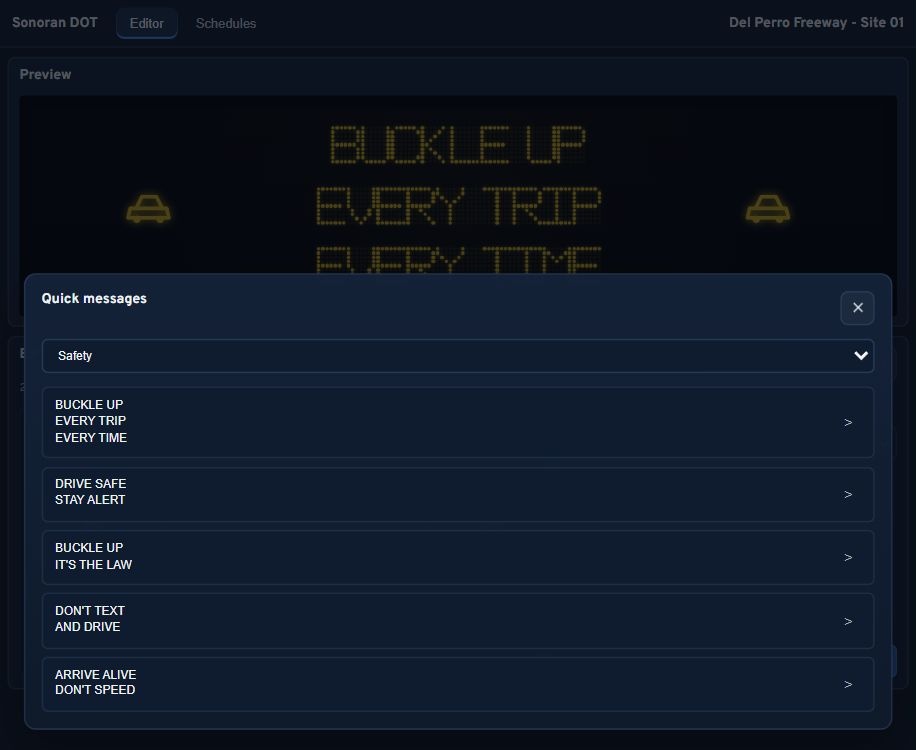 Quick messages in the browser preview.
Sign settings
Select the gear button in the editor to adjust brightness, color theme, screen state, and Auto-Dim. Close the settings window and select Save sign to apply your changes. Brightness ranges from 5–100%. To blank the display, turn the screen off; entering zero brightness does not turn it off. Auto-Dim reduces brightness during in-game nighttime, from 20:00 to 06:00. Turning the screen off keeps the physical sign in place and overrides scheduled messages. The/sign menu also provides Sign settings to rename a sign and make quick settings changes. These menu changes save when selected.
Edit text lines changes the sign’s stored lines. For signs with arranged text blocks, change their text in the visual editor so the displayed layout updates.
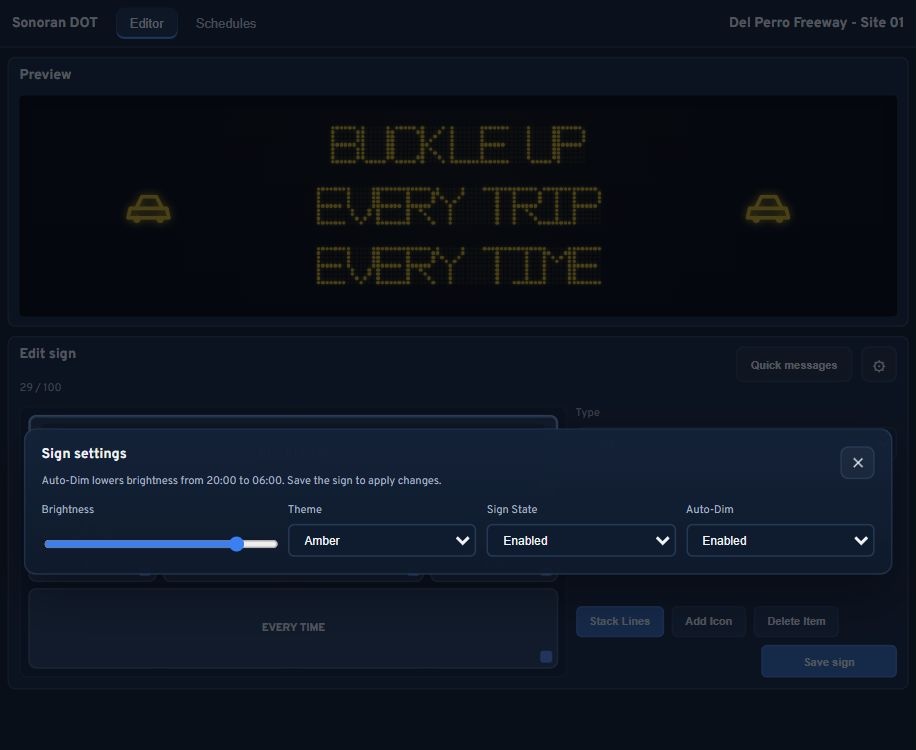 Sign settings in the browser preview.
Daily schedules
- Prepare the message and layout in the editor.
- Select Schedules and enter a label, start time, and end time.
- Select Create From Draft to capture that message and layout.
- Select Back to editor. Prepare the normal message for outside the scheduled period, then select Save sign.
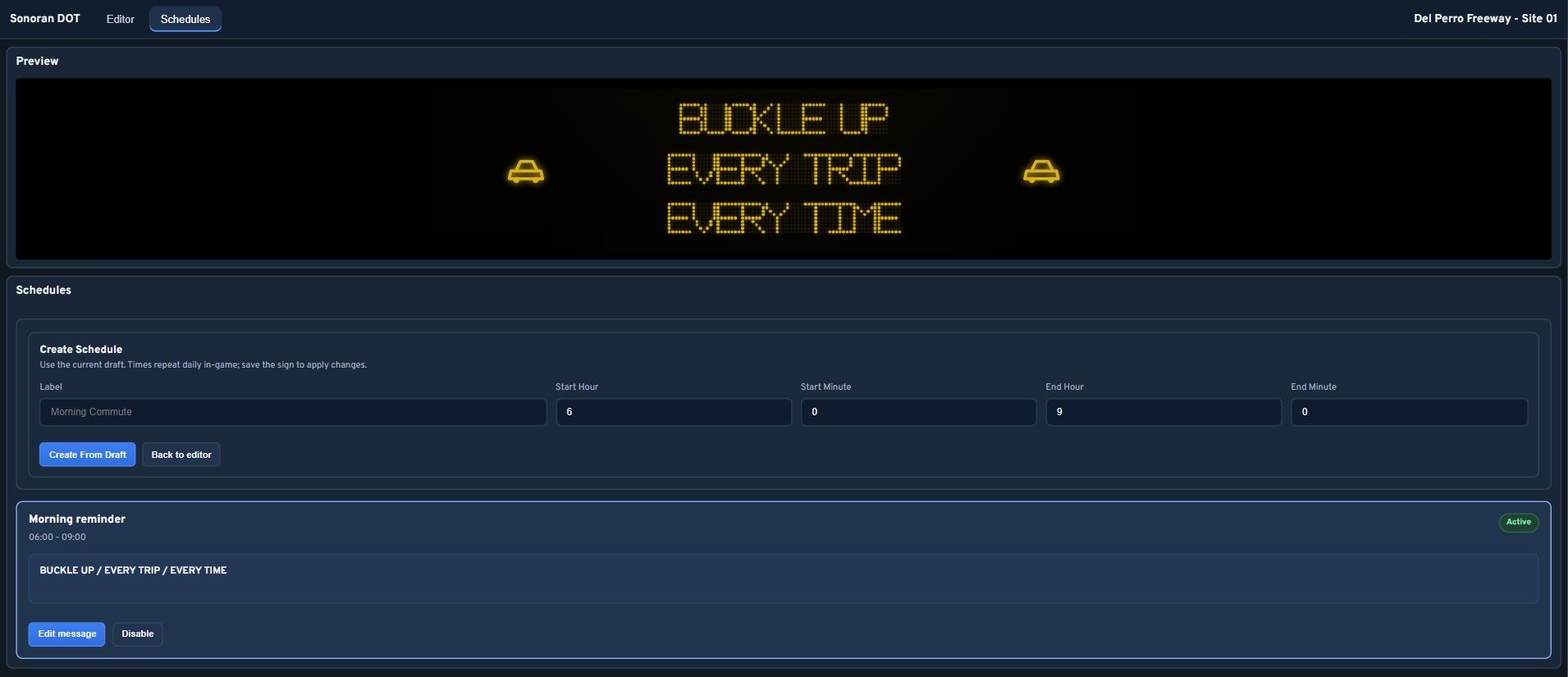 Daily schedule controls in the browser preview.
Remove a sign
Select the sign in/sign, choose Delete sign, then Confirm deletion. To keep the sign, select Keep sign instead. A deleted sign must be placed again if you want to restore it.